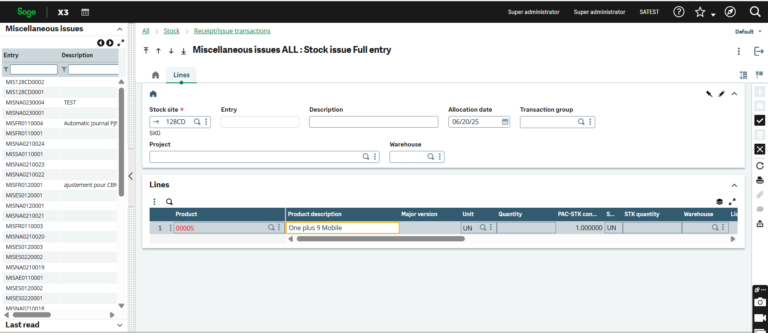
In ERP inventory management, tracking serialized products is one of the most critical aspects of maintaining accurate warehouse records. When businesses need to issue serialized stock for reasons outside of standard sales or production transactions — such as adjustments, testing, or scrapping — knowing the correct process in Sage X3 is essential for maintaining inventory traceability and compliance.
Steps to Perform a Miscellaneous Issue Entry for a Serialized Product in Sage X3
In inventory management, tracking serialized products is essential for ensuring traceability, accuracy, and accountability. Serialized inventory management requires special handling during inventory transactions, particularly when issuing stock for non-standard reasons such as adjustments, testing, or scrapping. This is where the Miscellaneous Issue function in Sage X3 inventory management becomes valuable.
A Miscellaneous Issue allows users to manually reduce stock from inventory without linking it to a sales order or production transaction. When dealing with serialized items, this process also requires selecting or scanning the appropriate serial numbers to maintain product-level tracking. This is a core part of serialized product inventory control in Sage X3.
In this blog, we will walk through the step-by-step process of creating a Miscellaneous Issue Entry for a serialized product in Sage X3, ensuring accuracy and compliance with your inventory control practices.
Steps to Perform a Miscellaneous Issue Entry for a Serialized Product
Step 1: Navigate to the Miscellaneous Issue Screen
Go to the Stock module and click on Receipt/Issue Transactions > Miscellaneous Issue. This screen allows you to create entries that reduce inventory for reasons not tied to sales, production, or transfers.
Step 2: Create a New Entry
Click on the “+” (Create) button at the top of the screen to initiate a new Misc Issue transaction.
Step 3: Enter Header Details
In the header section:
Select the appropriate Site where the stock will be issued from.
Enter the Allocation Date — this determines when the stock is considered to be removed from inventory.
Step 4: Enter Product Details at Line Level
In the line section:
Enter the Product Code of the serialized item to be issued.
Ensure that the product is set up as serialized in the product master to prompt for serial number entry in the next steps.
Step 5: Enter the Quantity
In the Quantity field, input the number of serialized items you wish to issue. Ensure the quantity matches the number of serial numbers you will select in the following steps. Accurate quantity entry is key to maintaining serialized stock management process integrity.
Step 6: Specify the Lot (if applicable)
If the serialized product is also lot-controlled, enter the appropriate Lot Number. This helps in further narrowing down the specific items being issued from inventory.
Step 7: Open the Stock Issue Screen
Click on the three vertical dots (⋮) located on the far-left side of the line. This opens a contextual menu with additional options. From the dropdown menu, click on Stock Issues. A new screen will pop up allowing you to allocate specific serial numbers tied to the product and quantity selected.
Step 8: Select the Desired Serial Numbers
In the Stock Issue screen, you will see a list of available serial numbers for the selected product and lot. Select the appropriate serial numbers corresponding to the quantity being issued. This step is central to Sage X3 serial number tracking and ensures each serialized unit is individually accounted for.
Step 9: Save the Stock Issue Entry
After selecting all required serial numbers, click on the Save button in the stock issue screen to confirm your selection. This will return you to the main Misc. Issue screen.
Step 10: Finalize the Entry
Review all details entered. Once everything is verified, click on the Create button to finalize and post the Miscellaneous Issue Entry. This action will deduct the selected serialized items from your stock and complete the transaction.
About Us
Greytrix Africa is a leading Sage Platinum Partner, ISV Partner, and Sage business partner offering Consulting, Implementation, and Development services for Sage X3, Sage 300, Sage 300 People (HRMS), Sage CRM, and Sage Intacct, across East Africa, West Africa, SADC, and the Middle East. We provide professional services including Implementation, Business Process Analysis, Project Management, Integrations, Migrations, and Technical & Functional Support across industries such as Manufacturing, Distribution, Healthcare, Non-Profit, and Services.