
We’ve all been there. You open a record in Creatio, notice key details modified, and nobody seems to know who touched it. Data auditing isn’t just a regulatory checkbox for compliance teams. It’s a lifesaver for daily operations, troubleshooting rogue workflow updates, and keeping teams accountable.
Creatio has a robust built-in Change Log, but most end users don’t want to navigate deep into system settings every time they need to check who changed a field.
Let’s take an example of how we can track certain fields in the Opportunity object in Creatio and display those updates with a single click right on the record page.
Step 1: Enable Logging on the Opportunity Object
Before you can show historical changes, you have to tell Creatio what to listen for.
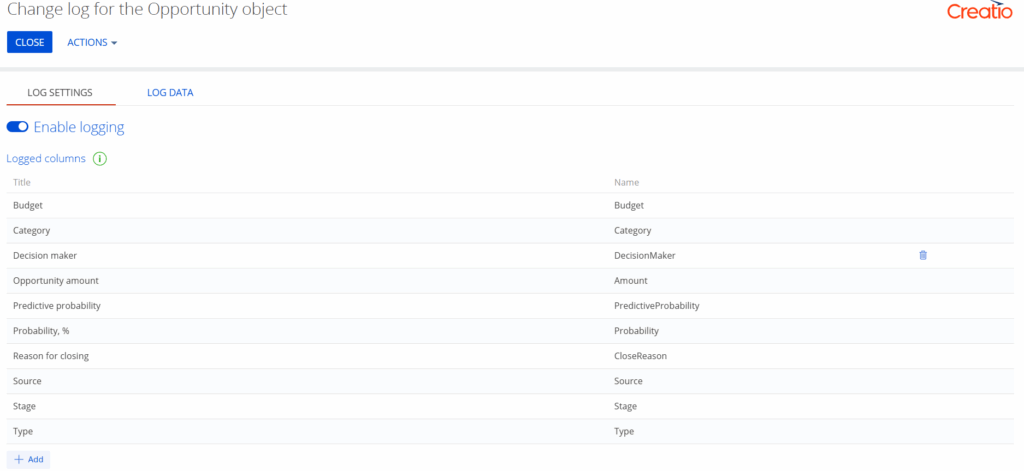
- Click the gear icon to open Settings, then head to Change Log.
- Find the Opportunity object in the list.
- Toggle on Enable logging.
- Click Add under the Logged Columns section and select the specific fields you want to monitor (e.g., Budget, Category, Decision maker, Opportunity amount, Stage, Type).
Look, you don’t need to track everything. Focus on high-value fields like Budget, Stage, Decision Maker, and Opportunity Amount. Tracking every transient field will just clutter your database, so keep it tight.
Step 2: Add the “Open Change Log” Button to the Layout
Now for the user-friendly part. Instead of making your sales reps or managers run around the system to view these logs, let’s put a simple button right on the Opportunity page layout.
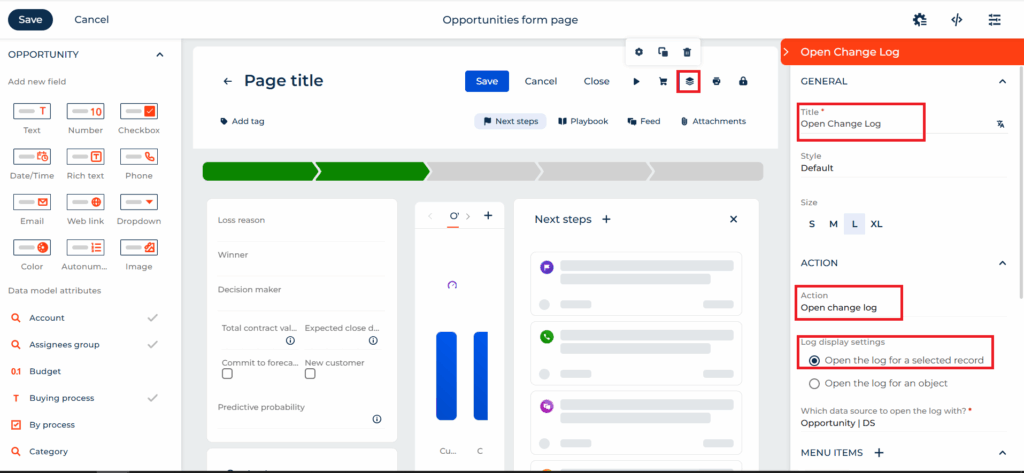
- Open any Opportunity record and open the page designer (Section Wizard).
- Grab a Button component from the left panel and drop it into your page layout (the top right toolbar near your primary actions works great).
- In the right-hand panel, set the Title to Open Change Log.
- Scroll down to the Action section and select Open change log.
- Under Log display settings, select Open the log for a selected record.
- Ensure the data source points to Opportunity | DS.
- Click Save on the preview page to apply your changes.
Step 3: View the History in Action
So, what does this look like in practice?
Navigate to any Opportunity record where changes have occurred and click the Open Change Log button you just created.
A sleek pop-up window will appear directly as shown in below image.
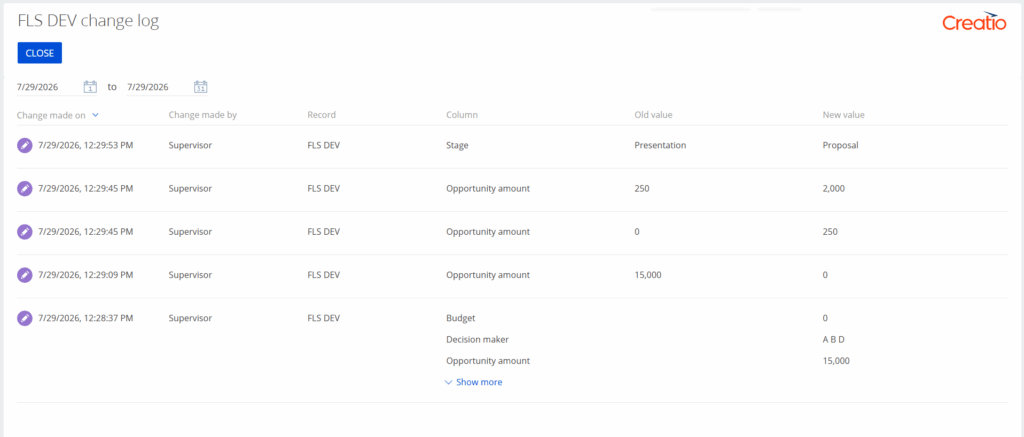
It gives you a clean, chronological breakdown showing:
- Timestamp: Exact date and time the modification occurred.
- Changed Made By: The specific user who made the edit (e.g., Supervisor).
- Column: The specific field updated (e.g., Stage, Budget, or Opportunity amount).
- Old Value vs. New Value: The exact shift in data (e.g., moving Stage from “Presentation” to “Proposal”, or updating Opportunity amount from 250 to 2,000).
No SQL queries, no backend table crawling, and zero hassle for your end users.
Applying this to Other Objects in Creatio
While we used the Opportunity object as our main example here, these exact steps can be followed for virtually any object in Creatio (such as Contacts, Accounts, Leads, or custom entities). Simply enable logging for your desired object in the Change Log settings, add the button to that object’s Freedom UI form page, and point the data source accordingly!