
Creatio is a powerful CRM platform that helps businesses communicate with customers using multiple channels such as Email, Facebook Messenger, Telegram, and WhatsApp. While using the Creatio trial version, many users try to add a WhatsApp channel but often face errors or configuration issues during setup.
This blog explains the most common problems faced while adding a WhatsApp channel in Creatio chat settings and provides simple, step-by-step solutions to help you troubleshoot the issue easily.
Understanding WhatsApp Integration in Creatio:
WhatsApp integration in Creatio is not available by default. To use WhatsApp, the following components are required:
- A verified WhatsApp Business API account
- A third-party provider such as Twilio, 360dialog, or another official WhatsApp partner
- Proper account setup, approval, and verification
Creatio connects to WhatsApp through an internal account service. This service validates important information such as phone numbers, application IDs, and provider credentials. If any of these details are missing, incorrect, or not approved, Creatio displays an error.
Common Error while adding WhatsApp Channel:
While configuring a new WhatsApp channel under Chat settings → Channels, the following error might be encountered. “An error occurred while working with the account service. For further information, please contact the system administrator.”
This error usually indicates a backend configuration issue rather than a simple user input mistake.
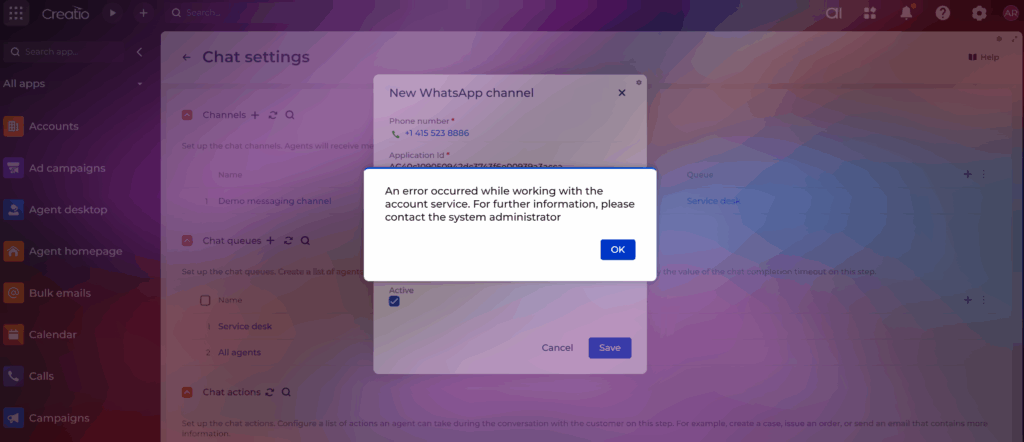
In some cases, this error appears even when the user has done everything correctly, such as:
- Creating and verifying a WhatsApp Business account
- Properly configuring a third-party provider like Twilio
- Collecting valid credentials such as the Account SID and Auth Token required while creating the WhatsApp channel in Creatio
Step-by-Step Troubleshooting Guide:
Follow the steps below to identify and resolve the issue:
Step 1: Verify Required System Settings
Go to System Setup → System settings in Creatio and check the following settings:
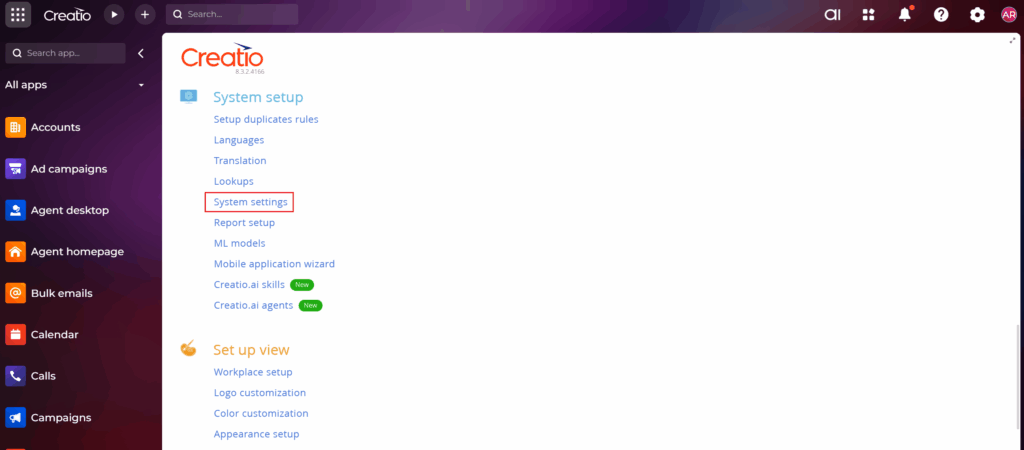
- Identity server URL (code: IdentityServerUrl)
- Identity server client id (code: IdentityServerClientId)
- Identity server client secret (code: IdentityServerClientSecret)
These system settings must be available and correctly populated.
If any of these values are missing or empty, contact Creatio Support to get them configured.
Step 2: Check Account Connection
If the system settings already contain default values, make sure that the account is connected to only one Creatio instance.
Connecting the same account to multiple Creatio environments can cause validation issues.
Step 3: Ensure Public Accessibility of the Creatio Instance
Your Creatio instance must be publicly accessible over the internet. If the instance is restricted by security system rules or network limitations, the account service will not be able to validate the WhatsApp configuration.
Step 4: Regenerate a New Webhook URL
Sometimes, the webhook URL may become invalid or outdated. Regenerating a new webhook can help resolve the issue.
Follow these steps:
- Navigate to
https://<<sitename.creatio.com>>/0/Shell/#Page/LandingiDesigner_Page - Go to Other landing pages
- Click the option to generate or copy your webhook URL
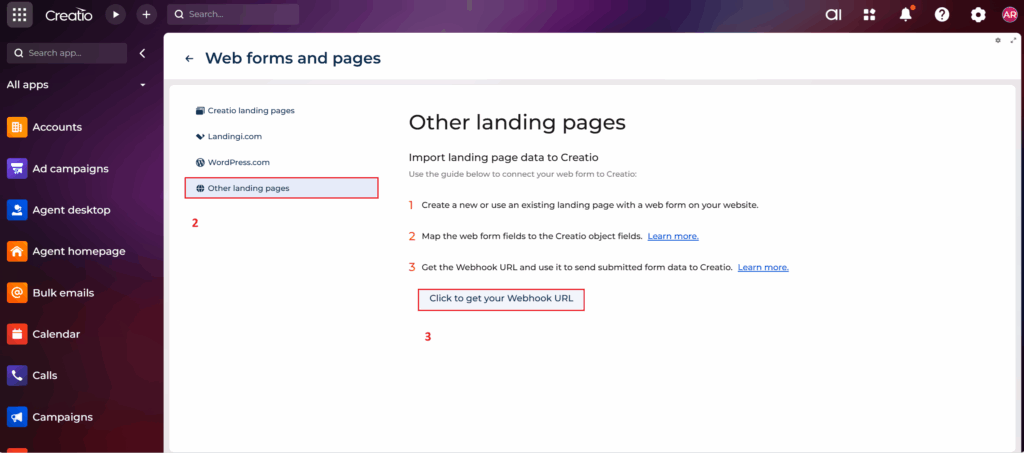
After regenerating the webhook, update it in your WhatsApp provider dashboard if required.
Step 5: Retry Adding the WhatsApp Channel
Once all the above steps are completed, go back to Chat settings and try adding the WhatsApp channel again in Creatio.
Conclusion
The error “An error occurred while working with the account service” while adding a WhatsApp channel in Creatio is a common issue, especially when using the trial version. This error usually points to problems related to account approval, system settings, credentials, instance accessibility, or platform limitations.
By carefully checking system settings, confirming provider configuration, regenerating webhook URLs, and ensuring your Creatio instance is publicly accessible, this issue can usually be resolved without much difficulty.