
In Creatio CRM, the Owner field plays a critical role in defining responsibility and access control across records such as Accounts, Contacts, Activities, and custom objects. By default, many lookup fields in Creatio are based on the Contact object, which can lead to confusion when the requirement is to assign ownership strictly to system users rather than every contact record available in the system.
This blog explains how to ensure that the Owner field displays only Users, instead of all contact records, using the Account object as an example. The same approach can be reused across other sections in Creatio with minimal configuration changes.
Understanding the Scenario
In Creatio, a User is technically a Contact with additional system roles, permissions, and a linked user account. Because of this design, lookup fields pointing to Contact may unintentionally show:
- Customers
- Vendors
- Partners
- Leads
- System users
When configuring an Owner field, this behaviour is undesirable. Ownership should typically be limited to internal users such as sales representatives, account managers, or support agents.
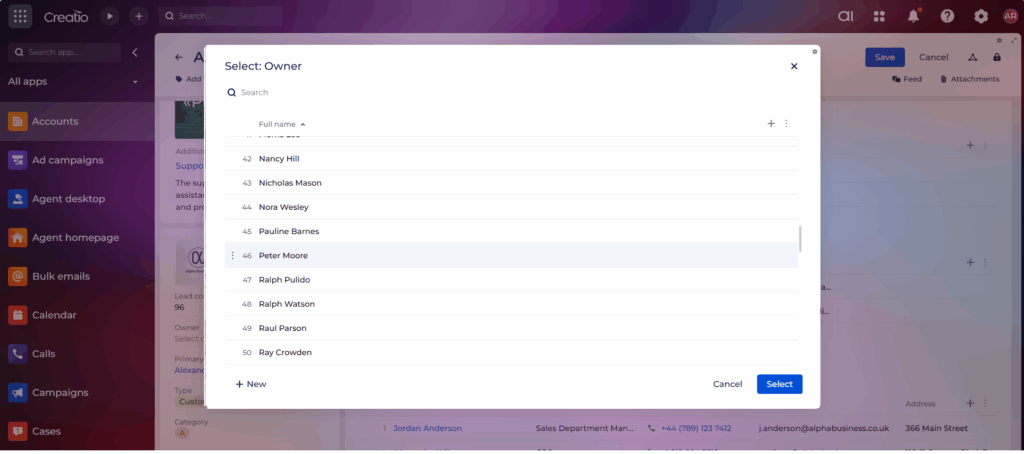
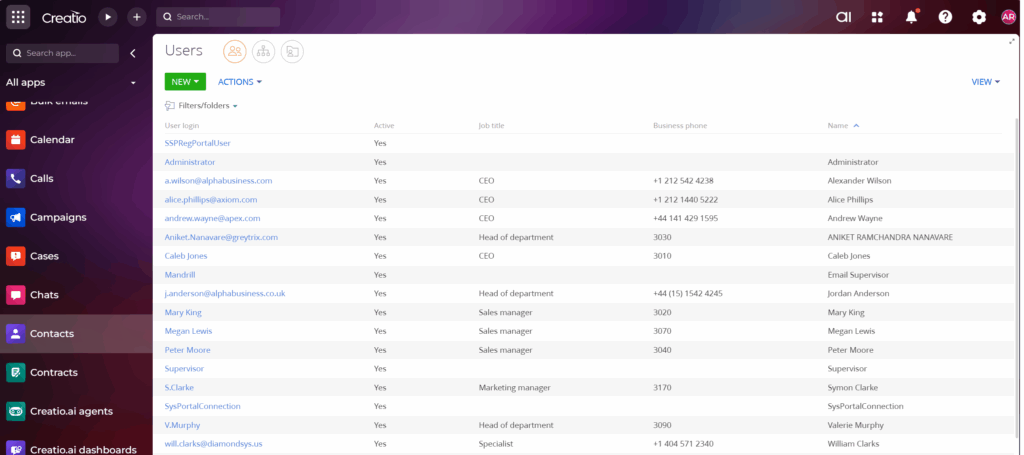
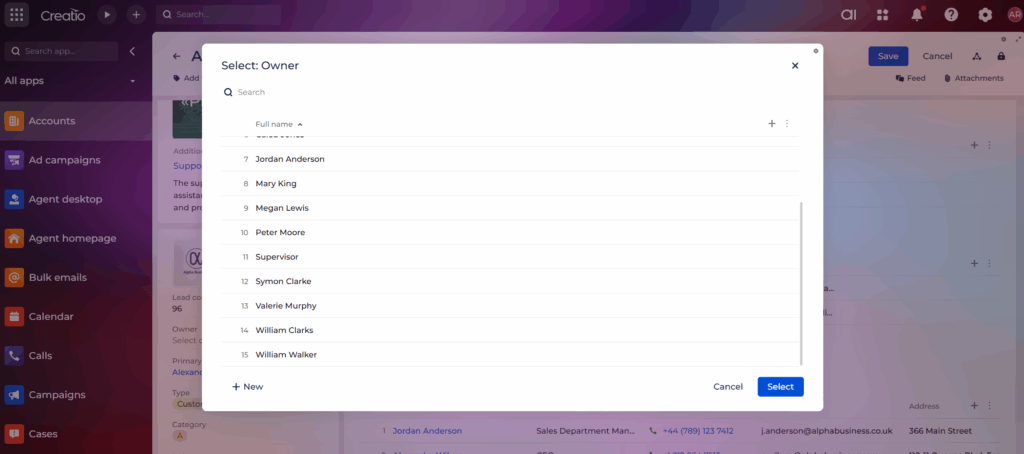
Let’s take the Owner field on the Account page as an example. As shown below, the Owner field currently lists all system users along with more than 50 other contacts. However, only 15 of these records are actual system users
Solution Approach: Using a Business Rule
Let’s take the Owner field on the Account page as an example.
The requirement is simple.
When a user clicks on the Owner lookup, it should display only system users, and exclude customers, vendors, and other non-user contacts.
One of the easiest and most reliable ways to achieve this is by using a Business Rule. Business Rules allow us to control field behaviour without writing any code.
By applying a static filter to the Owner field, we can restrict the lookup to show only valid system users.
Business Rule Configuration
To restrict the Owner field on the Account page, follow the steps below:
1. Navigate to the Account page designer.
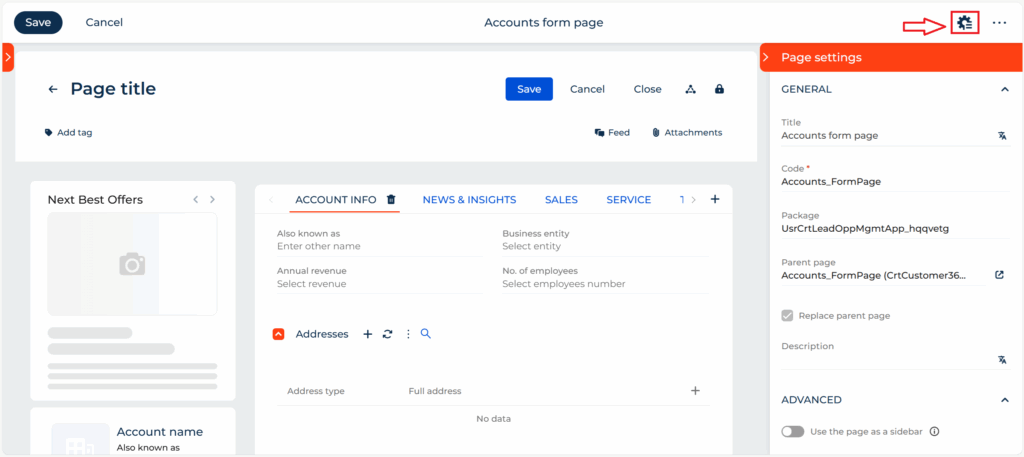
2. Click on the gear icon in the top-right corner to open the Business Rules Setup screen.
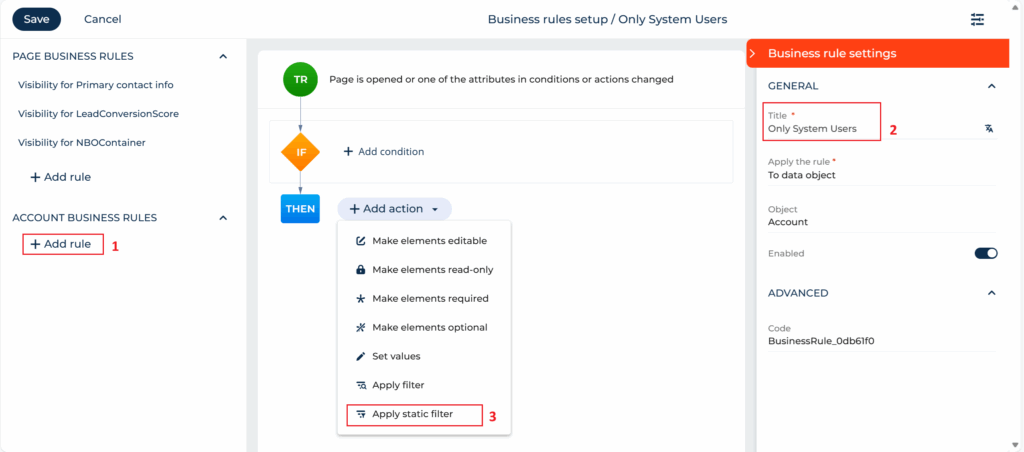
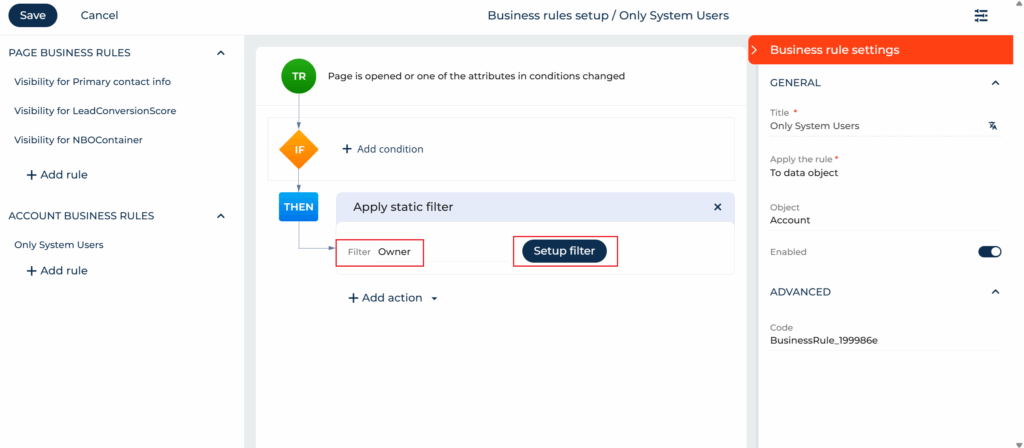
3. On the Business Rules Setup screen:
- Click Add Rule
- Enter a Name/Title for the rule
- Click Add Action and Select Apply Static Filter
Refer to the screenshot for the correct order.
4. Set Filter = Owner and click Setup Filter.
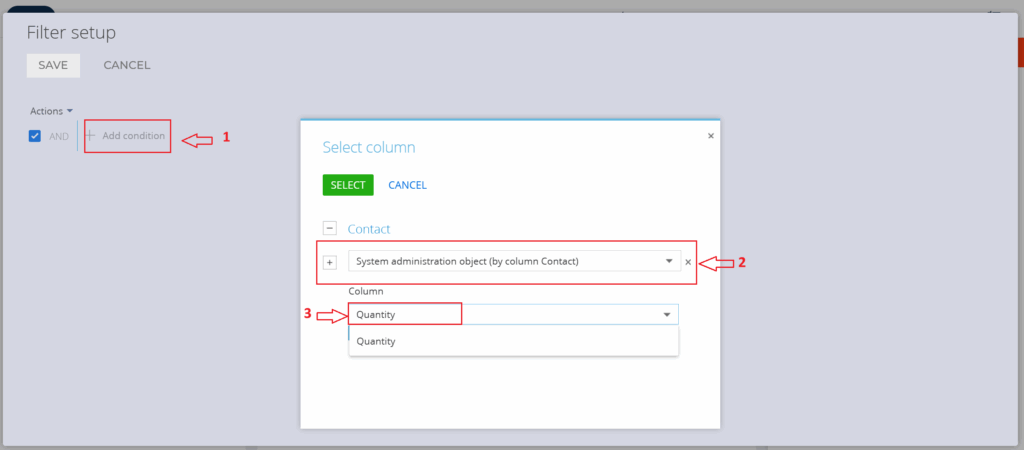
5. On the Filter Setup screen:
- Click Add Condition
- Click the plus icon under Contact and Select System administration object (by column Contact)
- Choose Column = Quantity
- Click Select
Refer to the screenshot for the correct order.
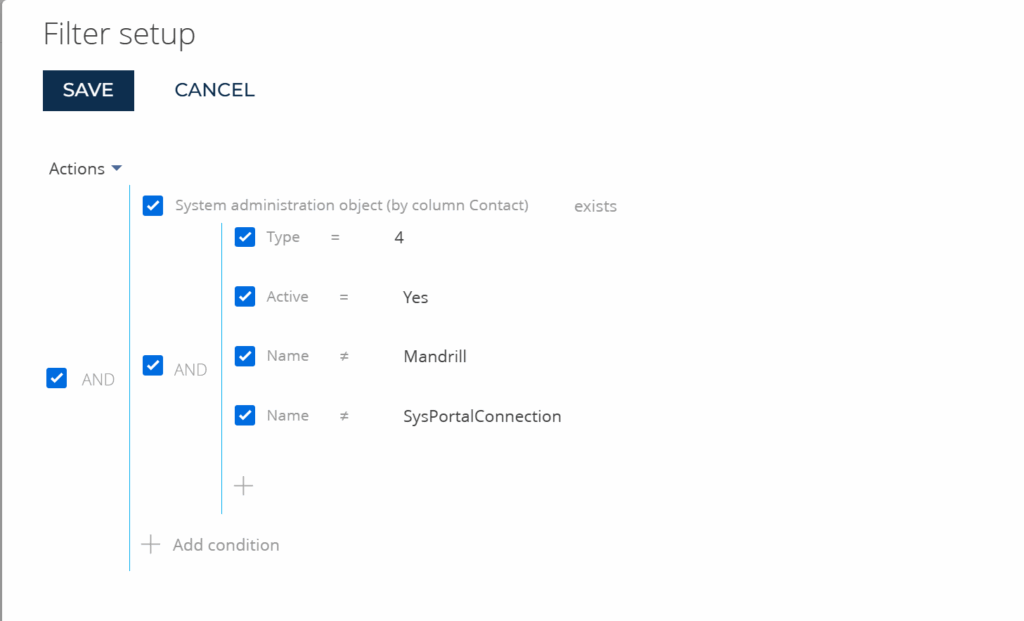
6. Set the following filter conditions:
- System administration object (by column Contact) exists
- Type = 4
- Name ≠ (Not Equal) Mandrill
- Name ≠ (Not Equal) SysPortalConnection
Refer to the screenshot for the exact configuration.
Additional Information
- Type = 4 means the contact is a system user (not a portal user).
- Active = Yes ensures only active users are shown.
- Mandrill and SysPortalConnection are native system users that should not appear in the Owner list.
After completing the configuration:
- Save the Business Rule
- Save the page designer
- Log out and log back into Creatio
Now navigate to the Account page and check the Owner field. It will display only system users, not all contacts.
Conclusion
Filtering the Owner field to show only system users is a small but impactful configuration change in Creatio CRM. By leveraging Business Rules, administrators can maintain clean and accurate data, prevent incorrect ownership assignments, and ensure consistent ownership behavior across the application.