
GUMU™ for Sage CRM – Sage 100 application is a real time bi-directional integration link. One of its exclusive features is that it is a customizable link and we can customize GUMU to suite your company business process.
We are excited to announce that in the latest version of GUMU™ Sage CRM – Sage 100 Integration, we’ve introduced a new enhancement — Bill of Materials (BOM) Functionality.
This new feature enables users to add BOM items and their associated options directly within Sage CRM Quote and Order screens, providing a more flexible and seamless quoting experience.
BOM Functionality Overview
With this enhancement, Sage CRM now makes it simple to add BOM items and their associated options directly within Quotes or Orders. Once a BOM item and its options are selected, the system automatically calculates the price based on the chosen configuration, ensuring accuracy and saving time.
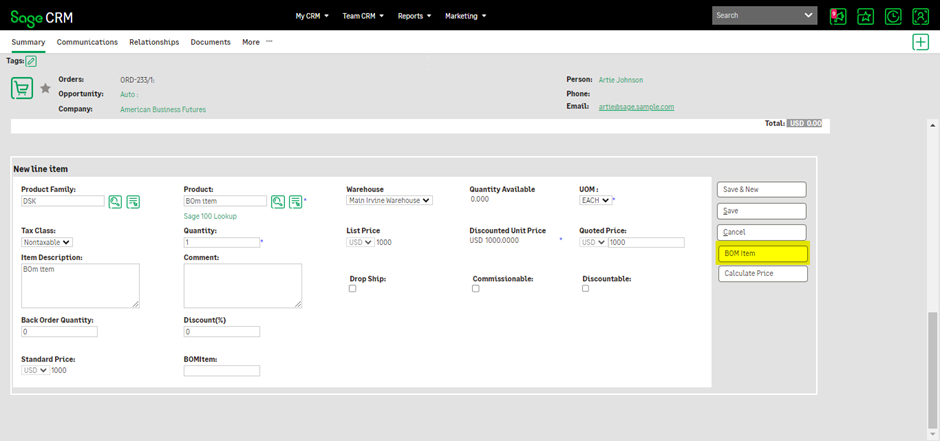
A new “BOM Item” button has been introduced on the line item screen and is displayed only when a BOM-enabled item is selected. Clicking this button opens a dedicated window where users can view and choose from the available options under each BOM category. After selection, the chosen options—along with their descriptions—are neatly displayed in the BOM Options column, providing clear visibility into the configured item.
Enabling the BOM Functionality
To start using the BOM functionality in Sage CRM, a few simple configuration steps are required. Once enabled, users can add BOM items and manage their options within Quotes and Orders.
Configuration Steps in Sage CRM
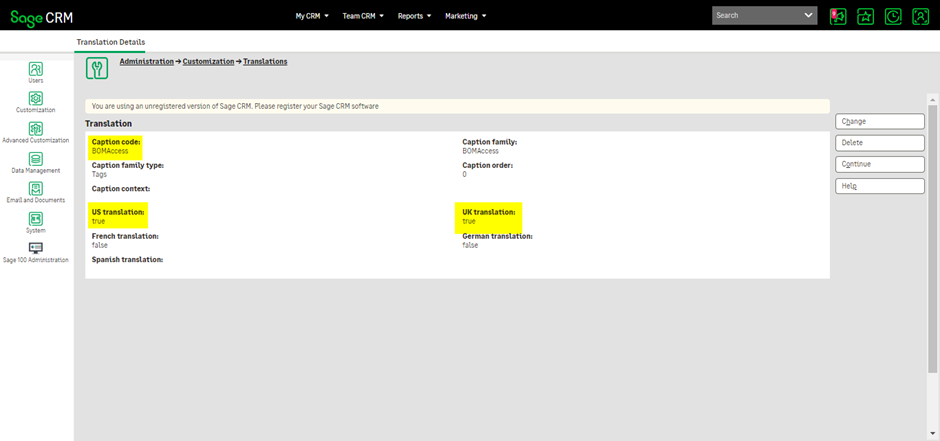
Enable BOMAccess
Navigate to Administration → Customization → Translations.
Search for BOMaccess in the Caption Code field and set its value to true, as shown in the screenshot below.
Enable BOM Item Flag
In the same Translations section, search for IsBOMItem under Caption Code and set IsBOMItem = true, as illustrated in the screenshot.
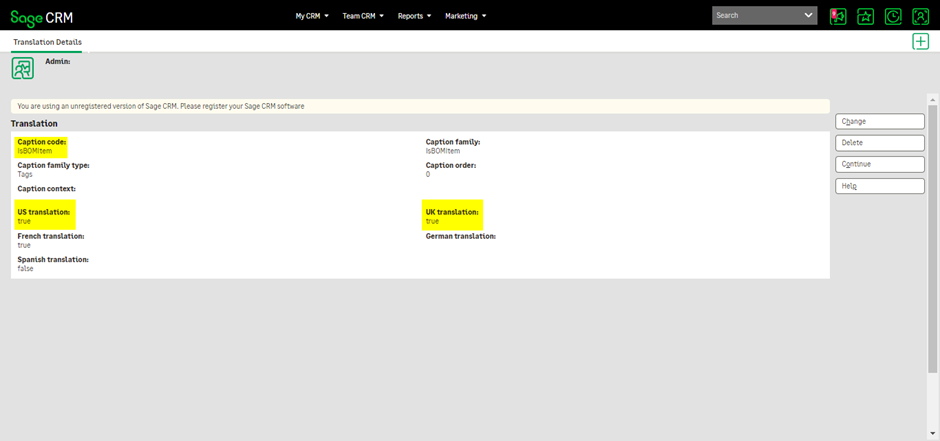
After completing these settings, a metadata refresh is required. To do this, go to Administration → System → Metadata and perform the refresh.
Adding BOM Items and Options via the New Line Item Screen
Once the functionality is enabled, BOM items and their options can be added using the standard New Line Item screen by following these steps:
- Create a Quote or Order.
- Click the New Line Item button on the Quote/Order screen.
- Add a BOM item. When a BOM-enabled item is selected, the BOM Item button becomes visible on the New Line Entry screen (refer to the screenshot).
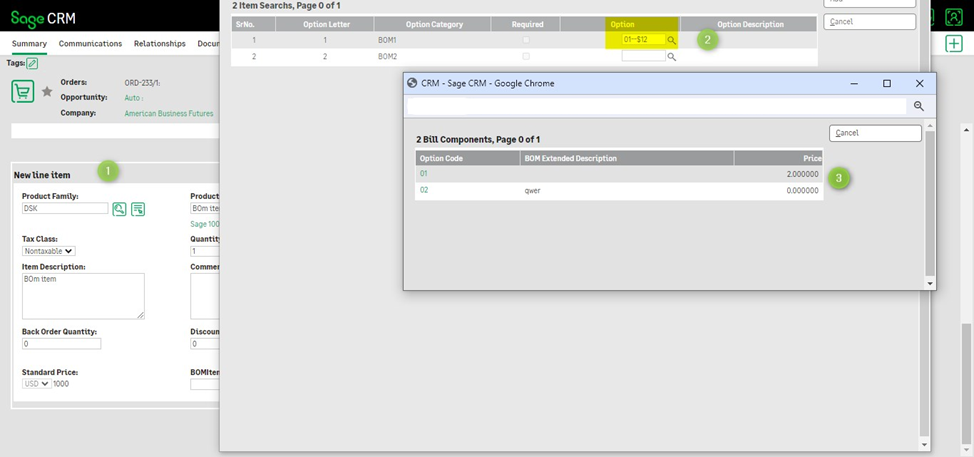
- Click the BOM Item button to open a popup displaying all available options for the selected BOM item.
- Use the magnifying glass icon to search for billing components related to each BOM option, select the required components, and save your choices.
- Refer to the screenshots below for visual guidance.
Adding BOM Items and Options via the QLE Screen
The same BOM functionality is also available on the Quick Line Entry (QLE) screen, providing a faster way to configure BOM items. Follow the steps below:
- Create a Quote or Order.
- Click the QLE button on the Quote/Order screen.
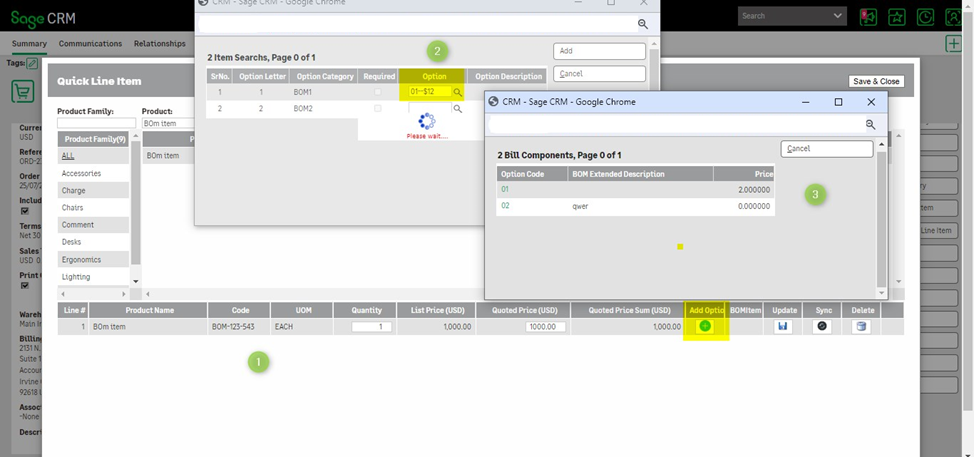
- Add a BOM item. Once selected, an Add Options (green) icon appears in the QLE grid for that item.
- Click the Add Options green icon to open a popup showing all available BOM options.
- Use the magnifying glass icon to search for and select billing components for each option, then save the selections.
- Refer to the screenshots below for details.
Viewing Selected BOM Options
After saving, the selected BOM options are clearly displayed:
- On the QLE line item grid.
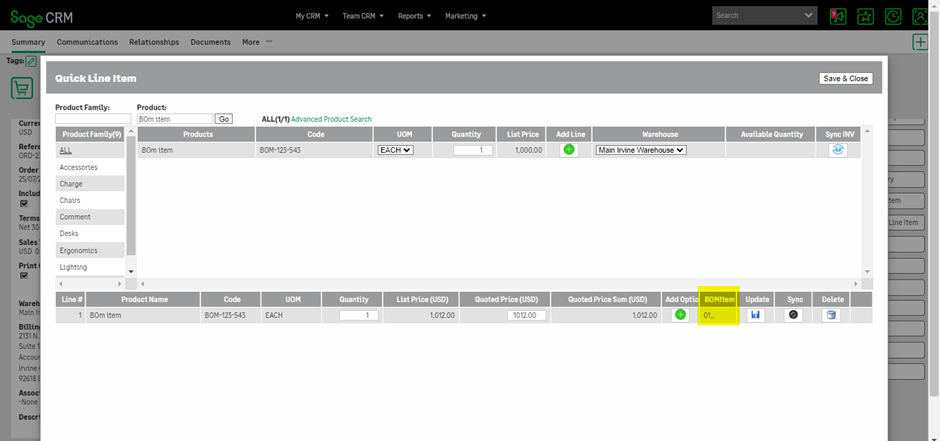
- On the main line item grid after saving the Quote or Order.

This ensures full visibility of all configured BOM options, whether they were added through the New Line Item screen or the QLE interface, making BOM management both intuitive and efficient.
About Us
Greytrix – a globally recognized and one of the oldest Sage Development Partners is a one-stop solution provider for Sage ERP and Sage CRM organizational needs. Being acknowledged and rewarded for multi-man years of experience and expertise, we bring complete end-to-end assistance for your technical consultations, product customizations, data migration, system integrations, third-party add-on development, and implementation competence.
Greytrix has some unique integration solutions developed for Sage CRM with Sage ERPs namely Sage X3, Sage Intacct, Sage 100, Sage 500, and Sage 300. We also offer best-in-class Sage ERP and Sage CRM customization and development services to Business Partners, End Users, and Sage PSG worldwide. Greytrix helps in the migration of Sage CRM from Salesforce | ACT! | SalesLogix | Goldmine | Sugar CRM | Maximizer. Our Sage CRM Product Suite includes add-ons like Greytrix Business Manager, Sage CRM Project Manager, Sage CRM Resource Planner, Sage CRM Contract Manager, Sage CRM Event Manager, Sage CRM Budget Planner, Gmail Integration, Sage CRM Mobile Service Signature, Sage CRM CTI Framework.
Greytrix is a recognized Sage Champion Partner for GUMU™ Sage X3 – Sage CRM integration listed on Sage Marketplace and Sage CRM – Sage Intacct integration listed on Sage Intacct Marketplace. The GUMU™ Cloud framework by Greytrix forms the backbone of cloud integrations that are managed in real-time for the processing and execution of application programs at the click of a button.
For more information on our integration solutions, please contact us at sage@greytrix.com. We will be glad to assist you.