
When onboarding new team members into Creatio CRM, everything seems smooth until you log in with the newly created account and notice something unusual the All-Apps view is blank, and no workplace is visible. This is one of the most commonly faced issues among Creatio administrators, especially when configuring fresh user profiles or setting up access control for the first time. The behaviour might look alarming, but the cause is quite simple: the user is not yet connected to a workplace, role, or doesn’t have permissions assigned for system sections.
In Creatio, workplaces are what organize the available sections for users, such as Accounts, Contacts, Leads, Activities, and more. Each workplace is linked to specific roles or user groups, and only those included in it can view the corresponding applications. If a new user is created without inheriting the correct workplace or permissions, the system displays nothing under All Apps, making it feel like the CRM is empty but it’s not!
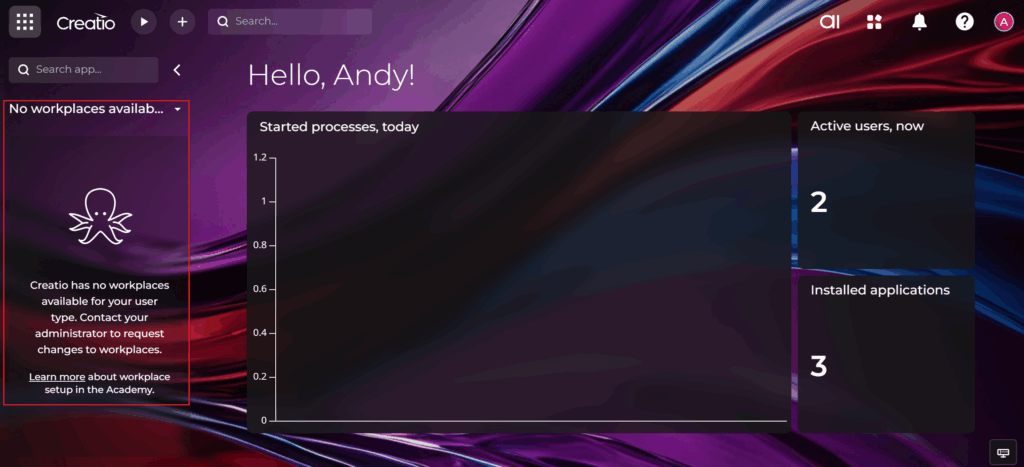
There are four primary reasons why new users don’t see workplaces:
- Missing role assignment — the user belongs to no organizational or functional role.
- Workplace access not granted — the assigned role is not included in any workplace user group.
- No sections linked to the workplace or permissions are restricted.
- License/activation not completed, meaning access rights don’t initialize properly.
Follow below steps to check and fix the workplace for user:
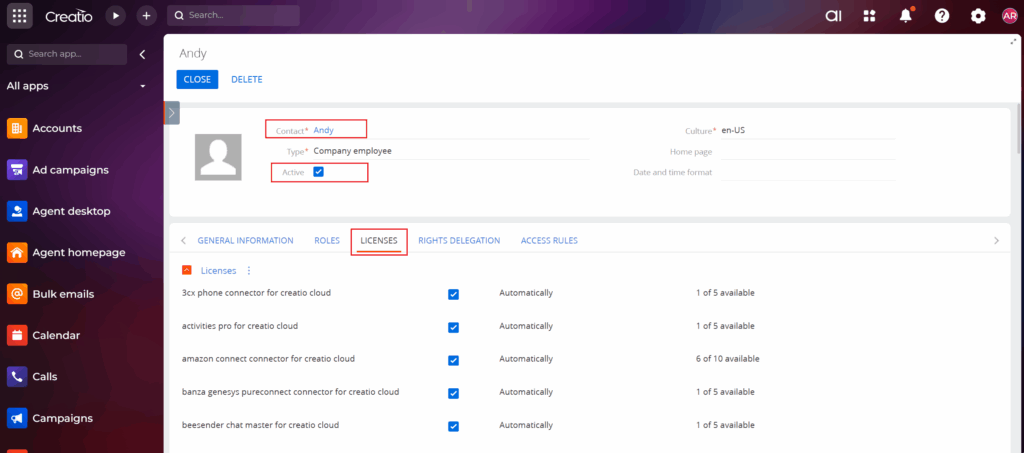
Step 1 – Check the user account setup
Ensure the user is active, linked to a Contact, and has a valid license. Without activation, Creatio cannot load UI permissions.
Step 2 – Assign the user to proper roles
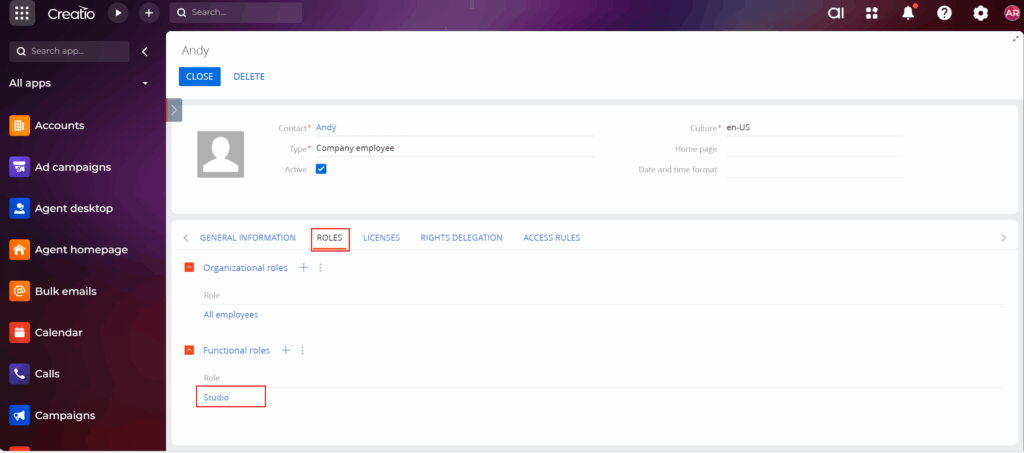
Navigate to System Designer → System Users, open the desired user record, and go to the Roles tab. Assign the relevant Organizational and Functional Roles as required.
For example, in this blog, I’ve added “Studio” under Functional Roles.
Step 3 – Grant access to a workplace
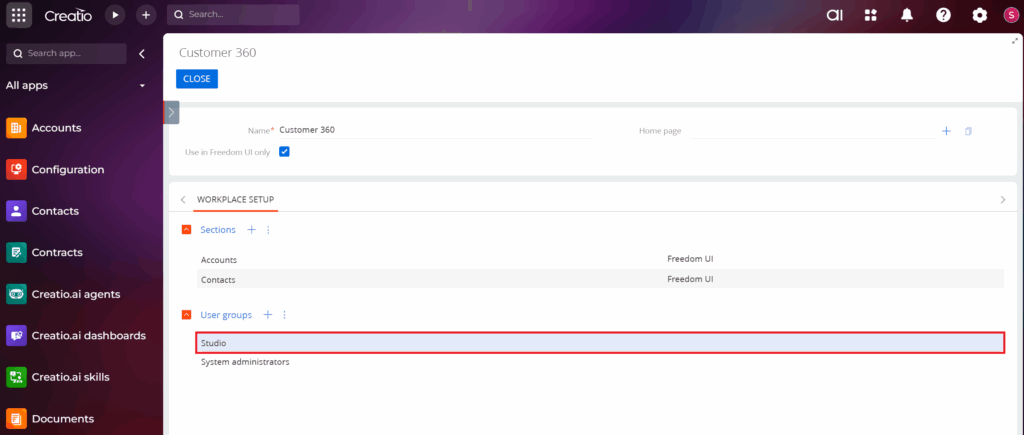
Go to System Designer → Workplace Setup and select the workplace (for example, Customer 360).
Under User Groups, add the user or their role.
In this example, I added the same role that was already assigned under the user’s Functional Roles, which is Studio.
Step 4 – Verify sections inside the workplace
Make sure the workplace includes modules such as Accounts, Contacts, and others as needed. If the list is empty, add the required sections using the + (Add) button under Sections.
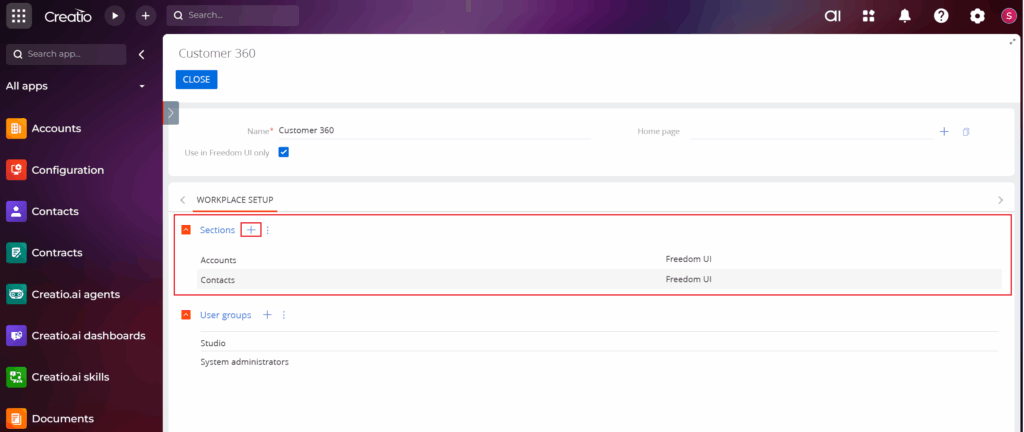
Note: To apply the changes, the user needs to log out and then log in again.
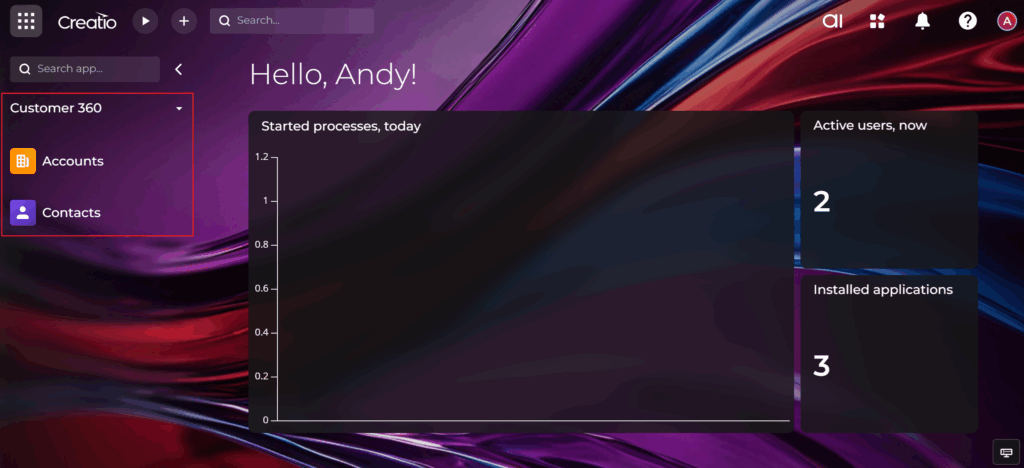
Once the configuration is complete, the user will be able to view the assigned sections in the workplace. Refer to the screenshot below for clarity based on the example above.
Final Thoughts:
This isn’t really an error, it’s just a setup step that’s missing. Creatio works on a role-based access model, so if a user isn’t linked to a workplace, the system hides the application modules for security reasons. Once the correct roles and workplace are assigned, everything appears instantly under All Apps.
By following these steps, you’ll make user onboarding easier and keep your Creatio CRM environment organized, secure, and ready to work.
About Us
Greytrix is a globally recognized consulting and development partner with 25+ years of expertise in delivering industry-relevant CRM and ERP solutions tailored to business needs. Over the years, we have built strong proficiency in providing end-to-end services, including consultation, implementation, migration, integration, and custom development for Sage ERP, Salesforce, and Sage CRM. With our native cloud integration framework, GUMU™, we power seamless real-time connectivity between leading ERPs and CRMs, helping organizations unlock efficiency and scale. Our solutions have supported businesses across industries, enabling them to modernize legacy systems and keep pace with fast-changing digital demands.
Expanding our capabilities, Greytrix is also a trusted Creatio CRM Consulting and Implementation Partner. Creatio is a leading AI-native, no-code CRM platform that enables businesses to streamline workflows, enhance customer experiences, and accelerate digital transformation. Leveraging our industry experience and in-house innovation, including GUMU™ Copilot AI, we help organizations adopt Creatio CRM with confidence. We ensure the platform supports automation, compliance, and scalability, while tailoring it to unique business needs to deliver measurable results.
Our commitment goes beyond technology; we believe in being a long-term partner. From designing CRM roadmaps to delivering analytics and automation, we help businesses simplify operations, drive growth, and achieve tangible outcomes.
For more information on our Creatio CRM services and solutions, contact us at creatio@greytrix.com. We will be glad to assist you.