
Creatio CRM provides a robust mobile application that enables users to access and update CRM data on the go. While the web application allows full visibility of all configured fields, the mobile app displays only a selected set of fields by default to maintain a clean and optimized user experience.
In many business scenarios, administrators need to display additional information in the mobile app. This could be any existing field, either a standard Creatio field or a custom field that is already available in the system. Creatio makes this possible without writing any code by using the Mobile Application Wizard.
This blog explains how to configure the mobile app to display existing fields, with a practical example using the Contact section and an Employee Code field.
Why Add Fields to the Creatio Mobile App?
Mobile users often rely on quick access to essential information while working remotely or in the field. If required fields are missing from the mobile interface, users may need to switch back to the web application, which reduces efficiency.
Some common reasons for adding fields to the mobile app include:
- Improving data visibility for mobile users
- Maintaining consistency between web and mobile layouts
- Displaying important identifiers or reference information
Step 1: Access the Mobile Application Wizard
Log in to Creatio with administrative privileges and navigate to System Setups. From there, open the Mobile Application Wizard.
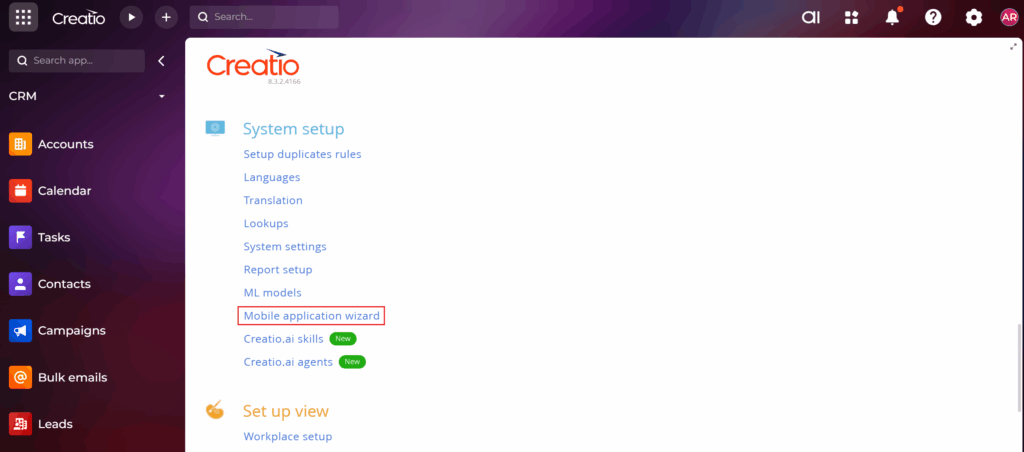
Under the Actions menu, select Main Workplace. This ensures that the configuration applies to the primary mobile workspace used by end users.
Step 2: Configure Mobile Sections
After selecting Main Workplace, click on Setup Sections. This screen lists all sections available in the Creatio Mobile App.
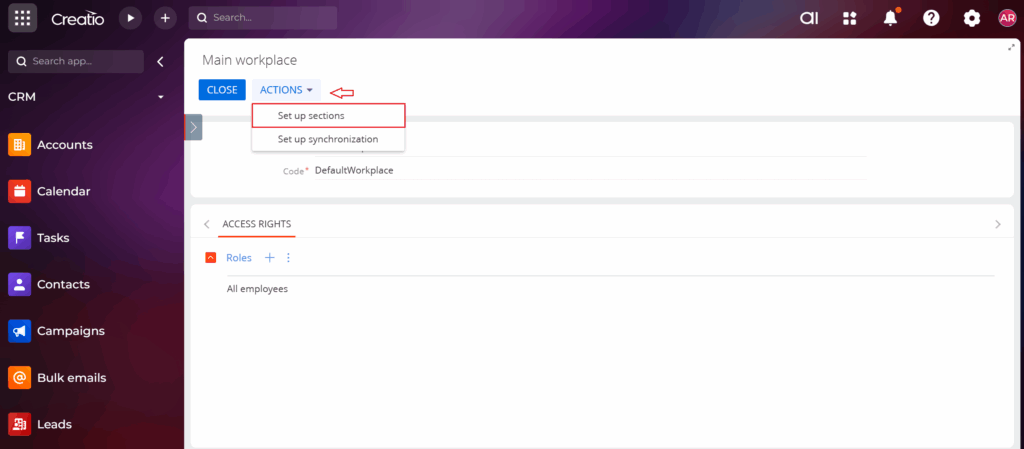
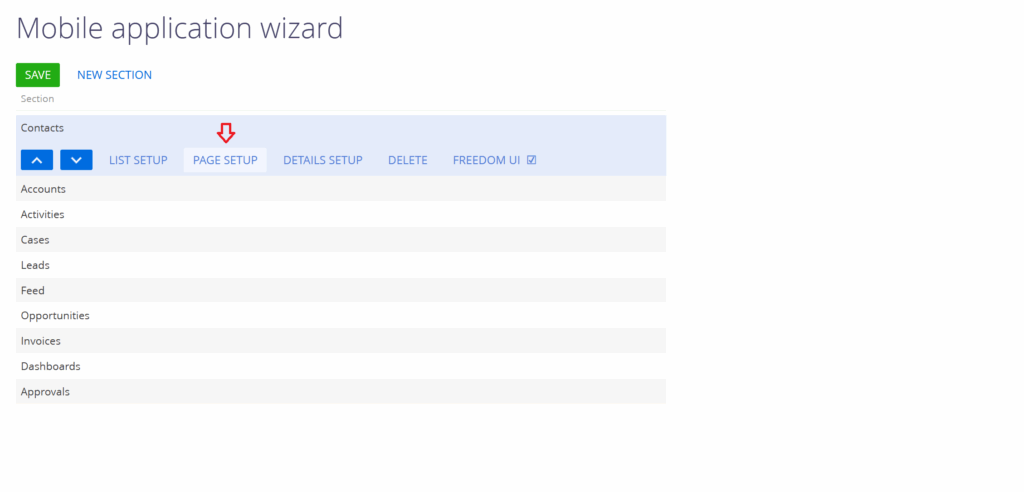
Select the section where the field should be displayed.
Example: To display a field in Contact records, select the Contacts section.
Step 3: Open Page Setup for the Selected Section
Once the section is selected, click on Page Setup. This option allows administrators to configure the page layout as it appears in the mobile application.
Step 4: Add an Existing Field to the Mobile Layout
Using the New Column option, you can add any field that already exists in the system.
Example:
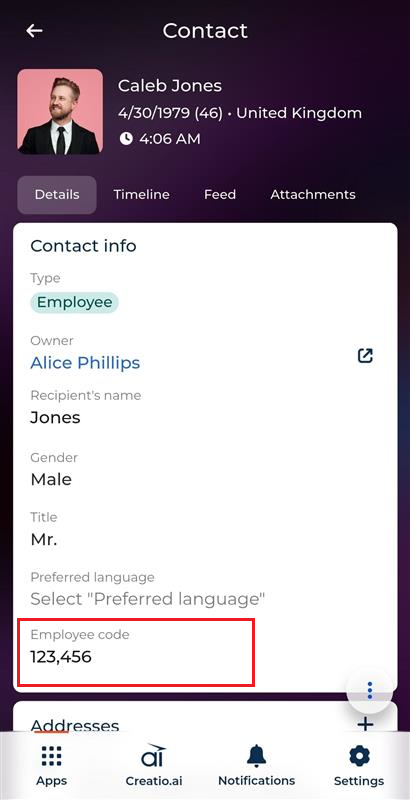
In the Contacts section, an existing field like Employee Code can be added to the Contact Info block so that mobile users can easily view it when opening a Contact record.
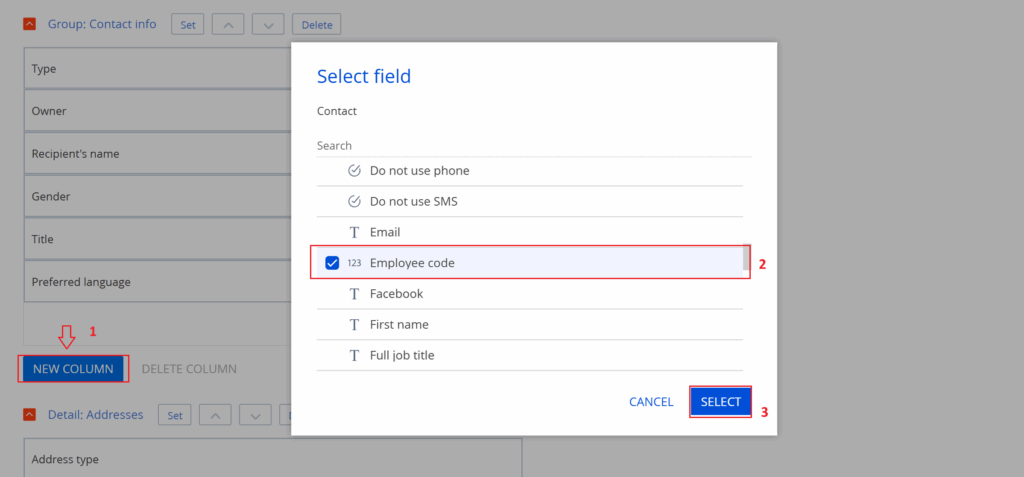
Since the field already exists in Creatio, no additional development is required. Once the field is placed in the desired section, save the configuration.
Step 5: Refresh the Mobile Application
After saving the layout changes, the configuration is complete in Creatio. However, users must refresh their mobile session to see the updates.
To apply the changes:
- Log out of the Creatio Mobile App
- Log back in to reload the updated configuration
Note – This step is mandatory, as mobile layouts are loaded during login.
After logging back into the mobile app, navigate to the Contacts section and open a Contact record.
Example:
The Employee Code field should now appear in the Contact Info section, confirming that the field has been successfully added to the mobile layout.
Conclusion
The Creatio Mobile Application Wizard provides a simple and flexible way to customize mobile layouts according to business needs. Whether you want to display a standard field or a custom field, the process remains the same.
By following this approach, administrators can ensure that mobile users have access to the most relevant information.