
Creatio allows organizations to automate email communication through configurable email templates. These templates help standardize messaging, reduce manual work, and ensure timely communication across business processes. This blog walks through the essentials of configuring email templates in Creatio and highlights practical use cases for real-world implementations.
Macros help you automatically insert the right information into an email, without writing any code. They make sure the data is merged correctly, reduce mistakes, and make email templates easy to reuse and manage.
Below are the steps to configure email templates using macros.
- Go to the Message Template section and click on New button, from the dropdown options select Email template. User will be navigated to email template page.
- Give your template a meaningful name and select the appropriate Macro Source. The Macro Source determines which table or view the data will be pulled from, making it one of the most important fields in the configuration. In our case, since we want to merge job-related information, we have selected Jobs as the Macro Source. Refer below:
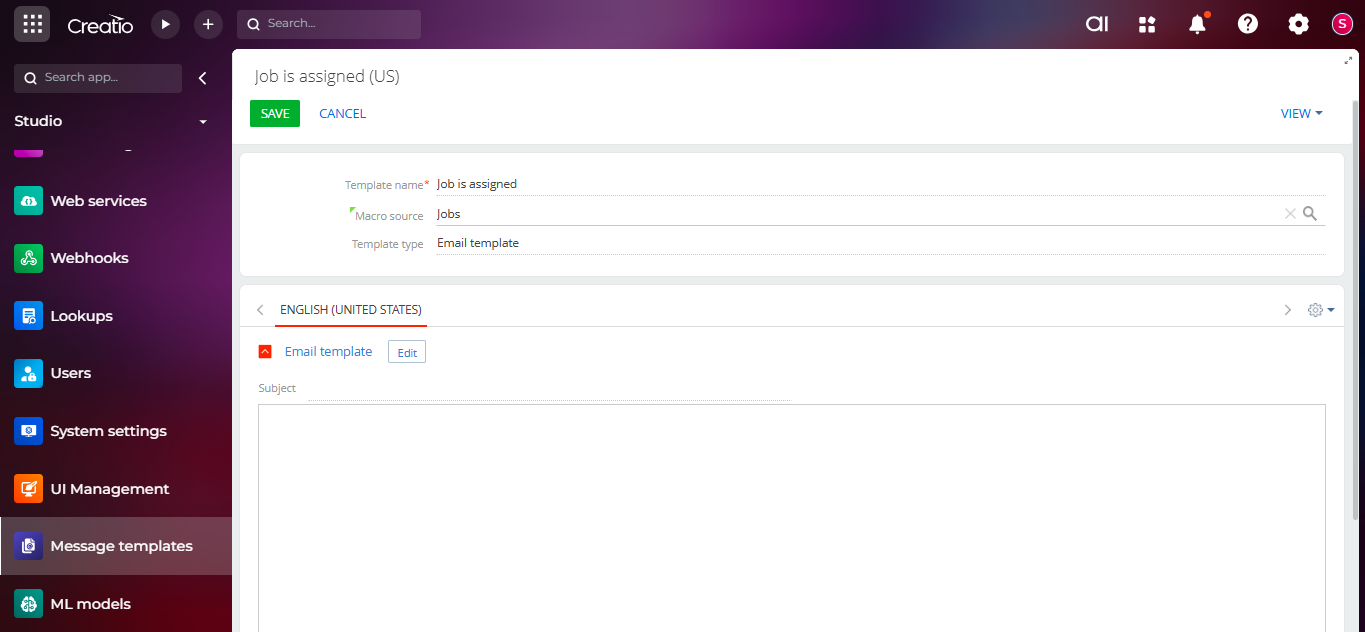
- Click on the “Edit” button. You will be redirected to the Email Template Body Designer page. Refer to the screenshot below.
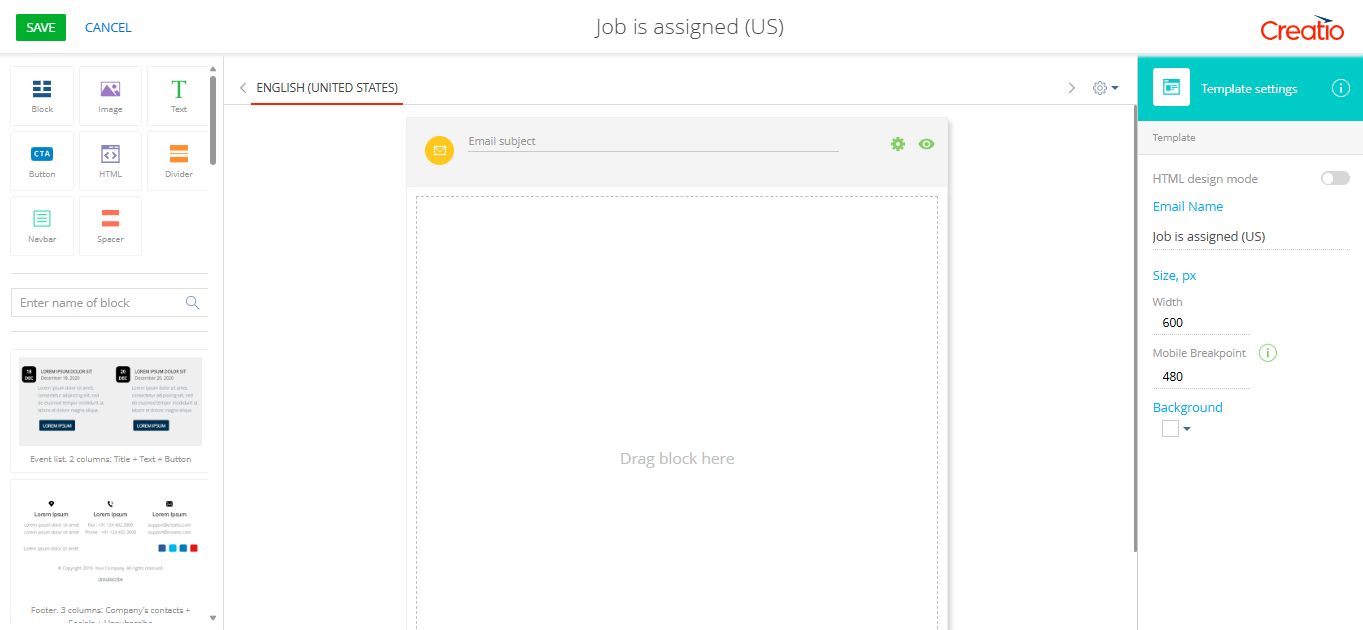
- Add a subject line. To include merge fields in the subject, click on the subject line. You will notice a macro icon appear. Refer to the screenshot below.
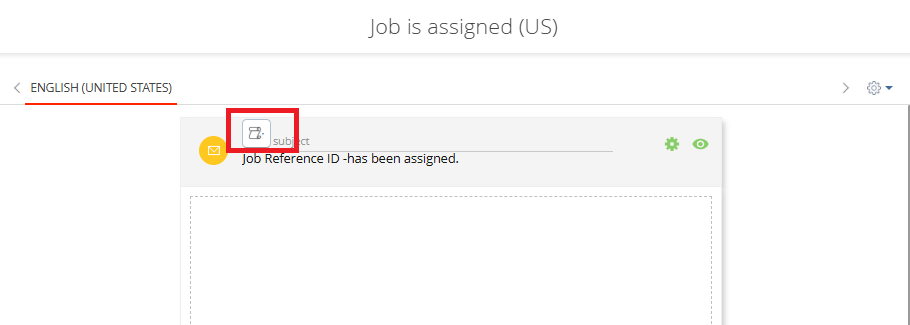
- Click on this symbol, you will get below options:
Basic Macro
Custom Macro - If you want to merge standard fields such as Recipient, Current User, or Owner, select Basic Macro and choose the required field. These are readily available and easy to use.
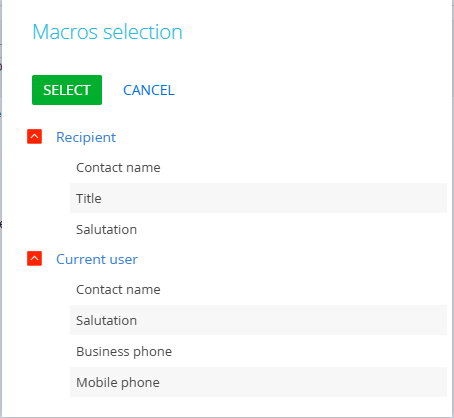
- To merge fields from your selected Macro Source, choose the Custom Macro option. You will be presented with a list of fields available from that source. Refer to the screenshot below.
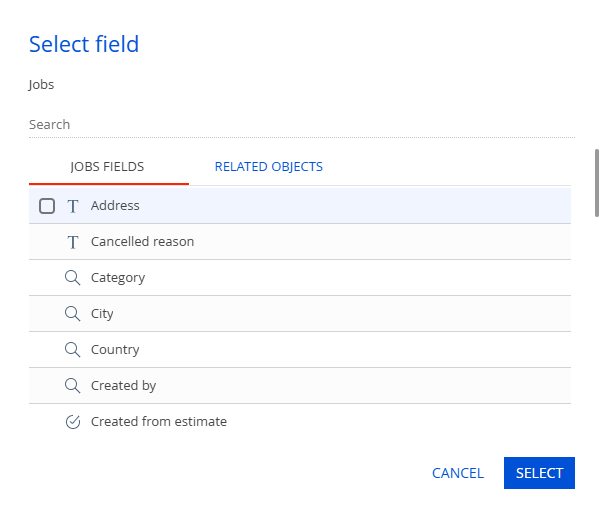
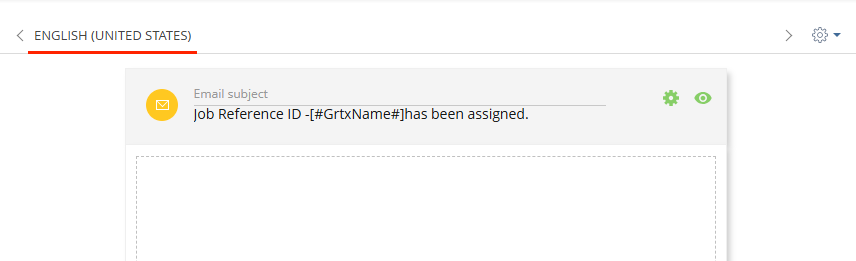
- Check the fields you want to merge and click SELECT. The selected field will be automatically inserted into the template with the appropriate macro code. In our example, we selected the Job No field, and the subject line now appears as shown below.
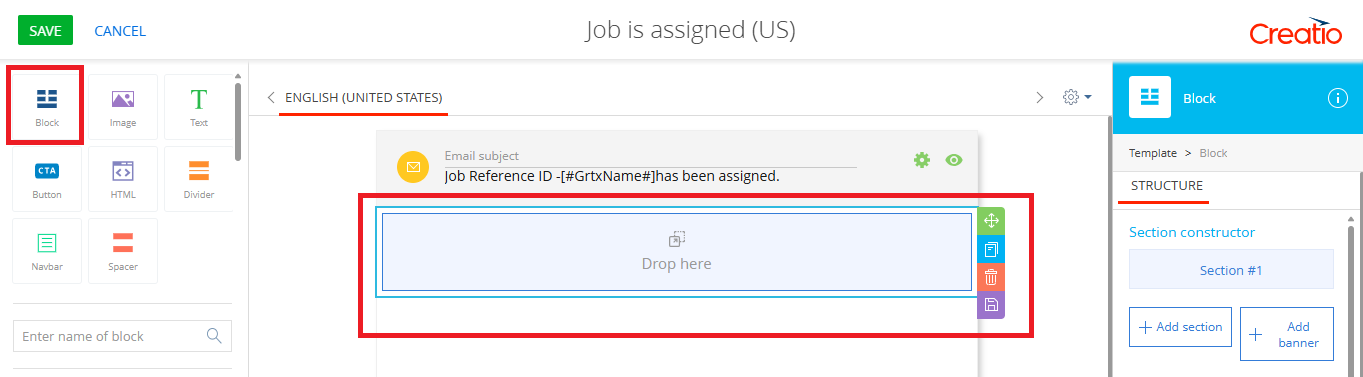
- To design the email body, start by adding a block from the left-hand panel to the template. Simply drag and drop the block into the designer area. Refer to the screenshot below.
- Drag and drop other elements into the block based on your requirement. In this example, we added a Text component. Once added, enter the email content you want to send.
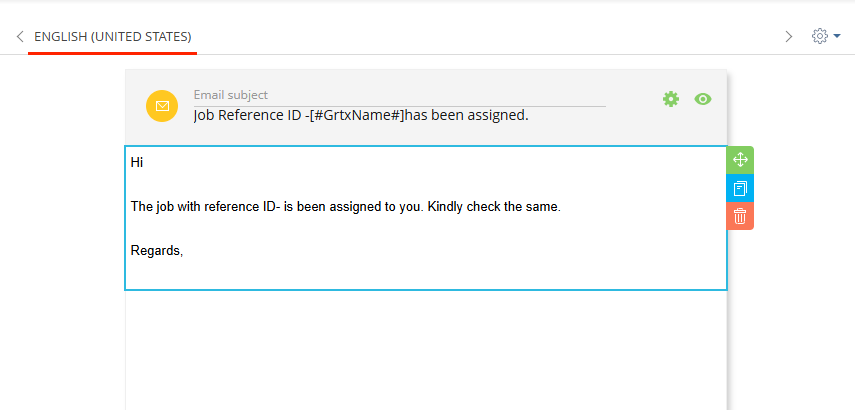
- Click inside the email body text, and you will see the same macro icon. Use this option to add merge fields to the body, following the same steps explained earlier. After adding all the required fields, the email body will look similar to the example shown below.
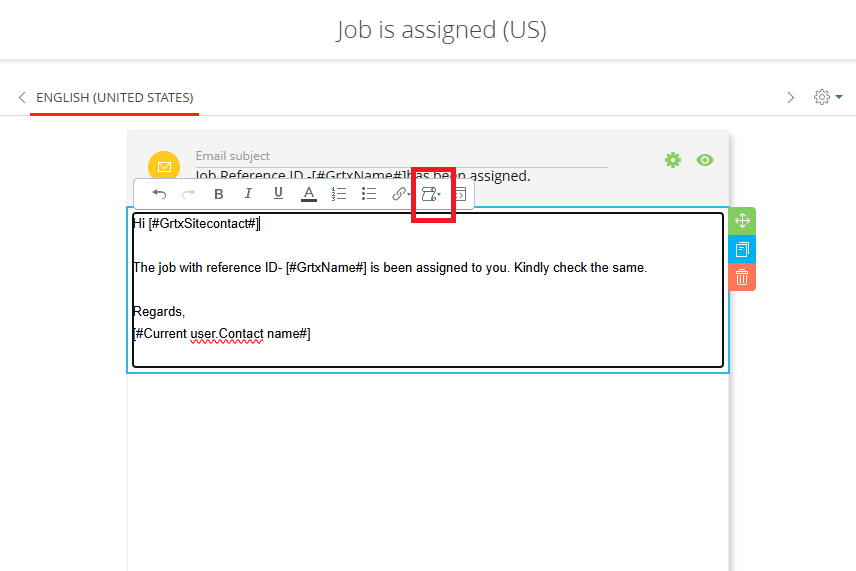
- Click on Save.
- The email template will now be available for selection in email-sending actions. As long as the correct record ID is passed to the email element, Creatio will automatically handle the data merging.
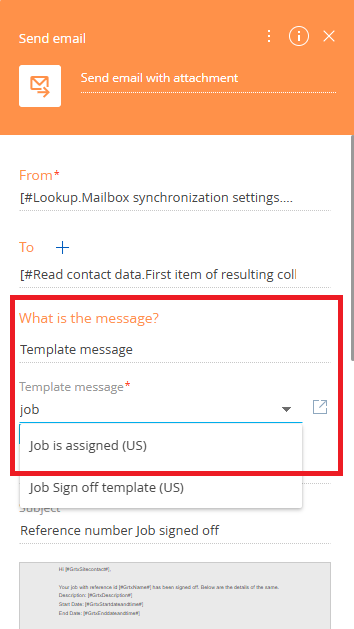
Using the steps outlined above, you can easily design and customize email templates for any Creatio object, ensuring your email communication aligns perfectly with your business needs.
About Us
Greytrix is a globally recognized consulting and development partner with 25+ years of expertise in delivering industry-relevant CRM and ERP solutions tailored to business needs. Over the years, we have built strong proficiency in providing end-to-end services, including consultation, implementation, migration, integration, and custom development for Sage ERP, Salesforce, and Sage CRM. With our native cloud integration framework, GUMU™, we power seamless real-time connectivity between leading ERPs and CRMs, helping organizations unlock efficiency and scale. Our solutions have supported businesses across industries, enabling them to modernize legacy systems and keep pace with fast-changing digital demands.
Expanding our capabilities, Greytrix is also a trusted Creatio CRM Consulting and Implementation Partner. Creatio is a leading AI-native, no-code CRM platform that enables businesses to streamline workflows, enhance customer experiences, and accelerate digital transformation. Leveraging our industry experience and in-house innovation, including GUMU™ Copilot AI, we help organizations adopt Creatio CRM with confidence. We ensure the platform supports automation, compliance, and scalability, while tailoring it to unique business needs to deliver measurable results.
Our commitment goes beyond technology; we believe in being a long-term partner. From designing CRM roadmaps to delivering analytics and automation, we help businesses simplify operations, drive growth, and achieve tangible outcomes.
For more information on our Creatio CRM services and solutions, contact us at creatio@greytrix.com. We will be glad to assist you.