
When working with Creatio, one of the things you quickly appreciate is how much you can automate without touching a single line of code. A great example of this is the “Send Email” element in business processes. With just the right configuration, you can trigger emails automatically.
In real business scenarios, communication rarely exists in isolation. Emails are meaningful because they relate to customers, deals, cases, or other records already stored in the system. That’s where auto-linking emails to existing records becomes incredibly useful it keeps conversations organized, provides full context, and helps teams stay aligned without manual effort.
Creatio automatically links emails to account or contacts based on the email addresses used in “To” field. In this blog, we’ll walk through how you can make sure those emails are automatically connected to the other records in your system:
Consider an example, when email is sent out to customer once job is signed off along with customer, we want this communication to be filed against job’s record as well.
- Create new business process and add “Send Email” element to it.
- Set To and From fields. Make sure the email accounts are already configured in the system, otherwise the email will not send. If you haven’t set up email accounts yet, refer to your email setup guides.
https://www.greytrix.com/blogs/creatio/2025/12/02/email-setup-in-creatio-for-windows-on-premise-environments/
https://www.greytrix.com/blogs/creatio/2025/10/09/how-to-set-up-incoming-outgoing-email-in-creatio-online/ - In the “What is the message?” field, select “Template message,” this lets you choose one of your pre-configured email templates. If you need help creating templates, check your email template configuration guide.
https://www.greytrix.com/blogs/creatio/2026/01/15/how-to-configure-and-manage-email-templates-in-creatio/ - Now in “Email connections” field click on plus (+) icon.
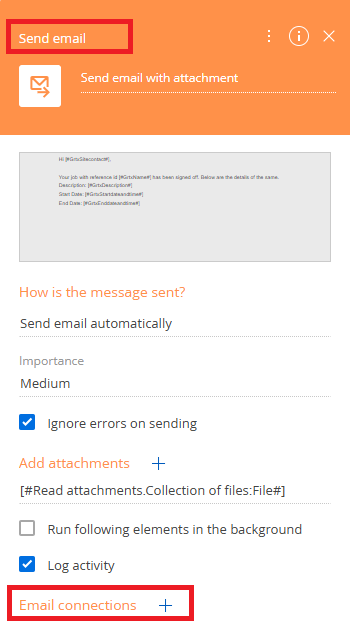
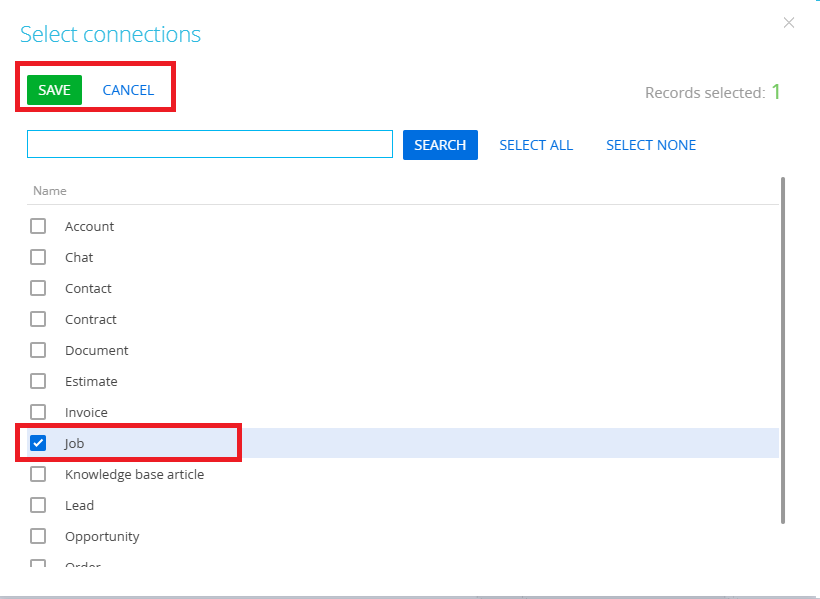
- A “Select connection” popup will appear showing different entities. Choose the entity you want to link the email to and click Save. For example, if you want the email to be linked to a Job record, select Job. Refer below:
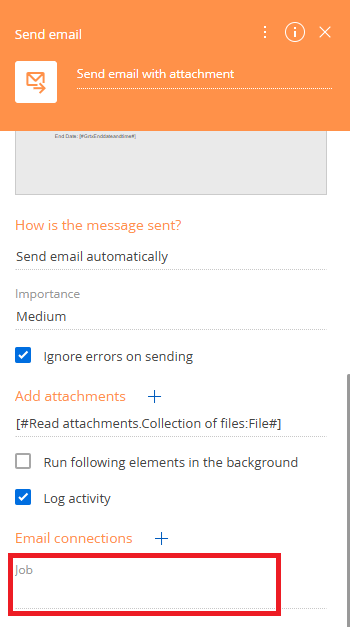
- Once clicked on Save, your entity will be added to “Email connection” field, refer below:
- Now you need to tell the system which specific record to link the email with. Click the lightning icon next to the field. You’ll see several ways to provide the value:
Process parameters: Use this if the value is coming from your process data.
Lookup value: This gives the list of records in selected entity. Like we have selected Job, so it will provide me with list of Jobs record in system. If you want to attach communication to static record this option can be used.
System settings: Select a value from system configuration.
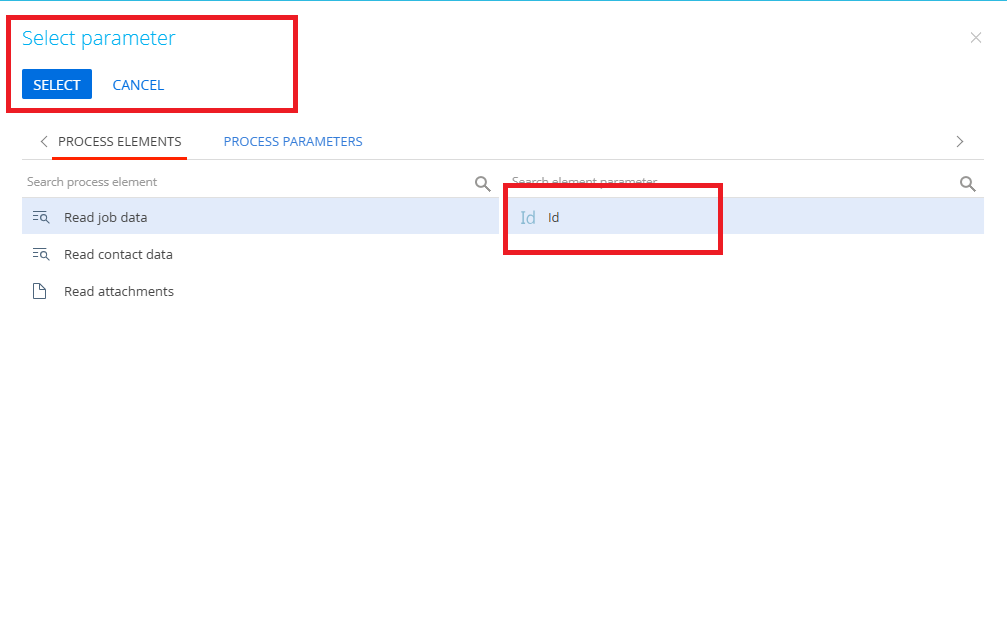
Formula: Enter a dynamic value using logic or expressions. - As my record value is there in my Process parameter, we have selected “Process parameters” option. On click of this option a “Select parameter” window will be opened with all the process elementes and parameters. We want record Id, so we will select the Id parameter from list and click on SELECT. Refer below:
- Now, the value will be assigned to “Job” field in “Email connection” field. Refer below:
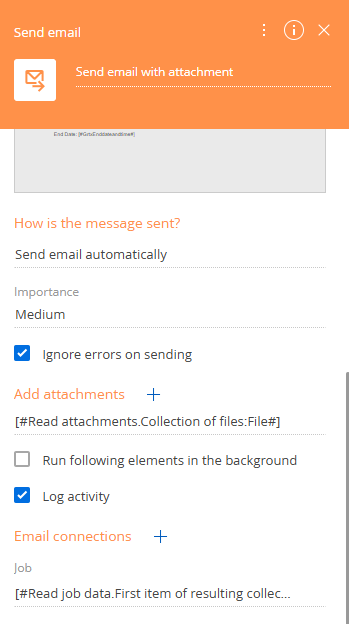
- Click on Save, to save these changes in business process.
Now, whenever this email is sent out from the system, it will be auto linked to respected Job record. Refer below:
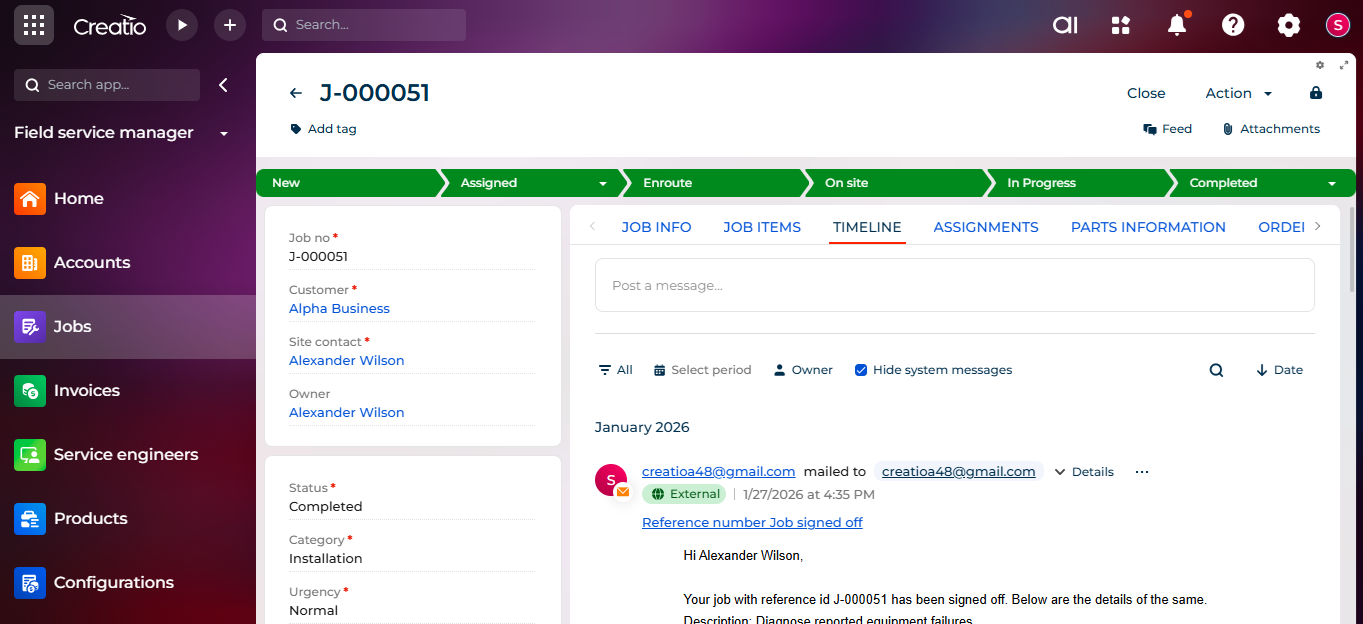
Auto-linking emails to records through a business process in Creatio helps keep your communication organized and easy to track. Once configured, every email sent through the process is automatically connected to the right record, saving time and reducing manual work.
About Us
Greytrix is a globally recognized consulting and development partner with 25+ years of expertise in delivering industry-relevant CRM and ERP solutions tailored to business needs. Over the years, we have built strong proficiency in providing end-to-end services, including consultation, implementation, migration, integration, and custom development for Sage ERP, Salesforce, and Sage CRM. With our native cloud integration framework, GUMU™, we power seamless real-time connectivity between leading ERPs and CRMs, helping organizations unlock efficiency and scale. Our solutions have supported businesses across industries, enabling them to modernize legacy systems and keep pace with fast-changing digital demands.
Expanding our capabilities, Greytrix is also a trusted Creatio CRM Consulting and Implementation Partner. Creatio is a leading AI-native, no-code CRM platform that enables businesses to streamline workflows, enhance customer experiences, and accelerate digital transformation. Leveraging our industry experience and in-house innovation, including GUMU™ Copilot AI, we help organizations adopt Creatio CRM with confidence. We ensure the platform supports automation, compliance, and scalability, while tailoring it to unique business needs to deliver measurable results.
Our commitment goes beyond technology; we believe in being a long-term partner. From designing CRM roadmaps to delivering analytics and automation, we help businesses simplify operations, drive growth, and achieve tangible outcomes.
For more information on our Creatio CRM services and solutions, contact us at creatio@greytrix.com. We will be glad to assist you.