
In many business applications, storing files related to records is very important. These files may include documents, invoices, contracts, screenshots, reports, or any supporting information related to a specific record. In Creatio, the Attachment tab makes this process simple. It allows users to upload and manage files directly within a record, ensuring that all related documents are stored in one place and easily accessible.
When working with custom objects, the attachment functionality may not behave as expected unless it is configured correctly. When a custom section or object is created, the Attachment tab appears on the record form page by default, and uploaded files are stored in the “Uploaded file” entity. Because of this, it may initially appear that no additional configuration is required. However, even though files are visible in the Attachment tab and can be uploaded successfully, they cannot be easily accessed or processed within a business process. To properly read, filter, or manipulate these files in a business process, a dedicated file object linked to the main entity must be configured.
In this blog, we will walk through the steps required to properly configure file attachments for a custom object in Creatio.
- Step 1: Create a Custom File Object
Create a custom file object using the following naming convention and configuration.
Naming Convention:
Code = Main Custom Object Name + File
For example, if GrtxJobs is the main custom entity, the file object code should be GrtxJobsFile.
Note:
The naming convention must be followed exactly, including correct uppercase and lowercase letters. Otherwise, you may encounter issues when linking the attachment object to the main entity. - Step 2: Configure Inheritance
Set the Parent Object to “File” in the Inheritance section as shown below. This ensures the object inherits all standard file storage behavior from the base File object.
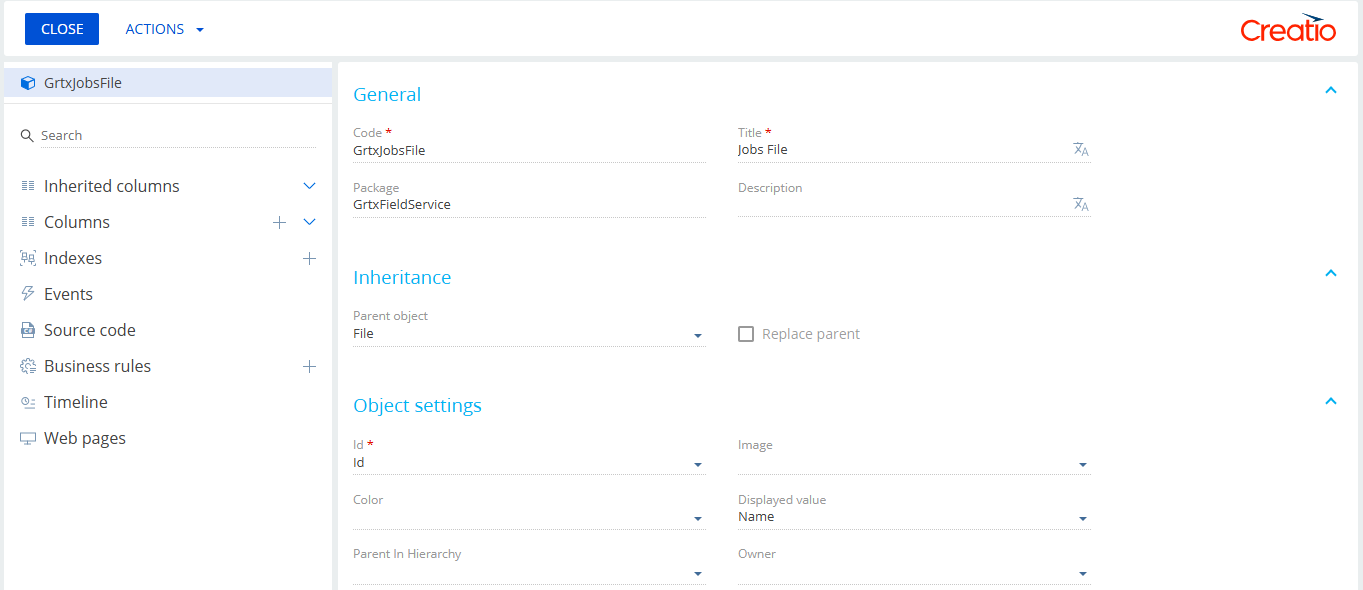
- Step 3: Add a Lookup Field to the File Object
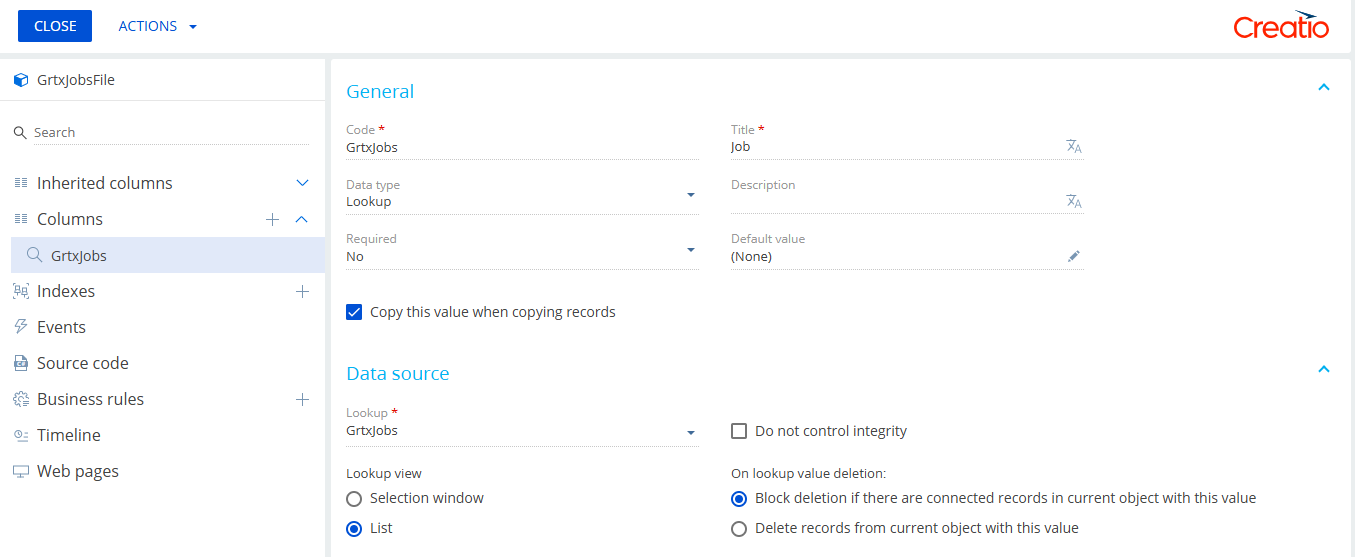
1. Click the (+) icon next to Columns and select the Lookup data type.
2. Create a lookup field that links the file object to the main custom entity.
Field Code: Same as the parent custom object name. For Example, GrtxJobs.
Data Source: Select the main custom object. For Example, GrtxJobs.
This lookup establishes the relationship between the attachment and the main record.
- Step 4: Configure the Attachment Section on the Form Page
1. Open the form page of the main custom entity.
2. Click on the Attachment button.
3. The Attachment section will appear.
4. Select List to open the list settings panel. - Step 5: Configure Attachment Settings
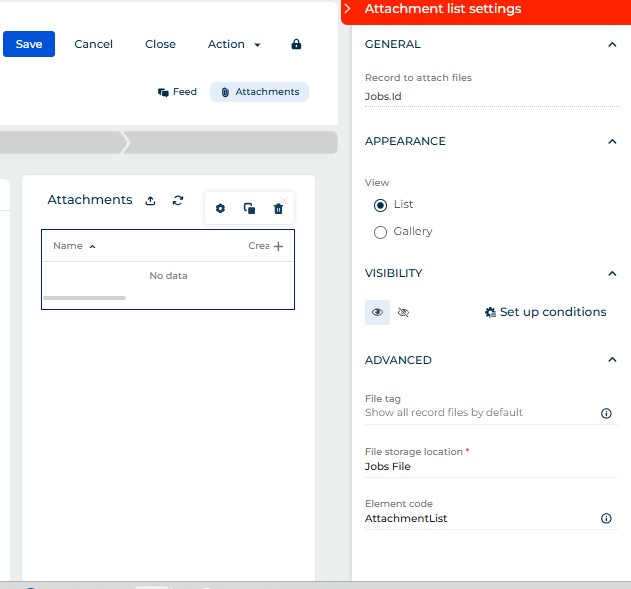
In the Attachment list settings,
Record to attach files: Select the custom object’s Id field. For Example: Jobs.Id
File storage location: Select the custom file object created earlier. For Example: Jobs File
After completing this configuration:
- All attachments for the custom entity will be stored in a dedicated table.
- The setup follows Creatio development standards.
- Files can be easily accessed and processed in business processes.
By creating a dedicated file object that inherits from File, following the correct naming convention, and establishing a proper lookup relationship with the main entity, developers can ensure that attachments are not only visible on the record page but also fully usable in automation and business processes.
Proper configuration improves data organization, simplifies file management, and enables seamless integration between attachments and system workflows.
About Us
Greytrix is a globally recognized consulting and development partner with 25+ years of expertise in delivering industry-relevant CRM and ERP solutions tailored to business needs. Over the years, we have built strong proficiency in providing end-to-end services, including consultation, implementation, migration, integration, and custom development for Sage ERP, Salesforce, and Sage CRM. With our native cloud integration framework, GUMU™, we power seamless real-time connectivity between leading ERPs and CRMs, helping organizations unlock efficiency and scale. Our solutions have supported businesses across industries, enabling them to modernize legacy systems and keep pace with fast-changing digital demands.
Expanding our capabilities, Greytrix is also a trusted Creatio CRM Consulting and Implementation Partner. Creatio is a leading AI-native, no-code CRM platform that enables businesses to streamline workflows, enhance customer experiences, and accelerate digital transformation. Leveraging our industry experience and in-house innovation, including GUMU™ Copilot AI, we help organizations adopt Creatio CRM with confidence. We ensure the platform supports automation, compliance, and scalability, while tailoring it to unique business needs to deliver measurable results.
Our commitment goes beyond technology; we believe in being a long-term partner. From designing CRM roadmaps to delivering analytics and automation, we help businesses simplify operations, drive growth, and achieve tangible outcomes.
For more information on our Creatio CRM services and solutions, contact us at creatio@greytrix.com. We will be glad to assist you.