
When customizing the Creatio CRM interface, one common issue both developers and no‑code designers run into is the appearance of awkward blank spaces in panels when certain fields are hidden. This usually happens because field visibility is controlled through business rules, while the layout itself remains fixed. As a result, even if a field is hidden, the system still reserves space for it, leaving the page looking misaligned and less polished.
One of our clients recently pointed out this exact problem. They noticed that when fields were hidden based on conditions, the panel continued to show empty gaps that served no purpose. To solve this, Creatio introduced a smart layout feature called the Flex Container. Unlike static layouts, Flex Containers automatically adjust the design depending on which elements are visible, ensuring the interface stays clean and well‑organized.
Problem Scenario: Hiding Fields Using Business Rules
Let’s consider a real-world example on the Contacts page.
We had two custom fields:
- Employee ID
- Employment Status
These fields should only be visible when the Type field is set to Employee.
Initial Approach (Without Flex Container)
Initially, both fields were added directly to a panel. A business rule was configured to hide Employee ID and Employment Status when Type ≠ Employee.
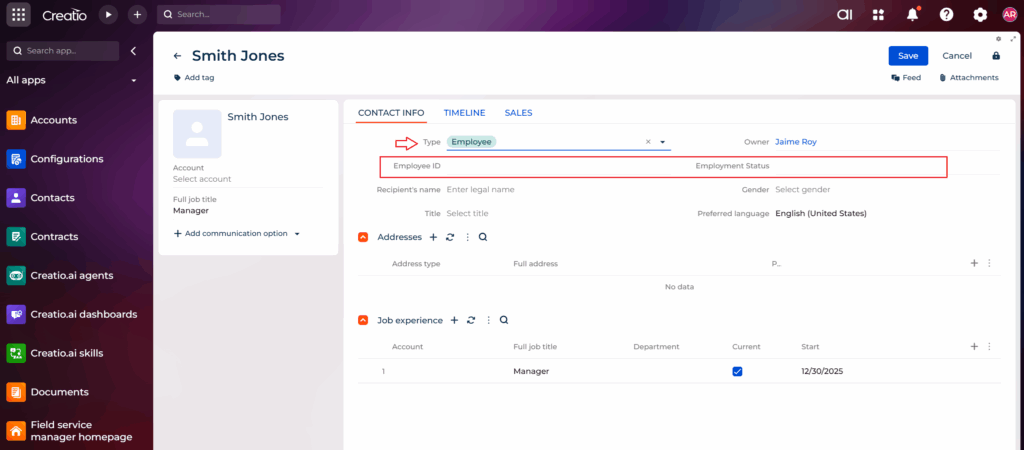
While this worked functionally, it caused a UI issue:
- When the fields were hidden, empty space remained in the panel.
- The layout looked broken and inconsistent, especially on responsive screens.
In this example, when the type is set to anything other than Employee, the fields disappear, but the layout still leaves behind empty space.
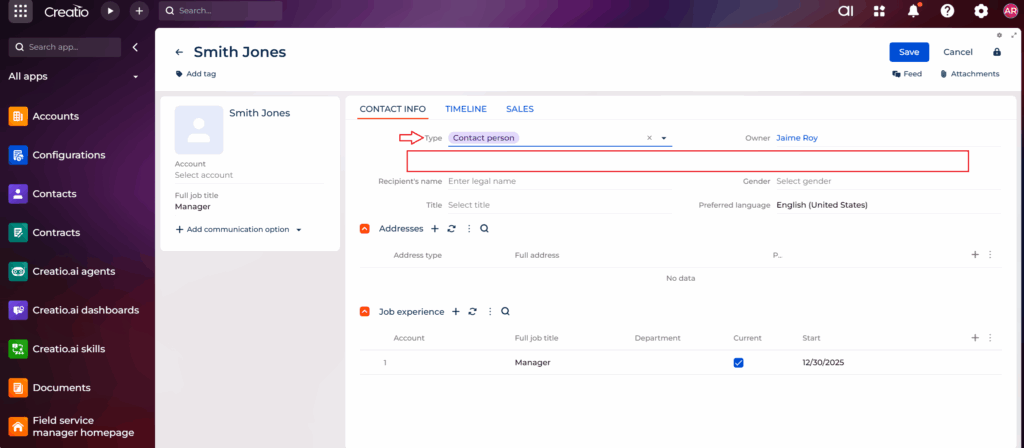
This is because standard containers in Creatio do not automatically reflow when elements are hidden.
Solution: Using Flex Container with Setup Conditions
To overcome this issue, Creatio provides the Flex Container layout element, which dynamically adjusts its layout based on the visibility of its child elements.
Updated Approach (With Flex Container)
- A Flex Container was added to the Contacts page.
- The fields Employee ID and Employment Status were moved inside this Flex Container.
- Instead of applying a business rule to each field, a Setup Condition was applied directly to the Flex Container:
Condition: Show container only when Type = Employee
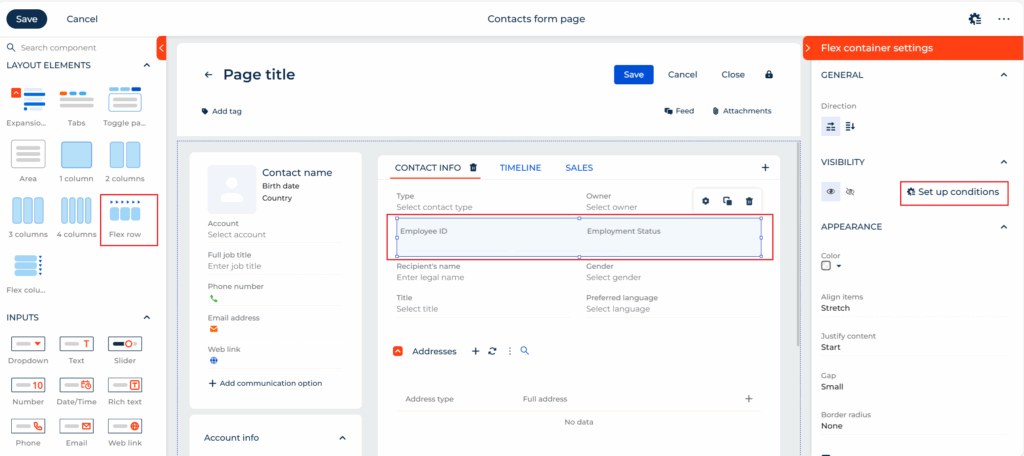
- When Type = Employee, the Flex Container becomes visible and displays both fields.
- When Type ≠ Employee, the entire container is hidden.
- No blank space appears, as the layout automatically adjusts.
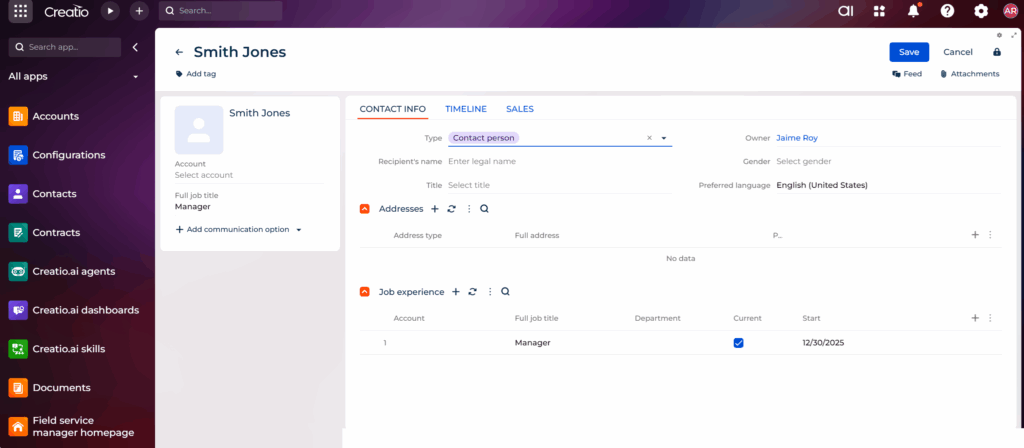
Key Benefits of Using Flex Containers
- Eliminates blank spaces when elements are hidden
- Improves UI responsiveness and alignment
- Reduces complexity by grouping related fields
- Encourages cleaner and more maintainable page design
- Ideal for conditional layouts and role-based visibility
Conclusion
Flex Containers are a significant enhancement in Creatio’s UI customization capabilities. When dealing with conditional visibility, especially for grouped fields, using a Flex Container with setup conditions is a best practice over traditional business rules. It ensures a clean layout, better user experience, and simpler configuration.