
Salesforce Spring ’26 introduces a game-changing enhancement for admins and automation builders. Record-Triggered Flows can now start directly on file objects like ContentDocument and ContentVersion without requiring Apex code.
This powerful update unlocks advanced file automation using clicks instead of code.
In this blog, we’ll explore:
- How Record-Triggered Flows work on file objects
- How to identify the parent record of a file
- Common use cases and best practices
Let’s dive in.
Using Record-Triggered Flow on ContentVersion
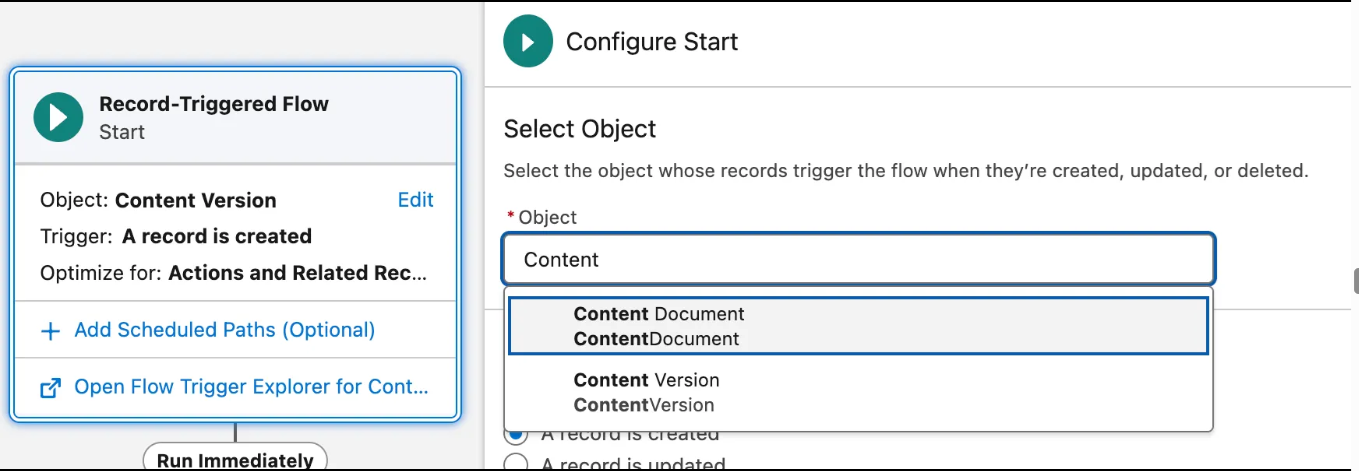
Spring ’26 allows you to create a Record-Triggered Flow directly on file objects.
Flow Type: Record-Triggered Flow
Example: Trigger When a File Is Uploaded
Trigger Configuration
- Object: ContentVersion
- Trigger: A record is created
- Optimize for:
- Before Save → validations or blocking uploads
- After Save → automation actions
Key Rules for File Record-Triggered Flows
- Available only in Spring ’26 or later
- Supported exclusively in Record-Triggered Flows
- Standard Flow limits apply
- Entry conditions are strongly recommended to reduce unnecessary executions
Common File Automation Use Cases
Blocking Invalid File Uploads (Before Save)
Use Before Save when you need to prevent an action from occurring.
Examples:
- Block non-PDF uploads
- Restrict file size
- Prevent uploads on closed records
To achieve this:
- Add a Decision element
- Use a Custom Error to stop the upload
Notify Users When a File Is Uploaded (After Save)
Use After Save when you want to take action after a file is uploaded.
Examples:
- Notify the record owner
- Send email to the compliance team
- Post an update to Chatter
Auto Share Files to Related Records
Files are shared using ContentDocumentLink.
Flow Steps:
- Get ContentDocumentLink records
- Identify the parent record
- Create new ContentDocumentLink records
This approach replaces many common Apex-based file-sharing triggers with declarative automation.
Identifying the Parent Record of a File
Files do not directly store the parent record ID. To determine where a file was uploaded, use:
Get Records: ContentDocumentLink
Filter:
- ContentDocumentId = $Record.ContentDocumentId
Important Fields:
- LinkedEntityId → Parent record ID
- ShareType → Viewer or Collaborator
Using this approach allows your flow to behave differently depending on the record type or business context.
Preventing File Deletion Using ContentDocument
To stop file deletion:
Flow Setup
- Object: ContentDocument
- Trigger: Before Delete
- Add Decision logic
- Use Custom Error
Common Use Cases:
- Compliance documents
- Legal attachments
- Closed Opportunity files
Best Practices for File Record-Triggered Flows
- Filter early using entry conditions
- Prefer Before Save for validations
- Add fault paths to every DML action
- Keep one flow per business purpose
- Document compliance-related logic clearly
Spring ’26 closes a long-standing automation gap in Salesforce. With Record-Triggered Flows on ContentDocument and ContentVersion, admins can now:
- React to file uploads
- Enforce file compliance
- Automate file sharing
- Prevent deletions
- Replace Apex-based file triggers
All using declarative tools.
Conclusion
Understanding how Salesforce files work – and how to automate them using Record-Triggered Flows — is now a core skill for admins and architects.
By clearly separating file events (ContentVersion) from file lifecycle control (ContentDocument), your automation becomes easier to design, easier to explain, and significantly easier to maintain.
Salesforce Spring ’26 is not just an upgrade – it marks a new automation frontier for file management in Salesforce.
By following the above blog instructions, you will be able to learn “Salesforce Spring ’26: Automation Just Got Smarter with Record Triggered Flows on Files“. If you still have queries or any related problems, don’t hesitate to contact us at salesforce@greytrix.com. More details about our integration product are available on our website and Salesforce AppExchange.
We hope you may find this blog resourceful and helpful. However, if you still have concerns and need more help, please contact us at salesforce@greytrix.com.
About Us
Greytrix – a globally recognized and one of the oldest Sage Development Partner and a Salesforce Product development partner offers a wide variety of integration products and services to the end users as well as to the Partners and Sage PSG across the globe. We offer Consultation, Configuration, Training and support services in out-of-the-box functionality as well as customizations to incorporate custom business rules and functionalities that require apex code incorporation into the Salesforce platform.
Greytrix has some unique solutions for Cloud CRM such as Salesforce Sage integration for Sage X3, Sage 100 and Sage 300 (Sage Accpac). We also offer best-in-class Cloud CRM Salesforce customization and development services along with services such as Salesforce Data Migration, Integrated App development, Custom App development and Technical Support business partners and end users. Salesforce Cloud CRM integration offered by Greytrix works with Lightning web components and supports standard opportunity workflow. Greytrix GUMU™ integration for Sage ERP – Salesforce is a 5-star rated app listed on Salesforce AppExchange.
The GUMU™ Cloud framework by Greytrix forms the backbone of cloud integrations that are managed in real-time for processing and execution of application programs at the click of a button.
For more information on our Salesforce products and services, contact us at salesforce@greytrix.com. We will be glad to assist you.
Related Posts
- Salesforce Spring ’26 PDF Generation Made Easy – Using Blob.toPdf in Apex
- Salesforce Spring ’26 File Deletion Permissions Explained: A Complete Admin Configuration Guide