
If you’ve built many Screen Flows, you’ve probably wished there were a cleaner, more user‑friendly way to display simple choices.
Standard radio buttons work well, but they stack options vertically and can make screens feel long and cluttered. Picklists take up less space, but users have to click a dropdown just to see the available options. Sometimes, neither option feels right, especially when you want a smooth, polished user experience.
What Is a Salesforce Radio Button Group?
A Radio Button Group is a Screen Flow component in Salesforce that lets users select one option from a list, just like traditional radio buttons.
The main difference is how the choices look and feel. Instead of displaying a plain vertical list with small circles, each option appears as a button-style choice that is easier to scan and click.
On desktop, the buttons line up horizontally, helping you use screen space more efficiently. On mobile, they automatically stack vertically, making them easier to tap.
Why This Matters
Screen Flows have become an essential part of the Salesforce Admin toolkit. As Flows continue to replace older automation tools, many admins are also using them to build internal applications and create customer-facing experiences.
A good user experience makes all the difference! When users have to scroll through long lists of radio buttons or open picklists just to explore the available options, even a simple screen can feel unnecessarily complicated.
The Radio Button Group helps solve this problem by displaying all available choices upfront in a clean, compact layout. Users can easily scan the options and make their selections without extra clicks or unnecessary scrolling.
How to Add a Radio Button Group to a Salesforce Screen Flow
To get started, open your Screen element in Flow Builder and drag the Radio Button Group component onto the canvas.
You can populate the available options using any of the following choice resources:
- Individual Choices
- Picklist Choice Sets
- Record Choice Sets
- Collection Choice Sets
Once configured, users can see all the available options at a glance and select the one that best fits their needs.
| Choice Type | What it does | When to use it | Example |
| Choice | A manually created option with a fixed label and value | When you have a small, static list of options | “Yes” = Yes, “No” = No |
| Record Choice Set | Dynamically generates options from Salesforce records | When options come from records in your org | List of active Accounts |
| Picklist Choice Set | Uses values from a Salesforce picklist field | When you want to reuse existing picklist values | Case Priority: High, Medium, Low |
| Collection Choice Set | Uses a collection variable containing records | When records have already been retrieved earlier in the flow | Selected Contacts from a Get Records element |
Top Tip: Still not sure which option to choose? Here’s a simple rule of thumb to help you decide:
- Need a few fixed options? Use a Choice.
- Want users to select a Salesforce record? Use a Record Choice Set.
- Want to use existing picklist values? Use a Picklist Choice Set.
- Already retrieved records in your Flow? Use a Collection Choice Set.
You also have additional configuration options, such as making the component required, allowing users to select multiple options, or setting visibility rules.
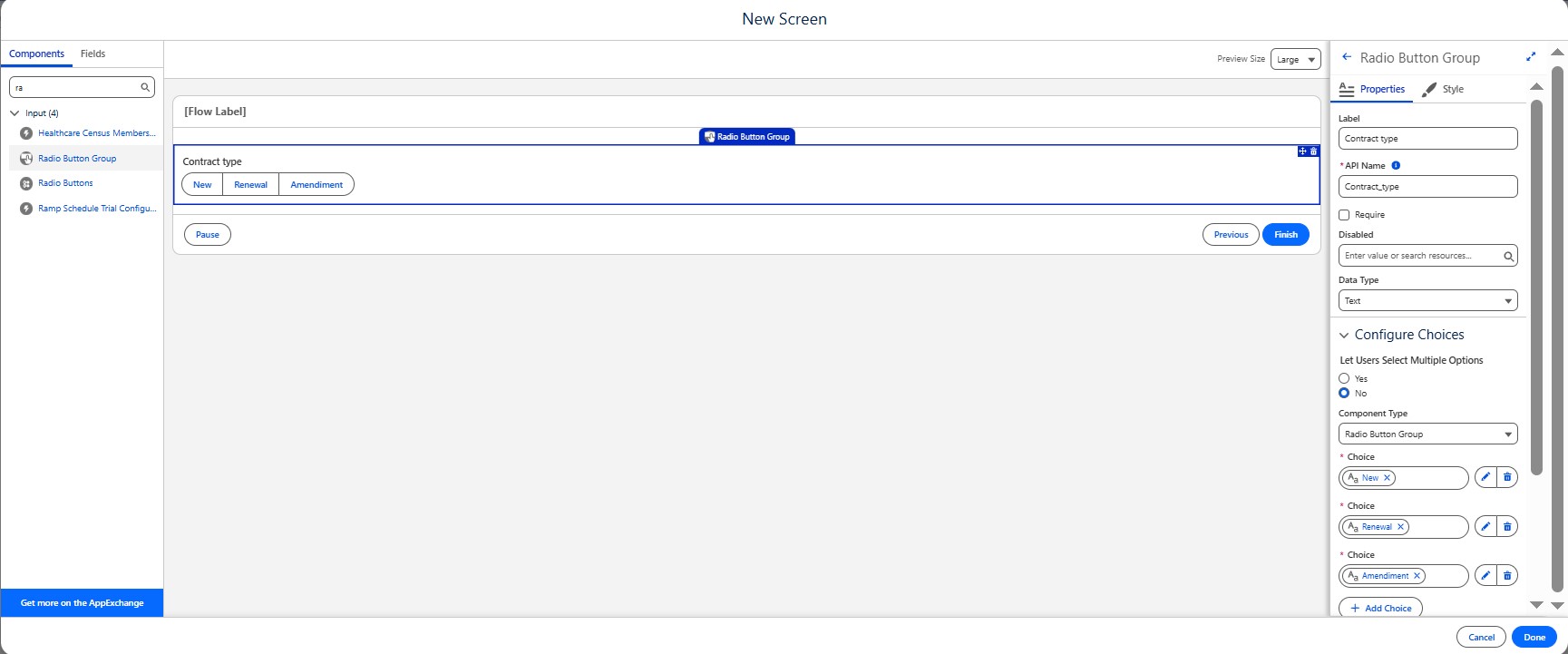
From a configuration perspective, there isn’t much to learn. The biggest change is simply how those choices are displayed to your users.
Where Does the Radio Button Group Work Best?
The Radio Button Group works best when users need to select from a small list of predefined options. It keeps things simple and makes it easy for users to choose the option that fits their needs.
Here are a few common examples:
- Payment Method: Credit Card, Bank Transfer, or Invoice.
- Contract Type: New, Renewal, or Amendment.
- Action Type: Create, Update, or Delete.
- Salesforce Object: Lead, Account, or Opportunity.
- Simple Decisions: Yes, No, or Maybe.
Limitations and Considerations
While the Radio Button Group is useful in many scenarios, it may not be the best fit for every situation.
Long Lists Can Be Difficult to Manage
The Choice component displays all available options together. This works well when users have only three or four options to choose from, but it can become overwhelming when the list contains dozens of records or lengthy labels.
For larger datasets, especially when working with record choice sets, a traditional picklist may offer a cleaner and more user-friendly experience.
Ultimately, the best choice depends on the number of options you’re presenting and how easily users need to navigate them.
They Look Like Buttons, But They Don’t Perform Actions
One important thing to keep in mind is how users perceive the Choice component.
Since the options look like clickable buttons, users might expect selecting one to trigger an action immediately. However, the component only captures the selected value, which the flow can use in later steps.
The flow will continue only when the user clicks Next or another navigation button configured in the flow.
For experienced Salesforce users, this may feel natural. However, if you’re building customer-facing flows or applications for users who aren’t familiar with Salesforce, make sure the navigation is clear so they understand that selecting an option doesn’t complete the process on its own.
Conclusion
Before the Radio Button Group became available, Salesforce admins often had to rely on custom components or alternative solutions to display options in a compact, horizontal layout. There was no standard component that offered quite the same experience.
The Radio Button Group fills this gap by giving Flow builders another way to design clean, user-friendly screens. It doesn’t replace picklists or traditional radio buttons, as each component serves a different purpose. Instead, it provides more flexibility when designing screens and choosing the right component for the intended user experience.
Sometimes, even small UI improvements can make a noticeable difference. If your flow presents a short list of options, the Radio Button Group is a great way to display them in a cleaner, more modern layout and help users make their selections quickly and easily.
By following the above blog instructions, you will be able to learn “Salesforce Summer ’26: How to Create a Radio Button Group in Flow“. If you still have queries or any related problems, don’t hesitate to contact us at salesforce@greytrix.com. More details about our integration product are available on our website and Salesforce AppExchange.
We hope you may find this blog resourceful and helpful. However, if you still have concerns and need more help, please contact us at salesforce@greytrix.com.
About Us
Greytrix – a globally recognized and one of the oldest Sage Development Partner and a Salesforce Product development partner offers a wide variety of integration products and services to the end users as well as to the Partners and Sage PSG across the globe. We offer Consultation, Configuration, Training and support services in out-of-the-box functionality as well as customizations to incorporate custom business rules and functionalities that require apex code incorporation into the Salesforce platform.
Greytrix has some unique solutions for Cloud CRM such as Salesforce Sage integration for Sage X3, Sage 100 and Sage 300 (Sage Accpac). We also offer best-in-class Cloud CRM Salesforce customization and development services along with services such as Salesforce Data Migration, Integrated App development, Custom App development and Technical Support business partners and end users. Salesforce Cloud CRM integration offered by Greytrix works with Lightning web components and supports standard opportunity workflow. Greytrix GUMU™ integration for Sage ERP – Salesforce is a 5-star rated app listed on Salesforce AppExchange.
The GUMU™ Cloud framework by Greytrix forms the backbone of cloud integrations that are managed in real-time for processing and execution of application programs at the click of a button.
For more information on our Salesforce products and services, contact us at salesforce@greytrix.com. We will be glad to assist you.