
Screen Flows in Salesforce help create guided, interactive user experiences. One of their most powerful capabilities is Conditional Visibility, which allows screens to dynamically adjust in real time based on user input. This feature ensures users see only the fields relevant to them – making flows cleaner, smarter, and more intuitive.
In this blog, we’ll explore how Conditional Visibility enhances a Customer Support Form by displaying only the fields that matter to the user’s selected issue type.
Conditional Visibility enables Salesforce Flows to:
- Display fields only when they are relevant
- React instantly to user answers
- Replace multiple screens with one dynamic screen
- Improve user experience with cleaner UI
In this blog, you’ll learn how to:
- Build a dynamic screen flow
- Use picklists to drive visibility logic
Use Case
Imagine a Customer Support form where required information depends on the issue type – Technical, Billing, or General. Instead of showing every input to every user, the flow reveals only the fields tied to the selected issue type. This creates a cleaner and more user-friendly experience.
Below is how to achieve this using Salesforce Screen Flows.
Step 1: Create a New Screen Flow
- Go to Setup → Flows → New Flow
- Select Screen Flow
- Click Create
- Name the flow: Customer_Support_Request_Flow
Step 2: Create Variables
Create variables to store user input:
- varFullName – Text (stores user’s full name)
- varEmail – Text (stores user’s email address)
- varIssueType – Text (stores selected issue type)
Step 3: Build Screen 1 – Collect Customer Information
Add a screen component and name it Screen_CustomerInfo.
Add the following fields:
Full Name
- Type: Text
- Required
- Store Output In → varFullName
- Type: Email
- Required
- Store Output In → varEmail
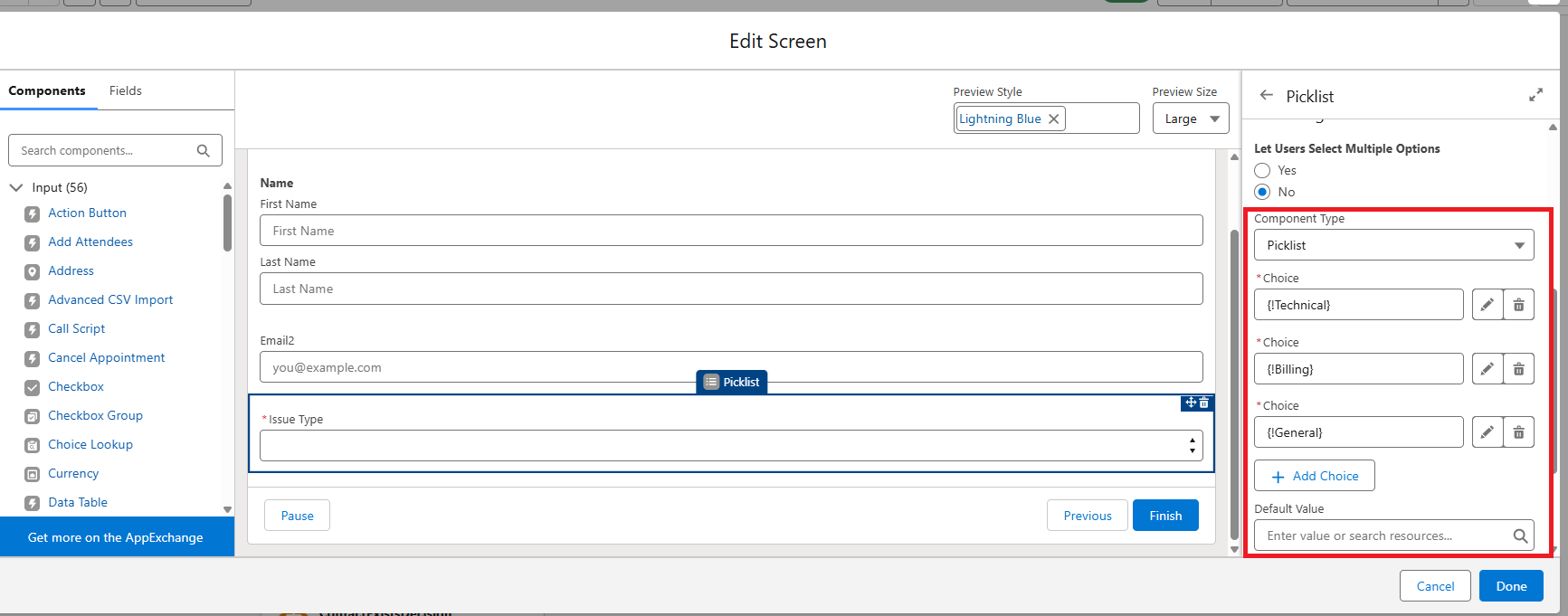
Issue Type (Picklist)
Use Manually Assign Choices and add:
- Technical
- Billing
- General
Store Output In → varIssueType
This picklist will control which fields are visible in the next screen
Step 4: Build Screen 2 — Conditional Fields
Add a second screen named Screen_IssueDetails.
This screen will show fields dynamically based on the value of Issue Type.
Example: Fields Displayed for Technical Issues
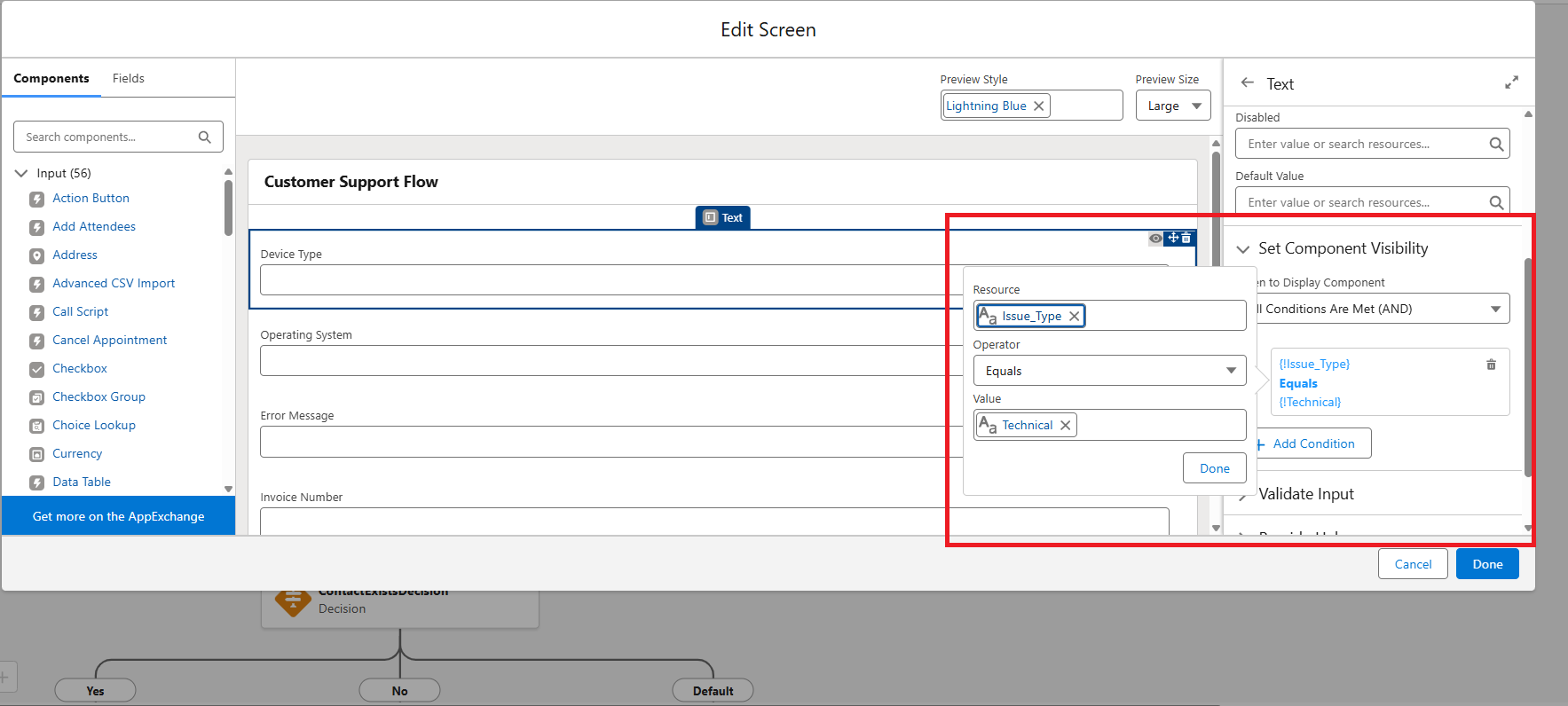
Suppose you want the fields Device Type and Operating System to appear only when the user selects Technical.
Set Visibility Conditions:
- Select Device Type → Set Component Visibility → All Conditions Are Met
- Set:
- Resource: Issue_Type (Picklist)
- Operator: Equals
- Value: Technical
Repeat the same steps for Operating System.
Example: Fields Displayed for Billing Issues
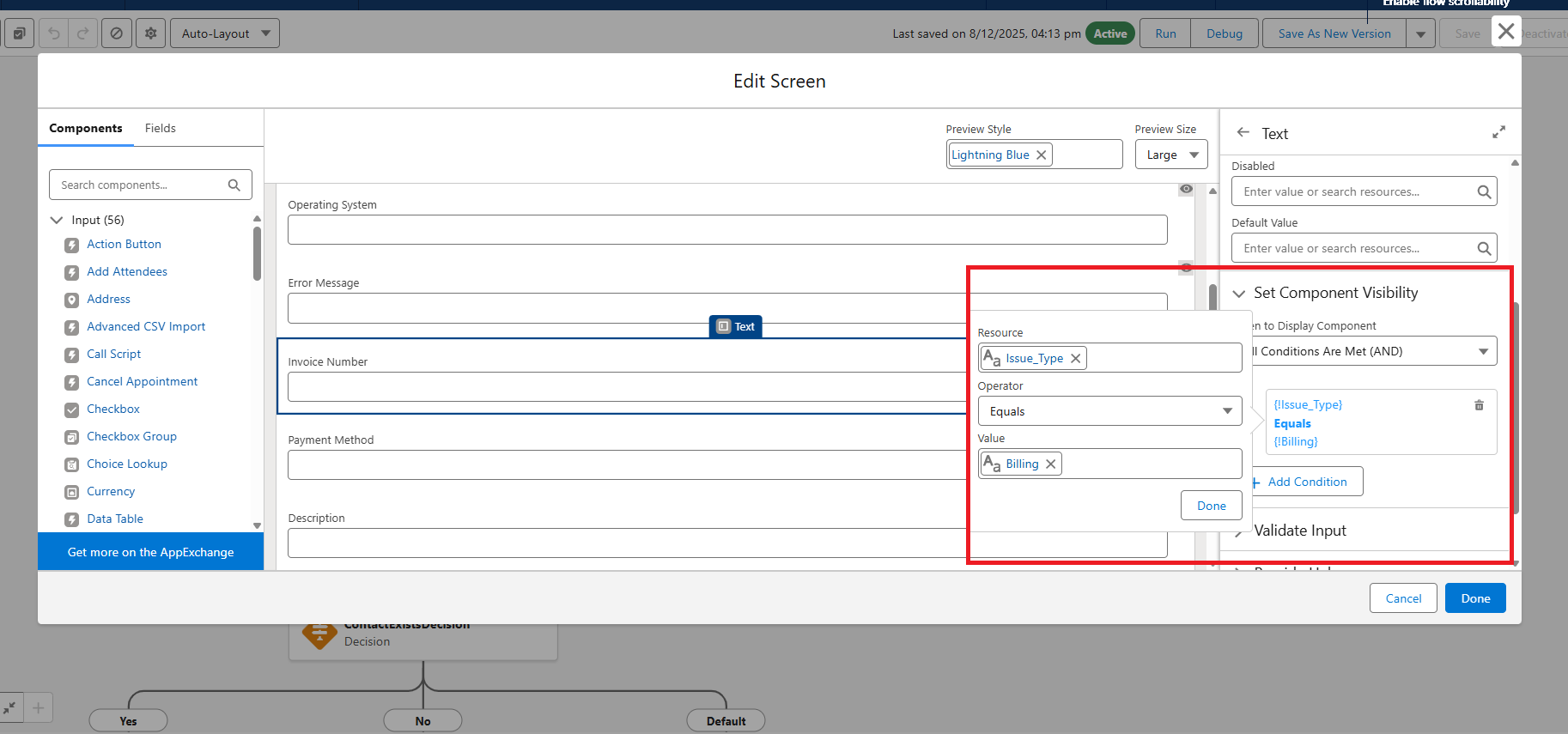
Suppose you want the fields Invoice Number and Payment Method to appear only when Billing is selected.
Set Visibility Conditions:
- Select Invoice Number
- Set:
- Resource: Issue_Type (Picklist)
- Operator: Equals
- Value: Billing
Repeat the same for Payment Method.
Final Output
Customer Support Form View
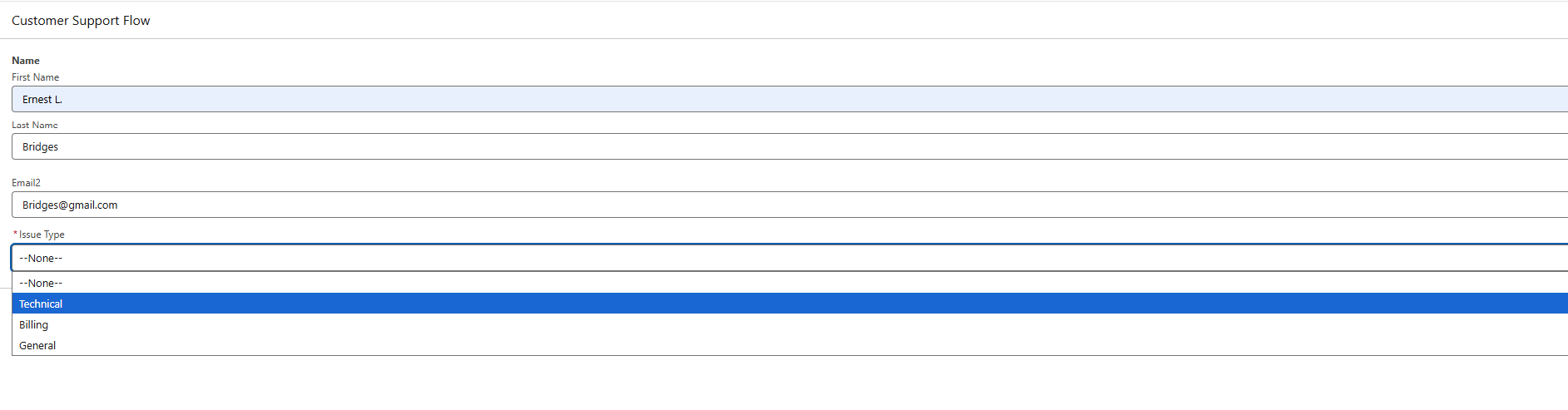
When the user selects Technical, only technical fields appear.

When Billing is selected, only billing fields appear.

Conclusion
Conditional Visibility transforms Screen Flows into smart, responsive user experiences by showing only the fields that users need. This customer support example demonstrates how easily flows can adapt to different scenarios, making forms simpler, faster, and more intuitive for users.
By following the above blog instructions, you will be able to learn “Creating Dynamic User Experiences with Conditional Visibility in Salesforce Screen Flows“. If you still have queries or any related problems, don’t hesitate to contact us at salesforce@greytrix.com. More details about our integration product are available on our website and Salesforce AppExchange.
We hope you may find this blog resourceful and helpful. However, if you still have concerns and need more help, please contact us at salesforce@greytrix.com.
About Us
Greytrix – a globally recognized and one of the oldest Sage Development Partner and a Salesforce Product development partner offers a wide variety of integration products and services to the end users as well as to the Partners and Sage PSG across the globe. We offer Consultation, Configuration, Training and support services in out-of-the-box functionality as well as customizations to incorporate custom business rules and functionalities that require apex code incorporation into the Salesforce platform.
Greytrix has some unique solutions for Cloud CRM such as Salesforce Sage integration for Sage X3, Sage 100 and Sage 300 (Sage Accpac). We also offer best-in-class Cloud CRM Salesforce customization and development services along with services such as Salesforce Data Migration, Integrated App development, Custom App development and Technical Support business partners and end users. Salesforce Cloud CRM integration offered by Greytrix works with Lightning web components and supports standard opportunity workflow. Greytrix GUMU™ integration for Sage ERP – Salesforce is a 5-star rated app listed on Salesforce AppExchange.
The GUMU™ Cloud framework by Greytrix forms the backbone of cloud integrations that are managed in real-time for processing and execution of application programs at the click of a button.
For more information on our Salesforce products and services, contact us at salesforce@greytrix.com. We will be glad to assist you.
Related Posts