
Salesforce Lookup Filters are a powerful configuration feature that helps administrators and developers control which records users can select in lookup fields. When implemented correctly, lookup filters improve data quality, enforce business rules, and streamline user workflows.
However, when lookup filters are misconfigured or removed incorrectly they can introduce confusing system errors that are difficult to trace. One commonly encountered error is shown below:
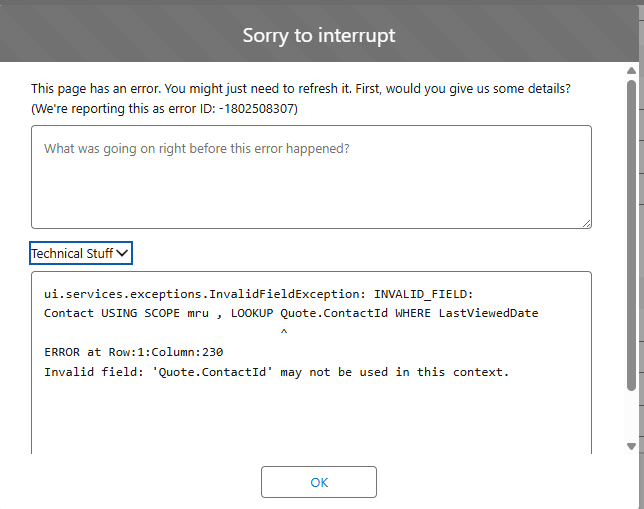
In this blog, we explore a commonly misunderstood Salesforce lookup filter issue by explaining what triggers the error, how lookup filters function behind the scenes, why the problem can persist even after a filter is removed, and the best practices you can follow to prevent similar issues in the future.
Understanding Salesforce Lookup Filters
Lookup filters restrict the records available in a lookup field based on defined criteria. They are commonly used to:
- Display only related records, such as Contacts for a selected Account
- Enforce business rules across objects
- Prevent incorrect data associations
Lookup filters are configured directly on the lookup field definition within the object. They are not implemented in Apex, SOQL queries, or reports.
What Is MRU Scope in Salesforce?
Salesforce uses MRU (Most Recently Used) scope to optimize lookup searches by displaying recently accessed records first. When lookup filters are applied, Salesforce combines MRU logic with the filter criteria to determine which records should appear.
Issues arise when Salesforce attempts to evaluate MRU results using outdated or invalid lookup filter metadata.
Why This Error Occurs?
This error typically appears when:
- A lookup filter was previously created on a standard lookup field
- The filter referenced a field that is no longer valid
- The lookup filter was removed or deactivated
- Salesforce metadata was not fully refreshed
Although the filter may no longer appear in the Salesforce UI, the platform continues to reference the old lookup filter metadata. This causes the system to fail when resolving the lookup query.
Note:
Lookup filters are stored in field-level metadata and are not dynamically evaluated at runtime.
Why Refreshing the Page Doesn’t Fix the Issue?
This problem can persist even after:
- Logging out and logging back in
- Refreshing the browser
- Switching users or profiles
The reason is that Salesforce caches lookup filter metadata at the browser and UI layer. Until the metadata is fully refreshed, Salesforce continues to apply outdated filter logic.
How to Resolve the Lookup Filter Error
Review Active Lookup Filters
- Navigate to the lookup field in Object Manager
- Confirm that no filters are marked as Active
- Save the field, even if no changes were made
Remove Filters from the UI
- Verify the lookup filter is completely removed
- Re-save the lookup field definition
Clear Browser Cache
- Clear browser cache and cookies
- Open Salesforce in a new browser session or Incognito mode
Verify Metadata Updates
- Ensure no lookup filters appear under Object Limits
- Test the lookup field again
- Once metadata is refreshed, the error should no longer appear
Best Practices for Salesforce Lookup Filters
To prevent similar issues in the future:
- Avoid referencing parent context fields unless absolutely necessary
- Use simple filter logic whenever possible
- Always deactivate lookup filters before deleting or modifying them
- Clear browser cache after removing filters and before testing
- Document lookup filters applied to standard objects
Conclusion
Lookup filters are an essential part of Salesforce configuration, but they must be handled with care. Errors related to MRU scope and invalid field references are typically metadata-related rather than data or code issues.
By understanding how Salesforce stores and evaluates lookup filters, administrators and developers can reduce troubleshooting time and prevent unexpected UI errors.related to MRU scope and invalid field references are usually metadata-related not data or code issues.
By following the above blog instructions, you will be able to learn “Salesforce Lookup Filters Explained: MRU Scope, Context Errors, and Best Practices”. If you still have queries or any related problems, don’t hesitate to contact us at salesforce@greytrix.com. More details about our integration product are available on our website and Salesforce AppExchange.
We hope you may find this blog resourceful and helpful. However, if you still have concerns and need more help, please contact us at salesforce@greytrix.com.
About Us
Greytrix – a globally recognized and one of the oldest Sage Development Partner and a Salesforce Product development partner offers a wide variety of integration products and services to the end users as well as to the Partners and Sage PSG across the globe. We offer Consultation, Configuration, Training and support services in out-of-the-box functionality as well as customizations to incorporate custom business rules and functionalities that require apex code incorporation into the Salesforce platform.
Greytrix has some unique solutions for Cloud CRM such as Salesforce Sage integration for Sage X3, Sage 100 and Sage 300 (Sage Accpac). We also offer best-in-class Cloud CRM Salesforce customization and development services along with services such as Salesforce Data Migration, Integrated App development, Custom App development and Technical Support business partners and end users. Salesforce Cloud CRM integration offered by Greytrix works with Lightning web components and supports standard opportunity workflow. Greytrix GUMU™ integration for Sage ERP – Salesforce is a 5-star rated app listed on Salesforce AppExchange.
The GUMU™ Cloud framework by Greytrix forms the backbone of cloud integrations that are managed in real-time for processing and execution of application programs at the click of a button.
For more information on our Salesforce products and services, contact us at salesforce@greytrix.com. We will be glad to assist you.