
Salesforce reports become truly powerful when formulas are used to transform raw data into meaningful insights. Row-Level Formulas and Summary Formulas allow users to calculate values directly within reports, helping teams analyze performance and trends without writing any code.
Row-Level Formulas work on individual records, while Summary Formulas calculate results on grouped data such as totals and percentages. When used together, they enable teams to measure success, track performance, and make informed business decisions.
In this blog, we explore how Row-Level Formulas and Summary Formulas work in Salesforce Reports, the differences between them, when to use each option, and real-world examples that demonstrate how both formula types can be combined to create insight-driven reports.
Introduction to Row-Level Formulas
A Row-Level Formula performs calculations on each individual record within a report.
The formula runs once per row and uses only the fields available on that specific record.
Example
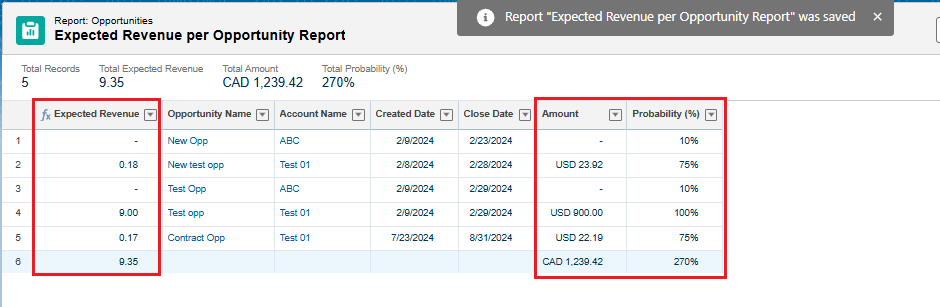
Calculate the Expected Revenue per Opportunity using standard Salesforce fields.
Formula
Amount * (Probability / 100)
Creating a Row-Level Formula in Salesforce Reports
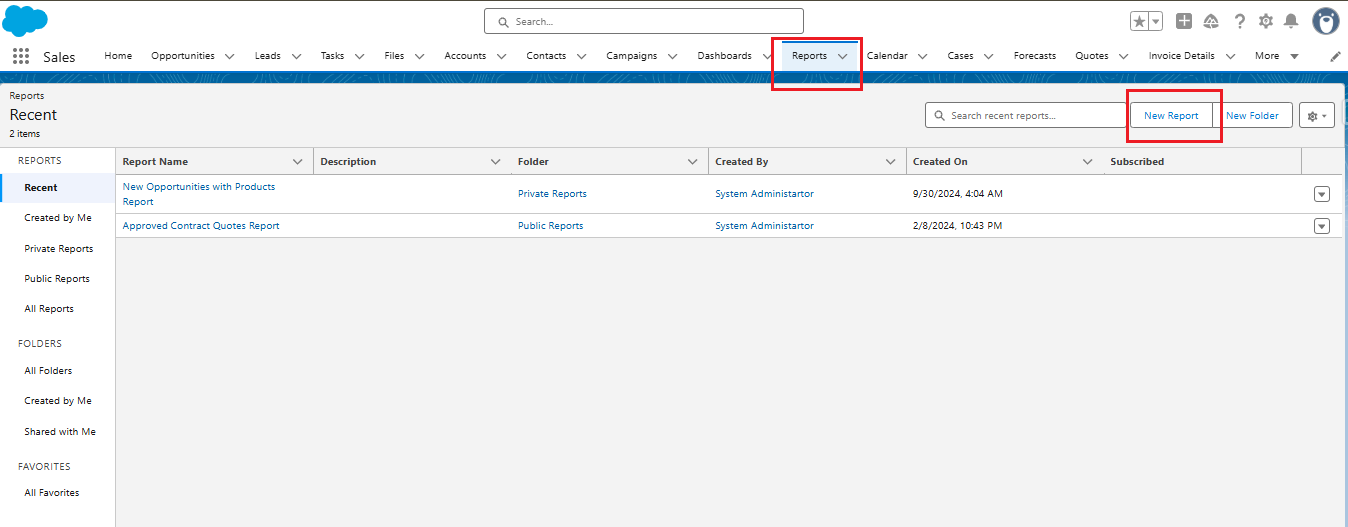
To create a Row-Level Formula, start by navigating to Reports → New Report.
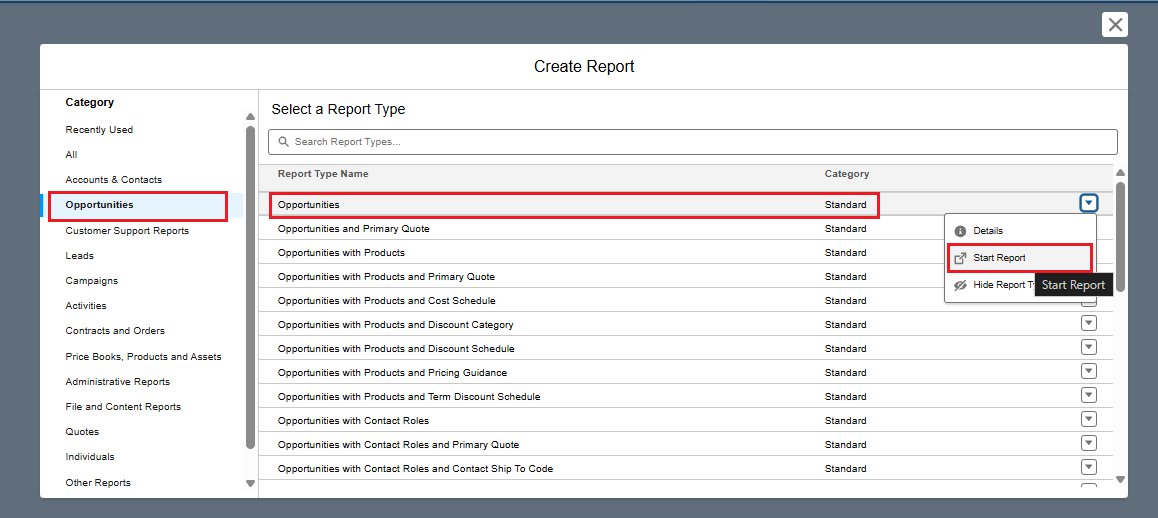
- Select Opportunities
- Click Start Report
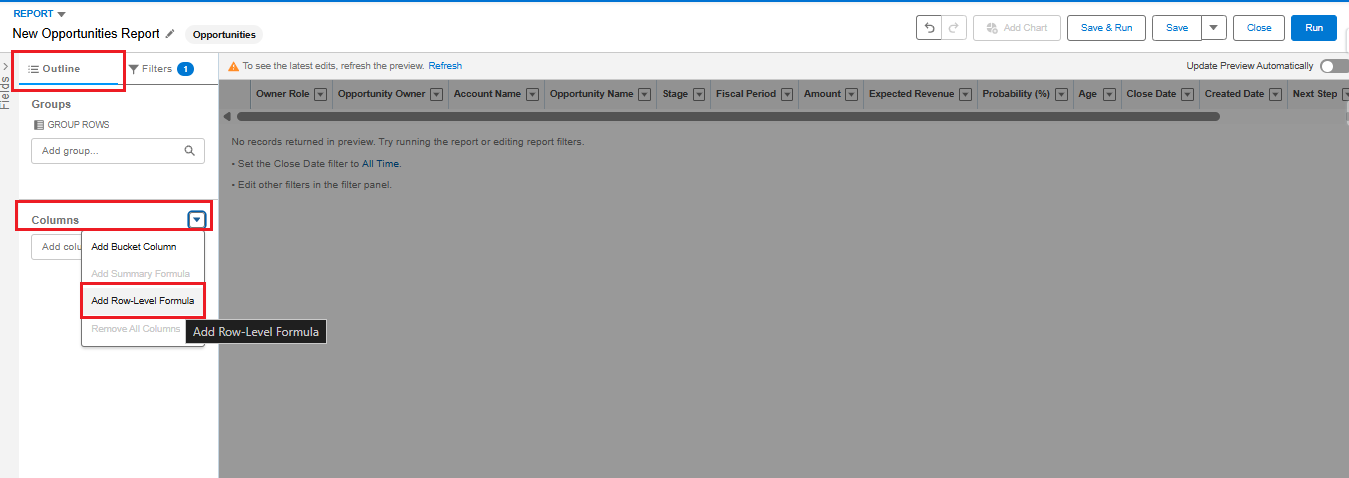
- In the Outline panel, click Add Row-Level Formula
Enter the required details:
- Column Name: Expected Revenue
- Format: Number
- Formula: Amount * (Probability / 100)
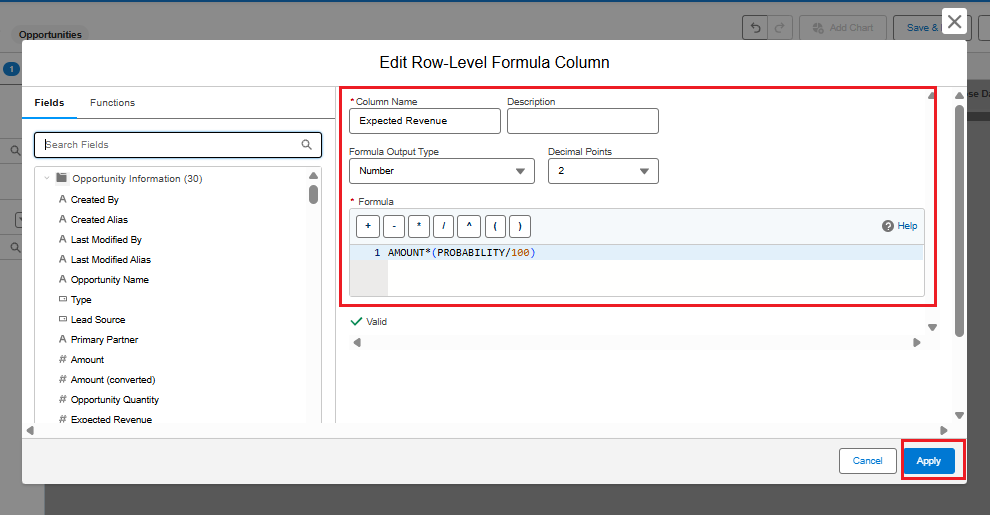
Save and run the report to view the Expected Revenue per Opportunity calculated for each record.
Introduction to Summary Formulas
A Summary Formula calculates values using aggregated report data. These formulas work with summary functions such as:
- SUM
- COUNT
- AVG
- MIN and MAX
Summary Formulas require grouped reports to function correctly.
Example
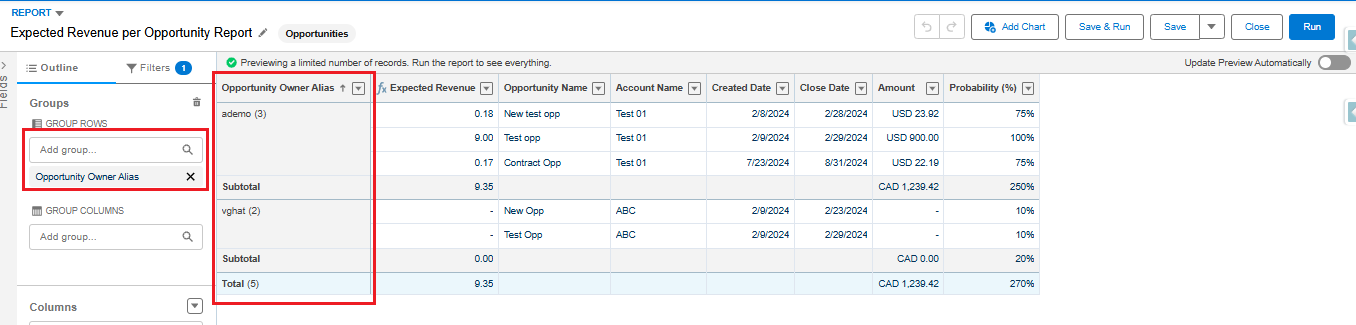
Management wants to understand the revenue contribution percentage by Sales Representative.
Creating a Summary Formula in Salesforce Reports
Begin by grouping the report by Opportunity Owner.
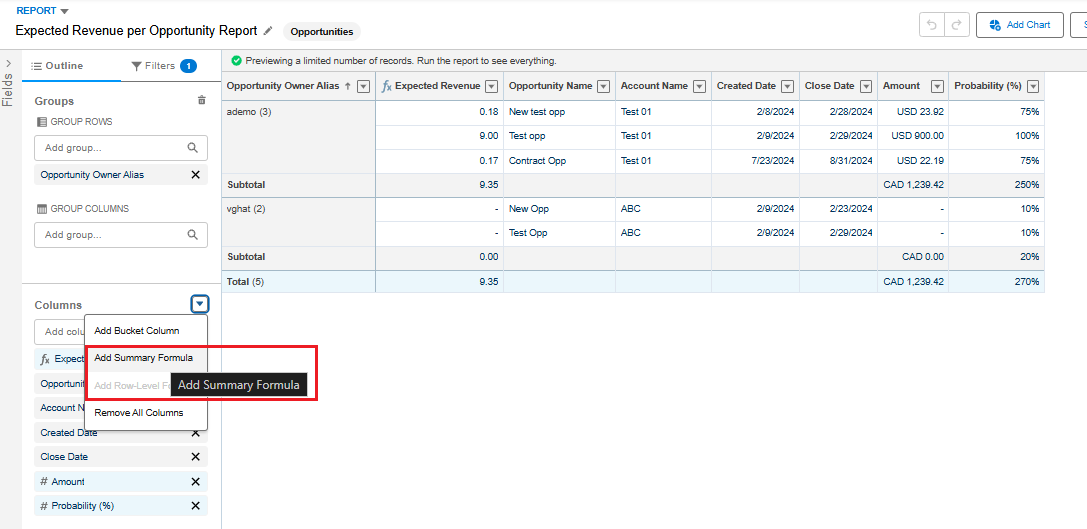
Click Add Formula and select Summary Formula.
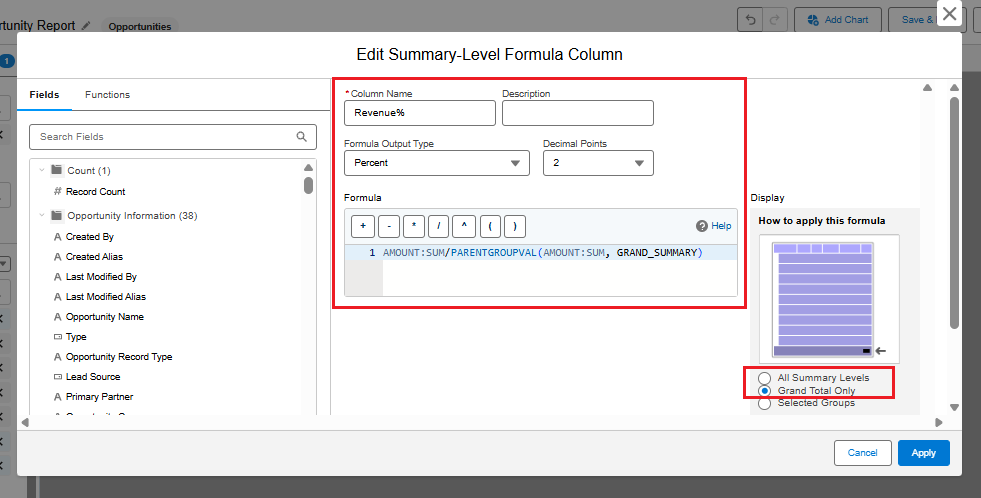
Enter the formula details:
- Column Name: Revenue %
- Format: Percent
- Formula: SUM(Amount) / PARENTGROUPVAL(SUM(Amount), GRAND_SUMMARY)
Run the report, then click Save & Run, provide a report name, and select a report folder.
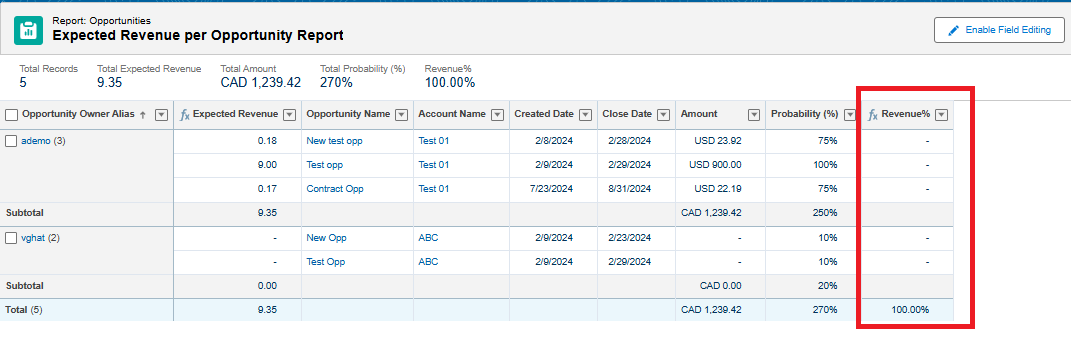
The report will now display the revenue percentage contribution for each Sales Representative.
Understanding the Difference Between Row-Level and Summary Formulas
Row-Level Formulas calculate values for each individual record, while Summary Formulas analyze those calculated values at grouped and grand-total levels within the same report. Together, they provide a complete view of both record-level performance and overall business trends.
Conclusion
Row-Level Formulas and Summary Formulas are essential tools for unlocking the full analytical power of Salesforce Reports. By calculating values at both the record and summary levels, teams can gain deeper insights, identify performance trends, and make smarter data-driven decisions without relying on custom code.
By following the above blog instructions, you will be able to learn “Salesforce Report Formulas Explained: How Row-Level and Summary Formulas Turn Data into Insights“. If you still have queries or any related problems, don’t hesitate to contact us at salesforce@greytrix.com. More details about our integration product are available on our website and Salesforce AppExchange.
We hope you may find this blog resourceful and helpful. However, if you still have concerns and need more help, please contact us at salesforce@greytrix.com.
About Us
Greytrix – a globally recognized and one of the oldest Sage Development Partner and a Salesforce Product development partner offers a wide variety of integration products and services to the end users as well as to the Partners and Sage PSG across the globe. We offer Consultation, Configuration, Training and support services in out-of-the-box functionality as well as customizations to incorporate custom business rules and functionalities that require apex code incorporation into the Salesforce platform.
Greytrix has some unique solutions for Cloud CRM such as Salesforce Sage integration for Sage X3, Sage 100 and Sage 300 (Sage Accpac). We also offer best-in-class Cloud CRM Salesforce customization and development services along with services such as Salesforce Data Migration, Integrated App development, Custom App development and Technical Support business partners and end users. Salesforce Cloud CRM integration offered by Greytrix works with Lightning web components and supports standard opportunity workflow. Greytrix GUMU™ integration for Sage ERP – Salesforce is a 5-star rated app listed on Salesforce AppExchange.
The GUMU™ Cloud framework by Greytrix forms the backbone of cloud integrations that are managed in real-time for processing and execution of application programs at the click of a button.
For more information on our Salesforce products and services, contact us at salesforce@greytrix.com. We will be glad to assist you.