
When you try to create fields on a custom object in Salesforce, you’ll notice something surprising, there’s no Address data type available by default.
Most users end up creating separate text fields for Street, City, State, and Postal Code. While that works, it quickly leads to cluttered screens and inconsistent data. The good news is Salesforce already has a better solution. Users just need to enable it first.
Enabling Custom Address Fields
Before you can use the Address data type, you need to turn on a setting in Setup.
Steps to enable “Use Custom Address Fields”:
- Go to Setup → User Interface.
- Locate “Use custom address fields.”
- Check the box.
- Click Save.
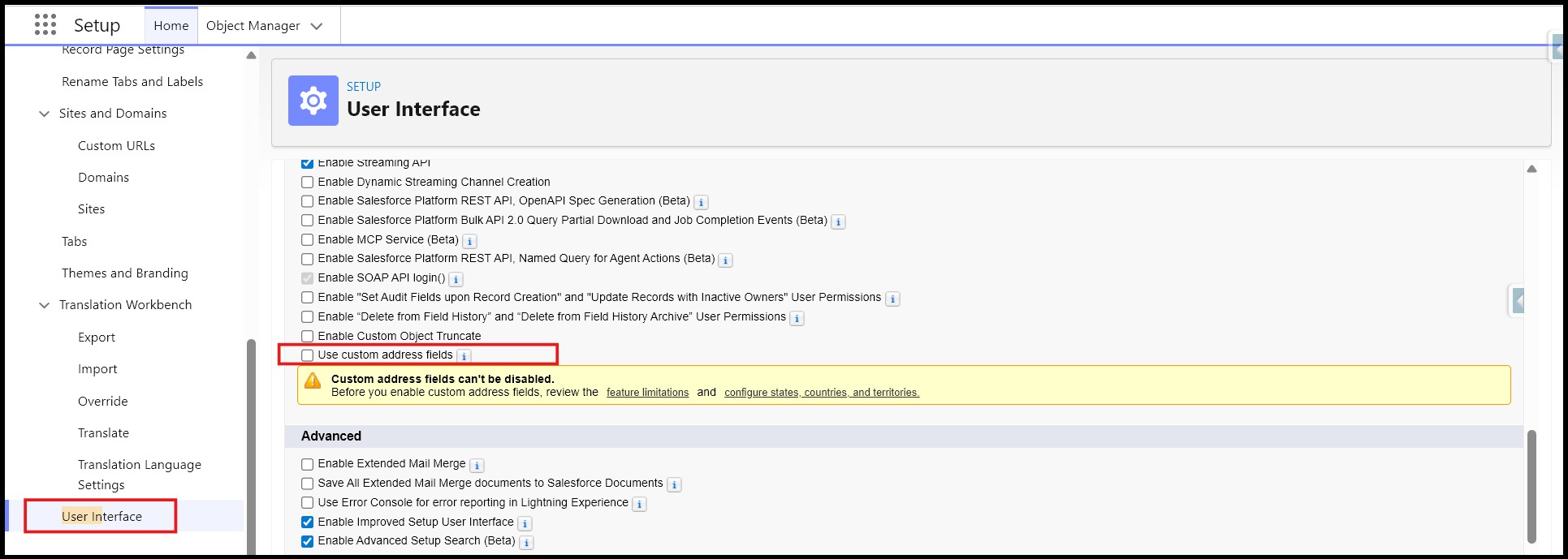
(Note: This setting cannot be disabled once enabled.)
Creating a Custom Address data type Field
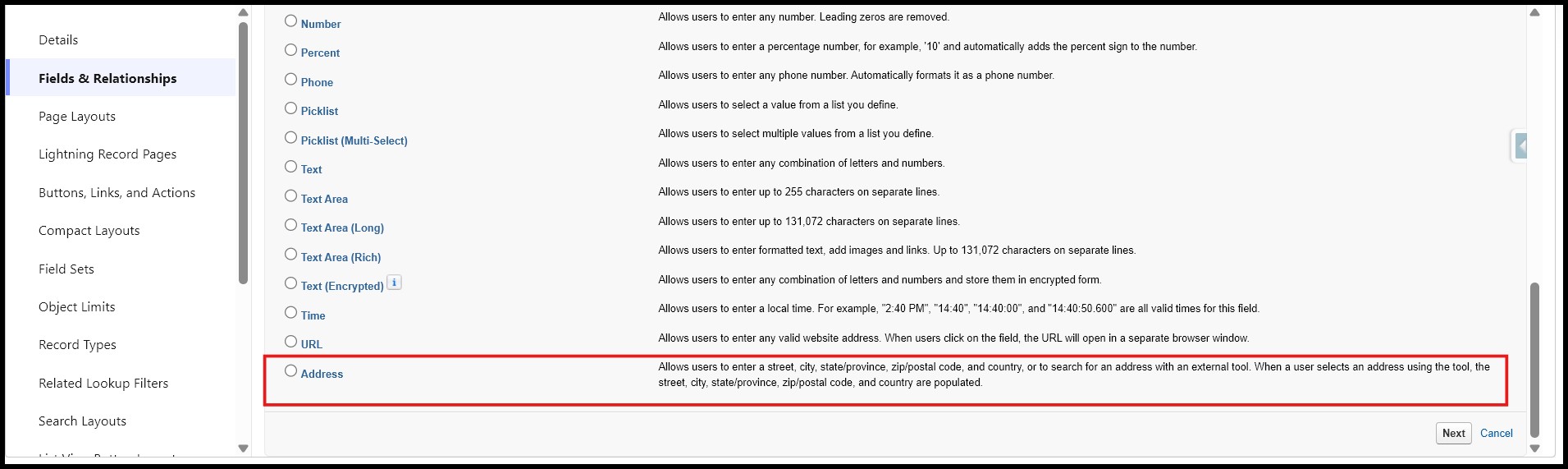
Once enabled, you’ll be able to use the Address field type on custom objects.
To create a custom Address field:
- Navigate to Setup → Object Manager
- Select your desired object
- Go to Fields & Relationships
- Click New
- Choose Address as the data type
What the User Sees
Once added, the field appears as a clean, structured address block.
Instead of filling out multiple separate fields, users can enter everything in one place just like they would on standard objects such as Accounts.

Why This Matters
This small change has a big impact:
- Makes data entry faster and more intuitive
- Reduces errors and duplication
- Keeps address data consistent across records
- Improves reporting and integrations
Even though users see a single field, Salesforce still stores each component (Street, City, State, etc.) separately behind the scenes.
Conclusion
Custom Address Fields are simple to enable but often overlooked. Instead of building manual workarounds with multiple fields, you can use a standard Salesforce feature that keeps your UI clean, structured, and easy to use while also improving data quality and usability.
By following the above blog instructions, you will be able to learn “How to Enable Custom Address Fields on Custom Objects in Salesforce (Step-by-Step Guide)“. If you still have queries or any related problems, don’t hesitate to contact us at salesforce@greytrix.com. More details about our integration product are available on our website and Salesforce AppExchange.
We hope you may find this blog resourceful and helpful. However, if you still have concerns and need more help, please contact us at salesforce@greytrix.com.
About Us
Greytrix – a globally recognized and one of the oldest Sage Development Partner and a Salesforce Product development partner offers a wide variety of integration products and services to the end users as well as to the Partners and Sage PSG across the globe. We offer Consultation, Configuration, Training and support services in out-of-the-box functionality as well as customizations to incorporate custom business rules and functionalities that require apex code incorporation into the Salesforce platform.
Greytrix has some unique solutions for Cloud CRM such as Salesforce Sage integration for Sage X3, Sage 100 and Sage 300 (Sage Accpac). We also offer best-in-class Cloud CRM Salesforce customization and development services along with services such as Salesforce Data Migration, Integrated App development, Custom App development and Technical Support business partners and end users. Salesforce Cloud CRM integration offered by Greytrix works with Lightning web components and supports standard opportunity workflow. Greytrix GUMU™ integration for Sage ERP – Salesforce is a 5-star rated app listed on Salesforce AppExchange.
The GUMU™ Cloud framework by Greytrix forms the backbone of cloud integrations that are managed in real-time for processing and execution of application programs at the click of a button.
For more information on our Salesforce products and services, contact us at salesforce@greytrix.com. We will be glad to assist you.
Related Posts