• Who We Are
    • About Us
    • Factor - D
    • Our Networks
    • Accolades
  • What We Do

    SERVICES

    • Consulting / Implementation
    • Migration
    • Development
    • Consulting / Implementation
    • Migration
    • Development

    SOLUTIONS

    • GUMUTM Integration
    • GUMUTM Copilot
    • BPortaly
    • Sales Commission
    • ShipEazy Shipping Solution
    • IOT

    COMPREHENSIVE SERVICES FOR

    ERP

    • Acumatica
    • Sage Intacct
    • Sage X3
    • Sage 300
    • Sage 100
    • Sage 500
    • SAP
    CRM
    • Salesforce
    • D365 CRM
    • Sage CRM
    • Creatio
    Other Solutions
    • E-commerce
    • EDI
    • POS

    SERVICES

    • Consulting / Implementation
    • Migration
    • Development

    OUR SOLUTIONS

    • GUMU Integration
    • BPortaly
    • Sales Commission
    • Shipping
    • IOT

    COMPREHENSIVE SERVICES FOR

    • ERP
    • Acumatica
    • Sage Intacct
    • Sage X3
    • Sage 300
    • Sage 100
    • Sage 500
    • CRM
    • Salesforce
    • D365 CRM
    • Sage CRM
    • Creatio

    Other Solutions

    • E-commerce
    • EDI
    • POS
  • Resources
    • Case Study
    • Blogs
    • Videos
    • Ebooks
    • News
  • +1 888 221 6661
Contact us
Career |
  • Africa
  • Middle East

Salesforce.com - Tips, Tricks and Components

Welcome to the treasure trove of Greytrix’s Salesforce knowledge. This page is dedicated to providing you with insightful articles, expert tips, and the latest updates on Salesforce CRM. Whether you want to enhance your Salesforce experience or want to stay updated on industry trends, our blog has you covered. In addition, we also offer cutting-edge solutions for Salesforce and are committed to delivering unparalleled support and innovation for Salesforce users. Explore and enhance your Salesforce experience with Greytrix.

How to Disconnect Salesforce Authenticator and Set Up a New Device in Salesforce

By Greytrix | June 29, 2026
0 Comment

Salesforce Authenticator is one of the most secure methods for Multi-Factor Authentication (MFA), helping protect user accounts and sensitive business data. Since a user can have only one Salesforce Authenticator app connected to their account at a time, replacing or losing a mobile device requires disconnecting the existing authentication before connecting a new device.

If the Salesforce Authenticator app stops working or a user changes their phone, the easiest solution is to disconnect the current device and complete the setup process again.

It’s also a recommended security practice to remove all verification methods from a user’s account when they leave the organization, ensuring that no unauthorized access remains.

In this blog, we’ll walk through the complete process of disconnecting Salesforce Authenticator and connecting a new device.

Why Reset Salesforce MFA?

Resetting Multi-Factor Authentication (MFA) helps maintain the security and integrity of your Salesforce organization.

Benefits of Resetting MFA

  • Protects user accounts from unauthorized access
  • Keeps company data secure
  • Ensures secure login verification when changing devices
  • Removes outdated or lost mobile devices from user accounts
  • Supports compliance with Salesforce security best practices

Salesforce MFA Reset Process Overview

Resetting Salesforce Authenticator involves two simple steps:

  1. Disconnect the old device (Admin action)
  2. Connect the new device (User action)

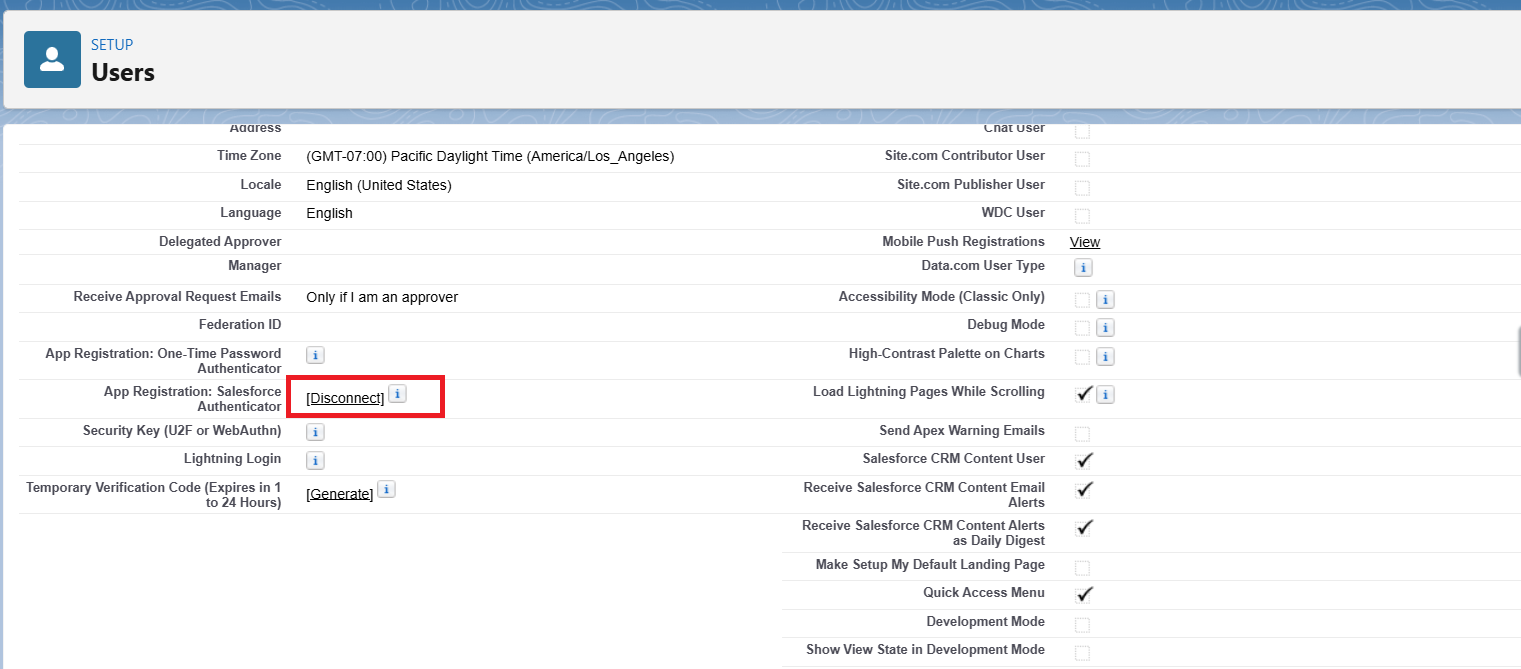
Step 1: Disconnect the Existing Salesforce Authenticator Device

Navigation

Setup → Users → Users → Select the User

Steps

  1. Open the required user record.
  2. Scroll down to the App Registration section.
  3. Locate Salesforce Authenticator.
  4. Click Disconnect.
MFA Disconnect
MFA Disconnect

Result

After disconnecting:

  • The old mobile device is removed.
  • The user’s MFA registration is reset.
  • The user can now register a new authenticator device.

Step 2: User Logs In After MFA Reset

Once the old device has been disconnected:

  • The user logs in using their Username and Password.
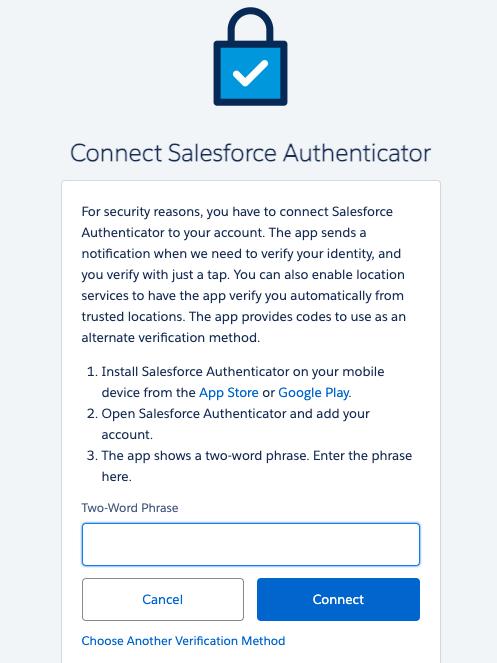
  • Salesforce automatically redirects them to the Connect Salesforce Authenticator setup screen.

Step 3: Connect a New Salesforce Authenticator Device

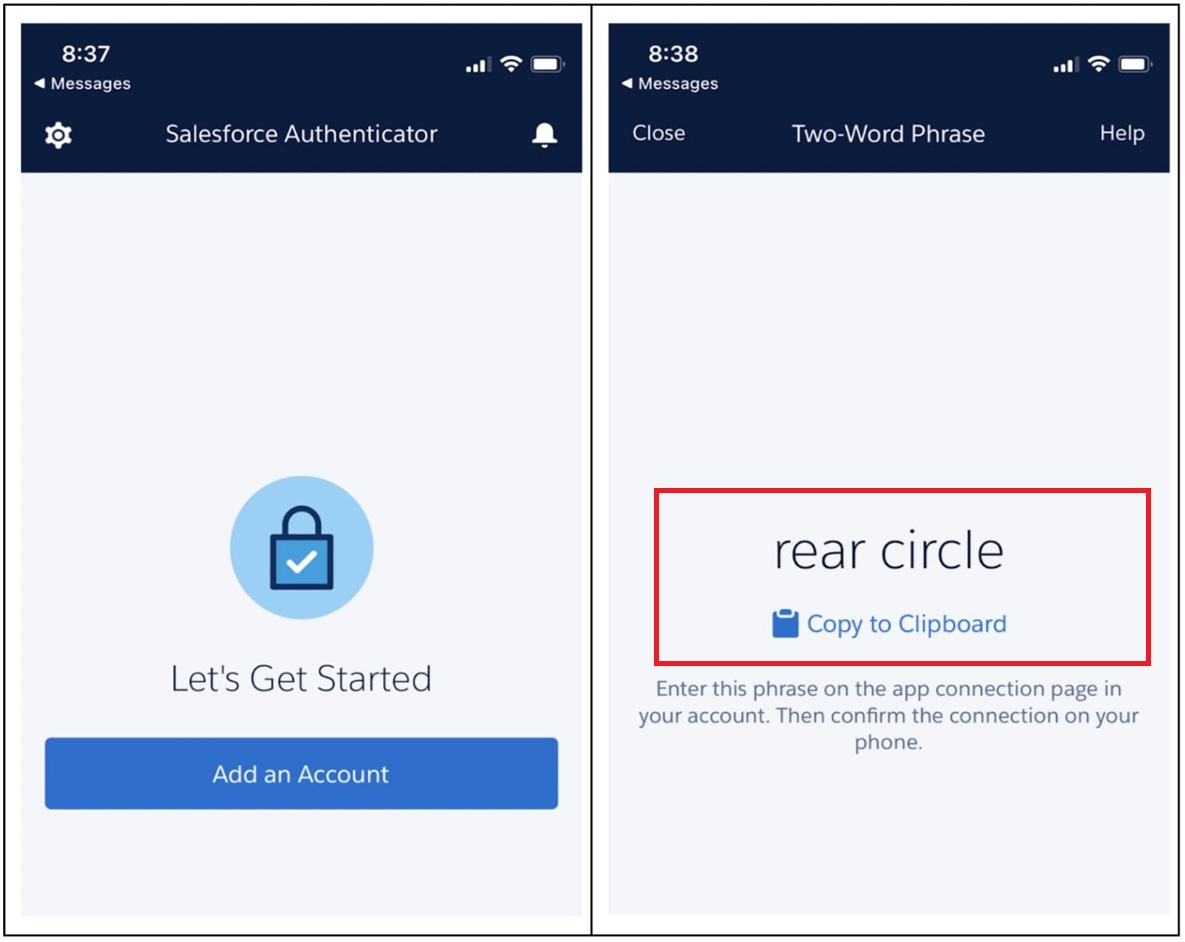
Follow these steps to register the new device:

  1. Install the Salesforce Authenticator app on your mobile device.
  2. Open the app and select Add Account.
  3. The app displays a Two-Word Phrase.
  4. Enter the same phrase on the Salesforce setup screen.
  5. Click Connect.
Mobile App
Mobile App
Salesforce Login Screen

Step 4: Complete Device Verification

After connecting:

  • A verification notification is sent to the mobile device.
  • The user approves the login request.
  • The new device is successfully linked to the Salesforce account.

Alternative Verification Methods

If Salesforce Authenticator is unavailable, users can choose another verification method by selecting Choose Another Verification Method.

Supported options include:

  • Google Authenticator
  • Microsoft Authenticator
  • SMS Verification

Important Notes

Keep the following points in mind:

  • Only Salesforce Administrators can disconnect an MFA device.
  • Disconnecting a device does not disable MFA – it only removes the registered device.
  • Always configure a backup verification method whenever possible.
  • Users must complete MFA setup again after the device has been disconnected.

MFA Reset Process Flow

The complete workflow is:

Disconnect Old Device
→ User Login
→ MFA Setup Screen
→ Enter Two-Word Phrase
→ Connect Device
→ Approve Verification
→ Login Successful

Conclusion

Resetting Salesforce Authenticator is a simple yet essential administrative task whenever users replace, lose, or encounter issues with their mobile devices. By disconnecting the old device and registering a new one, organizations can maintain strong account security without disabling Multi-Factor Authentication.

Following this process ensures uninterrupted access for users while protecting your Salesforce environment from unauthorized access and maintaining compliance with Salesforce security best practices.

By following the above blog instructions, you will be able to learn “How to Disconnect Salesforce Authenticator and Set Up a New Device in Salesforce“. If you still have queries or any related problems, don’t hesitate to contact us at salesforce@greytrix.com. More details about our integration product are available on our website and Salesforce AppExchange.
We hope you may find this blog resourceful and helpful. However, if you still have concerns and need more help, please contact us at salesforce@greytrix.com.

About Us

Greytrix – a globally recognized and one of the oldest Sage Development Partner and a Salesforce Product development partner offers a wide variety of integration products and services to the end users as well as to the Partners and Sage PSG across the globe. We offer Consultation, Configuration, Training and support services in out-of-the-box functionality as well as customizations to incorporate custom business rules and functionalities that require apex code incorporation into the Salesforce platform.

Greytrix has some unique solutions for Cloud CRM such as Salesforce Sage integration for Sage X3, Sage 100 and Sage 300 (Sage Accpac). We also offer best-in-class Cloud CRM Salesforce customization and development services along with services such as Salesforce Data Migration, Integrated App development, Custom App development and Technical Support business partners and end users. Salesforce Cloud CRM integration offered by Greytrix works with Lightning web components and supports standard opportunity workflow. Greytrix GUMU™ integration for Sage ERP – Salesforce is a 5-star rated app listed on Salesforce AppExchange.
The GUMU™ Cloud framework by Greytrix forms the backbone of cloud integrations that are managed in real-time for processing and execution of application programs at the click of a button.

For more information on our Salesforce products and services, contact us at salesforce@greytrix.com. We will be glad to assist you.

Category: Salesforce Services Tags: Connect Salesforce Authenticator, Disconnect Salesforce Authenticator, Google Authenticator Salesforce, Microsoft Authenticator Salesforce, Reset Salesforce Authenticator, Salesforce Account Security., Salesforce Admin Guide, Salesforce Admin Tutorial, Salesforce Authentication App, Salesforce Authentication Methods, Salesforce Authenticator, Salesforce Identity Verification, Salesforce Login Security, Salesforce Login Verification, Salesforce MFA, Salesforce MFA Reset, Salesforce MFA Setup, Salesforce Mobile Authenticator, Salesforce Multi-Factor Authentication, Salesforce security, Salesforce Security 2026, Salesforce security best practices, Salesforce User Access Management, Salesforce User Authentication, Salesforce user management
Post navigation
← How to Use Marker Interfaces in Salesforce Apex (With Practical Examples)

Greytrix Websites and Blogs

  • Greytrix
  • GUMU™ Cloud
  • Greytrix Africa
  • Sage X3 – Tips, Tricks and Components
  • Sage 100 & 500 ERP Tips and Tricks
  • Sage 300 – Tips, Tricks and Components
  • Sage CRM – Tips, Tricks and Components

GUMU™ Salesforce Sage Integration

https://youtu.be/OKnKLxaQfr4

Categories

  • GUMU™ Features
  • GUMU™ Salesforce
  • GUMU™ Tricks & Tips
  • Salesforce Services
  • Uncategorized
sage enterprise management services

Recent Posts

  • How to Disconnect Salesforce Authenticator and Set Up a New Device in Salesforce
  • How to Use Marker Interfaces in Salesforce Apex (With Practical Examples)
  • What is a Salesforce Sandbox? Types, Features, and Use Cases
  • How Salesforce CRM Transforms Modern Distribution and Supply Chain Operations
  • Salesforce Summer ’26: Simplify Field-Level Security Review with the New Unified Field Access Feature

Popular blogs

  • Thinking of enhancing your business processes? Get the best ERP – CRM connector on Salesforce AppExchange!
  • GUMU™ for Salesforce – Sage ERP Integration
  • Leverage real-time enterprise data for better insights of your Customers with Salesforce – Sage 300 integration
  • GUMU™ Integration for Salesforce with Sage 300

Archives

Awards

Premier Partner of the Year Premier Partner of the Year
Platinum Partner of the Year Platinum Partner of the Year
The CEO Story The CEO Story
Gold Partner pf the Year Gold Partner pf the Year
Top Excellence Distributor Top Excellence Distributor
  • na.sales@greytrix.com
  • +1 888 221 6661
  • B301, 3rd Floor, Everest Nivara Infotech Park, MIDC, Turbhe,
    Navi Mumbai 400 705. India

Our Global Locations >>

Who We Are

  • About Us
  • Our AI expertise
  • Factor - D
  • Our Network
  • Accolades
  • Career
  •  

CRM

  • Salesforce
  • D365 CRM
  • Sage CRM
  • Creatio
  •  
  •  
  •  

Solutions

  • GUMUTM Integration
  • GUMUTM Copilot
  • BPortaly
  • Sales Commission
  • Shipping
  • IOT
  •  

ERP

  • Acumatica
  • Sage Intacct
  • Sage X3
  • Sage 300
  • Sage 100
  • Sage 500
  • SAP

Services

  • Consultation & Implementation
  • Migration
  • Development
  •  
  •  
  •  

Other Solutions

  • E-commerce
  • EDI
  • POS

Resources

  • Case Study
  • Blogs
  • Videos
  • E-books
  • E-brochure
  • News
  • Sitemap

Connect

  • Contact Us
  • Privacy Policy
  • Terms Of Use
  •  
ISO 27001:2022 and SOC 2 Certified Company

© 2026. Greytrix, All Rights Reserved

  • na.sales@greytrix.com
  • +1 888 221 6661
  • B301, 3rd Floor, Everest Nivara Infotech Park, MIDC, Turbhe,
    Navi Mumbai 400 705. India

Our Global Locations >>

Who We Are

  • About Us
  • Factor - D
  • Our Network
  • Accolades
  • Career
  •  
  •  

Services

  • Consultation & Implementation
  • Migration
  • Development

Solutions

  • GUMUTM Integration
  • BPortaly
  • Sales Commission
  • Shipping
  • IOT
  •  
  •  

ERP

  • Acumatica
  • Sage Intacct
  • Sage X3
  • Sage 300
  • Sage 100
  • Sage 500

CRM

  • Salesforce
  • D365 CRM
  • Sage CRM
  • Creatio
  •  
  •  
  •  

Other Solutions

  • E-commerce
  • EDI
  • POS

Resources

  • Case Study
  • Blogs
  • Videos
  • E-books
  • News
  •  
  •  

Connect

  • Contact Us
  • Privacy Policy
  • Terms Of Use
  •  

© 2026. Greytrix, All Rights Reserved