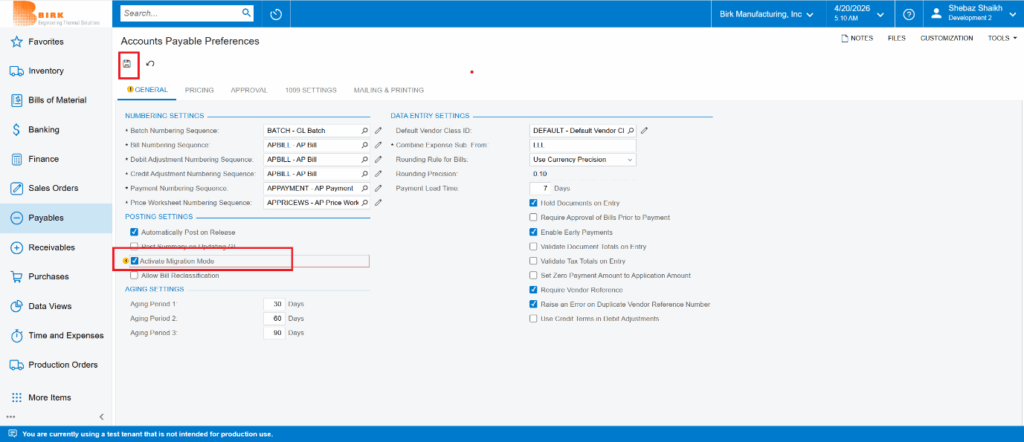
- Enable Migration Mode
Ensure that Migration Mode is enabled by following these steps:
- Navigate to Payables
- Go to Preferences
- Open Accounts Payable Preferences
- Enable Migration Mode
- Click Save
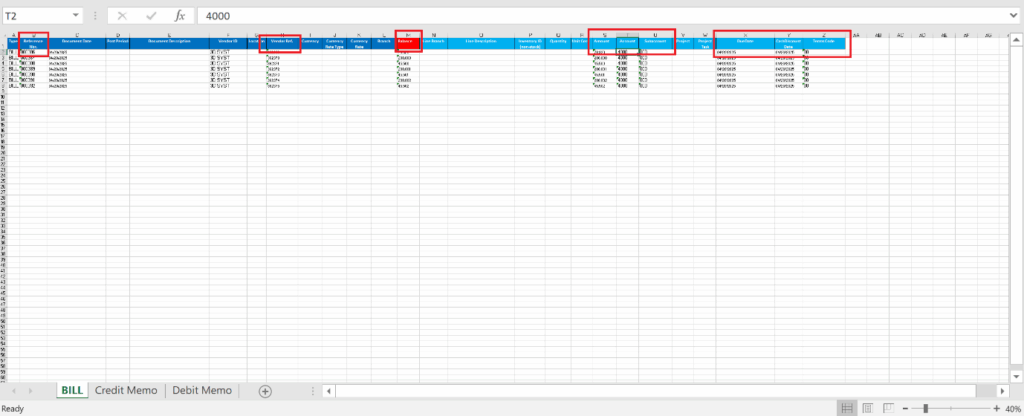
- AP Bills Import – Excel Sheet Guidelines
- Refer to the prescribed AP Bills Import Excel sheet format.
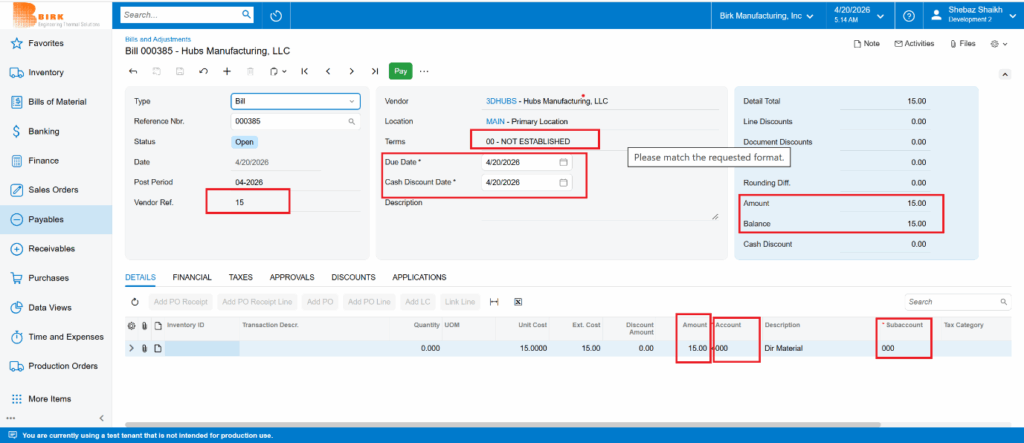
- In Migration Mode, all imported bills will be created in Open status.
- The Type field must be one of the following:
- Bill
- Debit Adjustment
- Credit Adjustment
- The Reference Number:
- Can be any value
- Must be unique for each record
- After import, the system will generate the AP Bill Number in sequence
- Ensure the following details are correctly populated:
- Vendor ID
- Vendor Reference (Invoice Number)
- Currency, Currency Rate Type, and Currency Rate (if applicable)
- The Balance Amount and Document Amount must be the same.
- Provide the appropriate Account and Subaccount details.
- Enter the Terms Code (based on which the system will calculate the Due Date).
- Also include the Cash Discount Date, if applicable.
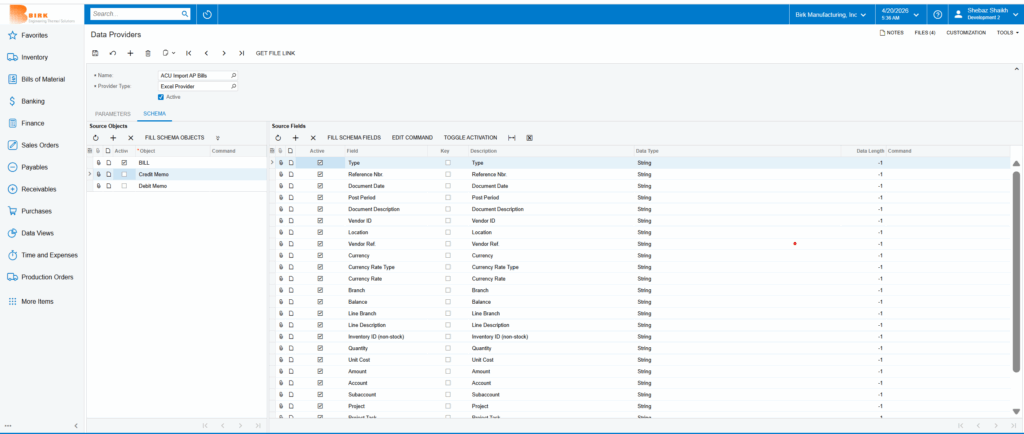
- Data Provider – ACU Import AP Bills
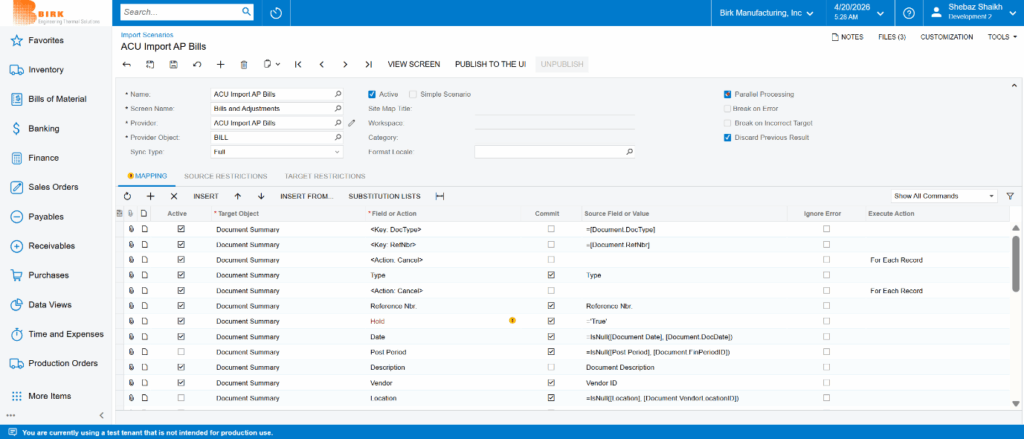
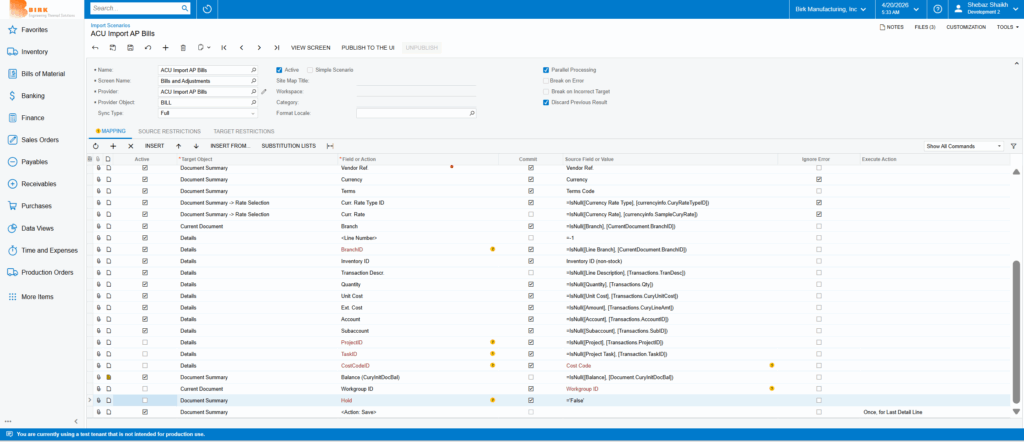
- ) Import Scenario – ACU Import AP Bills.
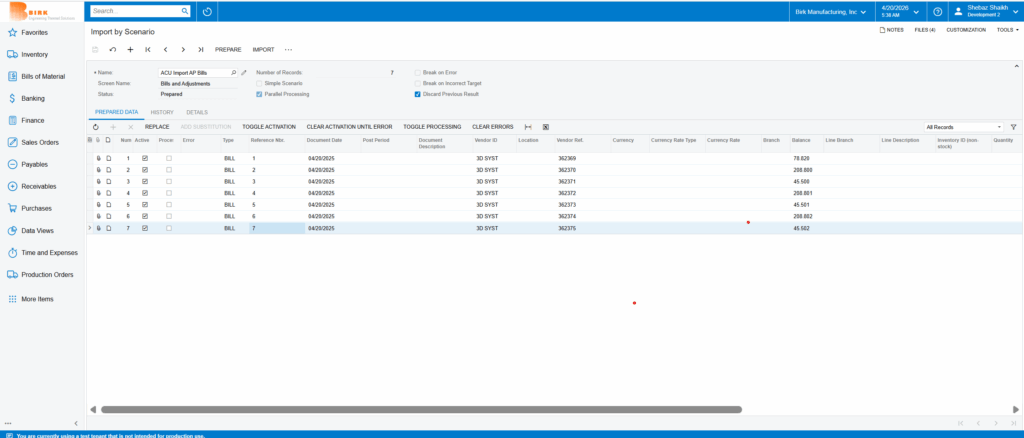
- Import by Scenario – ACU Import AP Bills
- Click the Prepare button to validate the data.
- Click the Import button to upload the file.
- The bills will be generated in Open status.
- F) See the below Bills and Adjustments Screen