
Salesforce CRM is a powerful platform for managing customer relationships, sales processes, and business workflows. However, maintaining accurate and seamless data synchronization between Salesforce and integrated systems such as external databases, third-party apps, or multiple Salesforce orgs can often be challenging.
Integration configuration errors, API failures, or networking problems can easily lead to data mismatches and inconsistencies.
For Salesforce administrators and developers, ensuring that data remains timely, consistent, and synchronized across all connected systems is essential for smooth CRM operations.
This guide walks through the most common data synchronization challenges and provides effective troubleshooting strategies to resolve them.
Understanding Data Synchronization in Salesforce
Data synchronization ensures that information remains consistent and up to date across Salesforce and external systems. Any update in one system gets reflected in the other – either instantly or on a set schedule.
Types of Data Synchronization
- Real-Time Synchronization
Updates are pushed across systems immediately. - Batch Synchronization
Data sync occurs at scheduled intervals (e.g., hourly, nightly).
Key Causes of Data Synchronization Issues
Before troubleshooting, it’s important to understand what commonly triggers sync failures:
- API Limits Exceeded – Salesforce API usage caps can stop sync operations.
- Incorrect Data Mapping – Misaligned fields, mismatched datatypes, or missing mappings.
- Field-Level Security & Permissions – Missing CRUD/FLS access for the integration user.
- Network Connectivity Problems – Unstable networks leading to sync delays.
- Inadequate Error Handling – Missing error logic in Apex or integration tools.
- Data Quality Problems – Duplicates, incomplete data, and invalid formats.
Steps to Troubleshoot and Fix Data Synchronization Issues
1. Monitor and Manage API Limits
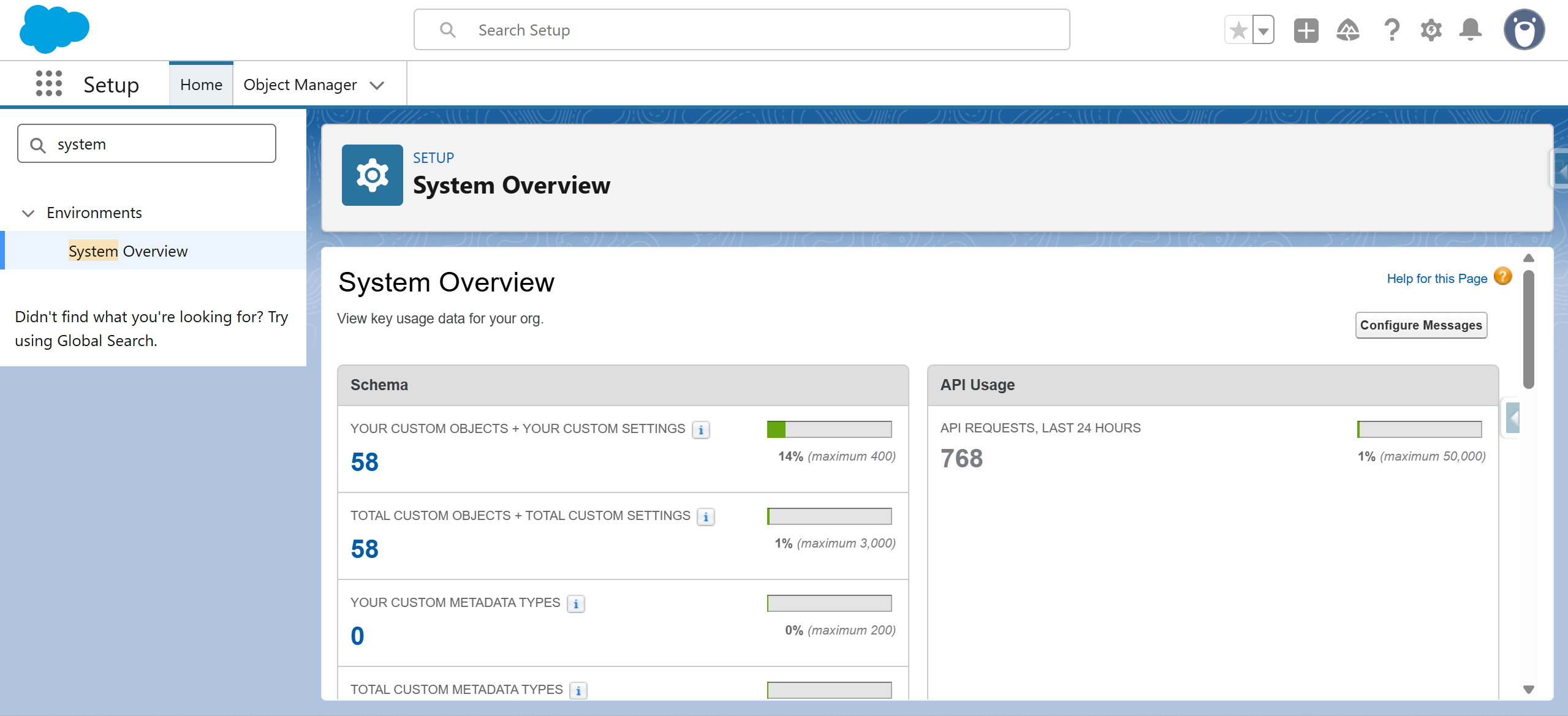
Salesforce enforces API call limits over a 24-hour period. Exceeding these limits is a common sync blocker.
- Check API Usage
Use System Overview or query the Limits object:
SELECT DailyApiRequests, RemainingApiRequests FROM Organization - Review Call Logs
Identify high-usage integrations from the API Usage dashboard. - Use Bulk API
For large data syncs, reduce API consumption by switching to the Bulk API.
2. Verify Data Mapping
Incorrect mapping often leads to sync breakdown.
- Review Mapping Configurations
Ensure Salesforce fields correctly match external system fields. - Use Schema Builder
Visualize object structures, field types, and relationships to ensure compatibility. - Check Required Fields
Missing or null required fields can stop the sync.

3. Check Field-Level Security (FLS) and Permissions
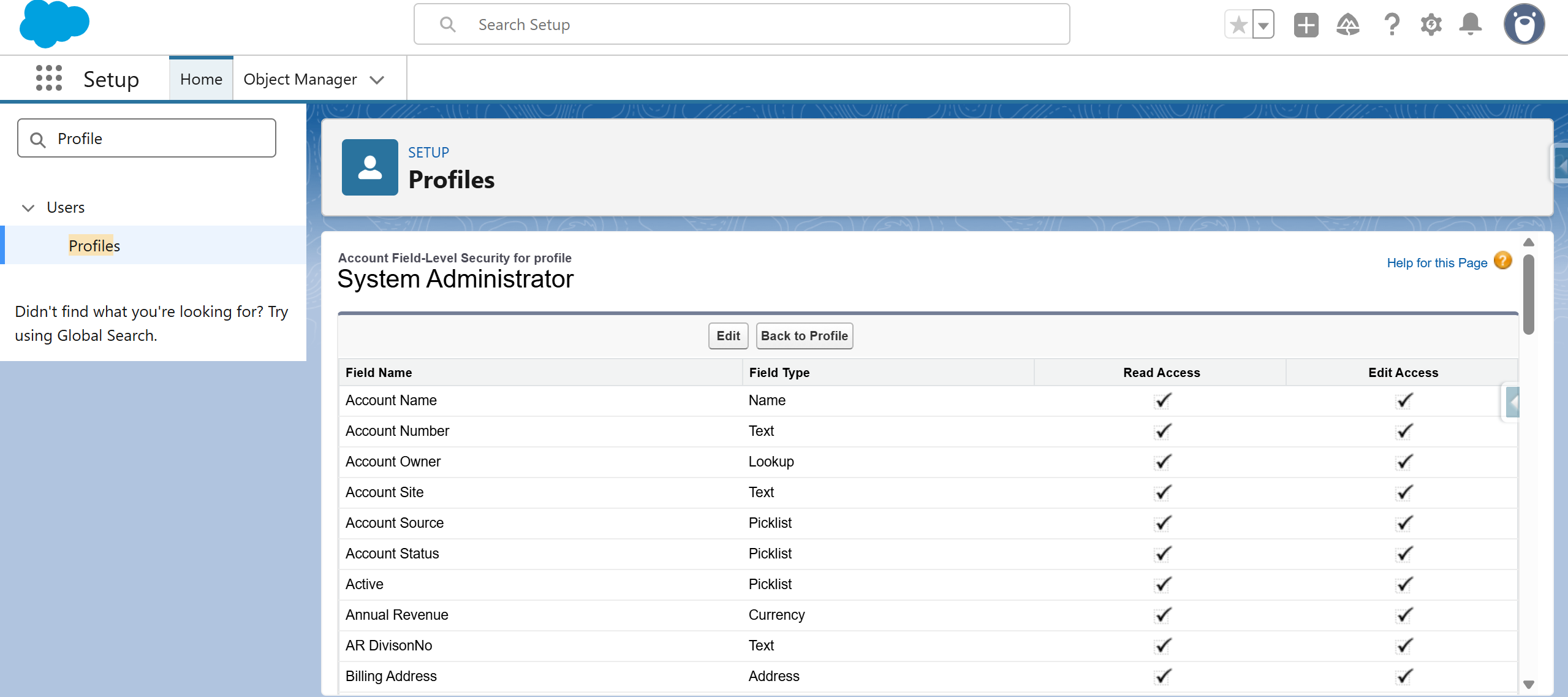
Insufficient permissions can prevent proper read/write access during sync.
- Verify FLS
Ensure all fields involved in integrations are visible to the integration user. - Review CRUD Permissions
Confirm Create, Read, Update, Delete access is properly assigned.
4. Resolve Network Connectivity Issues
Connectivity issues can interrupt sync operations.
- Ensure Network Stability
Confirm reliable communication between Salesforce and external systems. - Check for API Timeout Errors
Look for timeout or “503 Service Unavailable” errors in the logs.
5. Examine Custom Apex Code for Errors
Custom code used in synchronization may fail if not handled properly.
- Add Proper Error Handling
Use try-catch blocks to capture exceptions during sync.

- Batch Apex and DML Operations
Ensure limits are not exceeded and batch sizes are appropriate.
6. Fix Data Quality Issues
Data inconsistencies can prevent successful synchronization.
- Run Validation Rules
Ensure data entering Salesforce meets the defined format and standards. - Use Duplicate Management
Configure matching and duplicate rules to avoid record conflicts.
Conclusion
Effective data synchronization is essential for maintaining accuracy and consistency across Salesforce and connected systems. By proactively monitoring API usage, validating field mappings, ensuring proper permissions, strengthening error handling, and maintaining high data quality, you can significantly reduce synchronization failures. Implementing these troubleshooting steps helps Salesforce administrators and developers maintain seamless integrations and reliable CRM operations.
By following the above blog instructions, you will be able to learn “How to Troubleshoot Data Synchronization Issues in Salesforce: A Complete Guide”. If you still have queries or any related problems, don’t hesitate to contact us at salesforce@greytrix.com. More details about our integration product are available on our website and Salesforce AppExchange.
We hope you may find this blog resourceful and helpful. However, if you still have concerns and need more help, please contact us at salesforce@greytrix.com.
About Us
Greytrix – a globally recognized and one of the oldest Sage Development Partner and a Salesforce Product development partner offers a wide variety of integration products and services to the end users as well as to the Partners and Sage PSG across the globe. We offer Consultation, Configuration, Training and support services in out-of-the-box functionality as well as customizations to incorporate custom business rules and functionalities that require apex code incorporation into the Salesforce platform.
Greytrix has some unique solutions for Cloud CRM such as Salesforce Sage integration for Sage X3, Sage 100 and Sage 300 (Sage Accpac). We also offer best-in-class Cloud CRM Salesforce customization and development services along with services such as Salesforce Data Migration, Integrated App development, Custom App development and Technical Support business partners and end users. Salesforce Cloud CRM integration offered by Greytrix works with Lightning web components and supports standard opportunity workflow. Greytrix GUMU™ integration for Sage ERP – Salesforce is a 5-star rated app listed on Salesforce AppExchange.
The GUMU™ Cloud framework by Greytrix forms the backbone of cloud integrations that are managed in real-time for processing and execution of application programs at the click of a button.
For more information on our Salesforce products and services, contact us at salesforce@greytrix.com. We will be glad to assist you.
Related Posts
- Entity mapping with additional Standard/Custom field for Data Synchronization
- GUMU™ Salesforce Tricks & Tips – SSL Certificate Error
- GUMU™ Salesforce Import Routine – Tricks and Facts about the use of Filter Functionality
- GUMU™ Salesforce Import Routine – Tricks and Facts about creating Relationship between Entities