
While working on a Salesforce and Sage ERP integration, I encountered a common yet critical issue related to picklist values during data import.
In Sage ERP, when fetching records for a picklist field, the system sometimes returns the sequence value (1, 2, 3, etc.) instead of the actual label such as Active or Inactive. This mismatch creates errors during the Salesforce import process.
Let’s break down the issue and explore a clean, scalable solution.
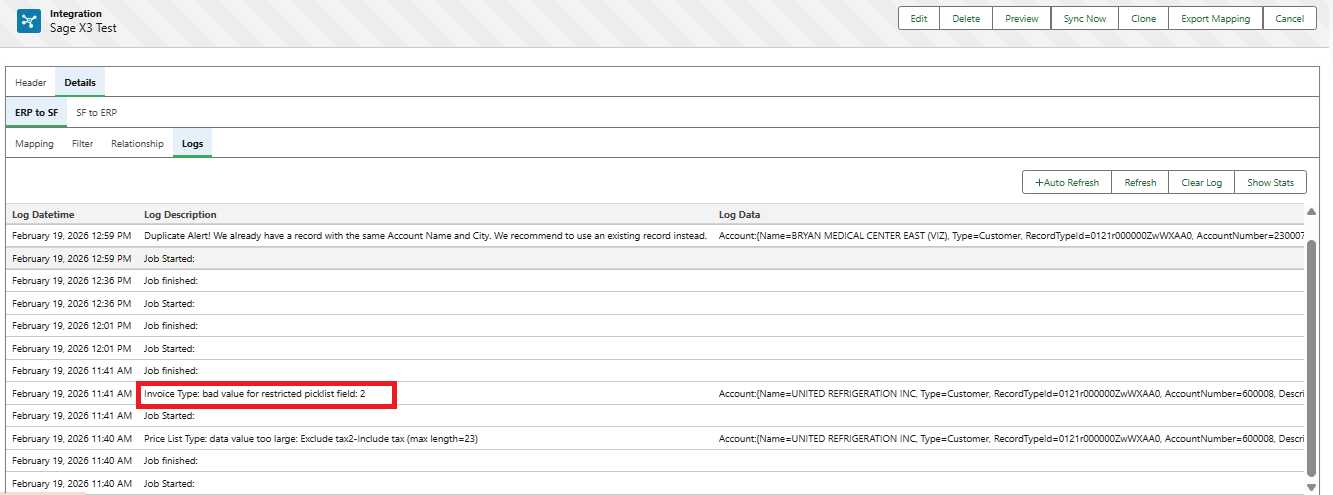
The Problem: Restricted Picklist Import Failure in Salesforce
During data import using the Import Routine:
- If the picklist field is restricted in Salesforce
- And the incoming value does not match the Salesforce picklist API name
Salesforce throws an error stating that the value is not allowed because it does not match the restricted picklist.
This happens because:
- Salesforce expects the exact picklist value (API Name).
- Sage ERP may send numeric sequence values like 1, 2, or 3 instead of actual picklist labels.
As a result, the integration fails due to value mismatch.
The Smart Solution: Define Value Mapping in Entity Settings
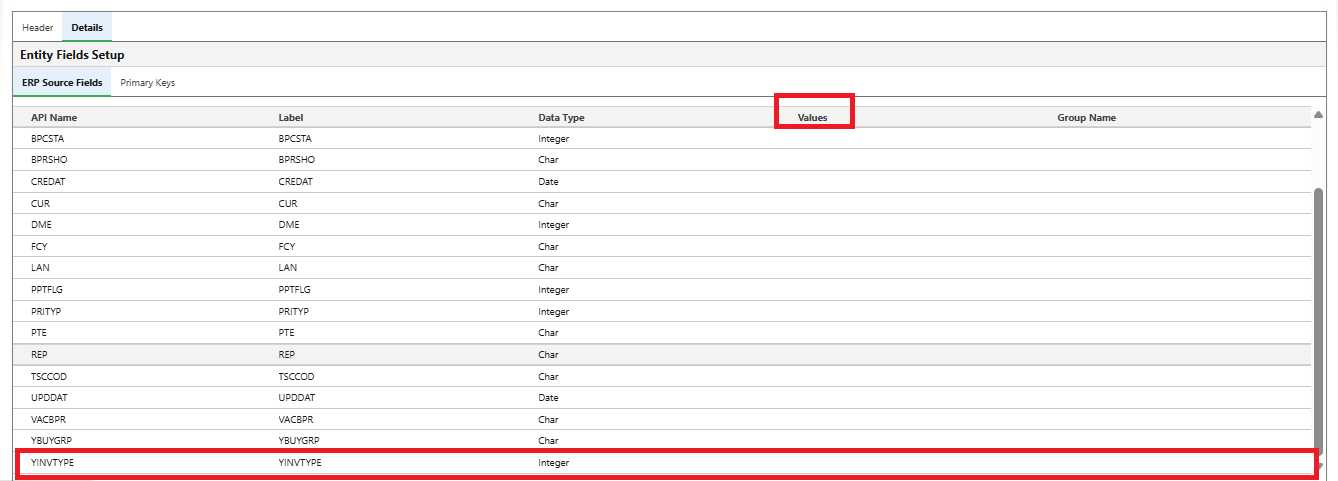
Instead of modifying Salesforce picklist API names (which can disrupt existing integrations ), a better approach is to define the mapping directly in Entity Settings.
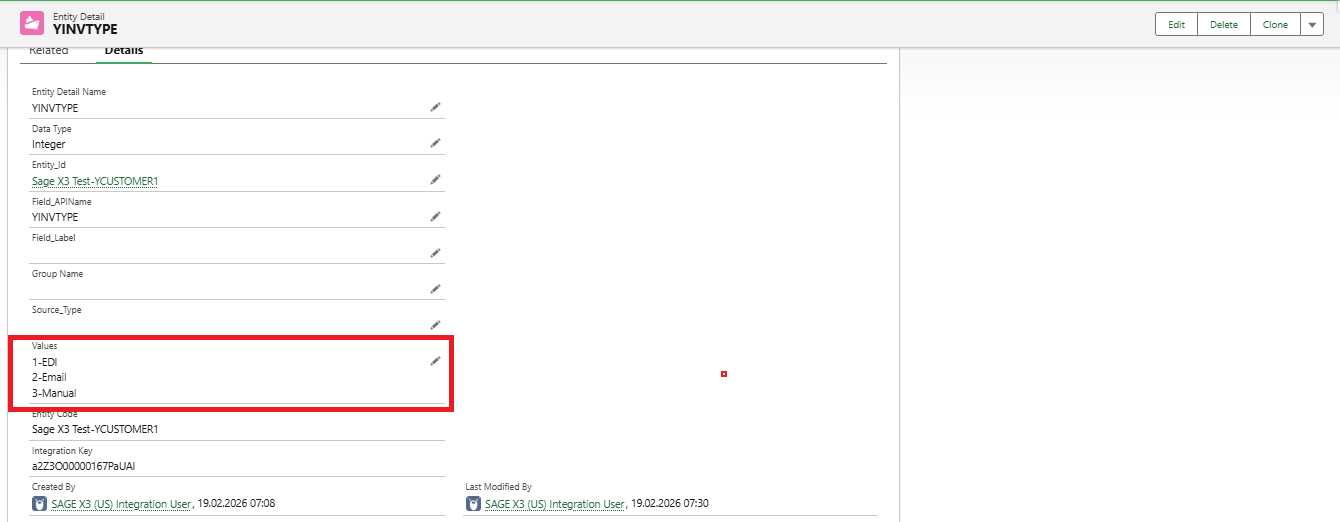
Within the entity configuration, there is a Value field where we can specify what each sequence number represents.
Example Mapping
- 1 – EDI
- 2 – Email
- 3 – Manual
With this configuration, Salesforce correctly interprets the incoming sequence value without requiring any changes to the original picklist structure.
This ensures:
- Stable ERP–CRM integration
- Seamless data import
- No restricted picklist errors
- No modification of Salesforce picklist API names
How to Configure Entity Mapping in Salesforce
Follow these steps to implement the solution:
Step 1 – Create the Tab
- Go to Setup
- In Quick Find, search for Tabs
- Navigate to Custom Object Tabs
- Click New
- Select Entity Detail Object
- Click Next → Next → Save
Step 2 – Open Entity Details Tab
- Go to App Launcher
- Search and open Entity Details
Step 3 – Update Field Source Value
- Locate the Source Field (API Name) for the entity
- Click Edit
- Add values in new lines as shown below:
- 1 – EDI
- 2 – Email
- 3 – Manual
- Click Save
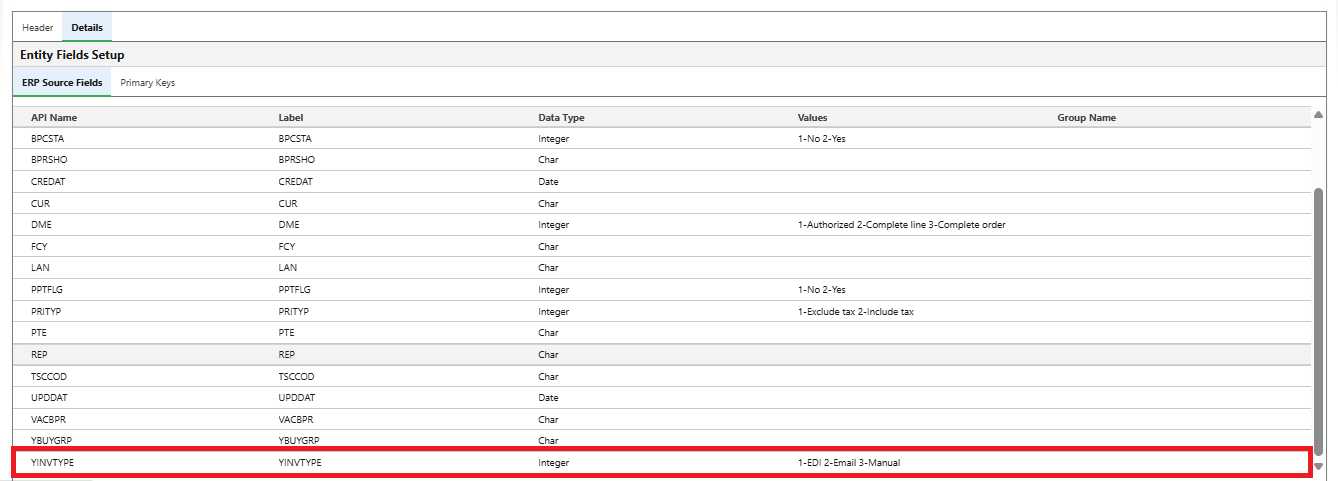
Result After Configuration
Once the mapping is defined:
- Import routines execute successfully
- Restricted picklist errors are eliminated
- Existing Salesforce picklist API names remain unchanged
- Data consistency between Sage ERP and Salesforce is maintained
Conclusion
Handling picklist values between Salesforce and Sage ERP can be challenging when numeric sequence values are returned instead of actual picklist names. Changing Salesforce picklist API values is not recommended, as it may impact existing integrations and business processes.
Defining proper value mapping within Entity Settings provides a cleaner, safer, and more scalable solution. By configuring mappings such as 1 = Active and 2 = Inactive, you can prevent restricted picklist import errors while ensuring both systems remain aligned.
This simple configuration significantly improves integration stability, data consistency, and long-term maintainability.
By following the above blog instructions, you will be able to learn “How to Fix Restricted Picklist Import Errors in Salesforce Sage ERP Integration“. If you still have queries or any related problems, don’t hesitate to contact us at salesforce@greytrix.com. More details about our integration product are available on our website and Salesforce AppExchange.
We hope you may find this blog resourceful and helpful. However, if you still have concerns and need more help, please contact us at salesforce@greytrix.com.
About Us
Greytrix – a globally recognized and one of the oldest Sage Development Partner and a Salesforce Product development partner offers a wide variety of integration products and services to the end users as well as to the Partners and Sage PSG across the globe. We offer Consultation, Configuration, Training and support services in out-of-the-box functionality as well as customizations to incorporate custom business rules and functionalities that require apex code incorporation into the Salesforce platform.
Greytrix has some unique solutions for Cloud CRM such as Salesforce Sage integration for Sage X3, Sage 100 and Sage 300 (Sage Accpac). We also offer best-in-class Cloud CRM Salesforce customization and development services along with services such as Salesforce Data Migration, Integrated App development, Custom App development and Technical Support business partners and end users. Salesforce Cloud CRM integration offered by Greytrix works with Lightning web components and supports standard opportunity workflow. Greytrix GUMU™ integration for Sage ERP – Salesforce is a 5-star rated app listed on Salesforce AppExchange.
The GUMU™ Cloud framework by Greytrix forms the backbone of cloud integrations that are managed in real-time for processing and execution of application programs at the click of a button.
For more information on our Salesforce products and services, contact us at salesforce@greytrix.com. We will be glad to assist you.
Related Posts