
Nothing slows down an accounting team quite like a date mix-up. If you have offices in both the US and Europe or India, someone looking at 11/15/2026 might read it as November 15, while someone else stares at 15/11/2026 trying to figure out why the system is letting them post into a non-existent fifteenth month.
You don’t need to call in a consultant or write custom code to sort this out. Acumatica handles date formatting natively in two spots: you can change it globally for an entire locale, or tweak it for one specific user.
Changing the Date Format for Everyone on a Locale
If an entire branch or regional group needs dates formatted the same way, adjust the System Locales settings.
Head over to the System Locales screen and pick the locale your team uses – say, en-US for English (United States). Up on the top toolbar, click Locale Preferences.
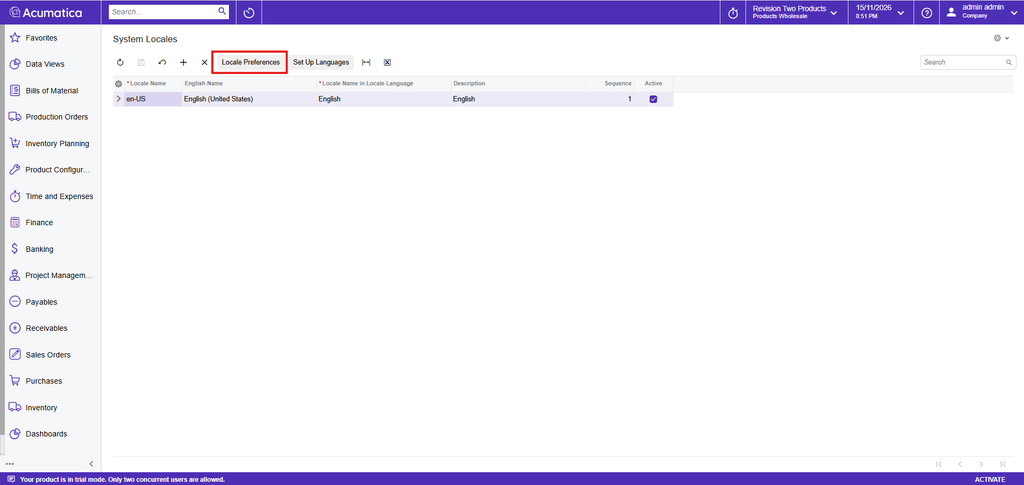
A pop-up window will open with a bunch of regional settings. Scroll down to the Date and Time Formats section. You’ll see a few options here: Date Time (which controls dates paired with timestamps), Short Time and Long Time, Short Date (the standard date shown on almost every screen and grid), Long Date (the spelled-out version), and the AM/PM Symbols.
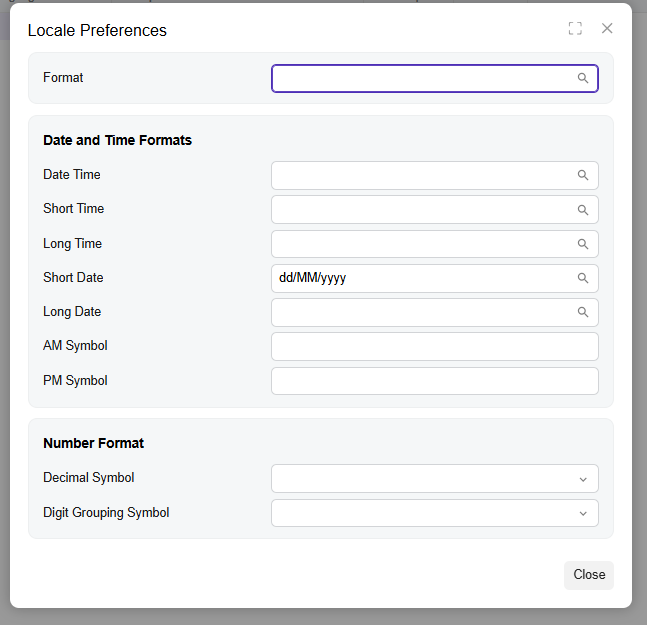
Click into the Short Date box and type in the layout you want. Most teams stick to one of these:
MM/dd/yyyy gives you 11/15/2026
dd/MM/yyyy gives you 15/11/2026
yyyy-MM-dd gives you 2026-11-15
Hit Save, close the pop-up, and you’re done. Everyone assigned to that locale will immediately start seeing dates in the new format.
Overriding the Format for Just One Person
Sometimes the global setting works fine for 95% of your staff, and you just have one remote colleague who prefers seeing day-first dates. There is no reason to mess with company-wide preferences for a single person.
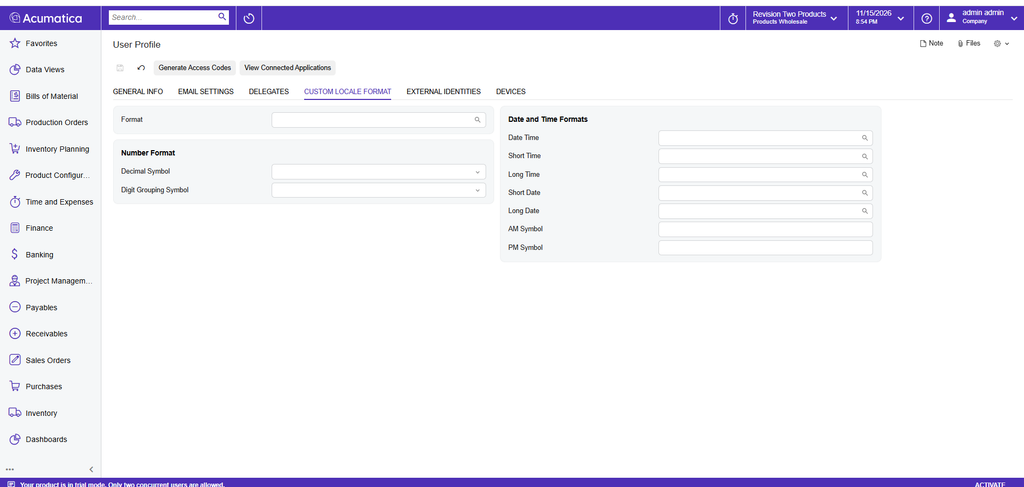
Have that user log into their account (or sign in as them), open the User Profile screen, and click over to the Custom Locale Format tab. You will see the exact same date and time fields from the global preferences window. Type their preferred format—like dd/MM/yyyy—directly into the Short Date field and click Save. Their screens will update right away, and nobody else’s view changes.
Don’t Edit the Wrong Field
People frequently change Long Date or Date Time by mistake and wonder why their invoice dates still look backwards.
Stick to Short Date for everyday transaction screens, grids, and due dates—that’s the one you want 99% of the time. Only touch Date Time if you want to change how timestamps look inside audit logs and history tabs (like 15/11/2026 08:51 PM). Long Date barely shows up outside of formal printed headers.
If you ever need to double-check where to go later: global changes live under System Locales > Locale Preferences, while individual overrides live inside User Profile > Custom Locale Format. Two minutes of setup saves a lot of squinting at spreadsheets later on.