
In many businesses’ scenarios in Acumatica, they need a simple way to upload data without using the full Import Scenarios module. Sometimes you want users to upload a small file, validate it, review the data in a grid, and save it—directly inside a custom screen. That’s exactly where a custom grid screen with an Upload button becomes useful.
Why Bother with a Custom Upload Screen?
Import scenarios are great for complex, repeating imports. But most of the users just want to upload their file and move on with their day. A custom screen strips away all that complexity. You build exactly what they need, nothing more, nothing less. Upload, review, save & Done. Here’s where things get interesting. With a custom screen, you control the validation logic completely.
How We Can Build It.
Here is the functional overview of how this type of screen is created in Acumatica. This explanation focuses on the process and architecture rather than the utilization of the code.
Create Custom Table
We need somewhere to store the data. You define a custom table with whatever fields make sense or meet your requirements.
Build the Custom Screen
Using Acumatica’s customization platform, you create a new screen. It needs a few key pieces:
A grid to display the imported data
An Upload button
The usual Save and Cancel buttons
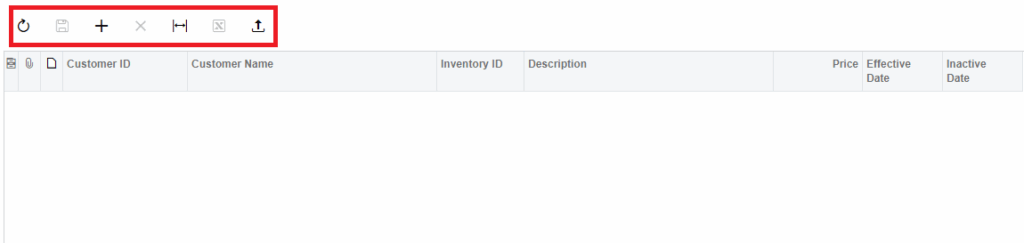
Straightforward, the grid is where users will see and interact with their uploaded/imported data. Make sure about the upload action setting.
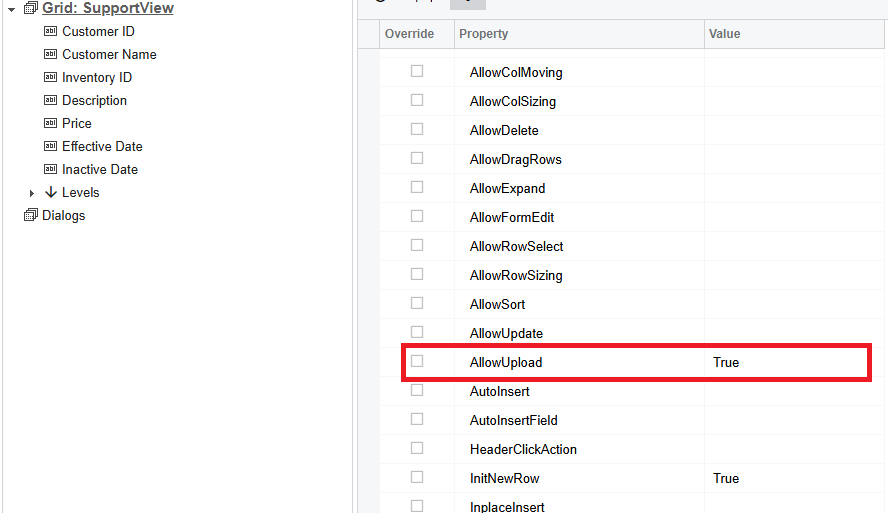
The Upload Button
When users click the Upload button, Acumatica opens a file browser. They pick up their Excel file, and the system takes it for processing.
When you upload the file, a popup opens asking how you want to handle blank (null) values. You can choose to replace them with 0 or ‘–’.
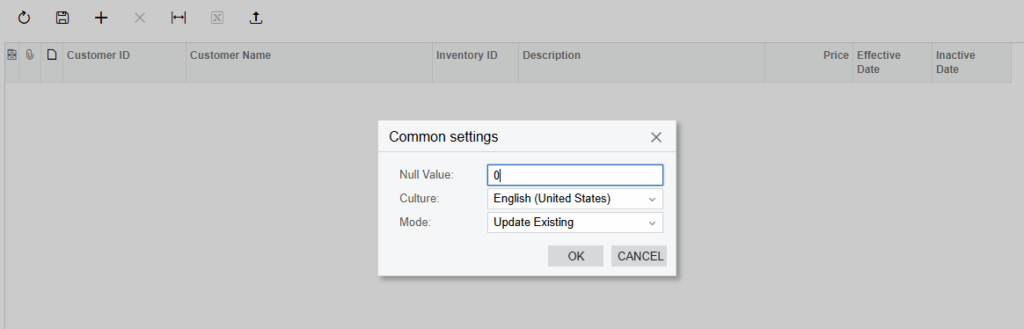
After you click OK, the next popup appears, allowing you to map the fields from the screen to the fields in the uploaded Excel file.
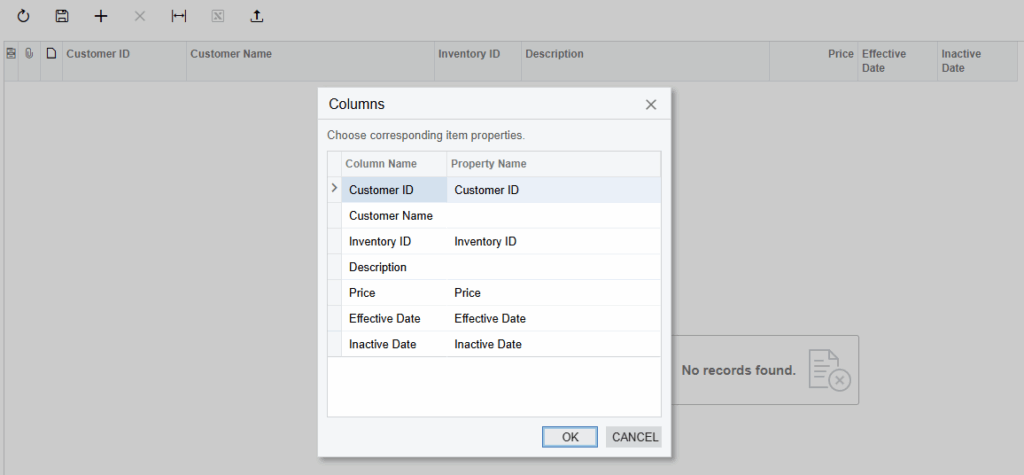
This is standard Acumatica functionality you’re just plugging into what’s already there.
Show It in the Grid
After processing, the data appears in the grid. Users can review everything, make manual edits if needed, and then save when they’re satisfied.

Think of the grid as a staging area. Nothing’s permanent until they hit Save. They can delete bad rows, fix typos, even add new rows manually if they want.
Conclusion
Look, Import Scenarios have their place. But sometimes you need something lighter and more focused. A custom grid screen with upload functionality gives you exactly that.