
A client rang me on a Tuesday about a purchase order for $42,000 that had been sitting untouched for eleven days. Nobody had rejected it. Nobody had approved it. It just sat there while the vendor kept calling.
The cause was boring, as it usually is. Their approval map had a condition that none of the documents could satisfy, and there was no fallback step to catch whatever fell through the cracks. Eleven days of silence over a missing else clause.
Approval workflows are like that. Build them carelessly and they will quietly cost you weeks. Build them well and nobody thinks about them again, which is really the point. I have set these up in Acumatica across purchasing, projects, AP and expenses, and what follows is roughly what I wish someone had told me the first time.
Why bother with approvals at all
Control, without the friction. That is the whole goal.
You want a second pair of eyes on a large commitment. What you do not want is a document parked in somebody’s inbox behind four hundred unread emails while a supplier waits on you.
Acumatica keeps the entire thing inside the system. The approver gets notified, opens the document, sees the actual line items rather than a summary somebody pasted into an email, and clicks. The status changes on its own. The document either moves along to the next person or stops dead, depending on what you told it to do.
The part that earns its keep is conditional routing. You are not stuck with one blanket rule for everything. Anything under five thousand dollars can go to Finance and be finished; anything above that can climb the ladder. The rules do the sorting so people do not have to.
Groundwork you cannot skip
Employees and workgroups
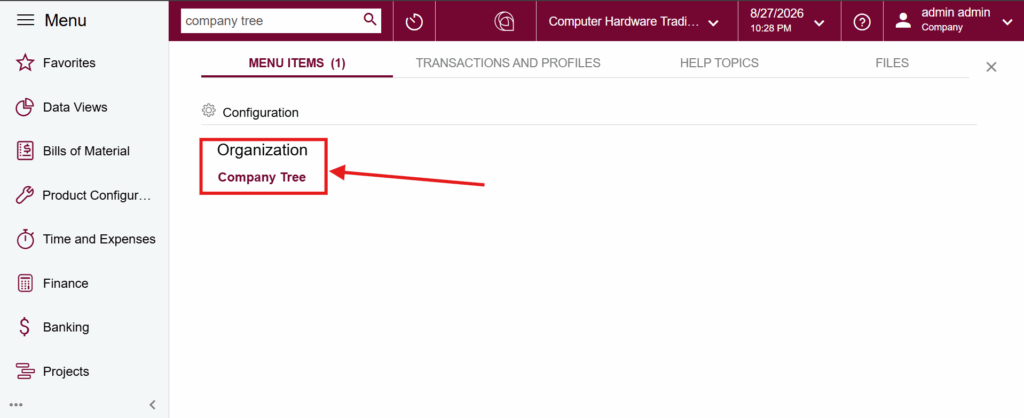
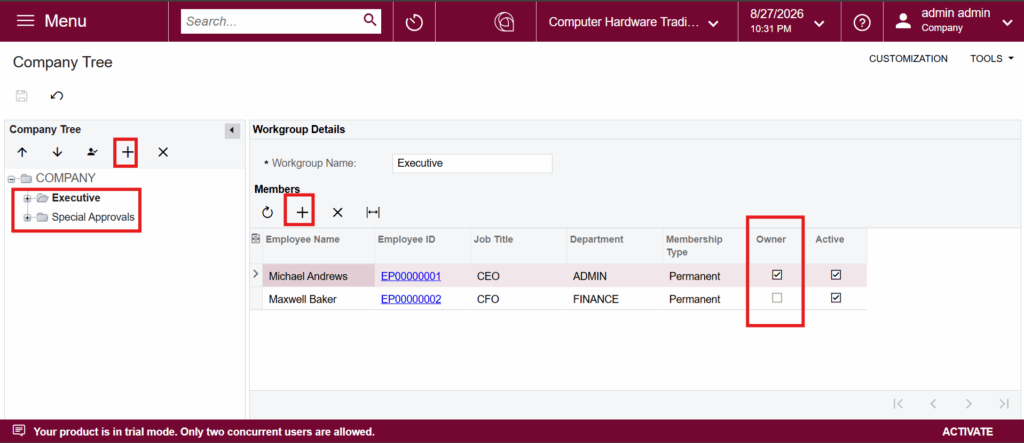
Acumatica routes approvals to people, and it can only find those people when the employee record is properly linked to a user account. Miss that link and the workflow has nobody to notify. It fails silently too, which is the irritating part. Workgroups are worth setting up early. Assign a step to Finance rather than to one named person in Finance, and the approval does not stall the week that person is on leave. Anyone in the group can act on it. The catch is maintenance a workgroup nobody has touched in two years will happily route a $60,000 PO to somebody who left the company. I have shared the screenshot which covers the steps for creating a workgroup and adding members and owners to the company tree.
System email
Dull, and skipping it will wreck your go-live. Acumatica needs working system email before it can notify anyone at all. Test it in a sandbox with a real send, not just a green tick on the SMTP screen. I have watched an implementation limp along for a week because notifications were failing quietly from day one and nobody noticed.
Building the approval map
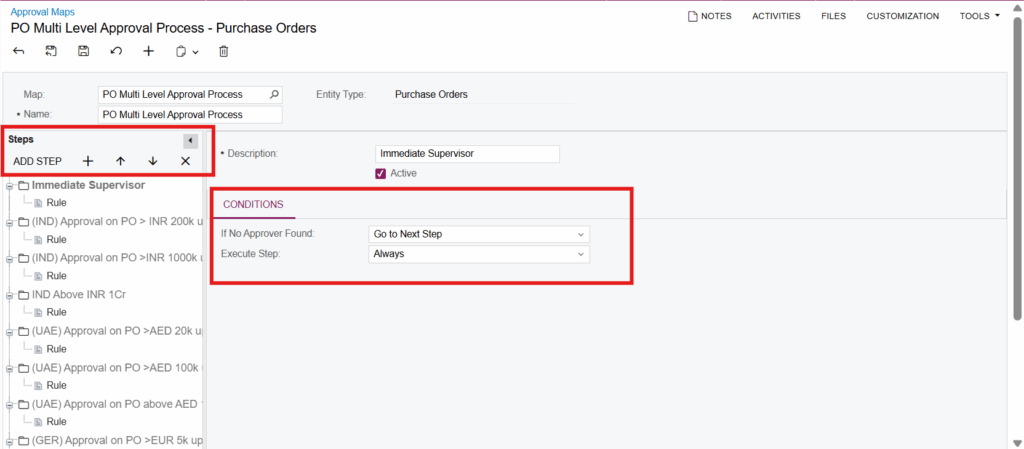
An Approval Map is your rulebook. You pick the entity type first for example Purchase Orders, AP Bills, Sales Quotes, whatever needs governing then build steps inside it.
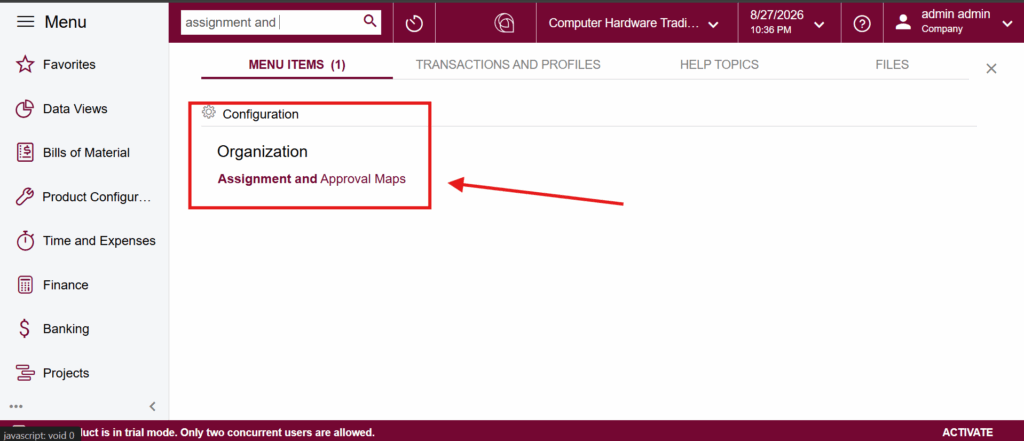
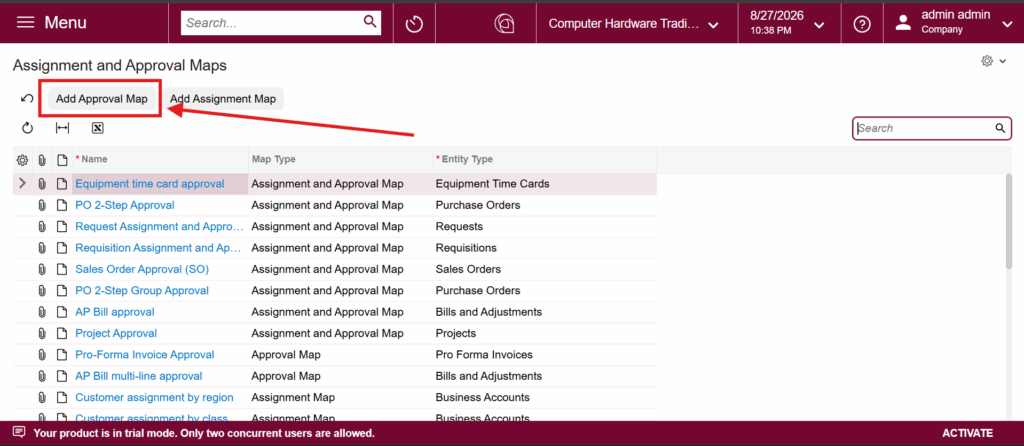
Each step holds conditions and actions. Read them as if-then pairs:
Condition: purchase order total over $10,000
Action: assign to the VP of Finance A step can hold several of these, evaluated in order. If nothing matches, you decide what happens next: pass the document down to the following step, or reject it outright. Do not leave that blank. More on why below, because it is the single most common way these things break.
Picking who approves
Three ways to name an approver, roughly in increasing order of cleverness.
- Specific employee. One named person. Simple, brittle, perfectly fine for a small company.
- Employee from document. Acumatica reads the approver off a field on the document itself — the project manager on a project, the owner on an opportunity. This is the one that scales. Add fifty new projects and you never touch the map.
- Employees by filter. Routes on criteria you can express as a filter: department, role, branch, and so on.
Past about forty employees, pull the approver from the document wherever the data supports it. Otherwise you will spend the rest of your life editing approval maps every time somebody changes teams.
The multi-level part
Say the requirement looks like this:
under $5,000 → Finance
$5,000 to $25,000 → Department Managerabove $200,000 → Department Manager, then Executive VP
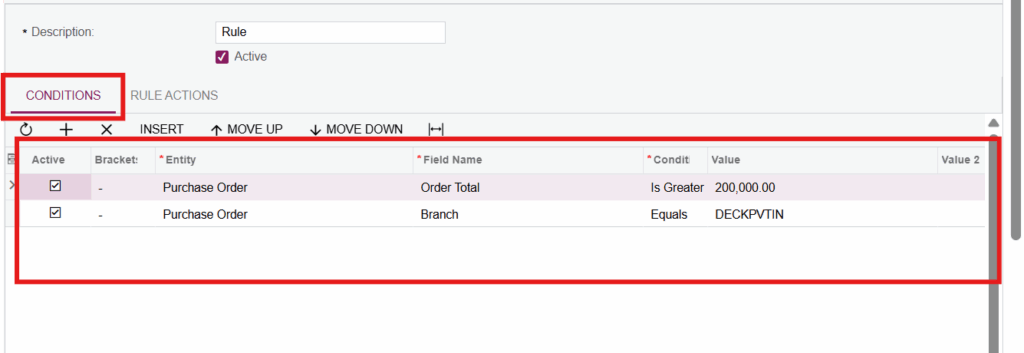
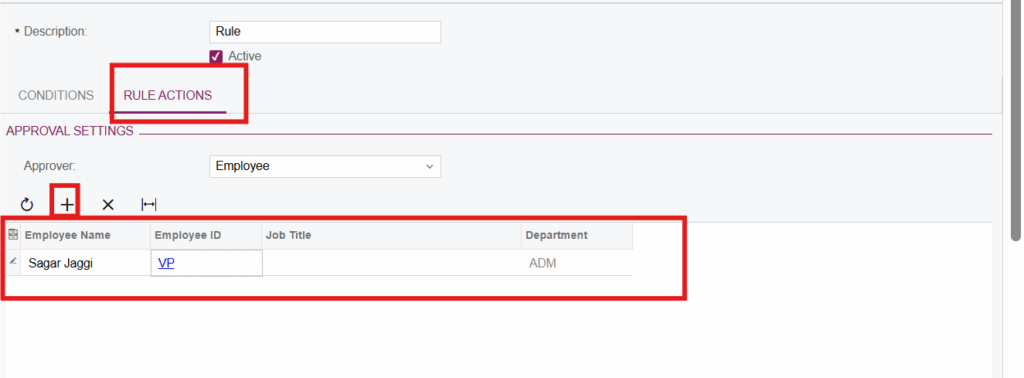
That is three steps.
Step one catches the small stuff and finishes the workflow the moment Finance signs off. Step two handles the middle band and finishes once the manager approves. Step three also routes to the manager, but instead of finishing there it hands off, and the document travels on for the executive’s sign-off.
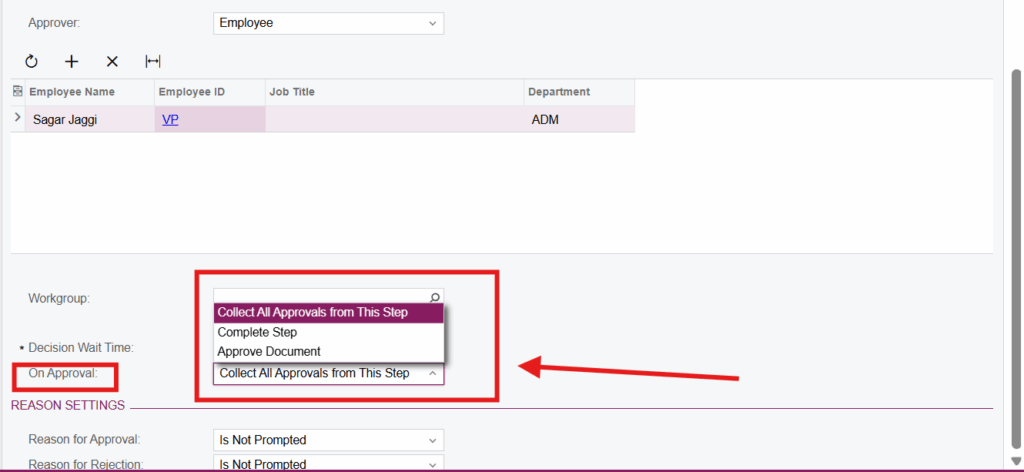
Everything hinges on the step action. Tell the system to approve the document at step three and the executive never sees it — and you will believe multi-level approval is working right up until an audit says otherwise. Tell it to complete nothing and documents pile up in pending forever. Both mistakes are easy to make and neither one throws an error.
What “approved” should actually mean
On each step you are choosing between three behaviours.
- Complete Step — hands the document to the next step.
- Collect All Approvals — waits for every member of the group before moving on.
- Approve Document — ends the workflow right there.
Match these to how your organisation actually decides things, not how the org chart claims it decides things. One signature per level? Complete Step. Genuine committee sign-off where it is everyone or nobody? Collect All Approvals, and be aware it is slower than people expect.
Notifications
None of this works if the approver does not know there is something waiting.
Notification templates control who gets the email and what sits inside it. Include enough for a decision: amount, vendor, requester, and a link straight to the document. Resist the urge to dump every available field into the template. A wall of text gets skimmed, then ignored, then filtered.
Then check that notifications are switched on in module preferences. It is one checkbox. It is also, in my experience, behind a good third of the tickets that begin “the approvals aren’t working”.
Where these break
Four failures I have now seen often enough to predict.
No fallback rule
If a document matches none of your conditions, it still needs somewhere to land. Build a catch-all step — call it No Approver Found — that either routes to a default approver or rejects the document. This is exactly what caused the eleven-day purchase order at the top of this post.
The map was never activated
You can build a flawless approval map and watch absolutely nothing happen, because the map still has to be selected in the module’s preferences screen. Building it is not the same as turning it on.
Wrong field for the approver
Employee from document only works when that field genuinely holds an employee ID. Point it somewhere else and approvals get skipped rather than failing loudly. Test with real transactions instead of a tidy demo record.
Too many steps
Somebody always wants a five-level chain. Two or three levels covers almost everything, and each extra level adds a day of latency and one more place for the document to stall.
Making approval optional
Not every document needs formal sign-off. Sometimes a review is all anyone actually wants.
A workable approach is a custom checkbox field — Request Approval — used as a condition on the first step. Ticked, the workflow runs. Unticked, the document carries on. It is a small piece of customisation and it buys a surprising amount of flexibility, particularly with departments that resent approvals in the first place.
Chasing people
Acumatica sends one notification by default. If the approver ignores it, nothing further happens. The document simply waits.
Business Events solve this. Set one to find approvals pending beyond three days and send a nudge, then a second at five days that copies in the manager. Fifteen minutes of setup. On a couple of implementations it has cut average approval time by more than half, because people do respond to the second email.
Things I would tell you over coffee
- Do one module first. Purchasing, usually. Get it genuinely working before you go anywhere near expenses or projects.
- Write the rules down somewhere outside Acumatica. A one-page diagram with the thresholds on it answers more questions than any amount of training.
- Test the edges. Exactly $5,000. Exactly $25,000. A user sitting in two workgroups at once. That is where the logic breaks, never in the middle of the range.
- Look at the Approvals screen weekly for the first month.
- Set decision wait times so nothing can sit indefinitely.
Wiring it across modules
One genuinely good thing about Acumatica is that these workflows do not live in isolation. Project approvals, change orders and purchase orders can be tied together, so a change order that blows the project budget gets caught before anybody commits the spend.
Anything more elaborate — checking spend against a GL account limit, for instance — usually needs a bit of custom code. Not much, but budget for it rather than discovering it three weeks out from go-live.
Last thing
The configuration is the easy half. Working out what your business actually approves, at which thresholds, and who genuinely needs to see what — that is the part that takes time, and it is the part that decides whether any of this works.
Start smaller than you think you need to. Add a level when something goes wrong that a level would have caught. A workflow nobody complains about is doing its job.