
The GUMU™ for Sage CRM – Sage 100 Integration is a real-time, bi-directional link that seamlessly connects Sage CRM and Sage 100 where users can view information for customers, invoices and orders from either of the systems. It also supports multiple company integration, allowing multiple Sage 100 companies to be linked with a single Sage CRM instance.
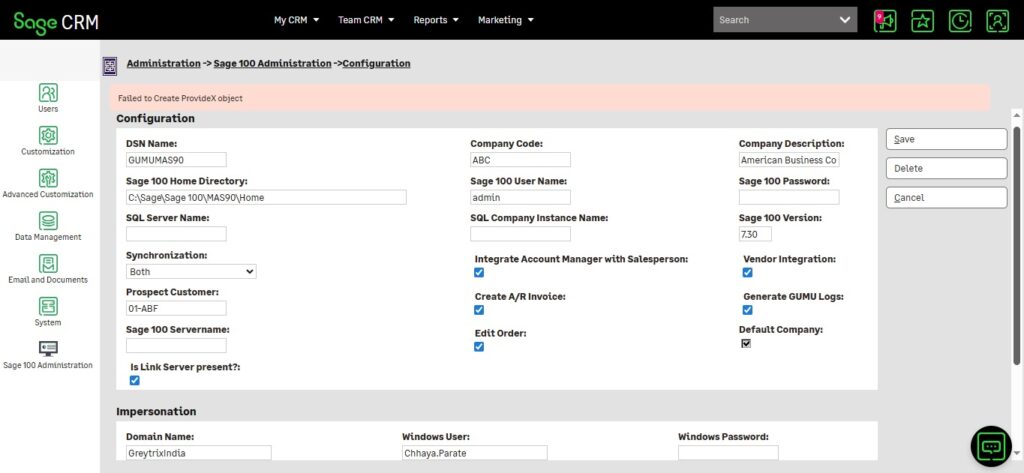
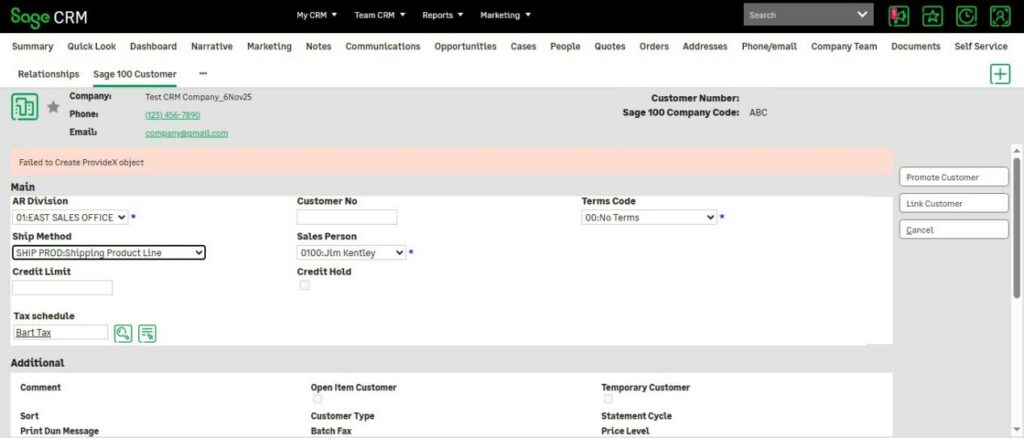
In this blog, we will walk you through the approach to troubleshooting issues that arise when users encounter error messages such as “Failed to Create ProvideX Object” across various GUMU screens within Sage CRM.
This message can appear on various GUMU-related screens including the Sage CRM configuration page, Promote Customer, Sage 100 Customer tab, and others.
Although this issue can stem from multiple factors, it most commonly indicates that Sage 100 Business Objects are not being created successfully within Sage CRM. To diagnose this, we recommend validating whether the Sage 100 Business Objects are functioning correctly in Sage 100 itself.
Why Sage 100 Business Objects Are Essential for GUMU™ Integration
Sage 100 Business Objects are the primary interface through which external applications—like GUMU™—interact with Sage 100. In our GUMU product, we create provideX object using standard Sage 100 business objects to read and write data in Sage 100.
If Sage 100 Business Objects are not running or are misconfigured, GUMU cannot communicate properly with Sage 100 which can result in:
- Failed data synchronization
- Errors during customer, invoice, or order processing
- Incomplete or missing ERP data in Sage CRM
Custom VBScript
To check this issue, we use our custom VBScript which is nothing but a sample business object created using the standard Sage 100 business object. This script is used to verify whether a simple data flow can execute successfully by imitating the execution of the Sage 100 Business Objects.
If this script execute without errors, GUMU integration should also function properly. Below is a sample VBScript used to test customer promotion in Sage 100.
Sample VBScript (Customer Promotion Validation):
Set oScript = CreateObject(“ProvideX.Script”)
oScript.Init(“Sage 100 directory path till Home folder“)
Set oSS = oScript.NewObject(“SY_Session”)
dim strusr, strpwd
strusr=”Sage 100 Login User“
strpwd=”Sage 100 Login Password“
retVal=oSS.nLogon
retVal=oSS.nSetUser(strusr,strpwd)
retVal=oSS.nSetCompany(“Sage 100 Company Code“)
retVAL = oSS.nSetDate(“A/R”,”Date“)
retVal = oSS.nSetModule(“A/R”)
if retVal <1 then
Msgbox(“Erro ocurred=”+oSS.sLasterrormsg)
end if
‘Create new GL General Journal Business Object
retVal = oSS.nSetProgram(oSS.nLookupTask(“ar_customer_UI”))
if retVal <1 then
Msgbox(“Erro ocurred in nsetprogram=”+oSS.sLasterrormsg)
end if
Set oARCustomerEntry = oScript.NewObject(“ar_customer_BUS”, oSS)
‘retVal = oARCustomerEntry.nSetKeyValue(“ARDivisionNo$”, “Division No“)
retVal = oARCustomerEntry.nSetKeyValue(“CustomerNo$”, “Customer No“)
Msgbox(“Erro ocurreeeed=”+oARCustomerEntry.sLasterrormsg)
retVal = oARCustomerEntry.nSetKey()
retVal = oARCustomerEntry.nSetValue(“CustomerName$”, “Customer Name“)
retVal = oARCustomerEntry.nWrite()
Msgbox(“Erro ocurreeeed=”+ CStr(retVal))
Msgbox(“Erro osssssssscurreeeed=”+oARCustomerEntry.sLasterrormsg)
Msgbox(“Erro osssssssscurreeeed=”+oSS.sLasterrormsg)
oSS.nCleanUp()
retVal = oSS.DropObject()
Msgbox(“wait user = ” & strusr)
How to Run the Script:
- Save the file with a .vbs extension
- Open Command Prompt as Administrator
- Run the script using below command:
cscript “path\to\Customer.vbs”
If the script fails to execute and returns a “<NewObject Error: 15>”, it indicates issues with the Sage 100 Workstation installation or related components.
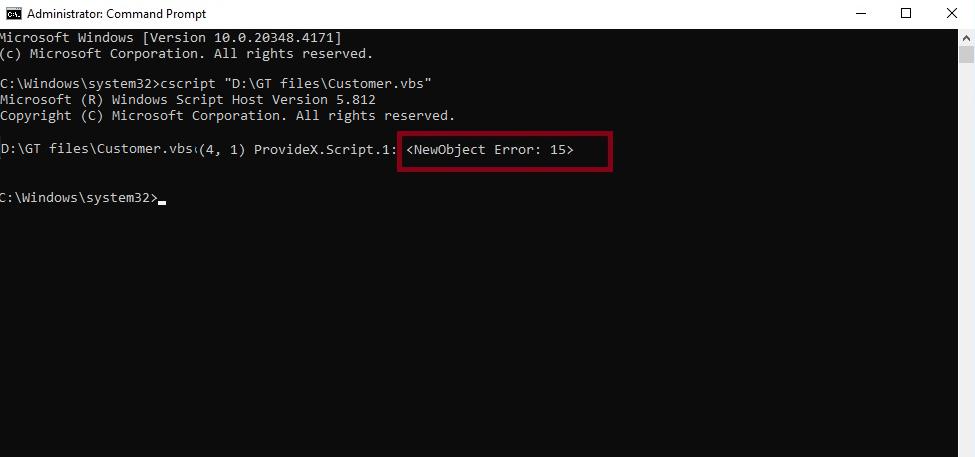
When this VBScript fail with the error shown in the above screenshot, the issue likely originates from the Sage 100 Workstation setup. In such cases, we recommend reaching out to your Sage 100 partner to resolve the underlying workstation or object interface issues.
Ensuring that Sage 100 Business Objects are functioning correctly is crucial for maintaining a smooth and reliable GUMU integration experience.
About Us
Greytrix – a globally recognized and one of the oldest Sage Development Partners is a one-stop solution provider for Sage ERP and Sage CRM organizational needs. Being acknowledged and rewarded for multi-man years of experience and expertise, we bring complete end-to-end assistance for your technical consultations, product customizations, data migration, system integrations, third-party add-on development, and implementation competence.
Greytrix has some unique integration solutions developed for Sage CRM with Sage ERPs namely Sage X3, Sage Intacct, Sage 100, Sage 500, and Sage 300. We also offer best-in-class Sage ERP and Sage CRM customization and development services to Business Partners, End Users, and Sage PSG worldwide. Greytrix helps in the migration of Sage CRM from Salesforce | ACT! | SalesLogix | Goldmine | Sugar CRM | Maximizer. Our Sage CRM Product Suite includes add-ons like Greytrix Business Manager, Sage CRM Project Manager, Sage CRM Resource Planner, Sage CRM Contract Manager, Sage CRM Event Manager, Sage CRM Budget Planner, Gmail Integration, Sage CRM Mobile Service Signature, Sage CRM CTI Framework.
Greytrix is a recognized Sage Champion Partner for GUMU™ Sage X3 – Sage CRM integration listed on Sage Marketplace and Sage CRM – Sage Intacct integration listed on Sage Intacct Marketplace. The GUMU™ Cloud framework by Greytrix forms the backbone of cloud integrations that are managed in real-time for the processing and execution of application programs at the click of a button.
For more information on our integration solutions, please contact us at sage@greytrix.com. We will be glad to assist you.