
Email engagement is one of the most powerful indicators of buyer interest. Salesforce’s built-in email tracking makes this process effortless by recording when an email is opened, how many times it was viewed, and the first and last open timestamps. With the right configuration, this data helps sales and marketing teams understand prospect behavior, prioritize follow-ups, and measure the impact of their outreach.
In this blog, we’ll walk through how Salesforce detects email opens, how accurate the open count is, the step-by-step setup to enable tracking, and how to verify that it’s working correctly.
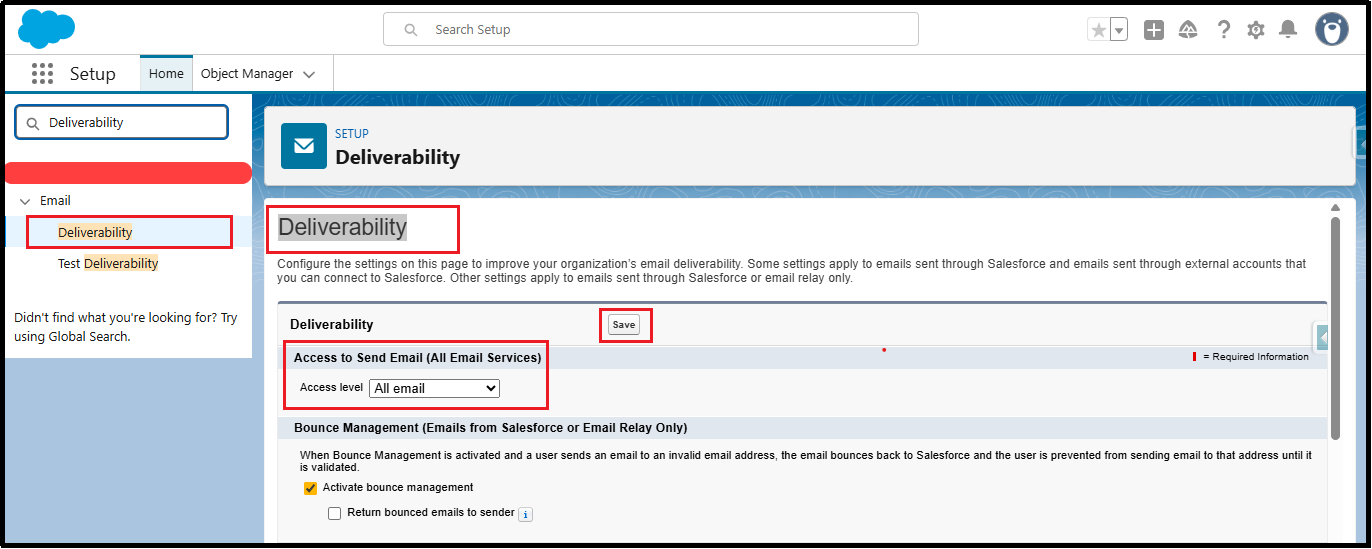
Step 1: Enable Deliverability
- Navigate to Setup → search Deliverability
- Set Access Level: All Email
- Click Save
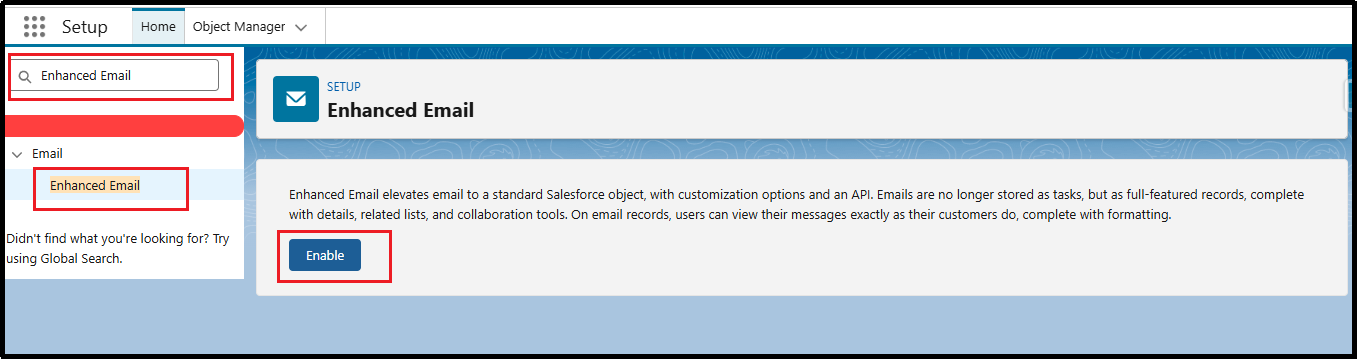
Step 2: Enable Enhanced Email
- Go to Setup → search Enhanced Email
- Check Enable Enhanced Email
- Click Save
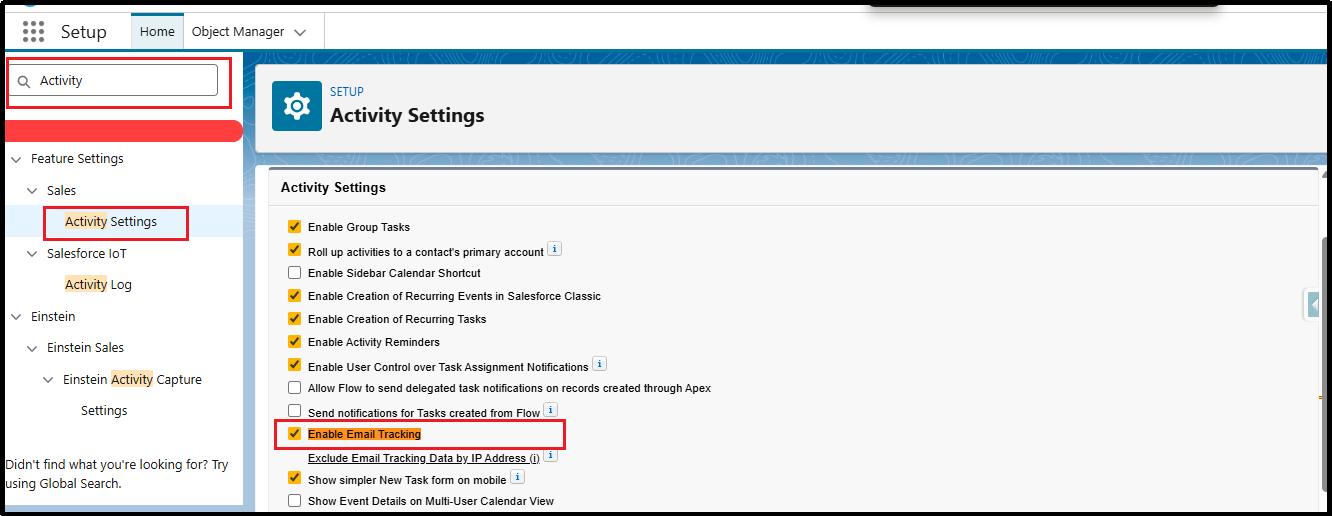
Step 3: Turn On Email Tracking (Lightning Experience)
- Navigate to Setup → search Activity Settings
- Enable Email Tracking
- Click Save
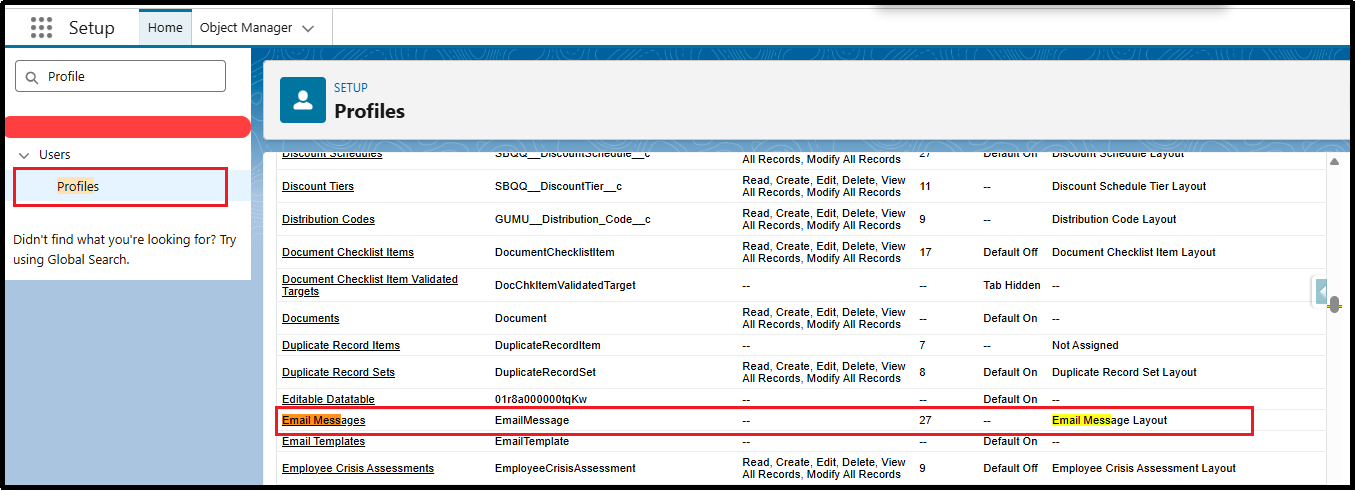
Step 4: Verify User Permissions
Ensure that users sending emails have access to Email Message records.
- Go to Profile / Permission Set → Object Settings
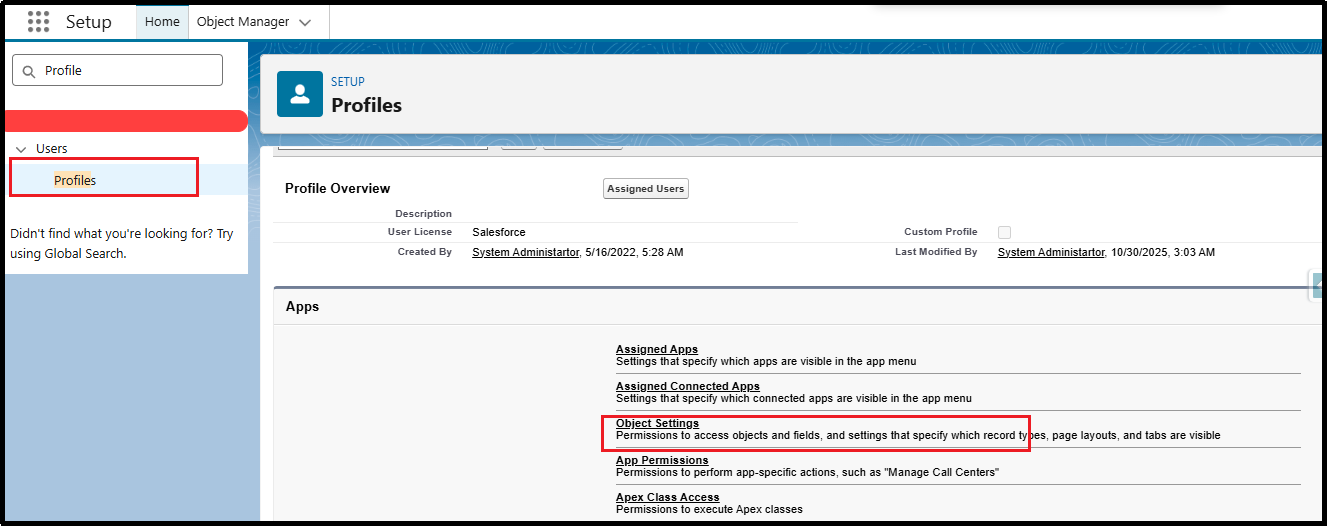
- Select Email Message
- Enable Read, Create, Edit
- Ensure Send Email and Activity permissions are active
Step 5: Add Email Tracking Fields to Page Layout
To view email open tracking on records:
- Go to Setup → Object Manager → Email Message
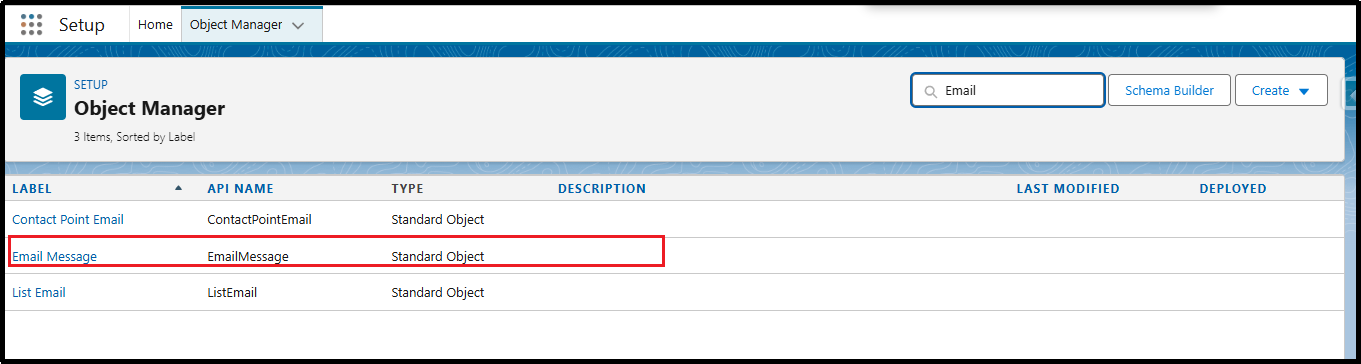
- Open Page Layouts
- Add the following fields:
- IsOpened
- TimesOpened
- FirstOpenedDate
- LastOpenedDate
Step 6: Verify Email Tracking is Working
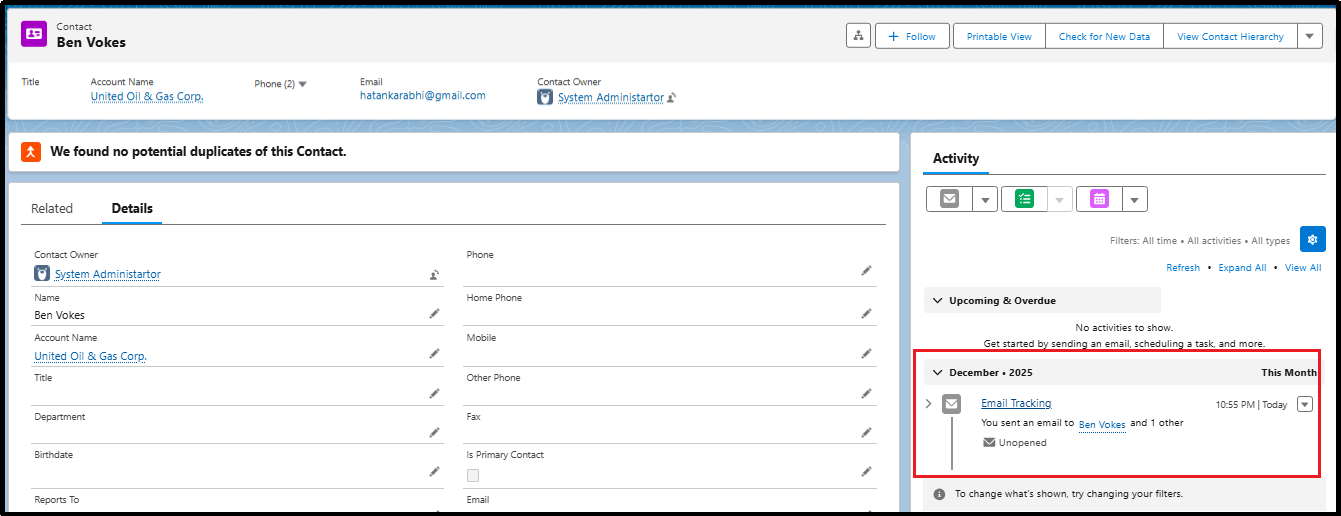
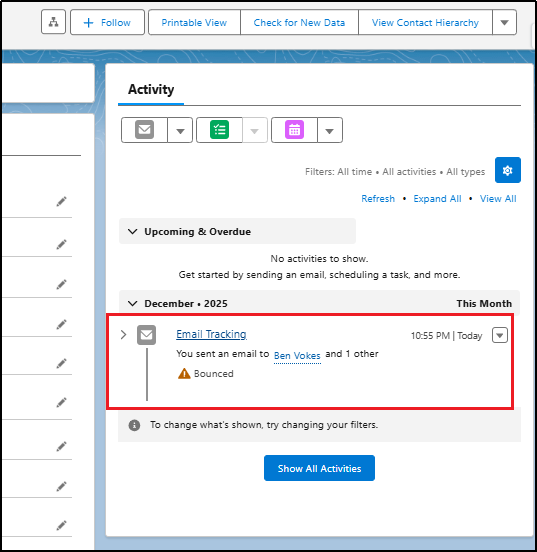
- Send a tracked email from Salesforce to your own email address
- Ensure Track Email toggle is ON in the Lightning Email Composer
- Open the email in your inbox
- Refresh Salesforce
- Open the related Email Message record
- If using Marketing Cloud (Pardot/Marketing Cloud):
- IsOpened = true
- TimesOpened ≥ 1
- FirstOpenedDate / LastOpenedDate populated
Conclusion
Salesforce Email Tracking provides valuable insights into recipient engagement, helping teams improve follow-ups and optimize communication strategies. By enabling Deliverability, Enhanced Email, Email Tracking, and setting the correct permissions, you ensure accurate open tracking across your org. With these configurations in place, users can confidently analyze email activity and boost productivity.
By following the above blog instructions, you will be able to learn “Ultimate Guide to Salesforce Email Tracking – Step-by-Step Setup & Verification“. If you still have queries or any related problems, don’t hesitate to contact us at salesforce@greytrix.com. More details about our integration product are available on our website and Salesforce AppExchange.
We hope you may find this blog resourceful and helpful. However, if you still have concerns and need more help, please contact us at salesforce@greytrix.com.
About Us
Greytrix – a globally recognized and one of the oldest Sage Development Partner and a Salesforce Product development partner offers a wide variety of integration products and services to the end users as well as to the Partners and Sage PSG across the globe. We offer Consultation, Configuration, Training and support services in out-of-the-box functionality as well as customizations to incorporate custom business rules and functionalities that require apex code incorporation into the Salesforce platform.
Greytrix has some unique solutions for Cloud CRM such as Salesforce Sage integration for Sage X3, Sage 100 and Sage 300 (Sage Accpac). We also offer best-in-class Cloud CRM Salesforce customization and development services along with services such as Salesforce Data Migration, Integrated App development, Custom App development and Technical Support business partners and end users. Salesforce Cloud CRM integration offered by Greytrix works with Lightning web components and supports standard opportunity workflow. Greytrix GUMU™ integration for Sage ERP – Salesforce is a 5-star rated app listed on Salesforce AppExchange.
The GUMU™ Cloud framework by Greytrix forms the backbone of cloud integrations that are managed in real-time for processing and execution of application programs at the click of a button.
For more information on our Salesforce products and services, contact us at salesforce@greytrix.com. We will be glad to assist you.
Related Posts
- How to reset field values of repeatable sections in Formstack for Salesforce forms
- How to Fetch current Record Id from Lightning Web Components (LWC)
- How to create a custom button on Formstack for the Salesforce form
- How to Restrict the System Administrator to “Edit the Read-Only Field” in Salesforce.