
A complete guide to decoding integer bitmasks in Acumatica Report Designer without backend C# customizations.
When you build custom project or service management reports in Acumatica, pulling schedule data straight out of the PMTask DAC can quickly get confusing.
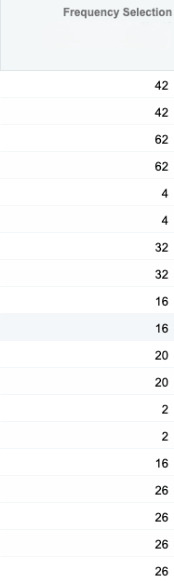
Instead of getting a clear, readable line like “Every week on Thursday, Wednesday, Monday,” you end up looking at database fields like UsrServiceDaysMask and UsrRecurrenceIntervalWeeks spitting out raw integers like 26 or 1.
That happens because Acumatica packs multi-select values into a single integer called a bitmask. The real headache, though? Acumatica’s Report Designer doesn’t support built-in bitwise operators (like &) or modulo functions (%). So, if you want to turn those cryptic numbers into plain text for end users, you have to get a little creative with math right inside the expression editor.
The Fix: Decoding Bitmasks with Expression Math
Here’s the basic idea. Each day of the week has a special number, based on powers of two.
Sunday is 20 = 1,
Monday is 21 = 2,
Tuesday is 22 = 4,
Wednesday is 23 = 8,
Thursday is 24= 16,
Friday is 25 = 32,
Saturday is 26 = 64.
Why powers of two? Well, it lets Acumatica combine multiple days simply by adding the numbers together. For example, if a task happens on Monday and Wednesday, the number stored is 2 + 8 = 10. Suddenly, one number can represent multiple days neat, right?
Now, let’s see how to read that number. Suppose the Recurrence Field has the value 13. How do we know which days it represents? We start with the biggest day value that fits into 13. Thursday is 8. Subtract it from 13, and we get 5 so Thursday is included. Next is Wednesday, which is 4. 5 – 4 leaves 1, so Wednesday is selected. Tuesday is 2 too big, so we skip it. Monday is 1, and 1 – 1 leaves 0, so Monday is selected. Sunday is 1, but there’s nothing left, so we skip it. And just like that, 13 turns into Monday, Wednesday, Thursday.

Since standard bitwise operators aren’t available in Report Designer, we have to isolate each day manually. We do this by dividing our stored value by the day’s bit weight, applying Floor(), and checking the remainder:
Floor(X / BitWeight) – (Floor(Floor(X / BitWeight) / 2) * 2) = 1
If that expression evaluates to 1, it means that specific day was selected. If it evaluates to 0, it was skipped. Running this check for every day lets us reconstruct the full weekly schedule right inside the report layout.
The Plug-and-Play Expression
To bring it all together, we use that integer division trick to evaluate each day of the week, piece the results together, and trim off the trailing comma using Left() and Len() – 2.
Here is the exact code you can drop straight into your Report Designer expression box:
Conclusion
Just like that, a random database number like 26 turns into a clean, easy-to-read schedule for your users: “Every week on Thursday, Wednesday, Monday”—no backend C# code or customization packages required.
You can pocket this exact same math trick for any other bitmask fields you run across in Acumatica down the road.