
In the previous blogs, we explored Query-wise and Table-wise Dynamic Grid Configuration and how Sync Data can be used to bring Sage 100 data into Sage CRM.
In this blog, we will take a practical example of creating a GT Invoice Dynamic Grid using Query-wise Configuration.
This example demonstrates the complete process, from creating the SQL table and configuring the Show Grid query to synchronizing Sage 100 invoice data and displaying it in Sage CRM.
GT Invoice Dynamic Grid – Example
The requirement is to display GT Invoice information under:
Sage CRM → View ERP Data → Custom Grid
The implementation consists of four main parts:
Create SQL Table → Configure Show Grid → Configure Metadata → Configure Sync Data
Step 1 – Create the GTInvoice SQL Table
First, create a table named GTInvoice in the Sage CRM SQL database.
This table stores the invoice information that will be displayed in the Dynamic Grid.
The table includes fields for:
Company Code, Customer Number, Invoice Type, Invoice Number, AR Division Number, Bill To Customer, Invoice Date, Invoice Due Date, Customer PO, Sales Order, Ship Date, Salesperson, Invoice Amount, Discount Amount, Balance, Header Sequence Number
The implementation uses the following table structure:
CREATE TABLE GTInvoice ( GCompanyCode VARCHAR(50), GCustomerNumber VARCHAR(50), GInvoiceType VARCHAR(20), GInvoiceNo VARCHAR(50), GARDivisionNo VARCHAR(10), GCUSTOMERNO VARCHAR(50), GBillToCUSTOMERNO VARCHAR(50), GBillToDivisionNo VARCHAR(10), GInvoiceDueDate DATE, GInvoiceDate DATE, GCustomerPoNo VARCHAR(50), GSalesOrderNo VARCHAR(50), GShipDate DATE, GSalespersonDivisionNo VARCHAR(10), GSalespersonNo VARCHAR(50), GInvoiceAmt NUMERIC(18,2), GDiscountAmt NUMERIC(18,2), GBalance NUMERIC(18,2), HeaderSeqNo VARCHAR(50), ModuleCode VARCHAR(50));
Step 2 – Configure the Show Grid Query
Once the table is created, navigate to:
Administration → Sage 100 Administration → Dynamic Grid Query Manager
Select:
Query Option: Show Grid
Enter:
Caption: GTInvoice
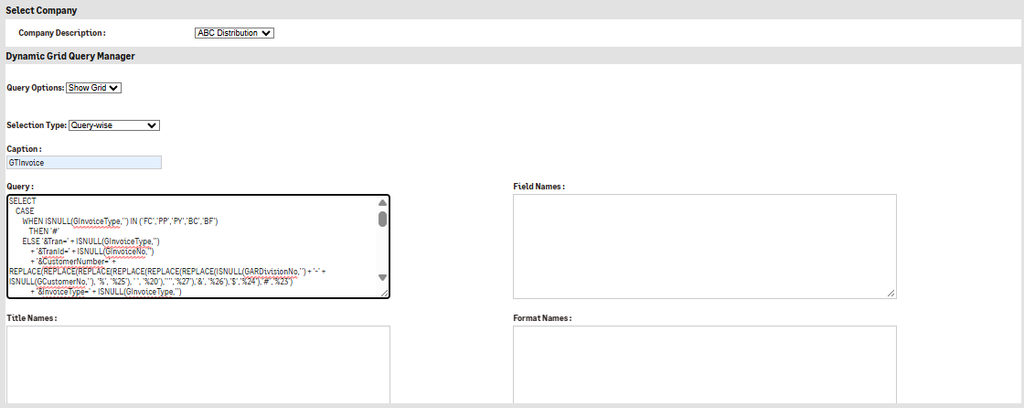
The Show Grid query retrieves the required invoice information from the GTInvoice table.
The query also prepares the invoice detail link and applies the required filtering based on the customer’s AR Division Number and Customer Number.
Show Grid Query
SELECT CASE WHEN ISNULL(GInvoiceType,””) IN (”FC”,”PP”,”PY”,”BC”,”BF”) THEN ”#” ELSE ”&Tran=” + ISNULL(GInvoiceType,””) + ”&TranId=” + ISNULL(GInvoiceNo,””) + ”&CustomerNumber=” + REPLACE(REPLACE(REPLACE(REPLACE(REPLACE(REPLACE( ISNULL(GARDivisionNo,””) + ”-” + ISNULL(GCustomerNo,””), ”%”, ”%25”), ” ”, ”%20”), ””””, ”%27”), ”&”, ”%26”), ”$”, ”%24”), ”#”, ”%23”) + ”&InvoiceType=” + ISNULL(GInvoiceType,””) + ”&HeaderSeqNo=” + ISNULL(HeaderSeqNo,””) + ”&sBillToCustomerNo=” + ISNULL(GBillToCustomerNo,””) + ”&BillToDivisionNo=” + ISNULL(GBillToDivisionNo,””) END AS Details, GInvoiceNo, CAST(GInvoiceDate AS DATE) AS InvoiceDate, CAST(GInvoiceDueDate AS DATE) AS InvoiceDueDate, GCustomerPoNo, GSalesOrderNo, CASE WHEN GShipDate IN (”1753-01-01”, ”1900-01-01”) THEN NULL ELSE CAST(GShipDate AS DATE) END AS GShipDate, GSalespersonDivisionNo + ”-” + GSalespersonNo AS Salesperson, GInvoiceAmt, GDiscountAmt, GBalance, CASE WHEN GBalance = 0.00 THEN ”Fully Paid” WHEN GBalance IS NOT NULL THEN ”Open” ELSE ”History” END AS sTypeFROM GTInvoiceWHERE GARDivisionNo = ”^^”AND GCustomerNo = ”~~”;
The query performs more than simply retrieving data. It also:
Creates the View link for invoice details.
- Formats invoice and due dates.
- Handles default ship dates.
- Displays the salesperson.
- Calculates the invoice status.
- Filters invoices for the selected CRM customer.
Step 3 – Configure Grid MetaData
This is the major change in the updated implementation. Previously, after creating the Show Grid query, grid metadata had to be manually configured in the CustomgridConfig table.
With the new Dynamic Grid Query Manager functionality, the grid configuration can be entered directly in the Dynamic Grid Query Manager screen.
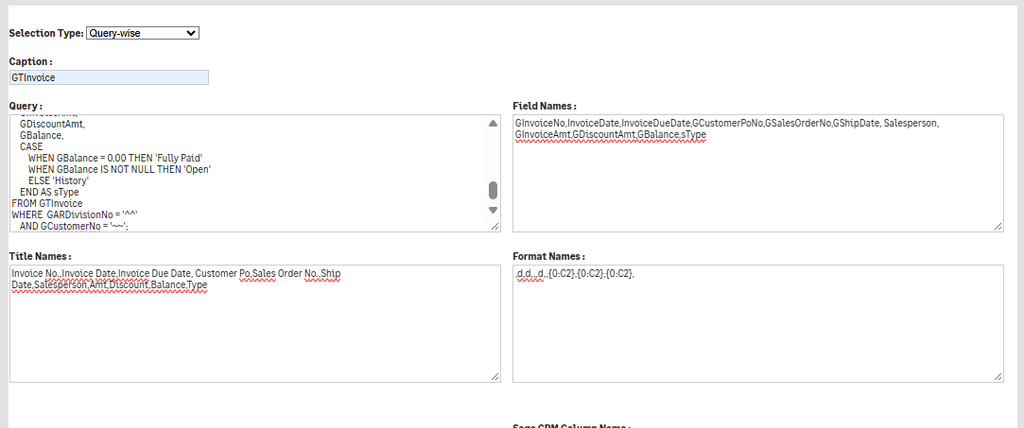
The screen provides fields such as:
- Field Names
- Title Names
- Form Names
- Context to show Grid
- Sage CRM Column Name
- Sage 100 Column Name
Field Names
The Field Names should correspond to the fields returned by the Show Grid SQL query.
Details,GInvoiceNo,InvoiceDate,InvoiceDueDate,GCustomerPoNo,GSalesOrderNo,GShipDate,Salesperson,GInvoiceAmt,GDiscountAmt,GBalance,sType
Title Names
The Title Names define the user-friendly captions displayed in the Sage CRM grid.
View Details,Invoice No.,Invoice Date,Invoice Due Date,Customer Po,Sales Order No.,Ship Date,Salesperson,Amt,Discount,Balance,Type
Format Names
The Format Names field is used to define how specific values should be displayed in the Dynamic Grid.
d – Used for date fields. It formats the value as a date.
{0:C2} – Used for amount/currency fields.
For example:
,d,d,,,d,,{0:C2},{0:C2},{0:C2},
Context to Show Grid
The Context to Show field determines where the Dynamic Grid will be displayed, such as Customer, Vendor, My CRM, or Team CRM.
Sage CRM Column Name & Sage 100 Column Name
The Sage CRM Column Name and Sage 100 Column Name are used to link the corresponding fields between Sage CRM and Sage 100. This ensures that the data from the Sage 100 field is mapped to the appropriate Sage CRM field.
After entering all required details.click Save to save the Dynamic Grid Query configuration.
Step 4 – Configure Sync Data
After configuring the Show Grid query and grid presentation, the next step is to populate the GTInvoice table with Sage 100 data.
Navigate to Administration → Sage 100 Administration → Dynamic Grid Query Manager and select Query Option: Sync Data.
For this implementation, two Sync Data queries are configured.
Query 1 – Clear Existing GT Invoice Data
Caption:
TruncateGTInv
Query:
IF EXISTS ( SELECT TOP(1) * FROM GTInvoice WHERE GCompanyCode = ”MAS_ABC” ) BEGIN DELETE FROM GTInvoice WHERE GCompanyCode = ”MAS_ABC”; END
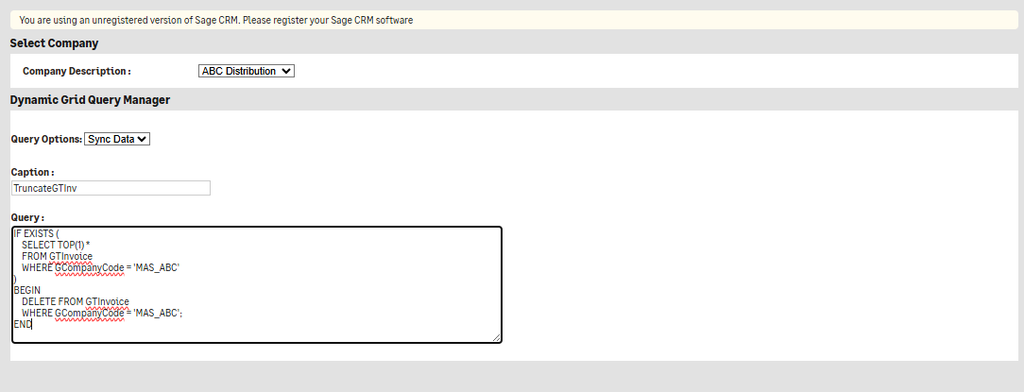
This removes the existing invoice records for the configured Sage 100 company before the new data is imported.
Query 2 – Import Invoice Data from Sage 100
Create another Sync Data query.
Caption: GTInvoice
The query retrieves invoice information from Sage 100 through the linked server. First, temporary tables are created for invoice header information and open invoice balance information.
IF OBJECT_ID(”tempdb..#InvoiceHeader”) IS NOT NULL DROP TABLE #InvoiceHeader; IF OBJECT_ID(”tempdb..#OpenInvoice”) IS NOT NULL DROP TABLE #OpenInvoice; /* Pull header and open invoice data from linked server / SELECT * INTO #InvoiceHeader FROM OPENQUERY(MAS_ABC, ”SELECT InvoiceNo, ARDivisionNo, CUSTOMERNO, BillToCustomerNo, BillToDivisionNo, HeaderSeqNo, InvoiceType, InvoiceDate, InvoiceDueDate, ShipDate, SalesOrderNo, CustomerPoNo, SalespersonNo, SalespersonDivisionNo, TaxableSalesAmt, NonTaxableSalesAMt, FreightAmt, SalesTaxAmt, DiscountAmt FROM AR_InvoiceHistoryHeader ”); SELECT * INTO #OpenInvoice FROM OPENQUERY(MAS_ABC, ”SELECT InvoiceNo, InvoiceHistoryHeaderSeqNo, Balance FROM AR_OpenInvoice ”); / Insert combined data into GTInvoice */ INSERT INTO GTInvoice ( GCompanycode, GInvoiceNo, GARDivisionNo, GCUSTOMERNO, GBillToCUSTOMERNO, GBillToDivisionNo, GInvoiceType, GInvoiceDate, GInvoiceDueDate, GShipDate, GSalesOrderNo, GCustomerPoNo, GSalespersonNo, GSalespersonDivisionNo, GInvoiceAmt, GDiscountAmt, GBalance, HeaderSeqNo ) SELECT ”MAS_ABC” AS GCompanycode, H.InvoiceNo, H.ARDivisionNo, H.CUSTOMERNO, H.BillToCustomerNo, H.BillToDivisionNo, H.InvoiceType, H.InvoiceDate, H.InvoiceDueDate, H.ShipDate, H.SalesOrderNo, H.CustomerPoNo, H.SalespersonNo, H.SalespersonDivisionNo, (H.TaxableSalesAmt + H.NonTaxableSalesAMt + H.FreightAmt + H.SalesTaxAmt) AS GInvoiceAmt, H.DiscountAmt, O.Balance, H.HeaderSeqNo FROM #InvoiceHeader H LEFT JOIN #OpenInvoice O ON H.InvoiceNo = O.InvoiceNo AND H.HeaderSeqNo = O.InvoiceHistoryHeaderSeqNo;
Save Both the Querys. And Give Metadata.
Step 4 – View the GT Invoice Grid in Sage CRM
After synchronization is completed, navigate to the required customer in Sage CRM.
View ERP Data → Custom Grid
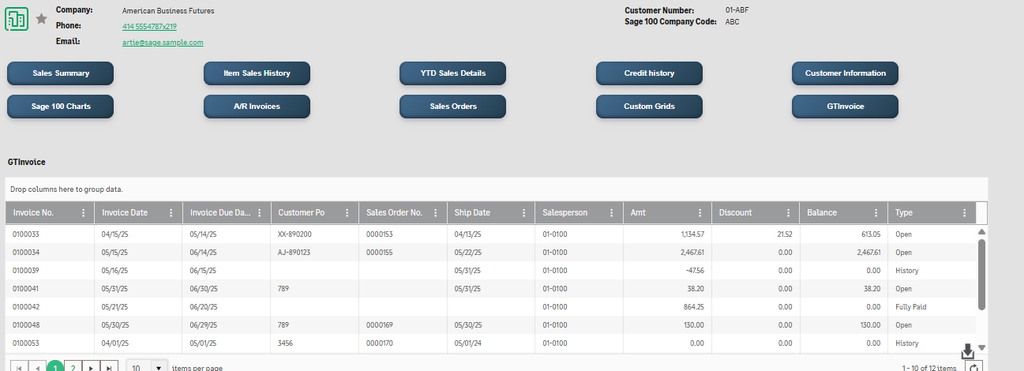
The GT Invoice example demonstrates how Query-wise Dynamic Grid functionality can be used to bring customized Sage 100 information into Sage CRM.
With the new Dynamic Grid Query Manager functionality, the implementation is more centralized because the administrator can configure not only the SQL query but also the grid presentation directly within the Dynamic Grid Query Manager.
SQL Table → Show Grid Query → Field & Column Configuration → Sync Data Query → Sage 100 Data → GTInvoice Data Table → Sage CRM Custom Grid
This approach is particularly useful when the requirement involves multiple Sage 100 tables, custom SQL logic, calculated values, data transformation, customized column captions, and formatted presentation within Sage CRM.
About Us
Greytrix – a globally recognized and one of the oldest Sage Development Partners is a one-stop solution provider for Sage ERP and Sage CRM organizational needs. Being acknowledged and rewarded for multi-man years of experience and expertise, we bring complete end-to-end assistance for your technical consultations, product customizations, data migration, system integrations, third-party add-on development, and implementation competence.
Greytrix has some unique integration solutions developed for Sage CRM with Sage ERPs namely Sage X3, Sage Intacct, Sage 100, Sage 500, and Sage 300. We also offer best-in-class Sage ERP and Sage CRM customization and development services to Business Partners, End Users, and Sage PSG worldwide. Greytrix helps in the migration of Sage CRM from Salesforce | ACT! | SalesLogix | Goldmine | Sugar CRM | Maximizer. Our Sage CRM Product Suite includes add-ons like Greytrix Business Manager, Sage CRM Project Manager, Sage CRM Resource Planner, Sage CRM Contract Manager, Sage CRM Event Manager, Sage CRM Budget Planner, Gmail Integration, Sage CRM Mobile Service Signature, Sage CRM CTI Framework.
Greytrix is a recognized Sage Champion Partner for GUMU™ Sage X3 – Sage CRM integration listed on Sage Marketplace and Sage CRM – Sage Intacct integration listed on Sage Intacct Marketplace. The GUMU™ Cloud framework by Greytrix forms the backbone of cloud integrations that are managed in real-time for the processing and execution of application programs at the click of a button.
For more information on our integration solutions, please contact us at sage@greytrix.com. We will be glad to assist you.