
Let’s be honest: handling customer refunds has historically been a bit of a balancing act. Your Accounts Receivable (AR) team knows who needs the money, but your Accounts Payable (AP) team is the one that actually manages the cash outgoing. Trying to bridge that gap without creating a giant mess in your ledger or breaking segregation of duties has been a challenge.
Well, Sage Intacct just dropped a new feature that is about to make your finance team’s life a whole lot easier.
You can now process customer refunds directly through Accounts Payable. This means AR can approve the refund, Intacct automatically hands it off to AP as a bill, and your standard payment workflows take it from there.
Here is everything you need to know about how it works and how to set it up.
Why This is a Game-Changer
If you’ve ever had to manually track a refund across two different departments, you already know why this matters. But here are the main highlights:
- Rock-Solid Segregation of Duties: AR users control the creation of the refund, while AP users control the disbursement of funds. No overlapping permissions required.
- End-to-End Tracking: The refund, the AP bill, and the final payment are all digitally linked. You can track the status from either application without hunting for transactions.
- Standardized Workflows: AP doesn’t have to learn a new system to pay out a refund—it just shows up in their usual “Pay Bills” queue.
Step 1: The One-Time Setup in Accounts Receivable
Before you can start using this, you need to turn the feature on and tell Intacct how to handle the accounting side of things.
- Head over to Accounts Receivable > Setup > Configuration.
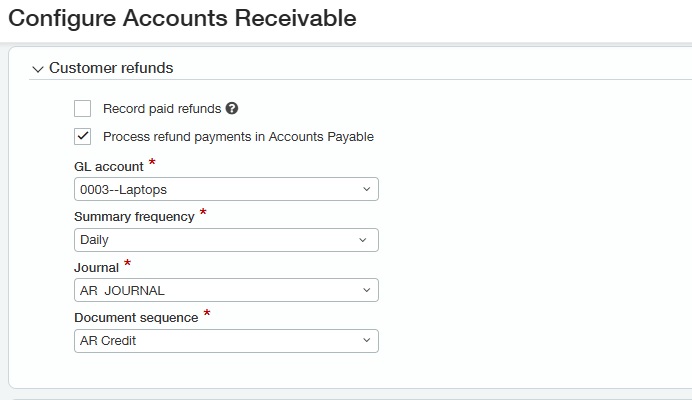
- Scroll down to the new Customer refunds section.
- Check the box for Process refund payments in Accounts Payable. (Note: You can also keep “Record paid refunds” checked if you still occasionally pay refunds outside of Intacct).
- Fill in your accounting preferences: select your GL offset account, Summary frequency, Journal, and Document sequence.
Step 2: Prep Your Customer Records
Next, you need to tell Intacct how to handle the vendor side of the equation, since AP can only pay out to “vendors.” Go to Accounts Receivable > All > Customers, find your customer, and click on the Refunds tab. You have three choices here:
- The “Easy” Button (Auto-generated vendor): Select this, and Intacct will magically create a matching vendor record behind the scenes to use for refunds.
- The “Matchmaker” (Link to an existing vendor): If this customer is already in your system as a vendor, just select them from the Linked vendor dropdown.
- The “Lockdown” (Block refunds): If you want to make sure no one accidentally refunds a specific customer, check Block refunds for this customer (just make sure they don’t have any active refunds currently in progress).
Step 3: How to Issue a Refund (The New Workflow)
Once the plumbing is set up, actually issuing a refund is incredibly straightforward.
1. AR Creates the Refund
Go to Accounts Receivable > All > Payments and click the Add (+) icon next to Refunds.
- Select the customer, and Intacct will instantly pull up all available credits.
- Fill out the basics: Date, reference numbers, or attachments.
- The Key Step: In the Payment method dropdown, select Process in AP
- Select the credits you want to refund (you can adjust the amount if it’s a partial refund) and hit Post (or Draft if you’re not ready yet).
2. AP Pays the Bill
The moment AR hits “Post,” Intacct automatically generates a linked bill in Accounts Payable.
Your AP team doesn’t need to do anything special. They just go to their usual Pay Bills workflow, find the refund bill, and pay it out via check, ACH, or whatever method you normally use.
About Us
Greytrix has a wide product range for Sage Intacct- a Cloud ERP. This includes migrations from QuickBooks | Sage 50 | Sage 100 | Sage 300 to Sage Intacct. Our unique GUMU™ integrations include Sage Intacct for Sage CRM | Salesforce | FTP/SFTP | Rev.io | Checkbook | Dynamics 365 CRM | Magento | Rent Manager | Treez | Avalara Avatax | Blackline SFTP. We also offer best-in-class Sage Intacct Development Services, Consulting services, integrated apps like POS | WMS | Payroll | Shipping System | Business Intelligence | eCommerce for Sage Intacct to Sage business partners, resellers, and Sage PSG worldwide. Greytrix constantly develops apps, products, and add-ons to enhance user experience. Sage Intacct add-ons include AR Lockbox File Processing.
Greytrix GUMU™ integration for Sage CRM – Sage Intacct, Sales Commission App for Sage Intacct, and Checkbook.io ACH/Digital Check Payments for Sage powered by GUMU™ are listed on Sage Intacct Marketplace.
The GUMU™ Cloud framework by Greytrix forms the backbone of cloud integrations that are managed in real-time for the processing and execution of application programs at the click of a button.
For more information on Sage Business Cloud Services, please contact us at sagecloud@greytrix.com. We will like to hear from you.