
When I first dropped a custom field into an Acumatica grid, it seemed okay at a glance.
The column showed up, and the value came in, so I thought it was done. Then I tried to filter it… and nothing worked. No sort, no filter; it behaved like the column wasn’t even part of the grid.
This happened when I added a project column on the approval screen. The value was showing correctly, so I kept checking other things—DAC fields, attributes, and cache—and even rebuilt the customization. Still no luck.
Later I realized the problem was not the data at all. The field was added in a way that made Acumatica treat it like a display field only. Since it wasn’t bound the way the grid expects, the filter simply skipped it.
Once I fixed how the field was tied to the DAC, the filter started working right away. Nothing fancy was needed. Just had to give the field a proper value source instead of leaving it unbound.
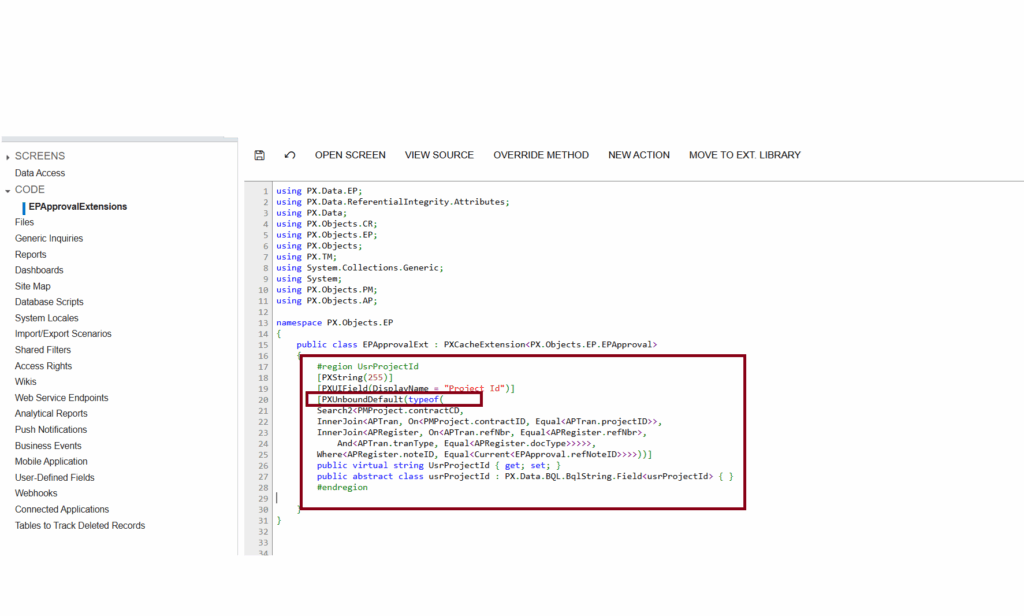
In my case, the Project column was added for display purposes on the Approval screen. I used an unbound field since the value wasn’t stored directly on the table.
A bound field—or at least a scalar field with a database expression—gives Acumatica something solid to work with. Once I changed the field to something the grid could actually query, filtering started working immediately.
Even the built-in sorting (ascending/descending) worked perfectly after that change.
On the Approval screen, the requirement was simple:
Display the project linked to the item being approved.
The project had to appear in the grid and also be filterable so the user could quickly find approvals belonging to a specific project.
After applying the change in the DAC and making the field filterable, everything started behaving like a normal Acumatica field:
· Sorting worked
· Filtering (equals, contains, starts with) worked
· Export to Excel also included the field correctly.
It ended up being a much cleaner solution compared to my first approach.
Step 1:
Open the Customization Screen (SM204505).
Click on the “Add” button, add the project name, click on Save, and publish the project.
Select the screen, add the custom field, and use the PXUnboundDefault attribute as shown in the screenshot.
Publish the project.
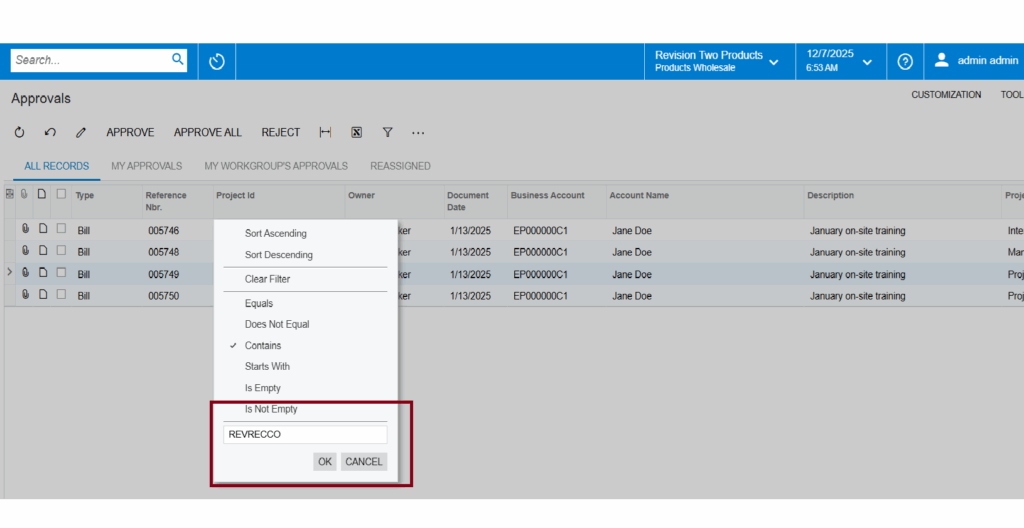
Result:
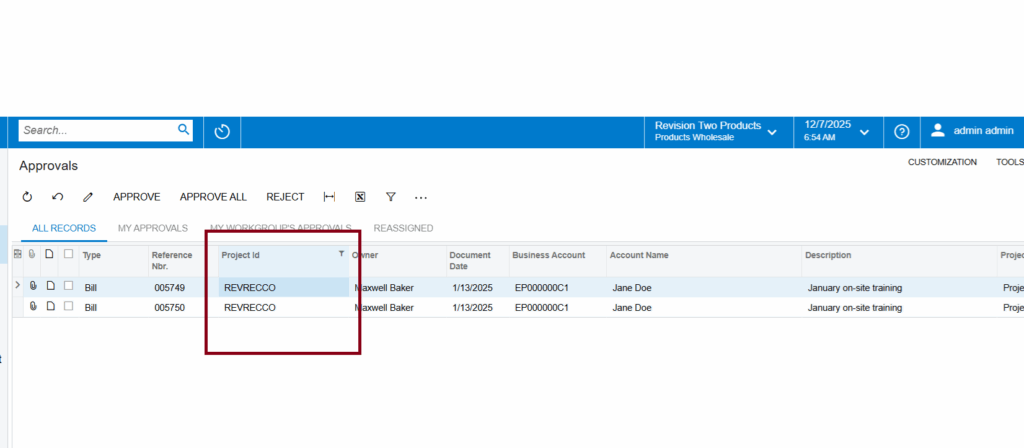
Conclusion:
If you add a custom field to an Acumatica grid and the filter doesn’t work, check whether the field is actually bound to something that Acumatica can query. Unbound fields look convenient, but they don’t play nicely with filtering.