Entity Top Content screens in Sage CRM are used to give quick overview of an entity without actually having to scroll down all the way on Summary screens. These Top Content screens can be further customized to add eye-catching information in the Top Content screen using client side SDK introduced in Sage CRM v7.2.
New Stuff: Add Print Button to Print Entity information in Sage CRM v7.2
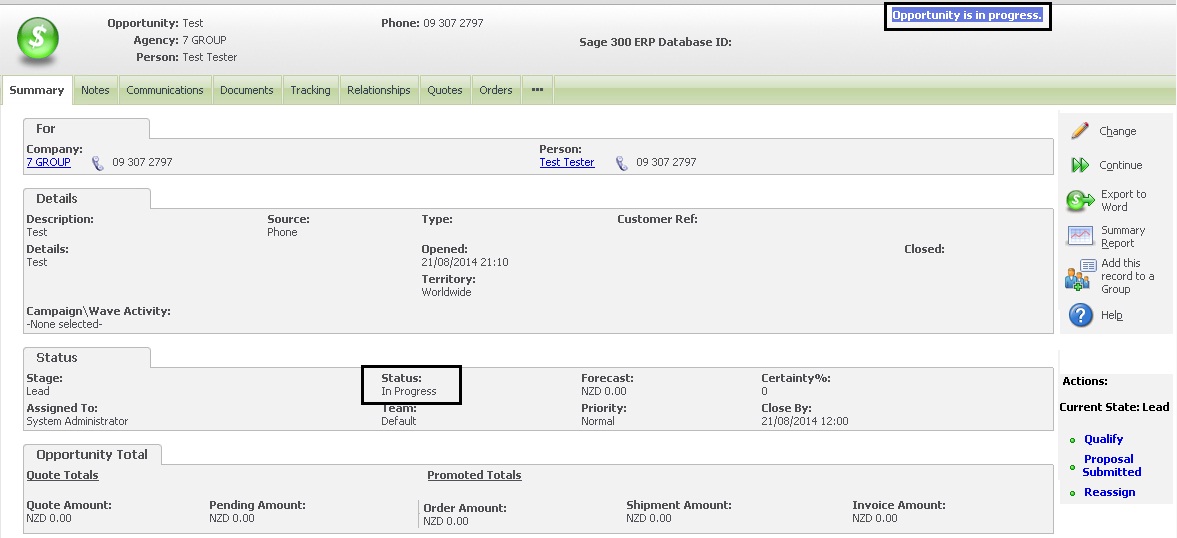
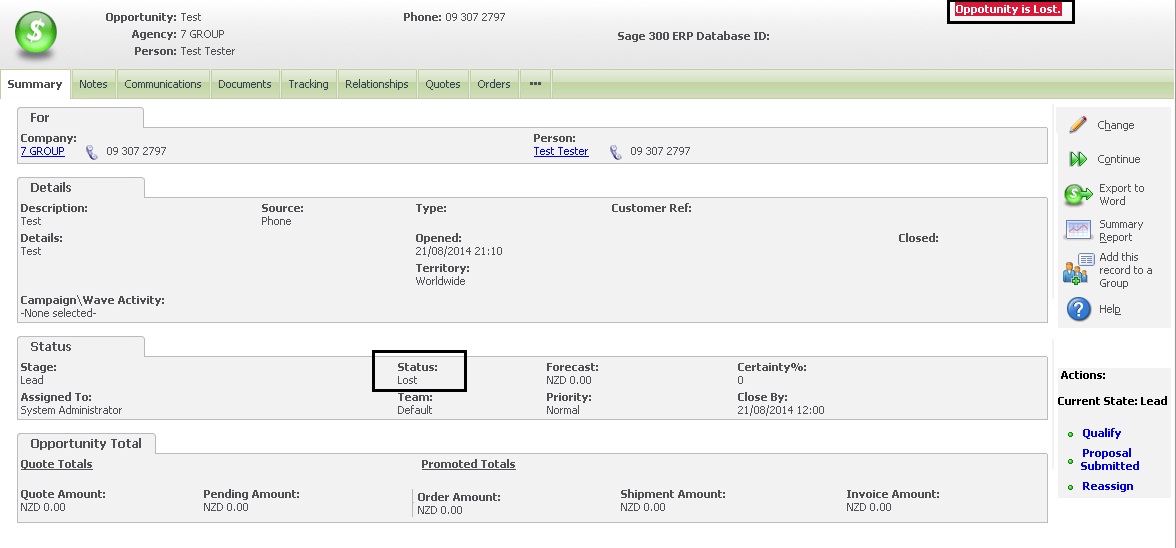
Let’s consider one example where user wants to show information in the Top Content screen based on the Status of an Opportunity. If Opportunity Status is In Progress, then the information should be in Blue color in the Opportunity context and if Opportunity is Lost, then the information should be in Red color. Here are the steps that you need to follow.
1) Login to Sage CRM.
2) Navigate to below path.
Administration | Customization | Opportunity.
3) Navigate to Screens tab and click on the Opportunity Top Content screen.
4) Copy and Paste below code into the Custom Content section of screen.
<script>
crm.ready(function ()
{
var strClassName = “”;
var strMessage = “”;
if(crm.fields(“oppo_status”).value()==”In Progress”)
{
strClassName += “InfoContent”;
strMessage += “Opportunity is in progress.”;
}
else if(crm.fields(“oppo_status”).value()==”Lost”)
{
strClassName = “ErrorContent”;
strMessage += “Opportunity is Lost.”;
}
var myOutPut = “<table border=0><tbody>”
myOutPut += “<tr><td class='”+strClassName+”‘>”+strMessage+”</td></tr>”
myOutPut += “</tbody></table>”;
var x = $(“#EWARE_TOP”).children();
var y = $(x).children();
var z = $(y).children();
var a = $(z).children(“td:last”);
a.after(myOutPut);
})
</script>
5) Click on Save button.
Once done, navigate to an opportunity which is In Progress and you will see that the Top Content screen shows the information in Blue color at the Right Hand side of screen as shown below.
If the Opportunity is Lost, then the Top Content screen shows the information in Red color at the Right Hand side of screen as shown below.
You can apply above code to any other entities based on different conditions. Happy scripting 🙂
Also Read:
1) Displaying a Popup window in Sage CRM 7.2 without Menu button and Top Content section
2) Adding Extra information in Top Content
3) Customize your Top Content
4) Live world clock in Company Top Content
5) Hide Fields from Top Content Screen
