
Introduction
In the previous article, we introduced the enhanced Dynamic Grid Query Manager in GUMU for Sage CRM and Sage 100, including its Query-wise and Table-wise configuration approaches.
In this article, we will take a closer look at one of the key enhancements introduced in GUMU v5.6.0.5 — Table-wise Configuration.
Organizations frequently need to display Sage 100 ERP information directly within Sage CRM. This could include inventory availability, customer information, vendor details, sales orders, purchase orders, or other ERP data.
Traditionally, creating these grids required SQL knowledge, database field identification, query development, testing, and deployment. With the new Table-wise Configuration, administrators can create many of these grids directly from the CRM interface by selecting a Sage 100 table and choosing the required fields — without writing SQL.
What Is Table-wise Configuration?
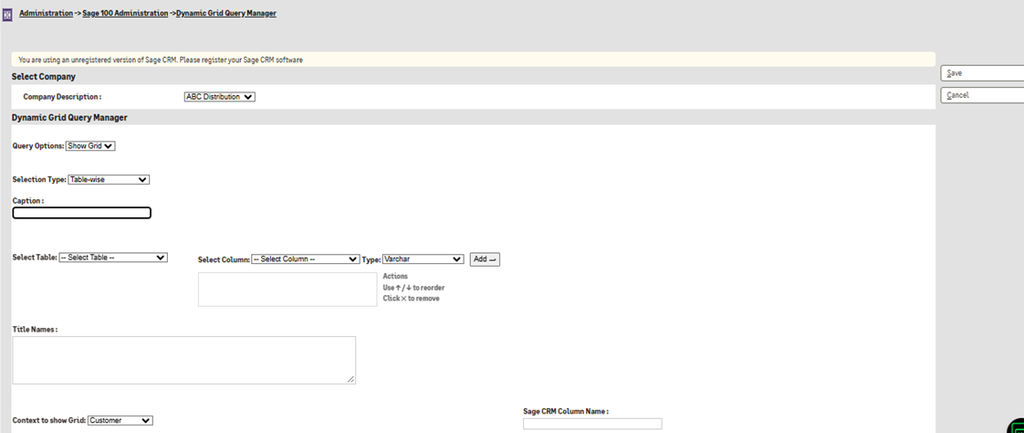
Table-wise Configuration is a new configuration method available in the Dynamic Grid Query Manager in GUMU v5.6.0.5.
It allows administrators to create a dynamic grid by:
- Selecting the Sage 100 company.
- Selecting a Sage 100 database table.
- Choosing the required columns.
- Configuring column titles and display order.
- Selecting where the grid should appear within Sage CRM.
- Saving the configuration for users to access.
Why Was Table-wise Configuration Introduced?
A common requirement in Sage CRM–Sage 100 integration projects is to display additional ERP information within CRM.
For example, a sales representative may want to see:
- Item availability
- Warehouse information
- Quantity on hand
- Quantity on purchase order
- Quantity on sales order
- Average cost
Previously, implementing such a requirement could involve identifying the appropriate Sage 100 table and fields, writing an SQL query, configuring the resulting grid, testing it, and deploying the customization.
This process generally required technical or development resources even when the requirement itself was relatively simple.
Table-wise Configuration simplifies this process by moving much of the configuration into the CRM interface.
Instead of starting with an SQL query, an administrator can start with a simple question:
Which Sage 100 table contains the information I want to display?
From there, the required fields can be selected and configured.
How to Create a Dynamic Grid Using Table-wise Configuration
Step 1 – Select the Sage 100 Company
Select the required Company Description.
Step 2 – Select Table-wise Configuration
Set Selection Type to Table-wise.
Step 3 – Select the Sage 100 Table
Select the required table, such as IM_ItemWarehouse, AR_Customer, or AP_Vendor.
Step 4 – Choose Columns
Select the required fields to display in the grid.
Step 5 – Configure Columns
Set column titles, data types, order, and remove unnecessary columns.
Step 6 – Select CRM Context
Choose where the grid should appear, such as Customer, Vendor, Find, My CRM, or Team CRM.
Step 7 – Save the Configuration
Save the configuration to make the dynamic grid available in Sage CRM.
Real-World Example: Inventory Details
Consider a sales representative working with a customer in Sage CRM.
The customer asks:
“Do you currently have this item available, and which warehouse has stock?”
Without ERP information available in CRM, the sales representative may need to open Sage 100, locate the item, check warehouse information, and then return to CRM.
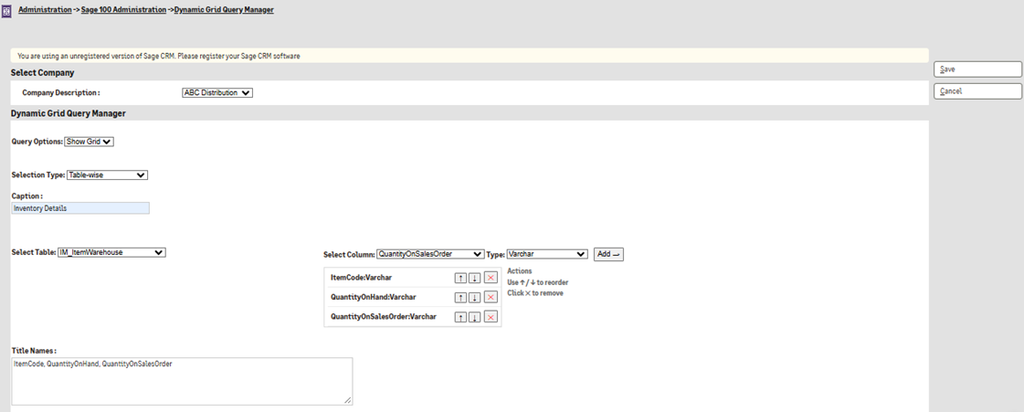
With a table-wise dynamic grid, an Inventory Details tab can be configured using the IM_ItemWarehouse table.
The grid can display information such as:
| Item Information | Inventory Information |
| Item Code | Warehouse Code |
| Quantity On Hand | Quantity On Purchase Order |
| Quantity On Sales Order | Average Cost |
The sales representative can then access the required Sage 100 information directly from Sage CRM instead of switching between applications.
This example demonstrates how Table-wise Configuration can turn a relatively simple ERP data visibility requirement into a configuration task rather than a custom SQL development task.
Key Benefits of Table-wise Configuration
1. No SQL Query Writing for Basic Table-Based Grids
Administrators can create grids by selecting tables and fields instead of manually writing SQL queries.
2. Reduced Custom Development
Straightforward ERP data display requirements can be configured without requiring a custom development cycle.
3. Faster Implementation
Because the configuration is performed directly through the CRM interface, simple grid requirements can be implemented with fewer technical steps.
4. Easier Maintenance
When the requirement changes, administrators can modify the configuration instead of modifying and redeploying custom SQL code for every basic change.
5. User-Friendly Column Configuration
Administrators can define meaningful column titles and arrange fields according to the users’ requirements.
6. Multiple CRM Contexts
The resulting grids can be configured for different CRM contexts, including Customer, Vendor, Find, My CRM, and Team CRM.
7. Supports Sage 100 Tables
The feature is designed to work with Sage 100 tables, allowing organizations to create grids for different types of ERP information.
Conclusion
The new Table-wise Configuration in GUMU v5.6.0.5 simplifies the process of creating dynamic Sage 100 data grids in Sage CRM.
With a configuration-driven approach, administrators can select a Sage 100 table, choose the required columns, customize titles and ordering, select the CRM context, and publish the resulting grid — without writing SQL for straightforward requirements.
For organizations looking to make ERP information more accessible to CRM users, this provides a practical way to reduce configuration effort while keeping the flexibility of SQL-based Dynamic Grid configuration available when more advanced requirements arise.