
Recently, a client faced an issue in Sage X3 where some Sales Order lines were not getting closed automatically. Due to this, open lines remained in the system even after business completion, which affected reporting and operational follow-ups.
To address this requirement, the client requested a separate custom module where they could import a CSV file containing Sales Order numbers and Line numbers, and based on this file, the system should bulk close the Sales Order lines.
In this blog, we will understand the functionality and processing flow of this custom module.
We developed a new custom module in Sage X3 with the following components:
– New Window: SO Update Routine
– New Menu Item linked to the window
– Menu added to Home Navigation Module
New Stuff: How to Update Custom Fields in the Work Order (WO) Header Table (MFGHEAD) in Sage X3

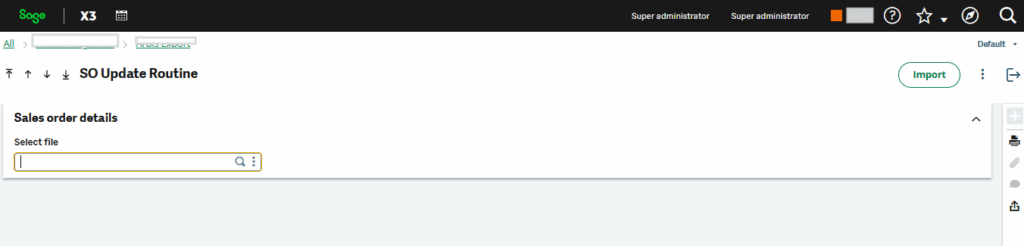
The custom 4GL script efficiently reads a CSV file, validates the data, performs bulk updates to sales order line statuses in the ERP system, and generates detailed processing logs for auditing and error tracking.
1) Reads a CSV file: The script imports data from a user-provided CSV file containing sales order numbers, line numbers.
2) Validates data : It thoroughly checks each record for validation, including correct line numbers, duplicates, and compliance with business rules.
3) Updates sales order line status in bulk : Valid records trigger direct database updates to sales order line statuses in a single efficient transaction.
- Generates processing logs : The script creates a comprehensive log file detailing successful updates, failed records with error reasons and totals processed for troubleshooting.
As shown in the screenshot below fig.3, the CSV file format is provided. Please ensure that this format is strictly followed and that no special characters are used.
To demonstrate the process, let’s consider sales orders that we want to close. We will prepare a CSV file containing the details of these orders: BLR302512SON001 and BLR302512SON003.


Next, we import this CSV file into the respective module. Once the import is successfully completed, the system generates a log file. You can open this log file to check the updation status of each sales order and confirm whether the selected orders have been closed or if any errors occurred during the process.
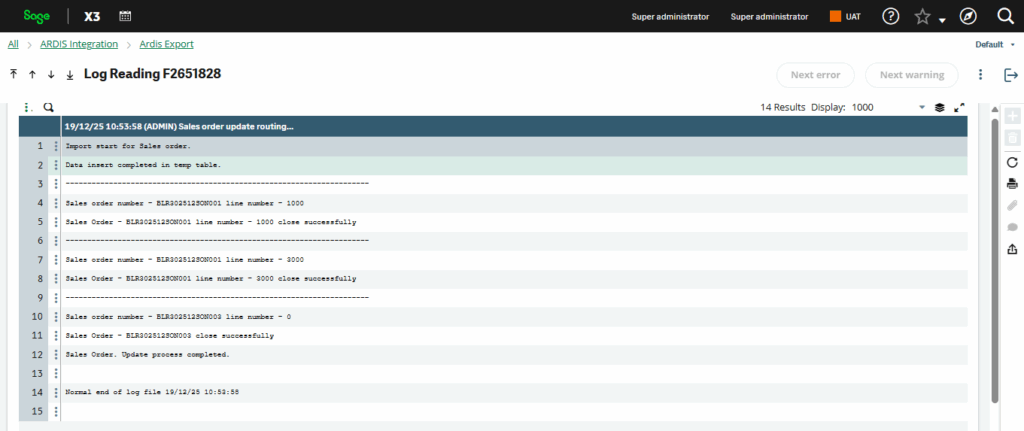
After checking the log file details, we checked the sales order status on the screen, and the respective sales orders were successfully closed. Please see Fig. 6 .
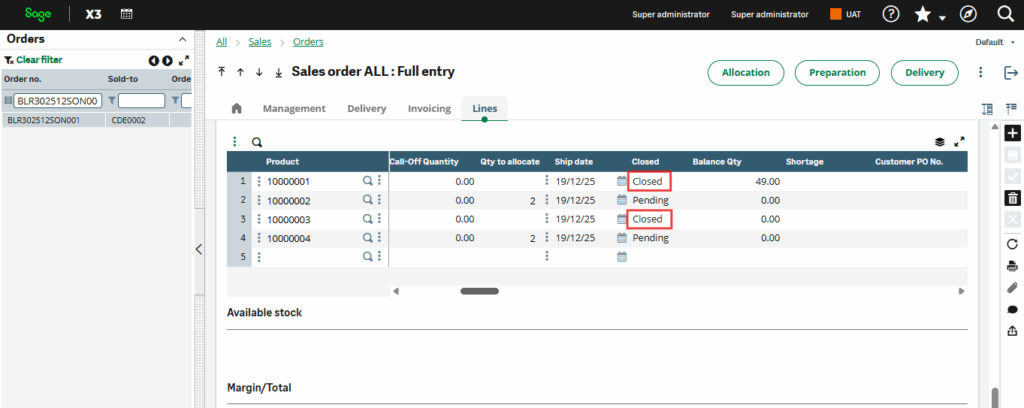
Upon reviewing the log file and verifying the orders directly on the screen (refer to Fig. 6 ), we confirmed that sales orders were successfully closed. This method allows you to close multiple sales orders quickly and accurately, saving significant time compared to manual processing.
By following these steps precisely, you can reliably manage and close sales orders in bulk within the system.