
The Email Message Setup Configuration feature in Sage Intacct Singapore Localization enables organizations to create and manage email templates that are used for sending notifications to customers and vendors. This functionality provides a centralized location for configuring email subjects and message content, ensuring consistent and professional communication across all e-Invoicing and InvoiceNow-related interactions. This functionality allows administrators to design several email templates for various business scenarios and assign them to a particular vendor or customer. The technology helps organizations automate communication while preserving flexibility and control by automatically using the preset template linked to the chosen Message ID when a notification is triggered.
New Stuff: Send Email Notification In Singapore Localization with Sage Intacct
In this blog, we are going to discuss the Email Message Setup Configuration feature in Singapore Localization with Sage Intacct and how it helps organizations create, manage, and assign email templates for customer and vendor notifications.
Email Message Setup Process in Sage Intacct
In Singapore Localization, users can configure email message templates in a few simple steps.
1. Navigate to the Singapore e-Invoice Module
Open the Email Message Setup screen from the Singapore e-Invoice configuration menu.
2. Select Recipient Type
Choose the recipient type for whom the email template will be created:
- Customer
- Vendor
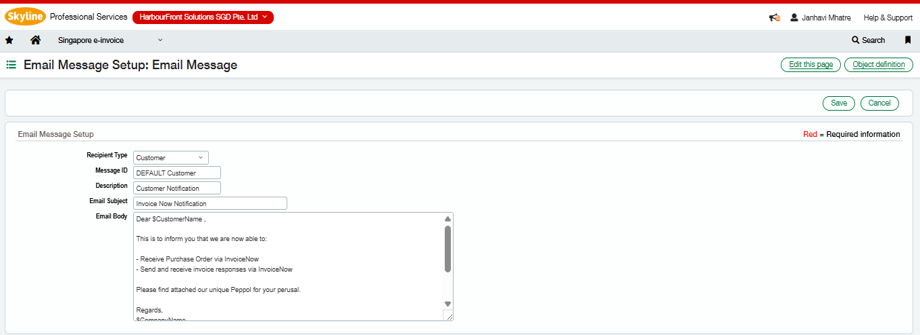
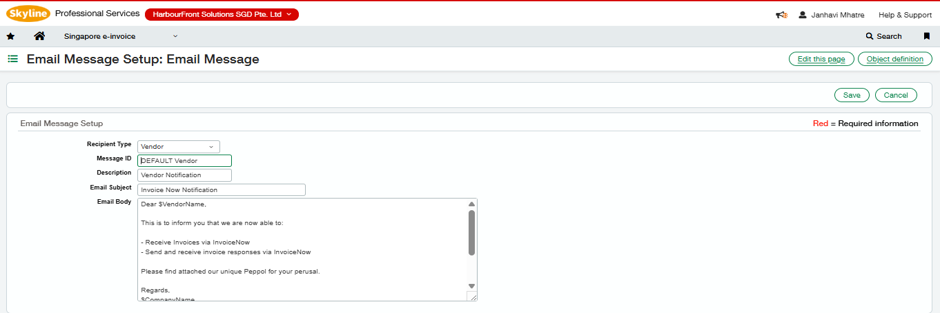
(Refer to Fig 2 and Fig 3)
3. Enter Message Details
Configure the following information:
- Message ID
- Description
- Email Subject
- Email Body
The Message ID acts as a unique identifier for the email template.
4. Create Email Content
Define the email body that will be sent to the recipient. Users can include standard business communication and placeholders for customer or vendor information.
5. Save the Template
Click Save to make the template available for selection within Customer and Vendor master records.
6. Assign Template to Customer or Vendor
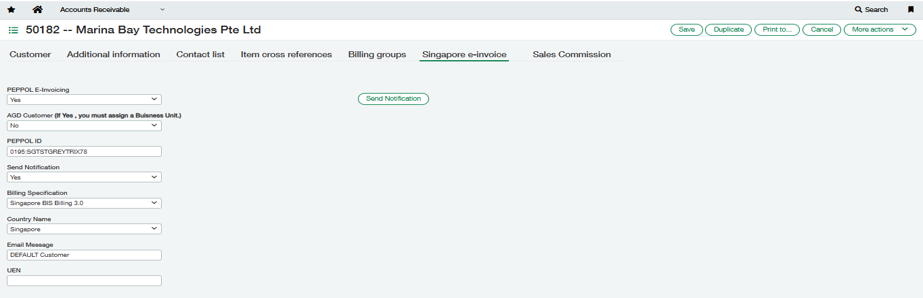
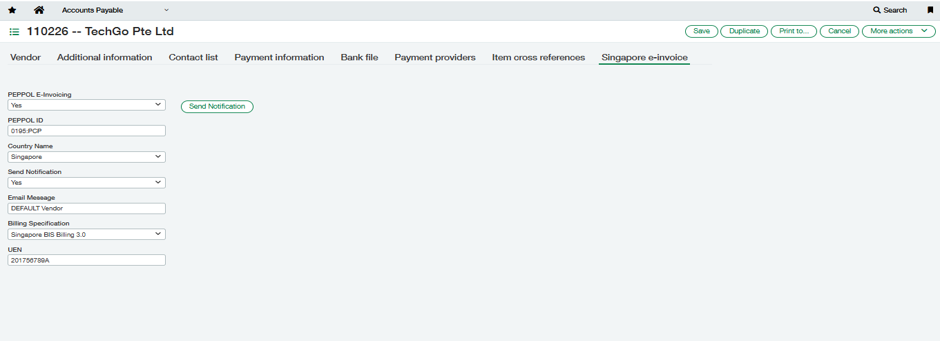
Navigate to the Customer Master or Vendor Master under the Singapore e-Invoice tab and select the required Email Message.(Refer Fig 1 and Fig 4)
7. Send Notification
When a notification is triggered, the system automatically retrieves the selected Message ID and sends the corresponding email template to the customer or vendor.
Key Functionalities Available in Email Message Setup
The Email Message Setup screen provides a flexible and centralized method for managing notification templates.
1. Recipient Type
Users can configure templates separately for:
- Customer Notifications
- Vendor Notifications
This ensures that communications are tailored to the intended recipient.
2. Message ID
Each email template is assigned a unique Message ID.
The Message ID is used to associate the template with Customer and Vendor master records.
3. Description
The Description field helps users easily identify the purpose of the template.
4. Email Subject
Users can configure a customised email subject line. This subject will appear in the recipient’s inbox whenever the email is sent.
5. Email Body Configuration
The Email Body section allows users to define the complete email content.
Typical information may include:
- Customer or Vendor Name
- InvoiceNow Registration Details
- Peppol Information
- Company Information
- Contact Details
This helps organizations maintain professional and consistent communication.
6. Multiple Email Templates Support
The system supports the creation of multiple templates for both Customers and Vendors.
This flexibility allows businesses to use different templates for different communication requirements.
7. Template Assignment at Master Record Level
Within the Singapore e-Invoice tab of the Customer and Vendor masters, users can select the required Email Message from the available Message IDs.
The selected template becomes the default notification template for that customer or vendor.
(Refer Fig 1 and Fig 4)
8. Automated Email Selection
When a notification is sent, the system automatically:
- Reads the selected Email Message from the Customer or Vendor master.
- Retrieves the corresponding Email Subject and Email Body.
- Generates the email content.
- Sends the notification to the configured recipient.
This eliminates manual email composition and ensures consistency.
Benefits of the Email Message Setup Feature
The Email Message Setup functionality offers several benefits, such as:
- Centralised management of email templates
- Consistent communication across customers and vendors
- Support for multiple notification templates
- Easy template assignment through Message IDs
Reduced manual effort in email creation
About Us :-
Greytrix – a globally recognized and one of the oldest Sage Development Partner is a one-stop solution provider for Sage ERP and Sage CRM organizational needs. Being acknowledged and rewarded for multi-man years of experience and expertise, we bring complete end-to-end assistance for your technical consultations, product customizations, data migration, system integrations, third party add-on development and implementation competence.
Greytrix has a wide product range for Sage Intacct- a Cloud ERP. This includes migrations from QuickBooks | Sage 50 | Sage 100 | Sage 300 to Sage Intacct. Our unique GUMU™ integrations include Sage Intacct for Sage CRM| Salesforce| FTP/SFTP | Rev.io | Checkbook| Dynamics 365 CRM | Magento | Rent Manager | Treez| Avalara Avatax | Blackline SFTP. We also offer best-in-class Sage Intacct Development Services, Consulting services, integrated apps like POS | WMS | Payroll |Shipping System | Business Intelligence | eCommerce for Sage Intacct to Sage business partners, resellers, and Sage PSG worldwide. Greytrix constantly develops apps, products, and add-ons to enhance user experience. Sage Intacct add-ons include AR Lockbox File Processing.
For more information on Sage Business Cloud Services, please contact us at sagecloud@greytrix.com. We will like to hear from you.