
Electronic signatures are an important compliance requirement for companies operating in Portugal. Depending on business needs, you may need to enable or disable the Electronic Signature feature for a specific company. This blog explains the step-by-step process to configure Electronic Signature settings for Portugal in Sage X3.
Steps to Enable or Disable Electronic Signature Portugal:
Follow the steps below to enable or disable the Electronic Signature for a company:
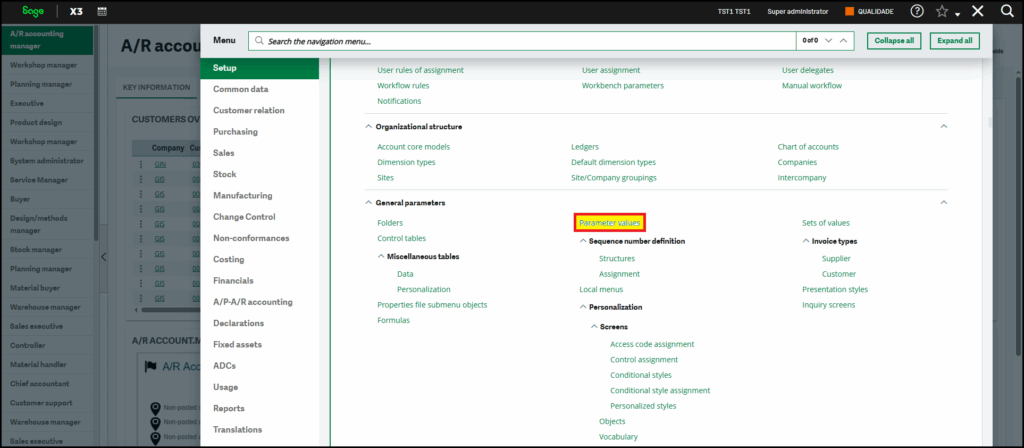
- Navigate to Setup → General Parameters → Parameter Values.
New Stuff: Manual PO Line Closure
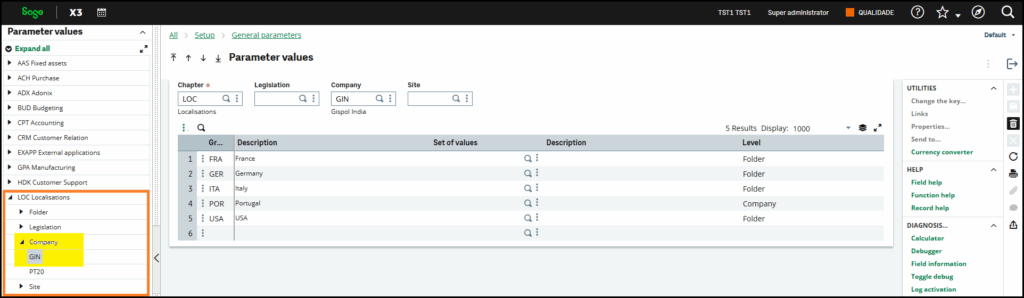
- Open the Parameter Values screen. From the left-hand list, select
LOC (Localization) → Company.ing to Multi-Line Text.
3. Select the company for which you want to enable or disable the Electronic Signature feature.
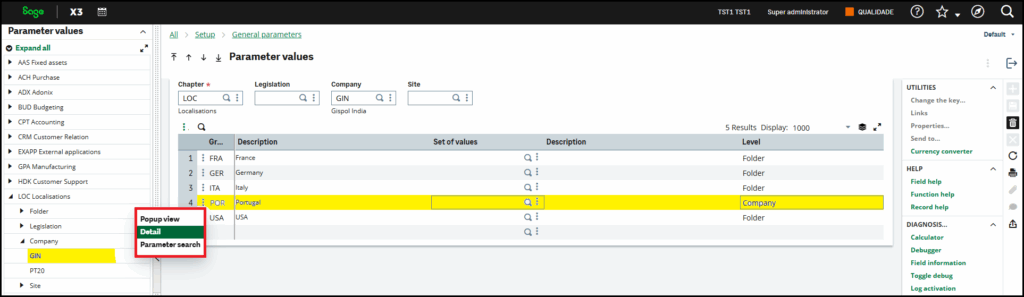
4. After selecting the company, click on the three dots (⋮) under the POR (Portugal) Group and choose the Details option.
5. A Parameter Values pop-up window will appear. In this window, locate the parameter
PORDKF (Electronic Signature Portugal).
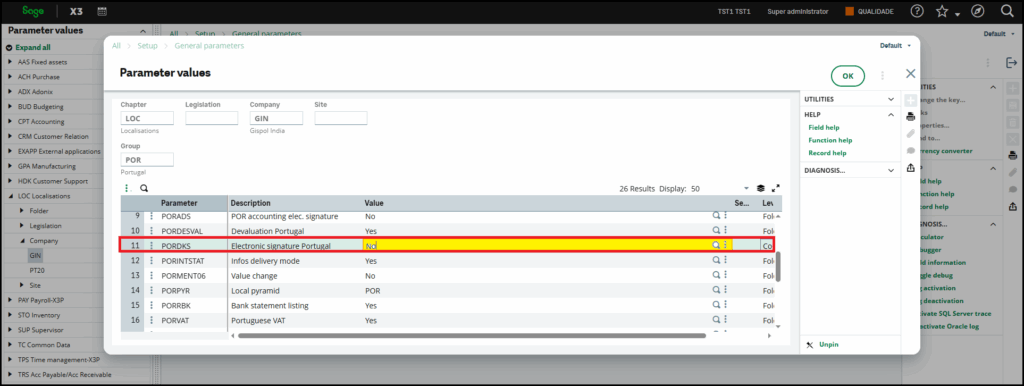
- Change the parameter value:
a) Set it to Yes to Enable Electronic Signature Portugal
b) Set it to No to Disable Electronic Signature Portugal
- Save the changes to apply the configuration.
Conclusion:
By following these steps, you can easily control the Electronic Signature functionality for Portugal at the company level. This ensures compliance while allowing flexibility based on your operational requirements.