
Sage X3 is built to support real-life business scenarios, such as creating a single invoice from multiple sales orders or deliveries, and applying multiple payment or receipt entries to one invoice. However, when this information is presented in reports—especially Excel reports—it is often displayed across multiple rows. This leads to repeated invoice details, making the report lengthy and difficult to read.
From a business user’s perspective, related references—such as sales order numbers or payment/receipt entry numbers along with their dates—are expected to be consolidated and displayed clearly against a single invoice, typically in a comma-separated format.
By combining these related details into a single, comma-separated view, reports become more compact, easier to understand, and visually cleaner. This not only enhances readability but also results in a more professional and business-friendly report output.
Recently, one of our Sage X3 clients requested exactly this enhancement: to display multiple payment or receipt entry numbers and their corresponding dates against a single invoice number in an Excel report.
Example Scenario
As shown in Figure 1, there are two separate payment/receipt entries recorded against a single invoice number. In the standard report output, these entries appear in separate rows, resulting in repeated invoice information.
New Stuff: Seamless ISD Distribution in Sage X3
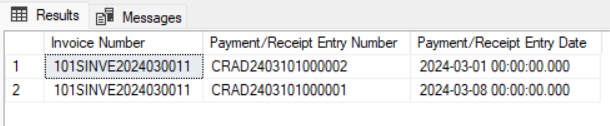
Instead of displaying each payment or receipt entry on a separate line, the requirement is to combine all related entries and display them in a single cell, separated by commas. This provides a cleaner and more readable report format.
To achieve this consolidation, we can use the following SQL function:
- FOR XML PATH(”): Combines multiple rows into a single text string by concatenating each entry.
- Leading comma: Adds a comma before each value during concatenation to clearly separate the entries.
-STUFF(…, 1, 1, ”): Removes the first comma from the combined string, resulting in a clean, properly formatted comma-separated list.
The figure 2 below illustrates an example implementing this query.
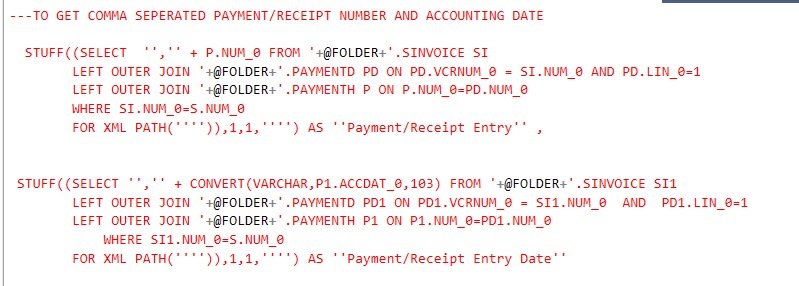
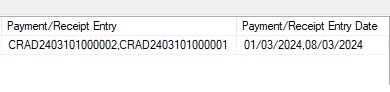
After applying the FOR XML PATH(”) and STUFF functions, all payment or receipt entries related to a single invoice are consolidated and displayed in one cell, separated by commas, within the Sage X3 Excel report. This approach eliminates duplicate rows, enhances report readability, and makes the data easier to review and analyze.
An example of the final output is shown in Figure 3, where the comma-separated values are clearly displayed against a single invoice number.
After incorporating the query into the Crystal Report and exporting the report to Excel, the output appears as shown below. This confirms that multiple payment or receipt entries are successfully consolidated into a single cell, resulting in a clearer and more user-friendly Excel report.
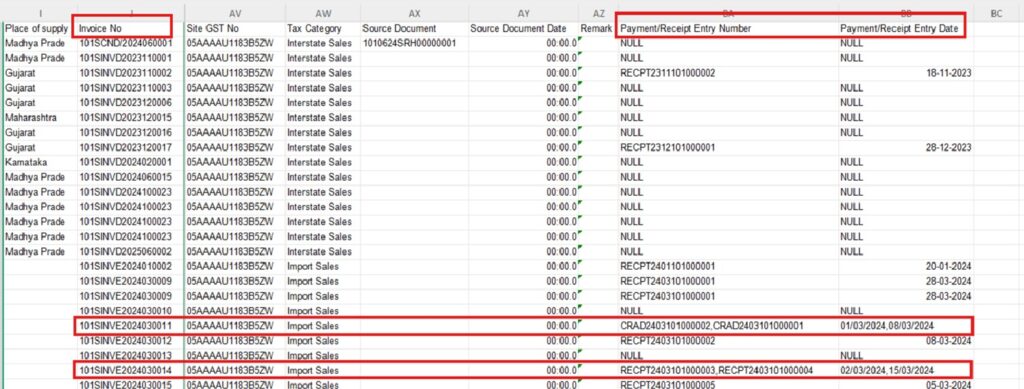
Thus the above approach effectively addresses a common reporting challenge in Sage X3 by consolidating multiple related entries into a single, comma-separated format, resulting in cleaner, more readable, and more professional Excel reports.