
Sage X3 is a modular ERP system where multiple screens and windows are organized under submodules and modules through menu item configuration. Each screen must be explicitly associated with a menu item to make it accessible to users.
In a multi-endpoint environment, these menu items need to be created separately for every endpoint. Manually creating menu items across multiple endpoints is a time-consuming and tedious process.
To address this challenge, Sage X3 provides the ability to export menu items in JSON format. These exported JSON files can then be imported into other endpoints, allowing rapid and consistent creation of menu items across environments. This method significantly reduces manual effort and ensures consistency while creating menu items across endpoints.
In this blog, we will walk through the process of exporting menu items to JSON and importing them into other endpoints efficiently.
Steps to Export the JSON file
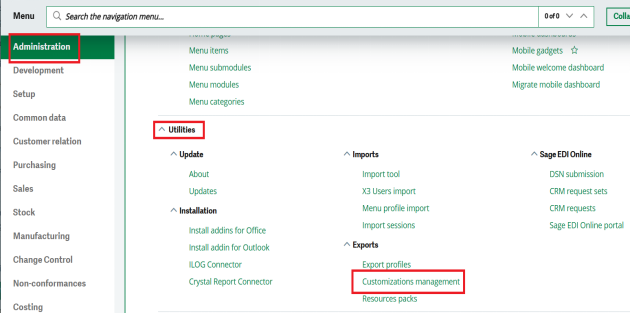
Step 1. Navigate to: Administration > Utilities >Customizations management.
New Stuff: Restriction on Manual Supplier Addition in the RFQs Screen in Sage X3.
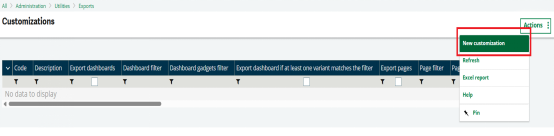
Step 2. Click on “New Customization” from the right pane.
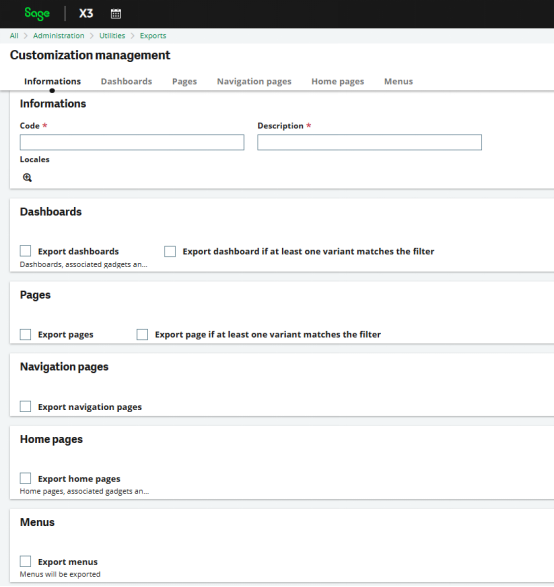
Step 3. Navigate to the Customization Management screen, were you can define a name for the export process by providing a Code and Description. This screen allows you to select the specific components you want to export as part of the customization package.
The Customization Management screen provides multiple export options:
- Dashboards – exports dashboard layouts and gadgets
- Pages – exports individual page definitions
- Navigation Pages – exports navigation structure (modules, submodules, and menus)
- Home Pages – exports home page configurations
- Menus – exports menu items..
You can select options based on your requirement
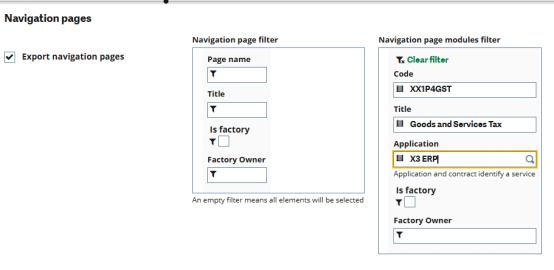
Step 4. The most feasible option here is to choose exporting “Navigation Pages” options. It will give you ease to filter for Navigation pages, Modules and sub module. Please refer below screenshot.
Step 5. Enter select and save all the required objects for export (such as Navigation Pages, Pages, or Menus).
Step 6. Click on the “ExportCustomization” button available on the right-hand panel of the Customization Management screen Once you click this button, a confirmation pop-up window appears.
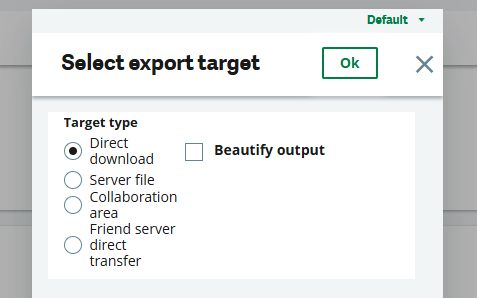
This screen lets you choose where the export result will be saved.
- Server file: Creates the JSON file on the Sage X3 server. You need to provide the file path.
- Collaboration area: Saves the file in the collaboration space. A description and volume must be entered.
- Friend server: Sends the export file to a configured friend server.
If Beautify export is selected, the JSON file is formatted to be easily readable.
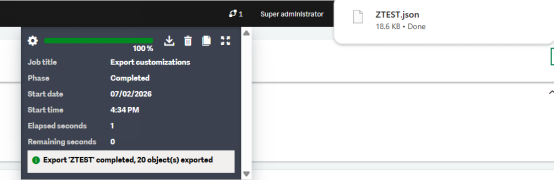
Step 7. After completion, the JSON file is generated and can be used to import menu items into other endpoints, saving time and avoiding manual creation.
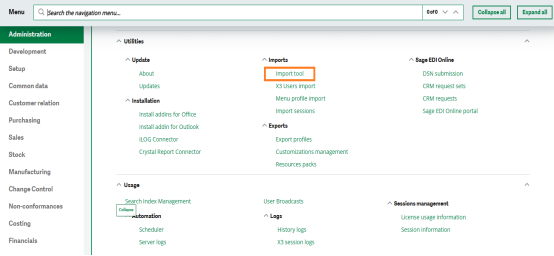
Step 2. Select the Client JSON File option, as the import file is in JSON format.

Step 3. Click Select File under Client file and choose the required JSON file.
Step 4. Click the Import option from the right-hand panel to start the import process

Figure 9 Selecting JSON file
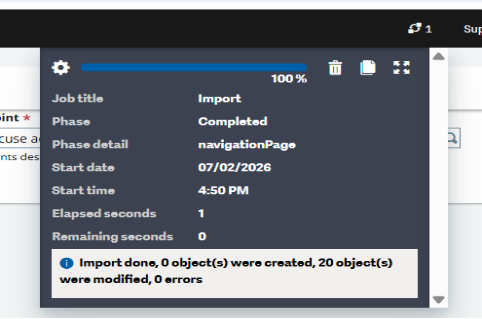
After the import is completed, log out and log back into Sage X3. The newly added module will then be visible in the target environment.
About Us
Greytrix – a globally recognized and one of the oldest Sage Development Partners is a one-stop solution provider for Sage ERP and Sage CRM organizational needs. Being acknowledged and rewarded for multi-man years of experience and expertise, we bring complete end-to-end assistance for your technical consultations, product customizations, data migration, system integrations, third-party add-on development, and implementation competence.
Greytrix has some unique integration solutions developed for Sage CRM with Sage ERPs namely Sage X3, Sage Intacct, Sage 100, Sage 500, and Sage 300. We also offer best-in-class Sage ERP and Sage CRM customization and development services to Business Partners, End Users, and Sage PSG worldwide. Greytrix helps in the migration of Sage CRM from Salesforce | ACT! | SalesLogix | Goldmine | Sugar CRM | Maximizer. Our Sage CRM Product Suite includes addons like Greytrix Business Manager, Sage CRM Project Manager, Sage CRM Resource Planner, Sage CRM Contract Manager, Sage CRM Event Manager, Sage CRM Budget Planner, Gmail Integration, Sage CRM Mobile Service Signature, Sage CRM CTI Framework.
Greytrix is a recognized Sage Champion Partner for GUMU™ Sage X3 – Sage CRM integration listed on Sage Marketplace and Sage CRM – Sage Intacct integration listed on Sage Intacct Marketplace. The GUMU™ Cloud framework by Greytrix forms the backbone of cloud integrations that are managed in real-time for the processing and execution of application programs at the click of a button.
For more information on our integration solutions, please contact us at sage@greytrix.com. We will be glad to assist you.