
The Stock Transaction Inquiry screen in Sage X3 is a powerful tool used to track and analyze stock movements across the system. It allows users to view detailed transaction history, helping in inventory monitoring, audit tracking, and decision-making.
Recently, a client required the addition of a custom field in the Stock Transaction Inquiry screen. While adding the custom field in the inquiry code, the field was successfully reflected in the inquiry window. However, it was not visible on the inquiry screen.
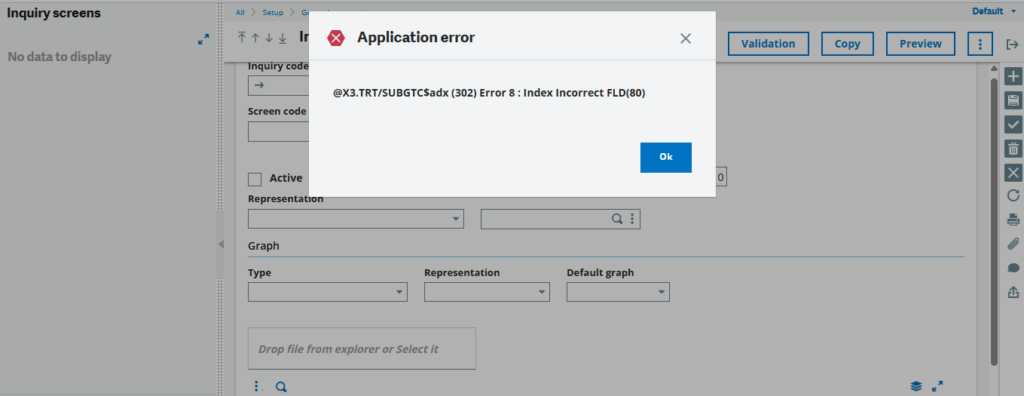
To display the field on the screen, it is necessary to assign the correct position in the inquiry code. During this process, when navigating (jumping) from the inquiry code, the following error was encountered:
“@X3.TRT/SUBGTC$adx (302) Error 8 : Index Incorrect FLD(80)”
This error typically occurs due to incorrect field positioning or index mismatch in the inquiry configuration.
In this blog, we will walk through the step-by-step solution to resolve this issue and successfully display the custom field on the inquiry screen.
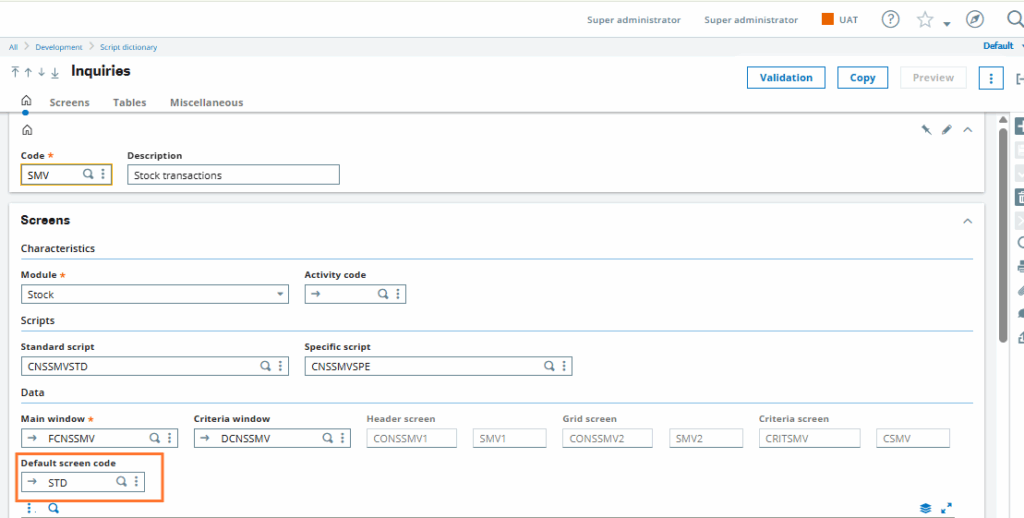
First, we added the custom fields in FCNSSMV (Window) → CONSSMV2 (Screen). After that, we navigated to the Inquiry Code SMV (Inquiry Screen) and attempted to jump to the default screen code STD. At this point, the system generated an error, as shown in Figure 1 & 2 below.
New Stuff: How to Enable Log (Trace) for Work Order Creation in Sage X3 Enterprise Planning
Step 1: Increase Field Limit in Inquiry Screen.
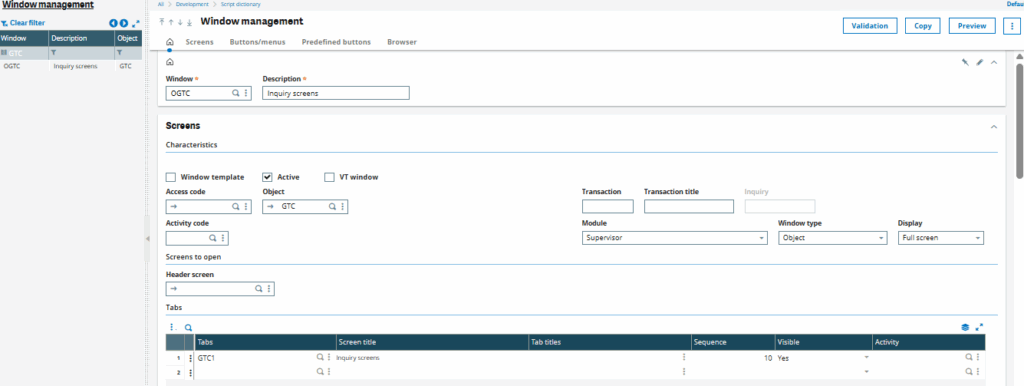
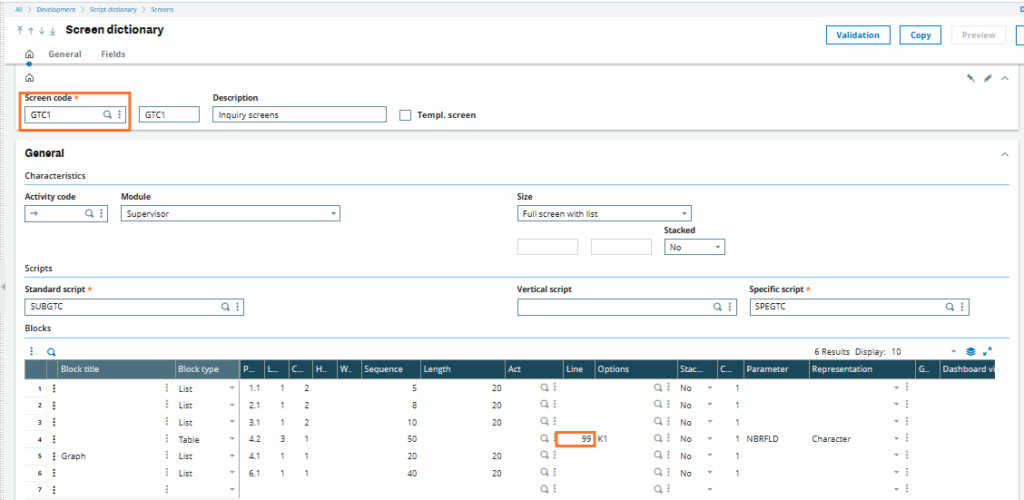
Go to OGTC (Windows) → GTC1 (Inquiry Screens).
Increase the number of lines from 80 to 99 (or as per your requirement). After updating the line count, navigate to the FLD (Field) section and simply press the Tab key. The system will automatically adjust and set the field dimension (DIM) to 99, as shown in Figure 3 & 4 below.
Step 2: Update Table Field Dimensions
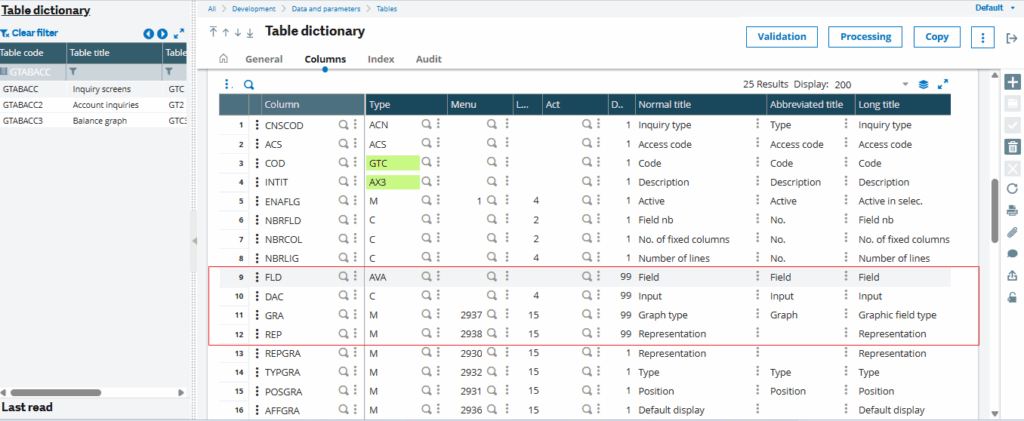
Navigate to Tables → GTABACC.
Increase the dimension (DIM) of the required four fields to 99, as shown in Figure 5. After making the changes, make sure to validate the table to apply the updates.
The error “@X3.TRT/SUBGTC$adx (302) Error 8 : Index Incorrect FLD(80)” occurs due to limitations in the field dimension and improper indexing while adding custom fields in the inquiry screen.
By increasing the field limit in OGTC (Inquiry Screens) and updating the field dimensions in the GTABACC table, the system is able to accommodate additional fields without any index conflict.
After applying these changes and validating the setup, the error is resolved successfully, and the custom fields are displayed correctly on the Stock Transaction Inquiry screen.