
In Sage X3, one of our client’s requirements was to have a way to get their attachments auto-tag to their respective transactions in a regular interval of time.
For this we’ve developed a customization in place that’ll not only fulfill the requirement with minimal user efforts but also take in consideration of several validations and redundant file attachments.
For this we’re referencing following paths and screenshots below:
Screen dictionary: All > Development > Script dictionary > Screens (GESAMK)
Window dictionary: All > Development > Script dictionary > Windows (GESAWI)
New Stuff: Validation of the payment screen’s UTR number field
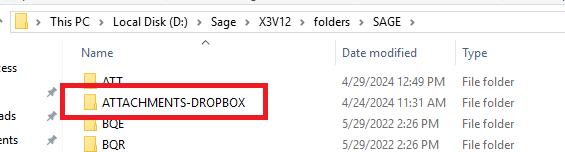
-As shown in Fig. 1 we’ve created a folder “ATTACHMENTS-DROPBOX” within the application folder root directory which is where sub-directories for different transactions exist.
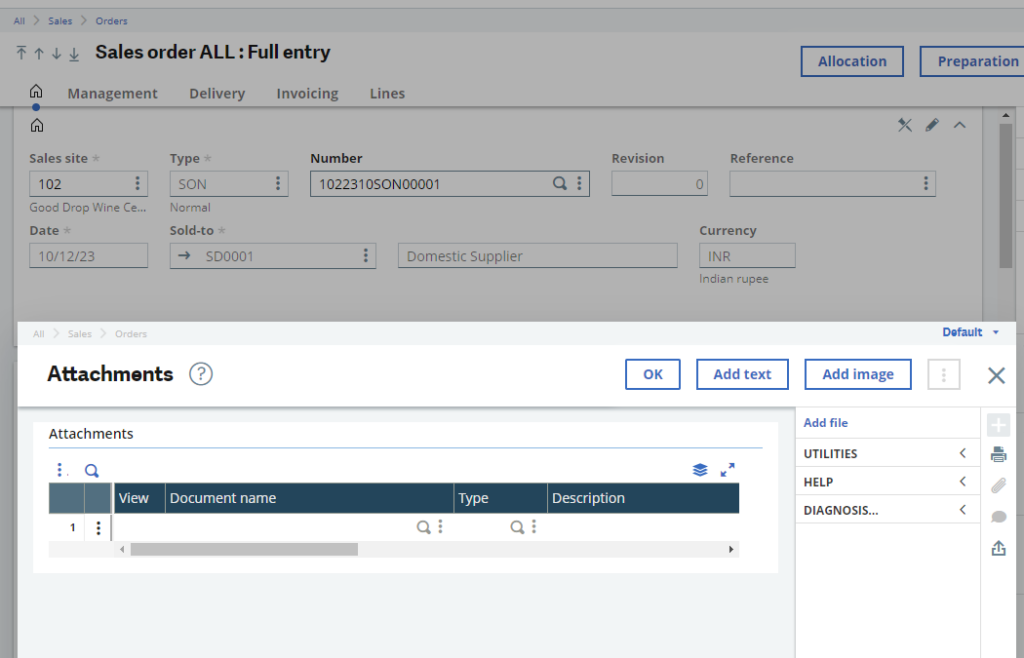
-For reference we’ll be taking a Sales Order transaction, and as we can see the entry doesn’t have any attachments as shown in Fig. 2.
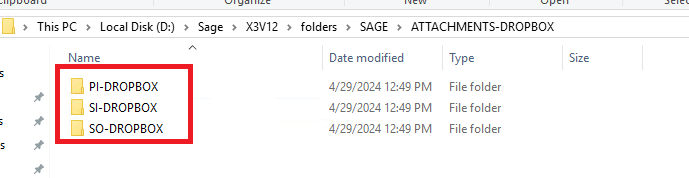
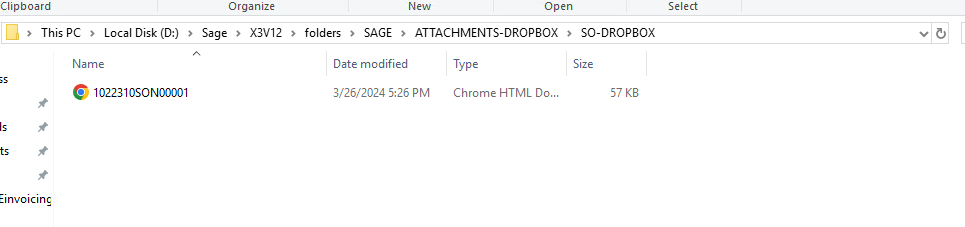
-Now the user will have to drop all their attachment files within the respective transaction directories as shown in Fig. 3 and Fig. 4.
Note: The files will only be auto-attached if they follow below guidelines:
-The file name should be the same as Transaction entry no. with no special characters other than “-”. For example: If the entry no. is SOH/2024/ABC-1 then the file name will be SOH2024ABC-1.pdf
-The file should be of known file formats only such as PDF, Excel, Txt.
-Per transaction only 1 file will be considered till the file is auto-attached.
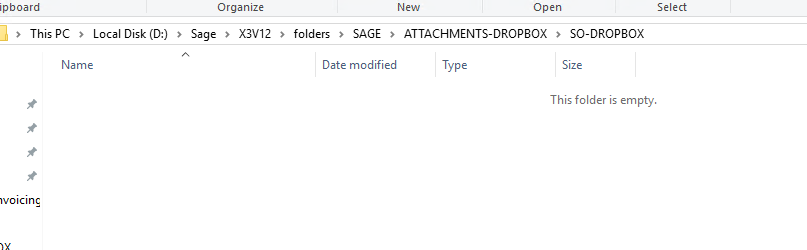
-Now once the user has properly deployed the files within the folders then the system will run the periodic routine and auto-attach the files to their entries. And once the routine runs its course then the attached files will be removed from the folders automatically as shown in Fig. 5.
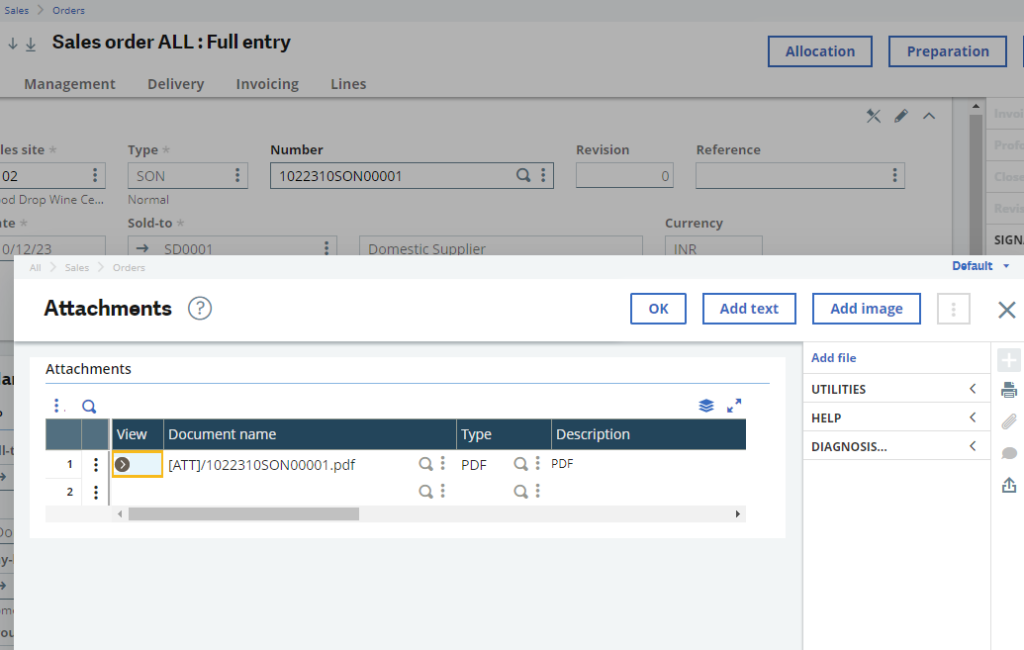
-The attachments can then be previewed from the Transaction entry attachments list as shown in Fig. 6.
-If in case the files are deployed without the guidelines then the routine will skip their attachment process informing the user to correct the files.
This way we’ve the customization to provide a solution to manual attachments tagging in Sage X3.
[about_us_blog_common]