
In many manufacturing setups, businesses often require custom information to flow seamlessly from Sales Orders (SO) into Work Orders (WO). Recently, one of our clients needed an additional alphanumeric field (length 50) on the Sales Order header called “Special Notes”, and they wanted this field to automatically carry forward to the Work Order header during WO creation in Sage X3.
While this requirement sounds simple, challenges appeared specifically when Work Orders were created through Multilevel Planning. This blog explains the complete solution covering field creation, screen changes, script logic, and the special handling required for automated planning scenarios.
Step 1: Adding the Custom Field on the Sales Order
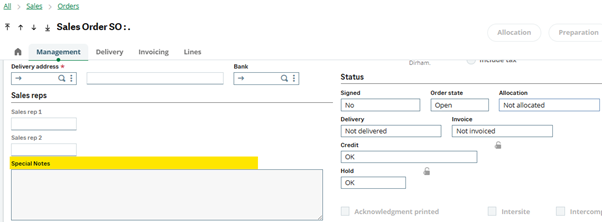
To begin, we added a new custom field ZSPCLNOTE to the SORDER table.
This field was then placed on the Sales Order screen under the Management tab.
New stuff: Managing Repeated Data and Line Suppression Using Next() & Previous() Functions in Crystal Reports
Step 2: Adding the Field to the Work Order Header
Next, we created the same field ZSPCLNOTE on the MFGHEAD table.
We added this field to the Work Order header screen to ensure visibility for users.

Step 3: Ensuring Data Flows from SO to WO
To make the “Special Notes” value flow from the Sales Order to the Work Order during manual WO creation, we added custom logic in the SPEMFG script under the SETBOUT action.
This worked perfectly for manually created Work Orders—the data passed correctly and was saved in the MFGHEAD table.
Issue: Value Not Saved During Multilevel Planning
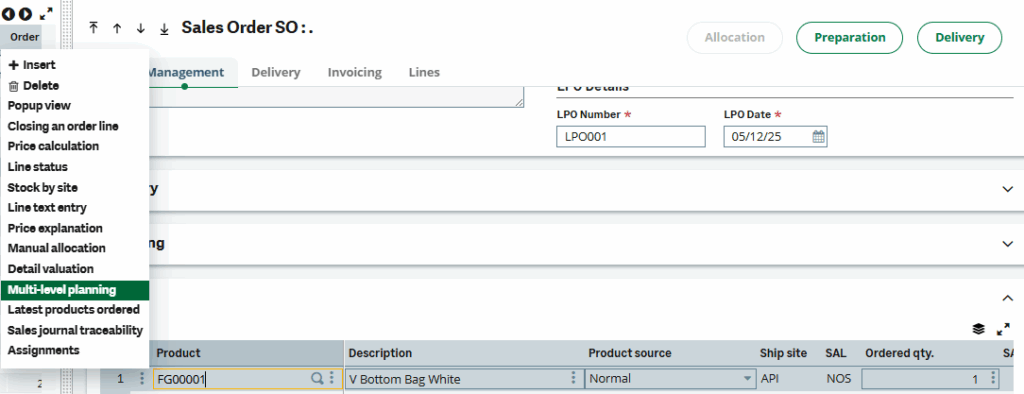
However, a problem occurred when Work Orders were generated using the Multilevel Planning function available under Sales Order → Details.
Although the value flowed from SO to WO during planning, it did not get saved in the MFGHEAD table.
This happened because Multilevel Planning uses automated processes that do not trigger the same script actions as manual WO creation.
Step 4: Fix for Multilevel Planning Scenario
To resolve this, we created the entry point MFGAUTLIB and attached a custom script ZMFGDET to it.

Inside this script, we implemented custom logic under the AUTLIBMAJ action.
This ensures that the “Special Notes” value is properly written into the MFGHEAD table even when the Work Order is created automatically via Multilevel Planning.
Conclusion:
By leveraging entry points and custom script logic, we ensured that the “Special Notes” field flows correctly from the Sales Order to the Work Order—whether the Work Order is created manually or through automated Multilevel Planning.
This customization ensures consistent data visibility, improved traceability, and enhanced process efficiency across the manufacturing lifecycle.
[about_us_blog_common]