
In Sage X3, mobile automation can be configured so that users only see the functions relevant to their role. This helps simplify the user experience and ensures better control over system access. Follow the steps below are mention.
To begin with, you need to check the user role.
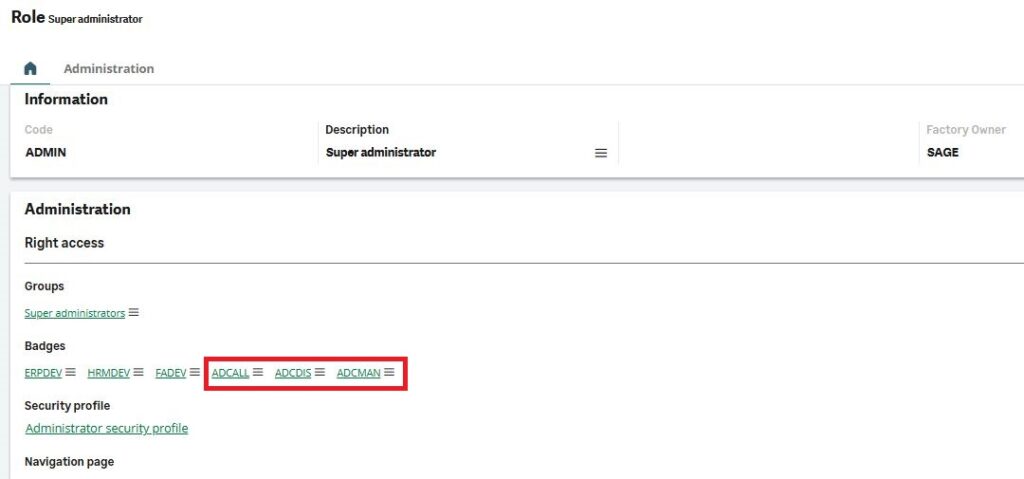
Go to Administration → Users → Roles and open the role assigned to the user. Make sure that the required ADC badges such as ADCALL, ADCDIS, and ADCMAN are added. If these badges are missing, the mobile automation functions will not be displayed, so it is important to include them.
Next, you need to create a function profile.
Navigate to Setup → Users → Function Profile
create a new function profile. After creating it, click on the Authorization option and add the functions that you want the user to access on mobile. In mobile automation, functions start with “CWS” and Inquiry screen are start with “INQ”.
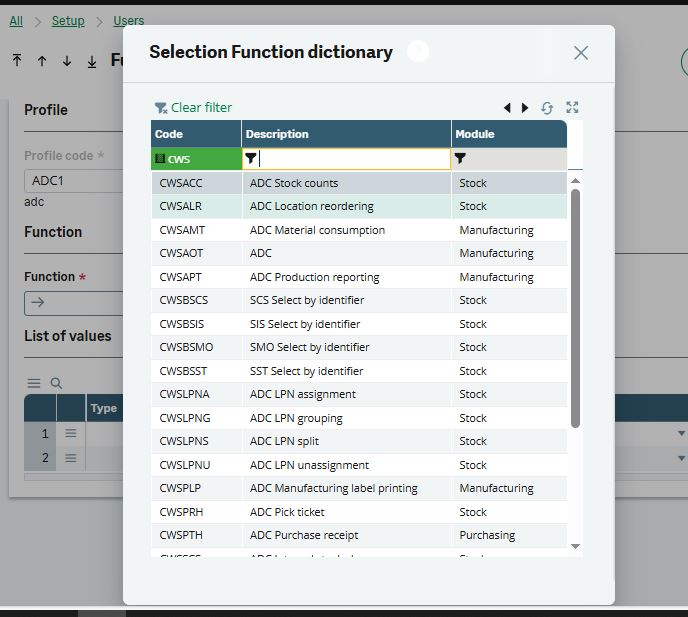
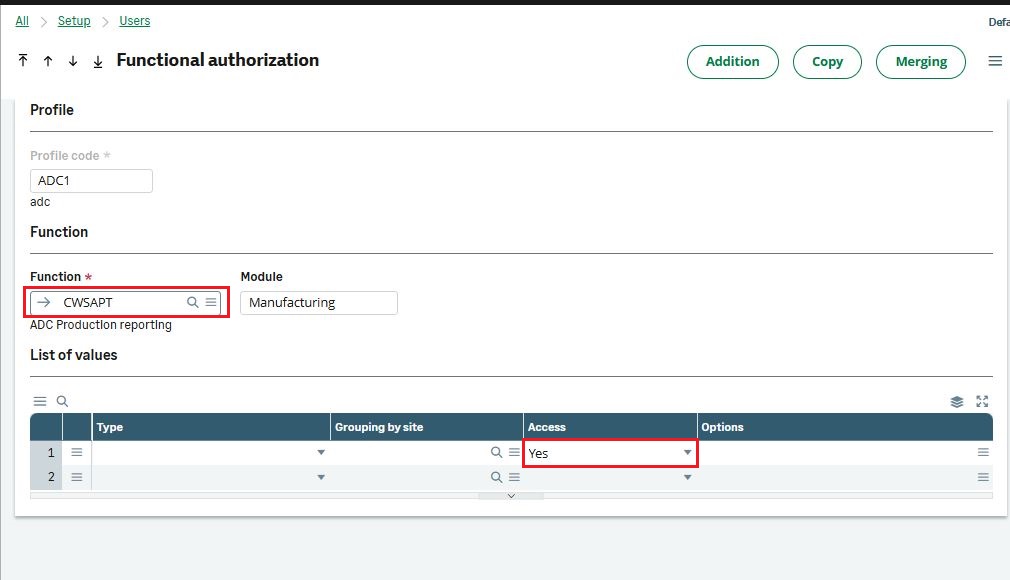
Select the required functions and set their access to “Yes”, then save your changes.
Once the function profile is ready, you need to assign it to the user.
Go to Setup → Users
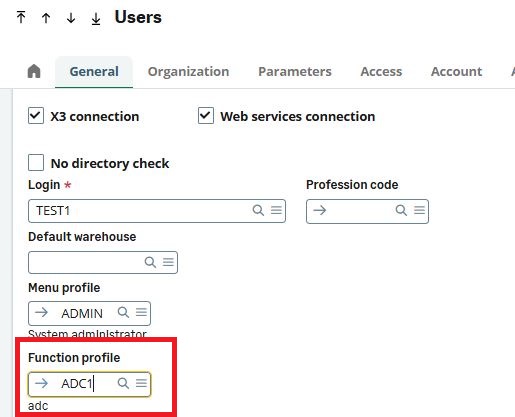
open the user record and enter the newly created function profile in the function profile field. Save the record to apply the changes.
After completing these steps, log in to the mobile automation device using the user credentials. You will see that only the selected functions are displayed for that user.
By following this process, you can control function visibility in Sage X3 mobile automation and ensure that each user only accesses what is necessary for their role.
Function visibility in Sage X3 Mobile Automation is controlled through a combination of user roles, ADC badges, and function profiles. By assigning the required ADC badges (such as ADCALL, ADCDIS, and ADCMAN), configuring a function profile with the appropriate CWS functions and INQ inquiry screens, and linking the profile to the user account, administrators can precisely manage access to mobile functions. This configuration ensures that users are presented only with the functions they are authorized to use, improving security, simplifying the mobile interface, and supporting role-based access control (RBAC) across the Sage X3 environment.