
Adding tariff charges to sales orders is an essential process for businesses engaged in international trade. Tariffs can have a direct impact on product pricing, overall costs, and customer transactions, making it important to account for them accurately within the sales process. By properly incorporating tariff charges into sales orders, businesses can ensure pricing transparency, maintain compliance with trade regulations, and streamline order processing. In this blog, we’ll walk through the key concepts and the step-by-step process of adding tariff charges to a sales order in Sage X3.
There are two different approaches you can use to add tariff charges to sales orders:
1. Sales Invoicing Element:
- This option applies the tariff as a footer charge on the Sales Order, meaning the charge is calculated for the entire order rather than individual line items.
- It is the preferred approach when the tariff applies to the overall Sales Order instead of specific products or order lines.
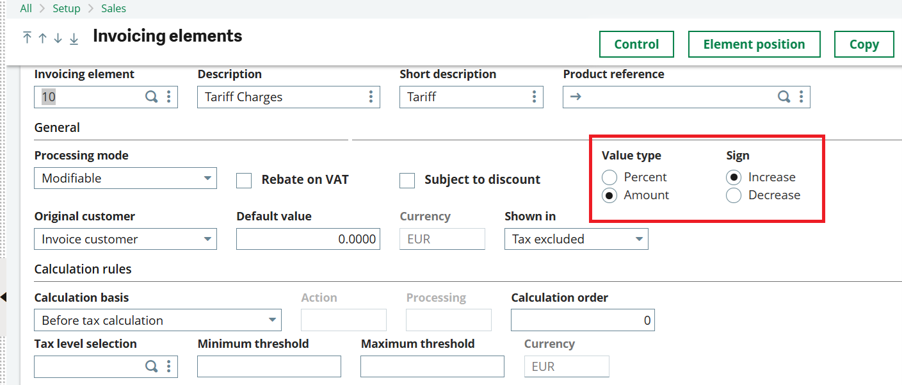
Go To: Setup > Sales > Invoicing Elements
- Create a new invoicing element specifically for tariff charges.
- Configure a dedicated G/L account for the invoicing element by customizing the accounting code.
- Define the tariff charge as either a fixed amount or a percentage.
- Use the Element Position setting to display the invoicing element on the required screens, such as Customer, Sales Order, Delivery, and Invoice.
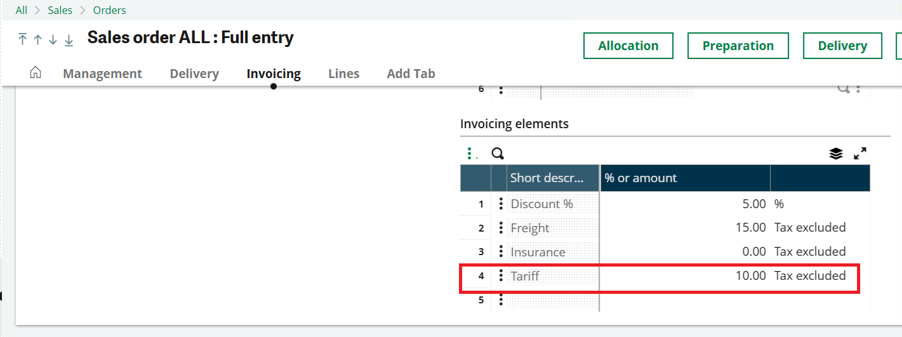
- The tariff charge is added as an increase amount in the Invoicing Elements section of the Sales Order.
- The additional tariff charge is reflected in the footer section of the Sales Order as part of the order totals
2. Sales line level charge via price structure:
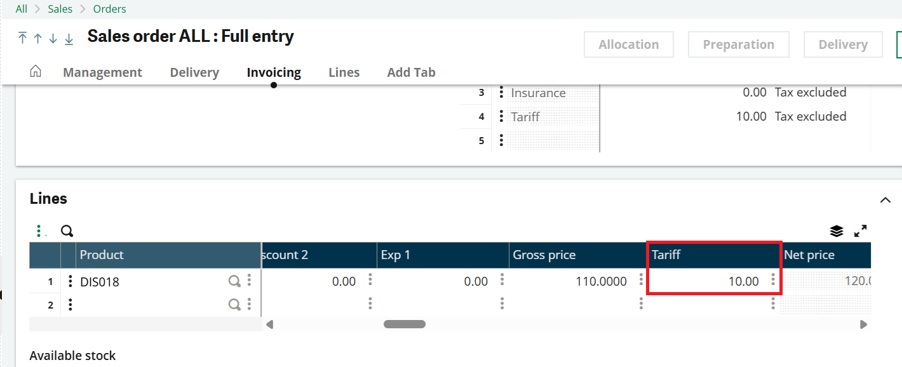
- This option applies the tariff as a line-level charge on the Sales Order, allowing charges to be applied to individual order lines rather than the entire order.
- It is the preferred approach when tariff charges vary by product, apply only to specific order lines, or need to be tracked at the line level.
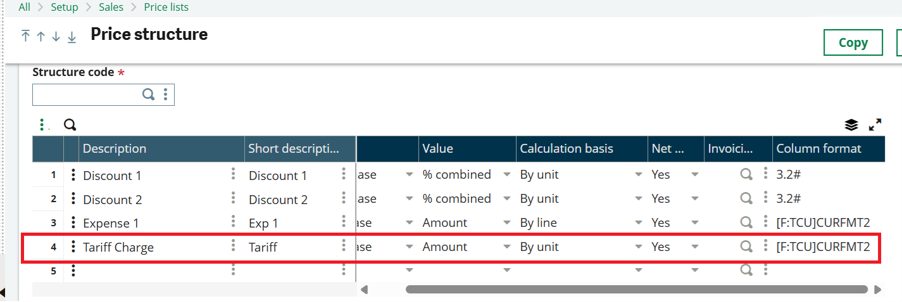
Navigation: Setup → Sales → Price Lists → Structures
- Create a new Price Structure code for tariff charges.
- If required, the price structure can be linked to the invoicing element created earlier, allowing the tariff charge to post to the designated G/L account configured for that invoicing element.
- Define the tariff charge as either a fixed amount or a percentage.
Configure the required Discount/Charge field(s) as Entered on the Sales Entry transaction screens to allow tariff charges to be entered during order entry.
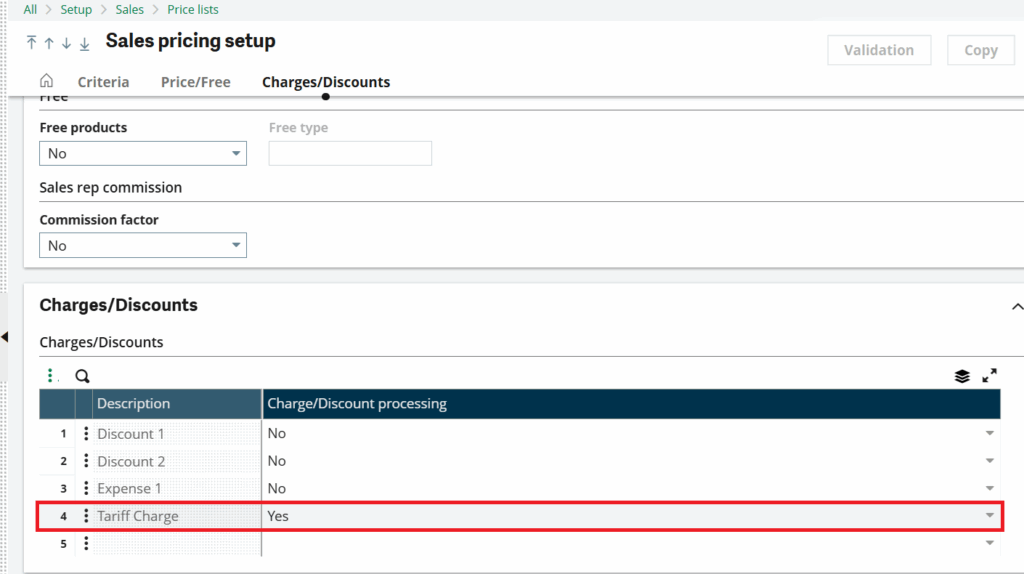
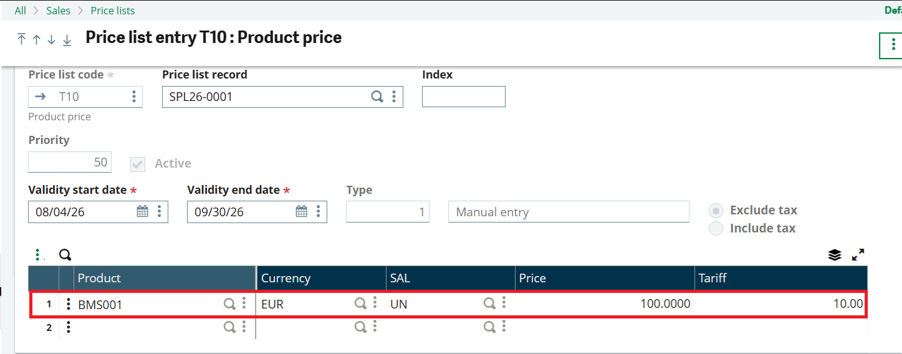
This price structure can be referenced in a Sales Price List to automatically apply default tariff charges for specific products, customers, or other pricing criteria.
- Tariff charges are applied automatically when the configured price list conditions are met.
- This ensures consistent tariff calculation without requiring manual entry on each Sales Order.
An example of the Sales Price List configuration is shown below.
The following example shows how the tariff charge appears on the Sales Order lines:
Sage X3 provides multiple ways to incorporate tariff charges into Sales Orders, allowing businesses to choose the method that best aligns with their pricing strategy and operational requirements. Whether you apply tariffs as a footer charge using an invoicing element, each approach offers the flexibility to accurately capture additional costs while maintaining transparent pricing.