
Message boxes are an important part of Sage X3 4GL development. They allow developers to communicate information, warnings, errors, questions, and choices to users during transaction processing. The right message type improves usability and makes troubleshooting easier.
Quick Reference
| Message Box | Purpose | Typical User Interaction |
| Infbox | Information / success | OK / dismiss |
| Wrnbox | Warning | OK / Cancel / dismiss |
| Errbox | Normal application error | OK / dismiss |
| Endbox | Serious or fatal error | OK / dismiss |
| Qstbox | Yes / No decision | Returns 1 or 2 |
| Selbox | Multiple-choice selection | Returns selected line number |
1. Infbox – Information Message
Use Infbox when you need to display a non-critical informational message, such as successful completion, a status update, or a helpful notification.
Syntax
Infbox MESSAGE_LIST
Infbox MESSAGE_LIST Titled TITLE
Infbox MESSAGE_LIST Titled TITLE Sleep TIME
Basic example
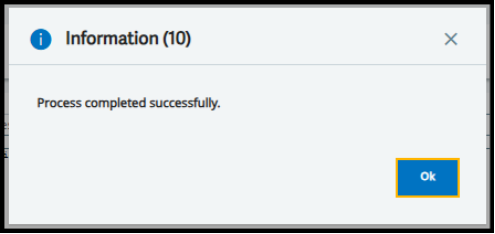
Infbox “Process completed successfully.”
Using a variable
Local Char MSG(250)
MSG = “E-Way Bill generated successfully.”
Infbox MSG
Multiple lines
Infbox “E-Way Bill generated successfully.”,
& “E-Way Bill No: 123456789012”
With title and timeout
Infbox “Process completed successfully.” Titled “Information” Sleep 10
New Stuff: How to set default status on Miscellaneous receipt lines in Sage X3
2. Wrnbox – Warning Message
Use Wrnbox when the user should be alerted to a condition that may be undesirable, but does not necessarily stop processing.
Syntax
Wrnbox MESSAGE_LIST
Wrnbox MESSAGE_LIST Titled TITLE
Wrnbox MESSAGE_LIST Titled TITLE Sleep TIME
Example
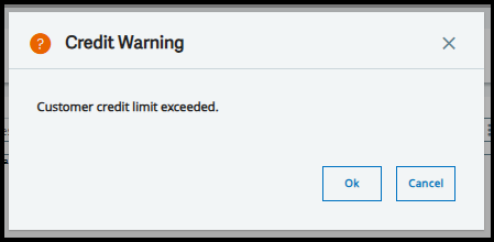
If CREDIT > CREDIT_LIMIT
Wrnbox “Customer credit limit exceeded.” Titled “Credit Warning”
Endif
3. Errbox – Error Message
Use Errbox for normal application, validation, or business-rule errors. Displaying an Errbox does not by itself define what your program does next; transaction-control logic must still be implemented where appropriate.
Syntax
Errbox MESSAGE_LIST
Errbox MESSAGE_LIST Titled TITLE
Errbox MESSAGE_LIST Titled TITLE Sleep TIME
Validation example
If [M:SOH0]BPCORD = “”
Errbox “Customer is mandatory.”
GOK = 0
Endif
Another example
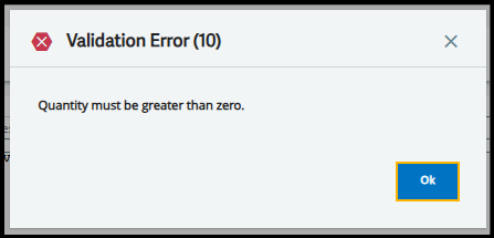
If QTY <= 0
Errbox “Quantity must be greater than zero.” Titled “Validation Error” Sleep 10
Endif
4. Endbox – Critical / Fatal Error
Use Endbox for serious or blocking failures where continuing the operation is not reasonably appropriate.
Syntax
Endbox MESSAGE_LIST
Endbox MESSAGE_LIST Titled TITLE
Example
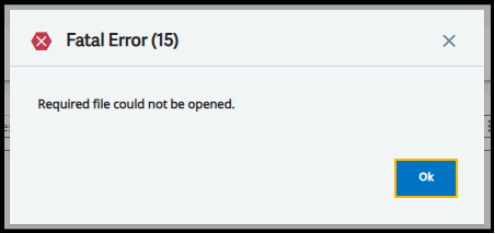
If FILE_STATUS <> 0
Endbox “Required file could not be opened.” Titled “Fatal Error” Sleep 15
Endif
Errbox vs Endbox
Errbox = Something is wrong.
Endbox = A serious failure occurred; processing should not reasonably continue.
5. Qstbox – Yes / No Question
Use Qstbox when the program needs an explicit Yes/No response. The returned value is 1 for Yes and 2 for No; a timeout also returns 2.
Syntax
Qstbox MESSAGE_LIST Using ANSWER
Example
Local Integer ANSWER
Qstbox “Do you want to continue?” Using ANSWER
If ANSWER = 1
Infbox “User selected Yes.”
Else
Infbox “User selected No.”
Endif
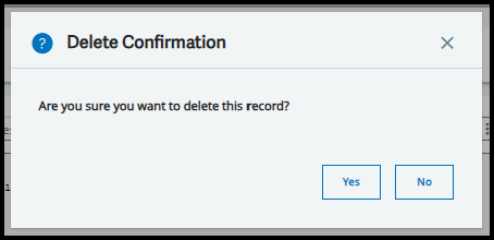
Delete confirmation
Local Integer ANSWER
Qstbox “Are you sure you want to delete this record?” Titled “Delete Confirmation” Using ANSWER
If ANSWER = 1
# Delete processing
Endif
6. Selbox – Selection List
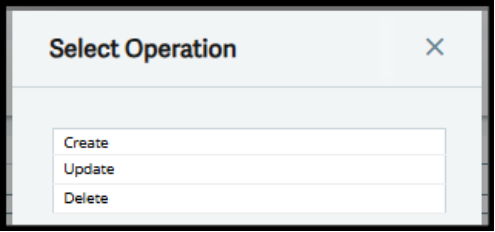
Use Selbox when the user must choose one option from several alternatives. The returned value is the selected line number.
Syntax
Selbox CHOICE_LIST Using ANSWER
Example
Local Integer CHOICE
Selbox “Create”, “Update”, “Delete” Titled “Select Operation” Using CHOICE
Case CHOICE
When 1
Infbox “Create selected.”
When 2
Infbox “Update selected.”
When 3
Infbox “Delete selected.”
Endcase
Using Dynamic Values in Message Boxes
Message boxes become more useful when they include values from variables or fields. String concatenation and num$() can be used to build informative messages.
Local Char MSG(250)
MSG = “Customer ” – [M:SOH0]BPCORD – ” is not authorized.”
Errbox MSG
Local Integer QTY
QTY = 100
Infbox “Quantity entered: ” – num$(QTY)
Localized Messages with mess()
In a multilingual Sage X3 environment, message resources can be used so the message is maintained in the Sage X3 message dictionary rather than hard-coded directly in the script.
Infbox mess(12, 501, 1)
Errbox mess(12, 501, 1)Choose the appropriate message-resource identifiers for your application and environment.