
Miscellaneous receipt refers to inventory that is received at a location from a source other than from a job or a purchase order. This is typically used for items that are used for often-repeated jobs or customer orders, where the desire is to keep a quantity of the item on hand for those purposes.
As we are ware of in Sage X3, this transaction we can find out at below path:
All > Stock > Flow of receipts/issues > Miscellaneous receipts
While creating miscellaneous receipt, on line level of it, there is a field called “Status” which defines the status of the product being received. This status field has below values.
- A: Accepted
- Q: Pending Quality Control
- R: Rejected
A sub-status of two alphanumerical characters is used to further define the status.
Example:
- RD: Rejected products to be destroyed
- SR: Supplier return
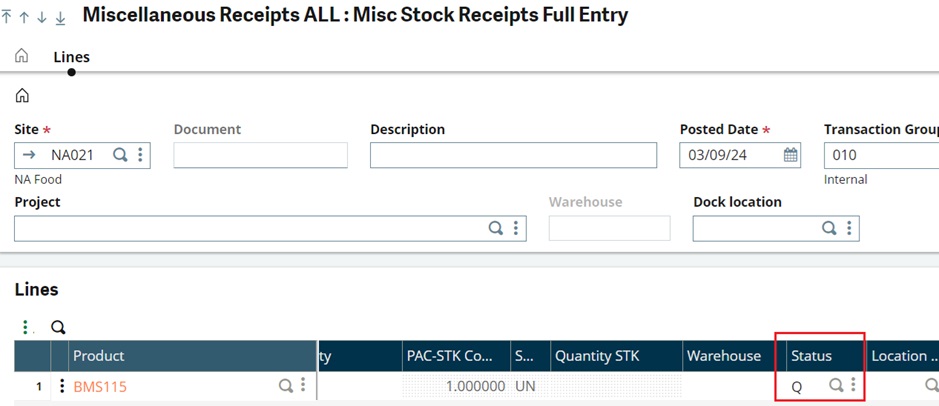
Fig a. Status field
The status assigned to the stock receipt is enterable. It depends partly on the product management rule (see Management tab of the product category the current product belongs to) for the movement type Miscellaneous Receipt and for the movement code defined by the transaction, if it exists. A default status can be set up on the management rule.
However, sometimes you find that there is no setup defined on Product category and you need to set the Status on miscellaneous receipt lines by default to “A”. In this case, you need to follow below steps to achieve the same.
- Navigate to: All > Common data > Products > Product-site
- Select the product and set the field “QC Management” to “No control” and save the changes.
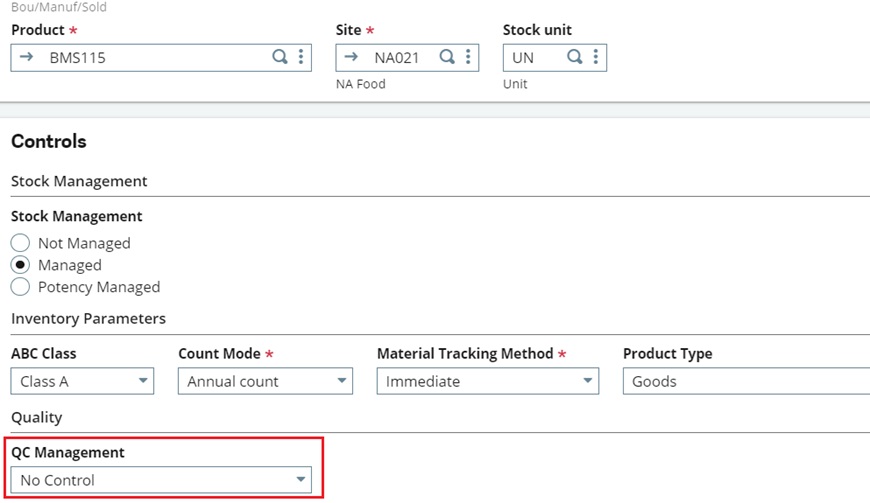
Fig b. Product-site setup
Now, when you will create a miscellaneous receipt for this particular Product-Site combination i.e. Product BMS115 and Site NA021, the Status field will be set to “A”. Refer below screenshot for the same.
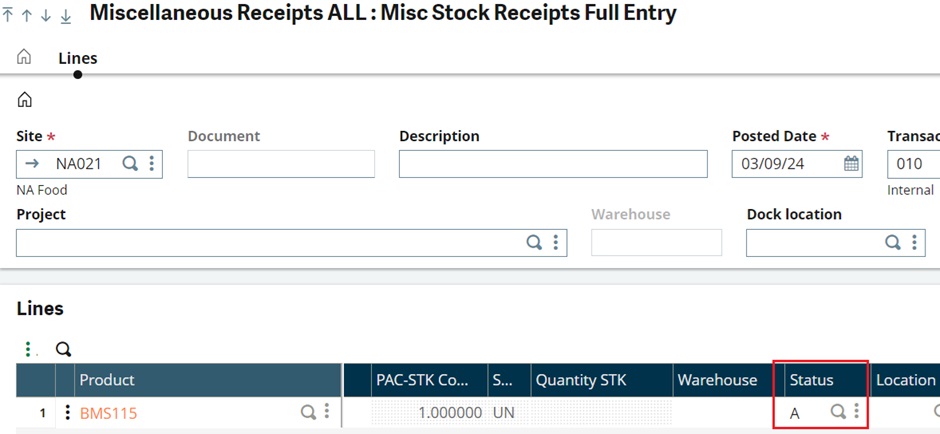
Fig c. Miscellaneous receipt
Here, you can see the Status is set to A by default.
Similarly, if you want to set the Status by default to “A” on Purchase receipt lines then follow below steps.
- Navigate to: All > Common data > Products > Products
- Select the product and navigate to “Suppliers” tab and set the field “QC Management” to “No control for the particular supplier.
- Save the changes.
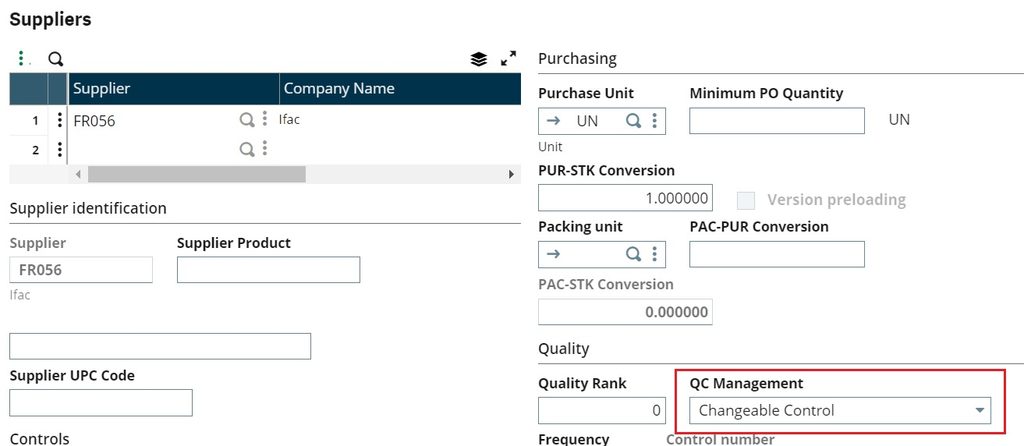
Fig d. Product-Suppliers setup
Now, when you will create purchase receipt, Status will be set to “A” by default for particular product-supplier.
Conclusion: Thus, using “QC Management” field on Product-site screen and Product-Supplier screen, we can set the Status to “A” on Miscellaneous receipt lines and Purchase receipt lines.