
Effective project management is essential for organizations that need clear visibility into project costs, activities, resources, and financial performance. As the number and types of projects increase, maintaining a clear distinction between different project categories becomes equally important.
For ZME, the existing project-management process in Sage X3 was primarily designed around capital projects. All projects followed the same numbering convention, making it difficult to immediately distinguish a capital project from an internal project simply by looking at its project number.
To address this requirement, a simple but effective enhancement was introduced in Sage X3: an Internal Project checkbox. This checkbox determines which project-number sequence Sage X3 should use when creating a project.
With this enhancement:
- Capital projects continue to use the existing sequence, such as ZME-0123.
- Internal projects use a new dedicated sequence, such as ZME-INT-001.
- Both sequences operate independently.
- Project users can easily identify the type of project from its project number.
- Existing capital-project processes remain unchanged.
This article explains the business requirement, the solution design, and how the functionality works in Sage X3.
1. Business Requirement
Before this enhancement, ZME had a single project-numbering approach.
The existing process generated project numbers in the following format: ZME-XXXX
For example: ZME-0123
This numbering convention was suitable for capital projects, but it did not provide a clear distinction between capital and internal projects.
As the organization introduced the need to track internal projects, using the same numbering sequence for both project types created several challenges.
Current State
The existing system had the following characteristics:
- Only capital projects were being created.
- All projects used the existing ZME-XXXX numbering sequence.
- There was no dedicated identification for internal projects.
- Users could not determine the project type simply by reviewing the project number.
- Capital and internal projects would share the same numbering sequence.
The requirement was therefore to introduce a mechanism that could distinguish internal projects while preserving the existing capital-project process.
Required Project Numbering
The requested numbering structure is:
| Project Type | Internal Project Checkbox | Project Number |
| Capital Project | No | ZME-XXXX |
| Internal Project | Yes | ZME-INT-XXX |
For example:
Capital Project : ZME-0123
Internal Project : ZME-INT-001
The most important requirement is that the two sequences remain independent and unique.
2. Solution: Checkbox-Driven Project Number Generation
The solution introduces an Internal Project checkbox on the Sage X3 project screen.
The field is designed as a simple Yes/No checkbox:
Field: Internal Project
Type: Checkbox
Default: No
The checkbox provides a straightforward way for users to tell Sage X3 what type of project they are creating.
How the Logic Works
The system evaluates the Internal Project checkbox during project creation.
If the checkbox is selected: Internal Project = Yes
Sage X3 generates a project number using the internal-project sequence:
ZME-INT-XXX
If the checkbox is not selected: Internal Project = No
Sage X3 continues to use the existing capital-project sequence: ZME-XXXXX
In simple terms:
Checkbox selected → ZME-INT-XXX
Checkbox not selected → ZME-XXXXX
This approach keeps the user experience simple while providing the required project segregation.
3.How It Works in Sage X3
The enhancement is integrated into the existing Project Management functionality of Sage X3.
When a user opens the Project Management screen, the project details are entered in the normal manner. The user can specify the sales site, operating site, project description, status, and other relevant project information.
The new Internal Project checkbox is included on the project screen.
Example: Creating an Internal Project
Suppose the user wants to create an internal project for the supply of thermocouple cable. The user enters the relevant project information, including:
- Sales site
- Operating site
- Project description
- Short description
- Other required project details
The user then selects the Internal Project checkbox.
Once the project is created, the system identifies that the project is an internal project and assigns a number from the internal-project sequence.
For example: ZME-INT-001
The next internal project would receive: ZME-INT-002The sequence continues independently for internal projects.
New Stuff : All Types of Message Boxes in Sage X3 4GL
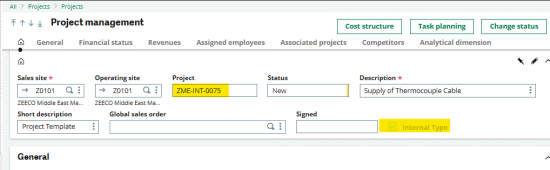
Fig 1: Internal Project Selection
Sage X3 Project Management screen showing the Internal Type/Internal Project checkbox selected
The screenshot demonstrates the project-management screen where the project is identified as an internal project. By selecting the checkbox, the user tells the system that the new project should be generated using the dedicated internal-project sequence.
4. Capital Projects Continue with the Existing Process
One of the key objectives of the enhancement is to ensure that the existing capital-project process is not disrupted.
If the Internal Project checkbox remains unchecked, the project continues to follow the existing numbering logic.
For example, if the next available capital-project number is: ZME-1735
then a new capital project will continue to receive: ZME-1735
The system does not use the internal sequence unless the user specifically selects the Internal Project checkbox.
This is particularly useful from a change-management perspective because the enhancement adds functionality without unnecessarily changing the existing workflow.
5. Independent Sequences for Better Project Segregation
The most important technical and business benefit of this solution is the use of two independent project-number sequences.
Capital Project Sequence
The existing capital-project sequence remains: ZME-XXXX
For example: ZME-0123, ZME-0124, ZME-0125
Internal Project Sequence
A new sequence is introduced for internal projects: ZME-INT-XXX
For example: ZME-INT-001, ZME-INT-002, ZME-INT-003
The counters operate independently.
For example, creating a new internal project does not consume a number from the capital-project sequence.
Similarly, creating a capital project does not affect the internal-project counter.
This provides a clean separation between the two project categories.
6. Process Flow
The complete process can be summarized in three simple steps.
Step 1 – Create or Copy a Project
The user creates a new project or copies an existing project using the standard Sage X3 project-management functionality.
Step 2 – Select the Project Type
The user reviews the Internal Project checkbox.
Checkbox selected → Internal Project
Checkbox not selected → Capital Project
Step 3 – Generate the Project Number
Sage X3 determines the appropriate sequence based on the checkbox value.
Internal Project = Yes → Generate ZME-INT-XXX
Internal Project = No → Generate ZME-XXXXX
This provides a simple and transparent process for end users.
7. Sage X3 Project Screen Example
The standard Sage X3 Project Management screen contains information such as Sales Site, Operating Site, Project, Status, Description, Short Description, and Global Sales Order.The new project classification is incorporated into this existing screen.
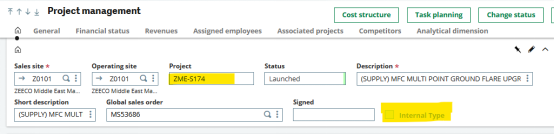
Fig2: Capital Project Selection
The screenshot illustrates how the functionality fits naturally into the existing Sage X3 project-management interface. Users can identify whether a project is internal without navigating through a separate transaction or screen.
The project number itself also becomes a useful identifier. For example, when users see a project beginning with ZME-INT, they can immediately recognize that it is an internal project.
8. Key Benefits of the Enhancement
The new functionality provides several practical benefits for ZME.
- 1. Clear Project Identification
- 2. Capital Projects Remain Unchanged
- 3. Independent Numbering
- 4. Easy User Experience
- 5. Improved Reporting and Tracking
- 6. Controlled Project Copying