Sage X3 allows you to dynamically colour any screen field based on conditions you define — no scripting required. This Sage X3 field colour customization is a powerful part of the platform’s Sage X3 screen personalization capabilities. The configuration involves three screens, completed in order.
How to Change Field Colours in Sage X3 Using Conditional Styles
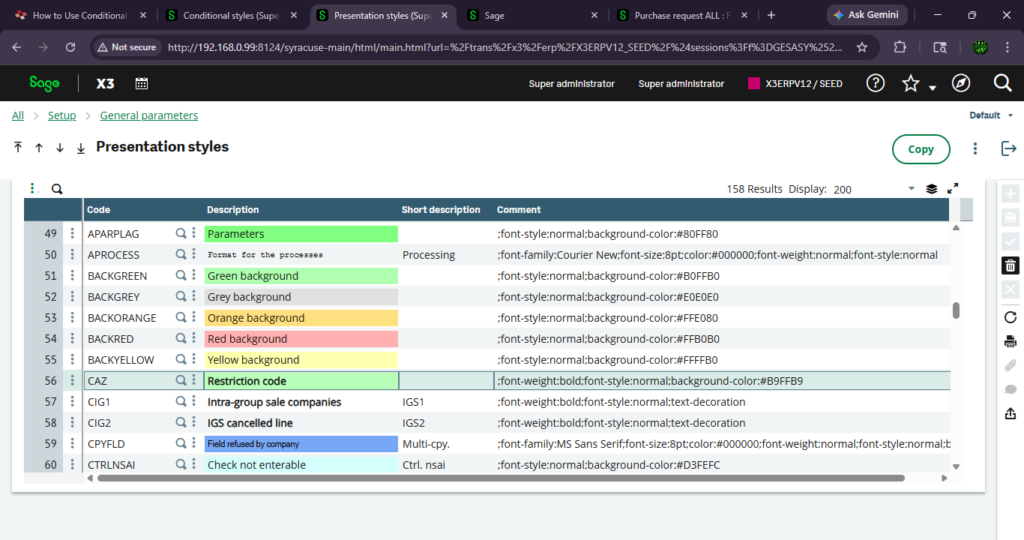
This is where you define what the colour looks like. As part of the Sage X3 presentation styles configuration, create one style for each colour you need. Give each a short code starting with Y or Z — for example ZRED or ZGREEN — and select a background colour. These named styles are what you will reference in the next step.
Important: Always prefix custom style codes with Y or Z to protect them from being overwritten during Sage upgrades. This is a key best practice in Sage X3 ERP customization.
This is where you define the logic — when should each style appear. As part of Sage X3 conditional styles configuration, create a new conditional style code (for example ZTEST) and add condition lines in the grid below. Each line links a formula to a style code.
Line 1 applies the red style when the Quantity is less than 15. Line 2 applies the green style when the Quantity is greater than 15.
This is the final step in the Sage X3 screen personalization process. Enter the screen code (for example the Purchase Request screen), find your field (for example PSHNUM) in the grid, and enter your conditional style code (for example ZTEST) in the Conditional Style column. The field accepts up to 10 characters. Save the record and validate the entry transaction if prompted.
Result Example — Purchase Request Screen
Once the Sage X3 conditional formatting configuration is complete, the visual feedback appears automatically on the screen:
When quantity is less than 15, the Request No (PSHNUM) field becomes red.
When quantity is more than 15, the Request No (PSHNUM) field becomes green.
About Us
Greytrix Middle East is a trusted Sage business partner and ISV Partner offering Consulting, Implementation, and Development services for Sage X3, Sage 300, Sage 300 People (HRMS), Sage CRM, and Sage Intacct across the Middle East region. We provide professional services including Implementation, Configuration, Business Process Analysis, Project Management, Integrations, Migrations, and Technical and Functional Support across Manufacturing, Distribution, Healthcare, Non-Profit, and Services industries.