Processing payroll for large workforces requires more than just accurate calculations — it requires a structured, efficient, and auditable method for handling bulk updates. In Sage 300 People payroll, the User Defined Batches screen and the Batch Instance Management screen work together to provide exactly this: a controlled, validated, and fully trackable approach to Sage payroll batch processing across any number of employees.
User Defined Batches and Batch Instance Management in Sage 300 People
Processing payroll for large workforces requires more than just accurate calculations — it requires a structured, efficient, and auditable method for handling bulk updates. In Sage 300 People payroll, the User Defined Batches screen and the Batch Instance Management screen work together to provide exactly this: a controlled, validated, and fully trackable approach to Sage payroll batch processing across any number of employees.
User Defined Batches and Batch Instance Management in Sage 300 People
What Is the User Defined Batches Screen in Sage 300 People?
How to Access User Defined Batches
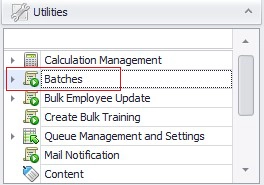
Navigation: Utilities → Batches → User Defined Batches
Batches -> User Define Batches
User Define Batch Screen
Click on New for creation of New Batch in User Define Template
Click on Next in Wizard tab
Fill the details
Click on Next
Select the required field from the Available Fields tab, and it will appear on the right side under the Selected Fields tab and click on Next.
Click on Finish
Click on Save in User Defined Templates
What it’s used for
It’s mainly used when you need to update or load:
Custom earnings (e.g., bonuses, incentives)
Deductions (e.g., loan repayments, adjustments)
Once-off payments or corrections
Any user-defined pay elements configured in the system
How it works
You create a batch and give it a name/description.
Add multiple employees to the batch.
Enter values for the relevant user-defined pay components.
Validate the batch for errors.
Post/commit the batch so it reflects in payroll.
Why it’s useful
Saves time by avoiding manual entry per employee
Reduces errors through batch validation
Helps manage bulk updates in a controlled way
Keeps a clear audit trail of changes made
Simple example
If you need to give a festival bonus to 200 employees, instead of updating each record individually, you:
Create a user-defined batch
Add all employees
Enter the bonus amount
Validate and post
That’s essentially what the User Defined Batches screen is designed for.
What is Batch Instance Management screen in Sage 300 People?
In Sage 300 People, the Batch Instance Management screen is used to monitor, control, and manage batches after they have been created—including those from User Defined Batches and other batch processes.
Think of it as the control panel for all batch runs in the system.
How to access Batch Instance Management:
Navigation -> Utilities -> Batches
Batches -> Batch Instance Management
Batch Instance Management Screen
Click on Create New Batch for creation of New Batch in Batch Instance Management Template
Click on Next in Wizard tab
Fill the required data by selecting the batch template, batch instance type and batch filters.
Click on Next.
Select the file in import Batch by clicking on File Icon and map the data in the mentioned fields by clicking on icon mentioned in Data mapping tab and click on next.
Click on Finish
Click on save all and verify batch by clicking on Verify batch and then process the batch by clicking on Process Batch.
What it does
This screen allows you to:
View all batch instances (created, processed, or pending)
Check the status of each batch (e.g., Captured, Validated, Posted, Failed)
Open and review batch details
Re-run or reprocess failed batches
Cancel or delete batches (if not finalized)
Track who created the batch and when
Key components you’ll see
Batch Name / Type – Identifies the batch (e.g., earnings, deductions)
Ensures batches are properly validated before payroll run
Maintains an audit trail for compliance
Example
If a bonus batch fails due to missing data:
Go to Batch Instance Management
Locate the failed batch
Check error logs
Fix the issue
Reprocess the batch
In short, while the User Defined Batches screen is where you create batches, the Batch Instance Management screen is where you track and manage them throughout their lifecycle.
Conclusion:
The User Defined Batches screen is used to create and capture bulk payroll inputs, while the Batch Instance Management screen is used to monitor, control, and finalize those batches. Together, they ensure efficient processing, better accuracy, and full visibility of payroll transactions from creation to completion.
Our Partnerships
Get In Touch
Thank you for contacting us.
Be ready to explore some leading business management solutions that will help shape the future of your business!