
In many business scenarios, the standard sequence numbering provided by Sage X3 may not fully satisfy statutory, operational, or reporting requirements. Organizations often require document entry numbers that contain additional business-specific information such as:
- Fiscal Year
- State Code
- Unit Identifier
- Location Code
This article explains how to create a custom sequence number in Sage X3 by using a user-defined function within the sequence number formula. The solution leverages a custom script that dynamically fetches the required values and returns them to the sequence number formula.
The client required transaction entry numbers to be generated in the following format:
• SITE STATE CODE
• FISCAL YEAR
• CONSTANT
• SEQUENCE
Example: 2727IV00137
Where
The State Code represents the GST registration state of the site (27),
Fiscal Year represents the financial year associated with the transaction (27),
Constant represents as user specific data (IV),
Sequence Number is the standard running counter maintained by Sage X3 (00137).
The solution needed to dynamically derive the State Code and Fiscal Year during transaction creation without requiring manual intervention is as follows:
Step 1: Create a reusable custom function.
A custom Sage X3 script was developed containing a function capable of returning different values based on the parameter passed in function .The function accepts a parameter indicating the information required.
In Sage X3 system, the Sales Invoice screen and the Customer BP Invoice screen are configured to use the same sequence number (common numbering series). To achieve this, the standard sequence generation function is called from the screen script and are dynamically passing the required parameters (such as Site, Date, etc.) directly from the current screen context.
Step 1a. Derive the State Code dynamically from the transaction site configuration.
Retrieval flow:
Transaction Site → Site Master → Address Information → State Master GST number → State Code from GST number.
New Stuff: Understanding Automatic Closure of Rejected POs in Sage X3.
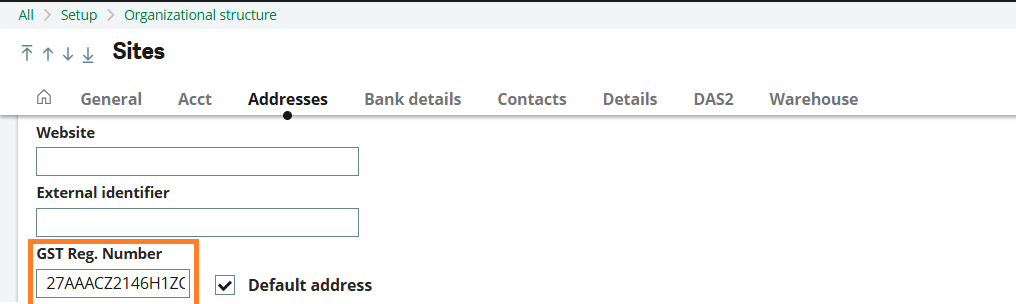
Example values returned: 27 (MH), 29 (KA), 33 (TN), 24 (GJ)
This ensures that the generated entry number always reflects the correct state associated with the transaction.
Step 1b. Derive the Fiscal Year based on the accounting date.
Retrieval flow:
Transaction Accounting Date → Fiscal year master → Fiscal year → Description

Example:
Accounting Date = 15-Apr-2026
Returned Fiscal Year desc = 27
Step 2: Sequence number configuration
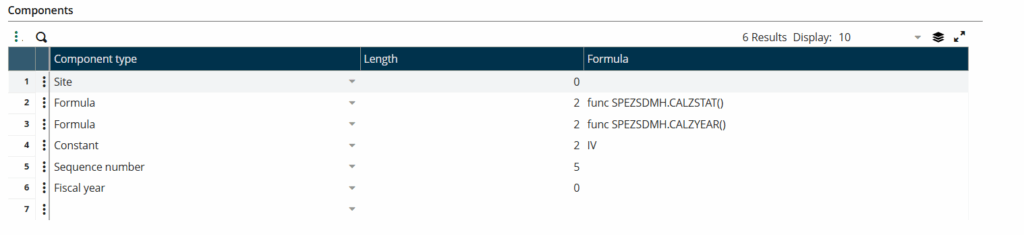
Navigate to: All → Setup → General Parameters → Sequence number definition → Structure.
Assign the function in the formula as shown in the below figure in the form of structure required.
Note:
In our case we have assigned the Site and Fiscal year value as zero as need to reset the sequence based on site and fiscal year. Once configured, Sage X3 automatically invokes the custom function during document creation.
Conclusion:
Sage X3 provides significant flexibility in sequence number generation through formula-based numbering. By incorporating a custom user-defined function into the sequence formula, organizations can generate intelligent document numbers that include business-relevant information such as State Code and Fiscal Year. This approach delivers enhanced traceability, improved compliance, and a scalable framework for future numbering requirements while maintaining the integrity of Sage X3’s standard sequence management functionality.
Additionally, the same function can be reused across multiple Sage X3 transaction types including:
• Sales Invoices
• Purchase Invoices
• Journal Entries
• Stock Transactions
• Payment Transactions
Any future changes to Fiscal Year or State Code determination can be managed within a single function rather than modifying multiple sequence definitions.