
Clients often have many custom requirements. Sometimes a completely new module needs to be developed from scratch. In such cases, we create new Windows, Screens, Objects, and Actions according to the client’s needs.
When we create a custom Window from scratch, we frequently face one common issue: after building the complete Window, the field-level actions (such as After Field, After Change, etc.) do not get triggered. The specific scripts and actions simply do not execute.This blog explains the important points that must be kept in mind while creating a new Window from scratch so that this issue can be avoided.
New Stuff : How to Find the Current Index of a Dimension Field in Sage X3 4GL
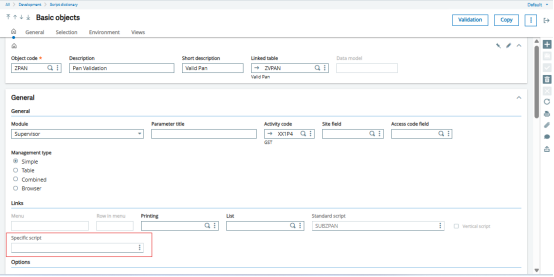
When we create a new Window and the associated Screen, we often enter any random name in the Specific Script field of the Screen. This later causes problems.As per Sage X3 standard, the Specific Script that appears on the Object is the same one that is called from the Screen. We faced the same issue – After verification, we found that the Specific Script defined on the Screen and the Specific Script on the Object were not the same. The Specific Script on the Object was blank (As shown in Fig1). Because of this, the After Field, After Change, and any custom logic written in the script were not being executed.
The Specific Script on the Screen and the Specific Script on the Object must be the same.
The Specific Script field on the Object is not editable – it gets populated automatically.
Step 1 :
Go to Development → Script Dictionary → Screens(ZPAN1)
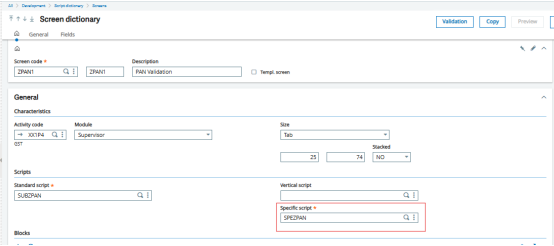
- In the Specific Script field, enter SPE + Object Code, as shown in Fig. 2.
- Example: If the Object code is ZPAN, then Specific Script should be SPEZPAN.
(This is the strongly recommended Sage X3 standard naming convention.)
Step 2 : Add the required field actions
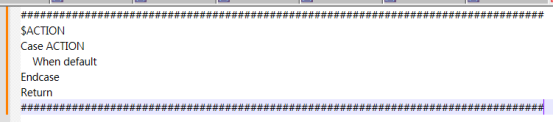
Add the necessary actions on the fields, logic (After Field, After Change, etc.).If no actions need to be added, then add the default action code, as shown in Fig. 3.
Step 3: Validate the Screen
- Validate the Screen.
- During validation, the system will automatically populate the Specific Script field on the related Object.
Step 4 : Verify the Object.
- Open the Object.
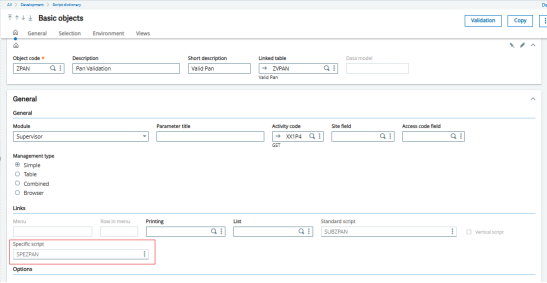
- The Specific Script field should now show SPEZPAN, as shown in Fig. 4. (it should no longer be blank).
Always use the standard naming convention SPE + Object Code for the Specific Script while creating a new Screen. This ensures the script is correctly linked to the Object and all field-level actions work as expected.
About Us
Greytrix – a globally recognized and one of the oldest Sage Development Partners is a one-stop solution provider for Sage ERP and Sage CRM organizational needs. Being acknowledged and rewarded for multi-man years of experience and expertise, we bring complete end-to-end assistance for your technical consultations, product customizations, data migration, system integrations, third-party add-on development, and implementation competence.
Greytrix has some unique integration solutions developed for Sage CRM with Sage ERPs namely Sage X3, Sage Intacct, Sage 100, Sage 500, and Sage 300. We also offer best-in-class Sage ERP and Sage CRM customization and development services to Business Partners, End Users, and Sage PSG worldwide. Greytrix helps in the migration of Sage CRM from Salesforce | ACT! | SalesLogix | Goldmine | Sugar CRM | Maximizer. Our Sage CRM Product Suite includes addons like Greytrix Business Manager, Sage CRM Project Manager, Sage CRM Resource Planner, Sage CRM Contract Manager, Sage CRM Event Manager, Sage CRM Budget Planner, Gmail Integration, Sage CRM Mobile Service Signature, Sage CRM CTI Framework.
Greytrix is a recognized Sage Champion Partner for GUMU™ Sage X3 – Sage CRM integration listed on Sage Marketplace and Sage CRM – Sage Intacct integration listed on Sage Intacct Marketplace. The GUMU™ Cloud framework by Greytrix forms the backbone of cloud integrations that are managed in real-time for the processing and execution of application programs at the click of a button.
For more information on our integration solutions, please contact us at sage@greytrix.com. We will be glad to assist you.