
If you’re planning a Sage X3 WMS implementation, you’ve probably already seen what the module can do in a demo. What a demo won’t show you is how a rollout actually holds up once your team is picking real orders under real pressure.
Sage X3 includes a native warehouse management module covering receipts, put-away, picking, replenishment, and despatch — all within the same ERP, sharing the same item master and customer data.
Sage X3 warehouse management is only as reliable as the sequence it’s configured in and that’s the sequence is where most implementations quietly come apart.
The fix is sequencing: warehouse structure first, then clean master data, then rules, then integrations, then your team, tested in that order, before you commit to a date. This guide covers exactly that: what a Sage X3 WMS implementation actually involves, the configuration decisions that matter most, and when it’s worth bringing in a partner to get the sequence right.
Here’s what typically happens to those five before a properly sequenced implementation, versus after:
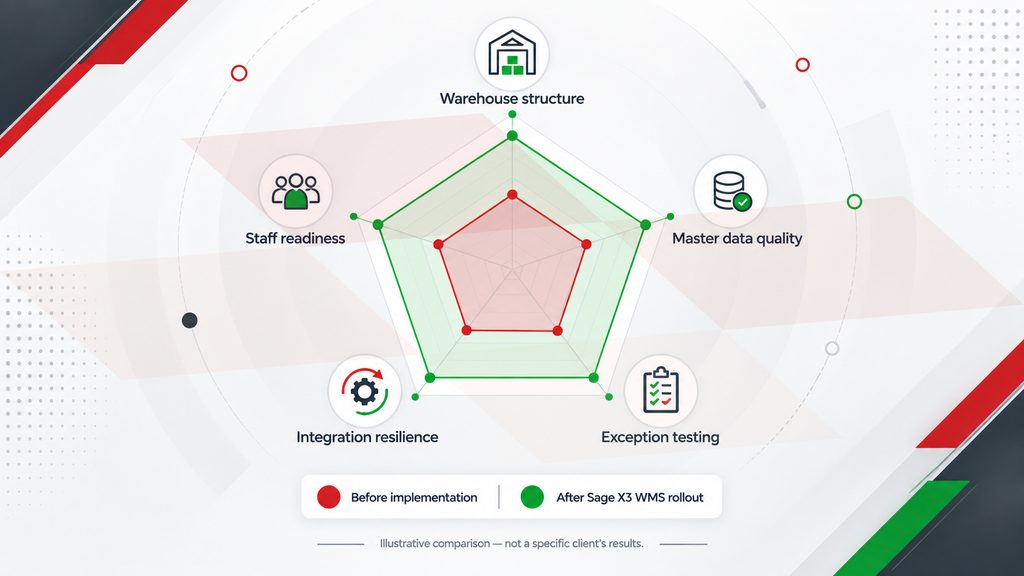
Note: [Illustrative comparison — not a specific client’s results.]
This guide walks through what a Sage X3 WMS implementation actually involves, the configuration decisions that matter most, and where you’re likely to need outside help getting the sequence right.
What Does a Sage X3 WMS Implementation Actually Involve?
At its core, you’re setting up five things:
- Your warehouse structure
- Your master data
- Your inventory rules
- Your integrations
- Your team
Sage X3’s warehouse management module isn’t a bolt-on. A realistic timeline depends on your warehouse complexity and how clean your data already is — but the biggest driver of delay is almost never the software. It is rework caused by skipping the groundwork below.
Start with Your Physical Warehouse, Not the Software
Before you configure a single picking rule, you need your warehouse structure locked in: zones, aisles, racks, and bins that match your actual floor plan, not a generic template. This is the single most common mistake in a Sage X3 WMS implementation — teams start building picking logic on top of a warehouse structure that isn’t finalized yet, then spend weeks re-mapping locations once the real layout changes underneath them. Get this right first, and everything downstream configures faster.
6 Sage X3 WMS Configuration Decisions That Matter
Once your structure is set, you’re making a handful of decisions that shape how the system behaves every day:
- Warehouse and location structure — how granular your zones and bins need to be to reflect real picking paths.
- Location types — bulk storage, forward pick, staging, and quarantine areas all behave differently, and Sage X3 needs to know which is which.
- Units of measure — how a case, pallet, and each relate to one another for every item, since this drives both put-away suggestions and pick accuracy.
- Product-site and warehouse settings — item-level data like dimensions, weight, and velocity classification, which is the master data your put-away and picking logic actually runs on.
- Inventory statuses — the rules that determine what’s sellable, what’s on hold, and what’s still being checked.
- Put-away and picking rules — the logic that turns everything above into an actual recommendation on a scanner.
Skip or rush any one of these, and you’ll feel it on the floor within the first week.
How to Define Available Inventory in Sage X3
Not everything sitting in a bin is available to sell, and that distinction matters more than it sounds. You’ll typically define statuses for stock that’s genuinely available, stock that’s allocated to an open order, stock that’s reserved for a specific customer or project, and stock that’s under inspection and can’t move yet. Get these boundaries wrong, and you’ll either promise inventory you don’t actually have or sit on stock you could have shipped. This is one area where it pays to walk through your real exception scenarios with your team before you finalize the rules, not after.
Test Exceptions Before You Test Warehouse Speed
It’s tempting to test your WMS by timing how fast a clean order moves through the system. Don’t start there. Start with what happens when things go wrong — because they will, constantly, once you’re live.
| Standard Warehouse Step | What Can Go Wrong? | What the System Should Demonstrate |
| Receive the goods | The received quantity differs from the purchase order | The variance is identified, recorded, and routed for resolution |
| Scan the goods | The barcode cannot be scanned | The operator has a controlled alternative process |
| Put the goods away | The expected location is full | The system recommends or permits an appropriate alternative location |
| Allocate inventory | Inventory is physically present but restricted from allocation | Stock status rules prevent incorrect allocation |
| Pick the goods | The picker finds less inventory than the system indicates | The shortage is recorded and the order is handled according to policy |
| Pack the goods | Only part of the order can be picked | The system supports partial fulfillment or exception handling |
| Ship the goods | The shipment quantity does not match the order | The discrepancy is visible before the transaction is finalized |
| Synchronize the transaction | The integration fails or the same transaction is submitted more than once | The error is prevented, flagged, retried, or reconciled |
If your team can’t answer what happens at each of these steps before go-live, you’re not ready — no matter how fast the demo order moved.
Sage X3 WMS Integration: What Happens When Transactions Fail?
If your warehouse data needs to reach other systems — e-commerce, EDI, a CRM like Salesforce — your integration layer needs the same exception thinking as your warehouse floor. A failed sync or a transaction submitted twice shouldn’t silently corrupt your inventory counts. Greytrix’s GUMU™ Sage integration connector is built to flag, retry, or reconcile these failures automatically rather than leaving you to catch them manually days later. Ask this question of any integration before go-live: what happens the moment it fails, not just when it works?
Sage X3 WMS Go-Live Checklist
Before you cut over, you want to be able to say yes to each of these:
- Your warehouse structure matches your actual floor plan, confirmed on-site.
- Master data — dimensions, UOM, velocity, lot/serial rules — is clean, not just complete.
- You’ve tested every exception scenario above, on real RF hardware, in the real building.
- Your team has hands-on time with the new workflow before cutover, not the week of it.
- You’re rolling out in phases — receiving, then picking, then shipping — rather than switching everything at once.
When Do You Need a Sage X3 WMS Implementation Partner
You can technically configure Sage X3’s WMS module yourself. Whether you should is a different question — and it usually comes down to how much you can afford to get wrong on the first try. This is where Greytrix’s Sage X3 implementation services tend to earn their keep: 25+ years of hands-on Sage X3 work, certified consultants who’ve seen these exact failure points before, and support that doesn’t end the day you go live. If your warehouse is complex, your timeline is tight, or you just don’t want to learn these lessons in production, talk to the Greytrix team before you lock your go-live date, not after.
About Us
Greytrix – a globally recognized and one of the oldest Sage Development Partners is a one-stop solution provider for Sage ERP and Sage CRM organizational needs. Being acknowledged and rewarded for multi-man years of experience and expertise, we bring complete end-to-end assistance for your technical consultations, product customizations, data migration, system integrations, third-party add-on development, and implementation competence.
Greytrix has some unique integration solutions developed for Sage CRM with Sage ERPs namely Sage X3, Sage Intacct, Sage 100, Sage 500, and Sage 300. We also offer best-in-class Sage ERP and Sage CRM customization and development services to Business Partners, End Users, and Sage PSG worldwide. Greytrix helps in the migration of Sage CRM from Salesforce | ACT! | SalesLogix | Goldmine | Sugar CRM | Maximizer. Our Sage CRM Product Suite includes addons like Greytrix Business Manager, Sage CRM Project Manager, Sage CRM Resource Planner, Sage CRM Contract Manager, Sage CRM Event Manager, Sage CRM Budget Planner, Gmail Integration, Sage CRM Mobile Service Signature, Sage CRM CTI Framework.
Greytrix is a recognized Sage Champion Partner for GUMU™ Sage X3 – Sage CRM integration listed on Sage Marketplace and Sage CRM – Sage Intacct integration listed on Sage Intacct Marketplace. The GUMU™ Cloud framework by Greytrix forms the backbone of cloud integrations that are managed in real-time for the processing and execution of application programs at the click of a button.
For more information on our integration solutions, please contact us at sage@greytrix.com. We will be glad to assist you.